Voyager Infinity – Release Notes
Version: 5.30
Release Date: 6th February 2026
What have we released?
- Infinity 5.30 has been released
Release overview
Here’s a snapshot of what we’ve delivered in this release:
- New temps Portal module *Shift offers* see details
- Automatically change placed P/C/FT candidates to looking for work
- My Infinity ‘To be confirmed’ section includes ‘Offer Accepted’ placements
- Candidate merging – expected rates changes
- Quick Action button ‘Set to today’ added to more date fields
- iCapture mandatory fields
- More My Infinity sections get instant updates
Feedback please
We are continuously looking to improve Voyager Infinity and are keen to hear your thoughts. Please email suggestions@ikirupeople.com with any feedback on existing functionality or ideas for new functionality.
Enhancements
Enhancement 137114 Automatically change placed P/C/FT candidates to looking for work
In Administration / General Settings / Main Pages tab / Candidate section, there are three new tick boxes to automatically change the status of placed P/C/FT candidates to looking for work after a period of time.
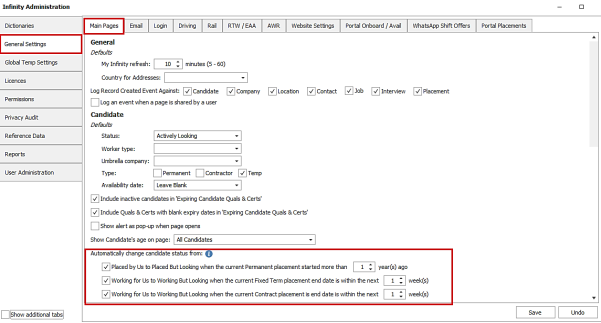
The settings are as follows:
- Placed by Us to Placed But Looking status when the current Permanent placement started more than X years ago (X=1-5)
- Working for Us to Working But Looking status when the current Fixed Term placement end date is within the next X weeks (X=1-8)
- Working for Us to Working But Looking status when the current Contract placement end date is within the next X weeks (X=1-8)
All settings are off by default.
When enabled, the overnight process will check for active candidates that match the criteria and change their status.
Candidates are excluded if they have other placements of any type that start today or in the future.
If candidates have multiple current placements of the selected type, the placement is selected as follows:
- For Perm, the current placement with the latest start date is used
- For Fixed Term, the current placement with the latest end date is used
- For Contract, the current placement with the latest end date is used
There is an info button on the screen showing the details.
Enhancement 137267 My Infinity ‘To be confirmed’ includes ‘Offer Accepted’ placements
Placements at status ‘Offer Accepted’ are included in the My Infinity ‘To be confirmed’ section.
Enhancement 137113 Remove duplicate contacts from search results Comms Centre
In contact search results Comms Centre, there is a button to 'Remove Duplicates' in the ‘Merge To’ section.
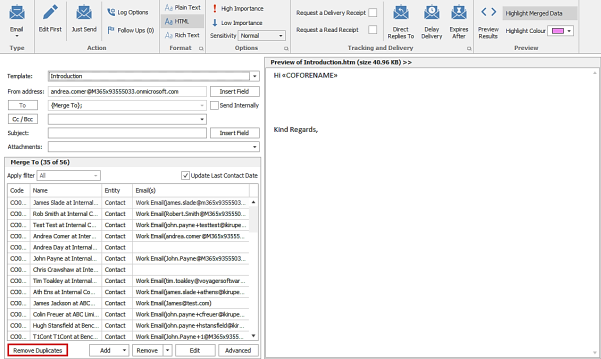
There is hover over tooltip on the button explaining what it does.
When pressed, if the same contact is listed at more than location at the same company, all contacts are removed from the ‘Merge To’ section except for the latest created contact.
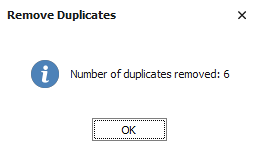
The user is informed how many duplicates have been removed.
Enhancement 137361 Candidate merging – changes to expected rates changes
In Application / Data Management / Candidate Merge Wizard or Manage Duplicate Candidates menu, when merging two candidates the expected rates are merged as follows:
- If Perm is ticked on both primary and secondary, and primary Perm min and max are 0, and secondary Perm min or max are >0, then secondary Perm, min, max and interval are added to the primary candidate.
- If Cont is ticked on both primary and secondary, and primary Cont min and max are 0, and secondary Cont min or max are >0, then secondary Cont , min, max and interval are added to the primary candidate.
- If Temp is ticked on both primary and secondary, and primary Temp min and max are 0, and secondary Temp min or max are >0, then secondary Temp , min, max and interval are added to the primary candidate.
Enhancement 137135 Quick Action button ‘Set to today’ added to more date fields
The Quick Action button of set to today has been added to more fields.
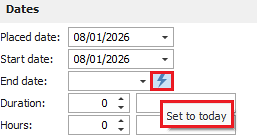
The fields are:
- Contract and Fixed Term job ‘End date’
- Contract and Fixed Term placement ‘End date’
- Candidate driving licence ‘Last checked’
Enhancement 137079 New candidate page (preview) default columns in Work History tab
The following columns are the default on the work history tab on new candidate page (preview):
- Current
- Company
- Job Title
- Job Type
- Start Date
- End Date
- Pay
- Per
- Placement
Enhancement 137121 New candidate page (preview) ‘Double click’ to edit, on more grids
Double clicking on a work history or source entry on the new candidate page (preview), edits the record and the edit screen opens.
Enhancement 137047/137048 Calendar - right click menu options reduced
When right clicking on an entry in the calendar, the menu options to change the ‘Category label’ and ‘Show time as’ fields have been removed. The user must open the entry to edit these fields.
Enhancement 137129 iCapture - mandatory fields
In Administration / Custom / Candidate Mandatory Fields tab there is a setting to also apply the selected mandatory fields to iCapture.
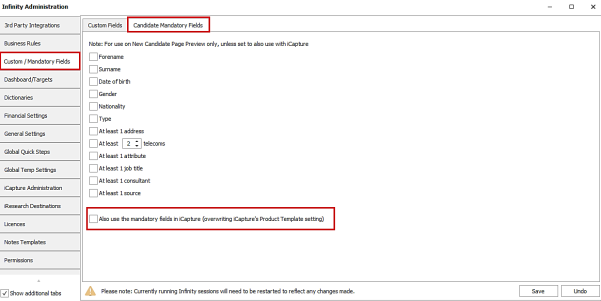
This setting is off as default.
When ticked, iCapture candidates cannot be posted or saved unless the mandatory fields are completed; iCapture does not use the product template mandatories if set.
If iCapture is posting direct to Infinity and mandatory fields are missing, they are sent to iCapture inbox instead.
The ‘Post to iCapture’ button on the Candidate iCapture inbox toolbar does not check mandatories.
Enhancement 1372(20-22) iCapture – changes to field defaults
The following defaults are always applied to iCapture:
- When sending a candidate to iCapture, the user who sent the CV will be the owner if available. Certain data sources do not have a sender user (such as file folder) and so the owner field will be blank.
- The candidate created by iCapture defaults ‘KnownAs’ to ‘Forename’, unless the parser/API/autoregister process has picked it up.
- The candidate created by iCapture defaults ‘BasedIn’ to ‘Address.Town’, unless the parser/API/autoregister/TalentGraph process has picked it up.
Enhancement 137167 Report permissions reduced for new databases
In new databases, the Infinity Users role cannot access any reports in each of the following areas:
- Candidate\General
- Candidate Search\General
- Contact\General
- Contact Search\General
- Interview\General
- Job\General
- Job Search\General
- Location\General
- Person\General
- Placement
- Placement\General
- System-Wide\General
Enhancement 136756 My Infinity – more sections get instant updates
The following My Infinity sections no longer refresh periodically and instead update instantly when changes occur. This updates the section numbers and any opened hyperlink screens. The My Infinity ‘Refresh’ button will no longer have any effect on these sections. The sections are also updated as per existing functionality when the user logs in.
To Be Confirmed
When any of the below fields are changed that causes a full criteria match or to no longer be a full criteria match:
- Interviews
- Perm/Cont/FT interviews
- Job Status is of type current
- User is IV owner
- Is not deleted
- IV status is Awaiting Confirmation
- Placements
- Perm/Cont/FT placements
- User is placement owner
- Is not deleted
- PL status is Awaiting Confirmation
Email Tracking
When any of the below fields are changed that causes a full criteria match or to no longer be a full criteria match:
- Opened by Tracked Date
- Email was sent and an event logged by the user with tracking enabled
- The tracking until date is today or in the future
- The email has been opened by a recipient
- event is not deleted
- Not Opened by Tracked Date
- Email was sent and an event logged by the user with tracking enabled
- The tracking until date is in the past - does not include today
- The email was not opened by a recipient by the track until date
- event is not deleted
Review List
When any of the below fields are changed that causes a full criteria match or to no longer be a full criteria match:
- Jobs Overdue / Today
- Perm/Cont/FT jobs
- Review Date is today or in the past
- Job Status is of type current
- User is a job owner
- Is not deleted
- Jobs Next 7 days
- Perm/Cont/FT jobs
- Review Date is is in the next 7 days from tomorrow
- Job Status is of type current
- User is a job owner
- Is not deleted
- CV Submit
- Manual
- Perm/Cont/FT jobs
- added to users review list
- job is of status of current
- is not deleted
- shortlist is at submit CV stage and not cancelled/closed
- Non spec submissions
- Perm/Cont/FT jobs
- Job Status is of type current
- User had it added to their review list
- Is not deleted
- shortlist is at submit cv stage and not cancelled/closed
- Spec submissions
- User had it added to their review list
- Is not deleted
- Shortlist is at submit cv stage and not cancelled/closed
- Interviews
- Perm/Cont/FT interviews
- Job Status is of type current
- User is IV owner
- Is not deleted
- IV status is awaiting feedback
- Offered
- Perm/Cont/FT placements
- User is placement owner
- Is not deleted
- Offered shortlist stage is ticked and no later stage is ticked
- Starters
- Perm/Cont/FT placements
- User is placement owner
- Is not deleted
- Pl status is confirmed
- Start date is today or in the past
- Finishers
- Perm/Cont/FT placements
- User is placement owner
- Is not deleted
- Pl status is started
- End date is today or in the past
SMS
When any of the below fields are changed that causes a full criteria match or to no longer be a full criteria match:
- Incoming Overdue
- Message date received is yesterday
- Message date received is less than 56 days ago
- Message is unread
- Message is assigned to the user
- Message is not deleted
- Incoming Today
- Message received today
- Message is unread
- Message is assigned to the user
- Message is not deleted
- Outgoing Overdue
- Scheduled date/time is over one hour ago (in user time zone)
- User sent the message.
- Scheduled date/time is less than 56 days ago
- Message is not deleted
- Non-Deliveries Overdue
- Failed message sent date is yesterday
- Message date sent is less than 56 days ago
- Message is not deleted
- Message is unread
- Non-Deliveries Today
- Failed message sent date is today
- Message date sent is less than 56 days ago
- Message is not deleted
- Message is unread
Next 3 Meetings
When any of the below fields are changed that causes a full criteria match or to no longer be a full criteria match:
- User is an attendee or organise of the meeting
- Added or removed
- Time of the meeting is in the future in the user's Infinity Time zone
- Meeting is not cancelled
- Meeting is not deleted
Today's Calendar
- Internal Interviews
- Meeting category is Internal Interview
- User is an attendee or organiser of the meeting
- Added or removed
- Time of the meeting is in the future and today in the user's Infinity Time zone
- Meeting is not cancelled
- Meeting is not deleted
- Candidate is not deleted
- Client Visits
- Meeting category is Client Visit
- User is an attendee or organiser of the meeting
- Added or removed
- Time of the meeting is in the future and today in the user's Infinity Time zone
- Meeting is not cancelled
- Meeting is not deleted
- Contact is not deleted
- Other meetings
- Meeting category is not Client Visit and is not Internal Interview
- User is an attendee or organiser of the meeting
- Added or removed
- Time of the meeting is in the future and today in the user's Infinity Time zone
- Meeting is not cancelled
- Meeting is not deleted
- Contact is not deleted
- Candidate is not deleted
- Appointments
- Appointment is in user's calendar
- Time of the appointment is in the future and today in the user's infinity time zone
- Appointment is not deleted
Tasks
When any of the below fields are changed that causes a full criteria match or to no longer be a full criteria match:
- Overdue
- Task in the user's task page
- Task is not complete
- Task due date is in the past and doesn't include today
- Task is not deleted
- Today
- Task in the user's task page
- Task is not complete
- Task due date is today
- Task is not deleted
Scheduled Emails
When any of the below fields are changed that causes a full criteria match or to no longer be a full criteria match:
- Outgoing Overdue
- Scheduled emails that haven't sent from the user
- Failed validation - status invalid and send at date/time more than 1 hours ago
- Failed sending - status failed
- Email is not deleted
Candidate Call Backs
When any of the below fields are changed that causes a full criteria match or to no longer be a full criteria match
- Overdue
- Candidate Call back is assigned to the user
- Candidate Call back is not complete
- Candidate Call Back due date / time in user's Infinity time zone is in the past and doesn't include today
- Candidate Call Back is not deleted
- Today
- Candidate Call back is assigned to the user
- Candidate Call back is not complete
- Candidate Call Back due date / time in the user's Infinity time zone is today
- Candidate Call Back is not deleted
- Next 7 days
- Candidate Call back is assigned to the user
- Candidate Call back is not complete
- Candidate Call Back due date / time is in the user's time zone in the next 7 days and doesn't include today
- Candidate Call Back is not deleted
If the User Option to ‘Auto-refresh call backs lists’ is unticked, the opened hyperlink screens from the call back sections are not refreshed.
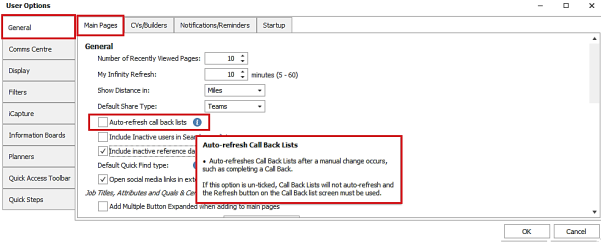
A ‘Refresh’ button is also enabled on the call back list screen so the lists can be refreshed manually as and when required. Previously the My Infinity ‘Refresh’ button was used to do this.

Company Call Backs
When any of the below fields are changed that causes a full criteria match or to no longer be a full criteria match:
- Overdue
- Company Call back is assigned to the user
- Company Call back is not complete
- Company Call Back due date / time in user's Infinity time zone is in the past and doesn't include today
- Company Call Back is not deleted
- Today
- Company Call back is assigned to the user
- Company Call back is not complete
- Company Call Back due date / time in the user's Infinity time zone is today
- Company Call Back is not deleted
- Next 7 days
- Company Call back is assigned to the user
- Company Call back is not complete
- Company Call Back due date / time is in the user's time zone in the next 7 days and doesn't include today
- Company Call Back is not deleted
Lead Call Backs
When any of the below fields are changed that causes a full criteria match or to no longer be a full criteria match:
- Overdue
- Lead Call back is assigned to the user
- Lead Call back is not complete
- Lead Call Back due date / time in user's Infinity time zone is in the past and doesn't include today
- Lead Call Back is not deleted
- Today
- Lead Call back is assigned to the user
- Lead Call back is not complete
- Lead Call Back due date / time in the user's Infinity time zone is today
- Lead Call Back is not deleted
- Next 7 days
- Lead Call back is assigned to the user
- Lead Call back is not complete
- Lead Call Back due date / time is in the user's time zone in the next 7 days and doesn't include today
- Lead Call Back is not deleted
TrustID RTW Checks
When any of the below fields are changed that causes a full criteria match or to no longer be a full criteria match:
- Link Expiring in X days - this includes today and X is as per admin setting
- Candidate is active
- Candidate is not deleted
- Candidate is owned by the user
- Candidate is under TrustID RTW check
- Link Expired Last 7 Days
- Candidate is active
- Candidate is not deleted
- Candidate is owned by the user
- Candidate is under TrustID RTW check
- Rejected last 7 days
- Candidate is active
- Candidate is not deleted
- Candidate is owned by the user
- Candidate is under TrustID RTW check
- Completed Last 7 Days
- Candidate is active
- Candidate is not deleted
- Candidate is owned by the user
- Candidate is under TrustID RTW check
iCapture
When any of the below fields are changed that causes a full criteria match or to no longer be a full criteria match:
- iCapture Expire 7 days
- iCapture candidate is not deleted
- Expiry date is in last 7 days not including today
- CV Pool Expire 7 days
- iCapture candidate is not deleted
- Expiry date is in last 7 days not including today
- To be Processed Today
- iCapture candidate is not deleted
- Inserted date is today
- To be Processed
- iCapture candidate is not deleted
- Inserted date is not today
- Added Today
- Infinity candidate added today via iCapture
- Infinity candidate is not deleted
- Added Last 7 days
- Infinity candidate added via iCapture in last 7 days not including today
- Infinity candidate is not deleted
Candidate Portal
When any of the below fields are changed that causes a full criteria match or to no longer be a full criteria match:
- Candidate has a document that requires verification
- Candidate is owned by the user
Auto Search results
When any of the below fields are changed that causes a full criteria match or to no longer be a full criteria match:
Jobs
- User is runner of the job search
- Job status is open
- Review date is today or in the future
- Job search criteria is ticked as auto search
- Job is not deleted
Numbers
- Auto search found a new candidate result that was added /updated after the search was last manually run
- The result is not rejected - red thumb
- The result is not accepted / on shortlist- thumbs up
Enhancement 137284 Shift Planner – user option to show job icons when ‘snap to grid’ is off
In User Options / Planners tab / Shift Planner Options section there is a setting to show job icons on the Shift Planner job shifts, when ‘snap to grid’ is off.
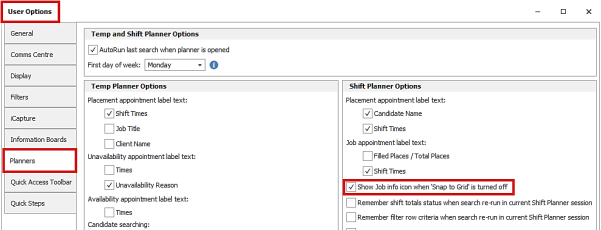
This setting is off as default.
When enabled, and ‘snap to grid’ is off, temp shortlist jobs display the shortlist icon on the job shifts in the Shift Planner calendar.

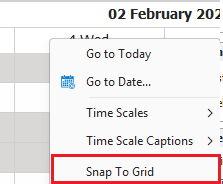
‘Snap to grid’ can be changed on the Shift Planner by right clicking on the calendar column headers.
Enhancement 134495 Portal - Offer job shifts
Candidate Portal Overview
The Candidate Portal has several modules:
- Onboarding
- Availability
- Shift Offers
This document is for ‘Shift Offers’
Enabling the Candidate Portal
The candidate portal must be enabled.
- If it is enabled, you will see the ‘Site Url’ populated
- If the Url is not populated, please contact Voyager Support
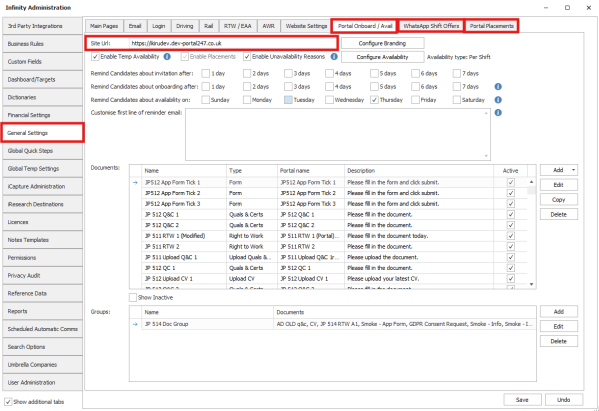
There are 3 Admin Page tabs that control various ‘Candidate Portal’ Modules:
- Portal Onboard / Avail Tab
- Used by:
- Onboarding
- Availability
- WhatsApp Shift Offers Tab
- Used by:
- Shift Offers
- Portal Placements Tab
- Used by:
- Availability
- Shift Offers
Shift Offers Overview
- Shift Offers are sent to candidates via WhatsApp
- Candidates can ‘Apply’, ‘Reject’ or ‘Check if Shift Offer is Closed’ for each Shift Offer via WhatsApp buttons
- If the candidate is Placed in a Shift from a Shift Offer, they are sent a ‘Shift Placed’ WhatsApp message (if enabled)
- This includes a link to the ‘Availability / Shifts’ page on the Candidate Portal
- If the candidate Applied for a Shift Offer but is not successful, they are sent a ‘Shift Unsuccessful’ WhatsApp message (if enabled)
- Note: Only candidates who Apply are sent this message
- Shift Offers is SaaS Only
Enabled Shift Offers
Shift Offers are enabled via the ‘Enable Shift Offers’ tick box.

Configuring WhatsApp Templates in Meta
The following WhatsApp templates are created in Meta
- Shift Offers
- Shift Placed
- Application Unsuccessful
Templates are created by Ikiru People
- Templates can be customised but must follow Meta Guidelines.
When a template is created, it is submitted to Meta for Approval
- It can take up to 24 hours for an approval decision to be made.
Templates must be of type Utility
- There are 3 template categories:
- Marketing templates – Enable businesses to achieve a wide range of goals, from generating awareness to driving sales and retargeting customers.
- Utility templates – Enable businesses to follow up on user actions or requests, since these messages are typically triggered by user actions.
- Authentication templates – Enable businesses to verify a user’s identity, potentially at various steps of the customer journey.
- Utility Templates:
- Must be non-promotional, not containing any promotional or persuasive intent.
- Must ALSO be either specific to or requested by the user (clearly related to their order, account, services or transactions) OR essential or critical to the user (for example, to ensure user safety).
- When you create a template, it can be re-classified as ‘Marketing’
- When you create a template, you indicate the template's category, based on the guidelines.
- Meta validates the category you indicated per the contents of the template and their guidelines.
- Meta then creates the template, based on the outcome of the validation process.
- Templates can be re-classified after initial approval
- Meta has a recurring process to identify, and update approved templates that should be of a different category, as per their template category guidelines.
Meta Templates are configured as follows:
- Name
- Header text
- Header variable (optional)
- Body text
- Body variables
- The Shift Offer Template has quick reply buttons
- 3 buttons must be added
- Apply
- Reject
- Check Avail
- The Shift placement Template has a link to the shifts page on the portal
- This displays all placement shifts for the candidate (not just those created via Shift Offers)
- If you have the ‘Availability’ module, the Availability tab will be renamed ‘Availability / Shifts’
- The Application Unsuccessful Template does not have any buttons.
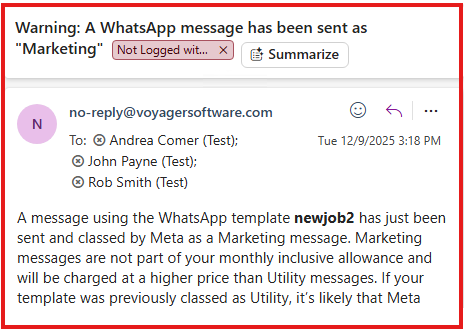
If marketing messages are sent, you are warned via email:
- If a marketing WhatsApp message is sent, dbmanagers and job owners are sent an email
- If you receive this email, please contact Ikiru Support.
- Marketing messages are not part of the monthly inclusive allowance and will be charged at a higher price that Utility messages.
Configuring WhatsApp Templates in Infinity
Once the Meta Templates have been created and approved, the details can be added to Infinity.
There are 3 WhatsApp Templates
- Shift Offer
- Shift Placed
- Application Unsuccessful
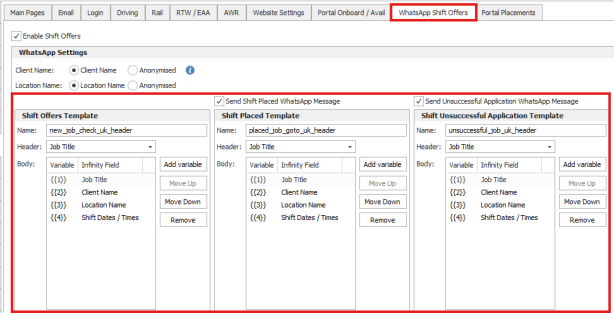
‘Shift Placed and ‘Application Unsuccessful’ WhatsApp messages can be disabled if required.
The ‘Shift Offers’ WhatsApp Template must be configured before offers are sent.
The WhatsApp Templates must exactly match the settings in Meta
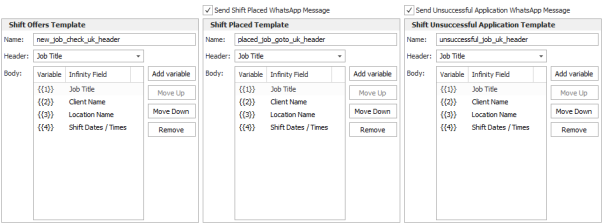
The 3 WhatsApp templates are all configured in the same way
The fields should be entered as follows:
Name
- WhatsApp Template name as entered in Meta
Header
- If the WhatsApp Template in Meta has a variable (merge code) in the header, you can select the data to be merged
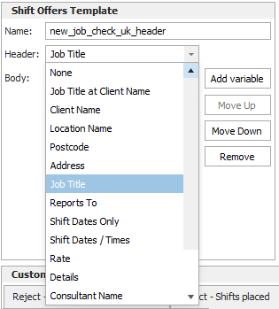
- Max 60 Characters (including the variable)
- If you are merging a variable into the Header e.g. Job Title, please ensure that the job titles are typically short and are not going to exceed 60 Characters when appended to any text in the header
- ‘Job Title at Client Name’ is a special variable that merges two Infinity fields
- All other variables merge one Infinity field
- ‘None’ is for Templates without a variable in the header.
Body
- The number of variables in the body must match the number of variables in the Meta WhatsApp Template.
- Each variable must be assigned the relevant Infinity field, and the field cannot be blank
- Variables are added using the ‘Add variable’ button
- Variables can be moved up and down in the list
- Variables can be removed
- Only consecutive variable IDs are allowed, i.e., variables cannot have gaps, e.g., {{1}}, {{2}}, {{4}} is not allowed
- The three WhatsApp Templates could have different Infinity fields for the same variable ID, e.g.,‘Shift Offer Template’ could have {{2}} as client name, and ‘Shift Placed Template’ could have {{3}} as client name.
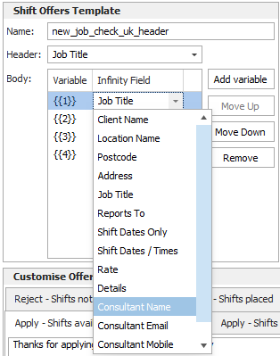
Variables are as follows:
- Job Title at Client Name
- An example would be ‘Plumber at ABC Ltd’
- Only available as a header variable
- Client Name
- Location Name
- Could be a database location
- Could be a custom location
- Postcode
- Could be a database location
- Could be a custom location
- Used when only the postcode is sent to the candidate
- Address
- Could be a database location
- Could be a custom location
- Comma delimited
- Includes the postcode
- An ‘i’ button appears after the variable if configured, to clarify that it also includes postcode
- Job Title
- Client Job title if populated
- If client job title is not populated, it uses the Job’s Job Title
- Reports To
- Forename Surname
- Shift Date Only
- A list with a carriage return after each shift, e.g. 19 Aug 25
- Shift Dates / Times
- A list with a carriage return after each shift, e.g. 19 Aug 25: 09:00 - 17:00
- Rate
- Only one rate is displayed, e.g., £10.50 / hour
- Uses Job Core rate if populated. If core rate not populated, uses the standard rate, and if that not populated uses the first rate entered into the database for that job
- The shift date must be between the rate start and end date (if populated)
- Details
- Temp Job Page ‘Shift Offer Details’ tab
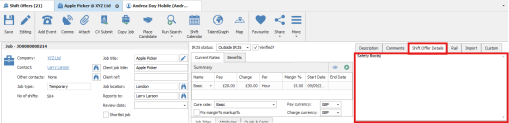
- Max 500 Chars
- Plain text only
- Carriage returns should NOT be entered, as Meta does not allow them in variables
- If used in a Template, the field must always be populated on the relevant job pages, as Meta does not allow you to merge a blank variable
- The tab is available for databases using the ‘Shift Offer’ or ‘Availability’ modules.
- If the job is copied, this field is also copied.
- The user option to set the default tab on the job page has an option to set 'Shift Offer Details' as default
- There is also a ‘Shift Offer Details’ merge code in the Infinity Comms Centre
- Consultant Name
- Forename Surname
- If multiple consultants, it merges the first consultant added to the job/placement
- Shift Offer & Application Unsuccessful use Job Consultant
- Shift Places uses Placement Consultant
- Consultant Email
- This is a hyperlink to their email address
- If multiple consultants, it merges the first consultant added to the job
- Consultant Mobile
- This is a hyperlink to their mobile number
- If multiple consultants, it merges the first consultant added to the job
- Candidate Forename
- Candidate Known As
It is important that Templates are tested once they have been configured, to ensure that they appear as expected in WhatsApp
- Create yourself as a candidate and offer shifts, then place the candidate from the offer
- Offer the same candidate more shifts, apply via the WhatsApp button, and then mark the Offer as ‘Closed’ (Candidates who have applied receive the unsuccessful message)
Configuring WhatsApp Replies & Auto Responder
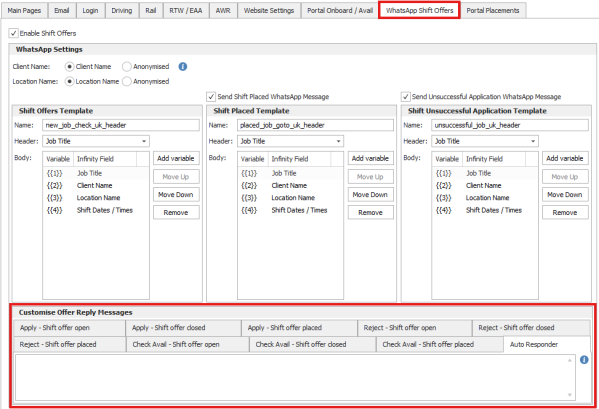
When candidates press the Quick Reply buttons on the WhatsApp messages, Infinity always sends one of the following replies:
- Apply – Shift offer open
- Apply – Shift offer closed
- Apply – Shift offer placed
- Reject – Shift offer open
- Reject – Shifts offer closed
- Reject – Shift offer placed
- Check Avail – Shift offer open
- Check Avail – Shift offer closed
- Check Avail – Shift offer placed
Offer reply messages:
- Default messages have been configured
- It is recommended that these messages are customised
- Replies can include generic phone numbers and generic email addresses
- Max 500 Chars
- Carriage returns are allowed in replies
The ‘Auto Responder’ message is sent if a candidate
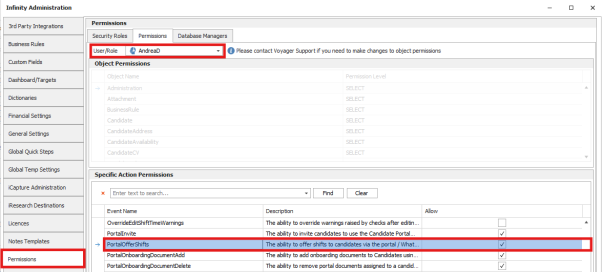
Permission to Offer Shifts to Candidates
Users need the ‘PortalOfferShifts’ permission to Offer Shifts to Candidates
This permission is off by default
Shift Offer Status Overview
Shift Offers can have the following Statuses:
- Offered
- Initial status when the candidate is sent the WhatsApp Offer Message
- Applied
- Candidate ‘Applied’ via a button on the WhatsApp Offer Message
- Rejected
- Candidate ‘Rejected’ the offer via a button on the WhatsApp Offer Message
- Offered : Closed
- Offer is closed, before the candidate responded to the WhatsApp Offer Message
- Unsuccessful Application
- Offer is closed, after the candidate Applied
- They are sent an Application Unsuccessful WhatsApp Message (if enabled)
- Rejected : Closed
- Offer is closed, after the candidate Rejected the offer
- Placed
- Candidate was placed in the Offer
- They are sent a Placed WhatsApp Message (if enabled)
Offering Shifts to Candidates
- It is not possible to offer shifts from a ‘Temp Shortlist’ Job, as the ‘Offer Shifts’ button will be greyed out
- You can offer the shift to more candidates than there are places
- You can only place the candidate if there are sufficient places remaining
- You do not require the ‘OK to SMS’ permission to send a Shift Offer via WhatsApp
- It is recommended that a maximum of 14 shifts are offered as the shifts are listed as a series of date/times.
- There is no limit on the number of shifts that can be offered
- Meta will not allow messages to be greater than 1024 characters
From the Shift Planner, select the shift(s), select the candidates from the results, and click ‘Offer Shifts’
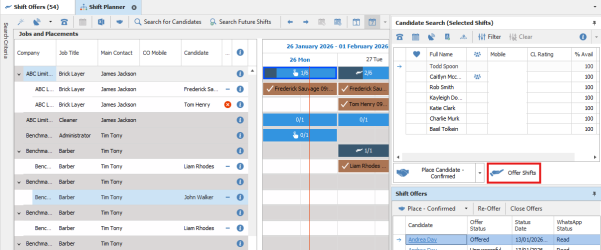
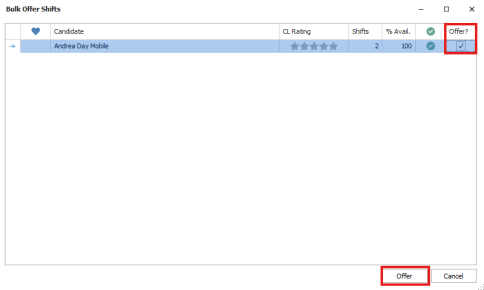
You are then shown a list of the selected candidates, and the checks are run.
- If the candidate passes the checks, the ‘Offer?’ column is ticked by default
- If the candidate fails the checks, the ‘Offer?’ column is not ticked by default
- Candidates already offered are not shown (these are shown in the ‘Shift Offers’ panel)
Ensure the candidates you wish to offer are ticked, and click ‘Offer’
- You can Offer Shifts if there is a Check set to warn
- You cannot Offer Shifts if there is a Check set to prevent
If you double-click the checks column, you will be shown the checks for a particular candidate
There are some offer-specific checks, as well as the normal placement compliance checks
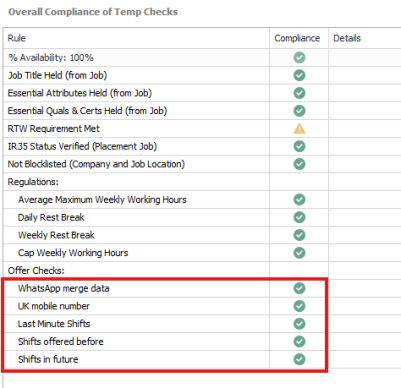
Offer Checks are:
WhatsApp merge data
- If this check fails, it is always set to Prevent
- This checks for:
- Job Details with carriage Return (if ‘Details’ are merged into the WhatsApp message)
- Blank Variables (all variables merged in the WhatsApp template)
- 4 consecutive spaces
- Anonymised Client and/or Location Names missing (if enabled)
UK mobile number
- If this check fails, it is always set to Prevent
- The candidate must have a UK mobile number to pass
Last Minute Shifts
- If this check fails, it is always set to Prevent
- If a shift offer is sent out and the first shift starts on the same day, the offer is not sent to candidates who have ‘Opted out of Last-Minute Shifts’
Shifts offered before
- If this check fails, it is always set to Warn
- If any of the shifts being offered have already been offered, the ‘Details’ column displays the previous offers, including their status
Shifts in future
- If this check fails, it is always set to Prevent
- You cannot offer a shift if the start of the first shift is in the past
WhatsApp Offer Message
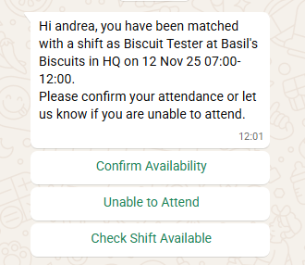
- When you click ‘Offer’, a Shift Offer WhatsApp Message is sent to the candidates
- Below is an example of a WhatsApp Shift Offer Message
- It is a template, so the wording, merge codes and button labels are customisable
- If the candidate has 2 mobile numbers, the WhatsApp message is sent to the first mobile number
Candidate Applies
When a candidate selects the first button, their Shift Offer Status is changed to ‘Applied’
Infinity checks to see if the Shift Offer has been closed, and sends one of 3 messages in reply
- Apply – Shift offer open
- Apply – Shift offer closed
- Apply – Shift offer placed
The text sent is as configured in the admin screen.
Via WhatsApp, the candidate must apply for all shifts in the offer
Candidate Rejects
When a candidate selects the second button, their Shift Offer Status is changed to ‘Rejected’
Infinity checks to see if the Shift Offer has been closed, and sends one of 3 messages in reply
- Reject – Shift offer open
- Reject – Shift offer closed
- Reject – Shift offer placed
The text sent is as configured in the admin screen.
Candidate Checks Shifts are still available
When a candidate selects the third button:
Infinity checks to see if the Shift Offer has been closed, and sends one of 3 messages in reply
- Check Avail – Shift offer open
- Check Avail – Shift offer closed
- Check Avail – Shift offer placed
The text sent is as configured in the admin screen.
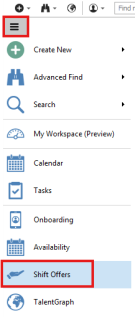
Shift Offer Screen
The Shift offer screen shows all shift offers where the first shift is in the future
By default, it shows Shift offers where at least one candidate is at ‘Offered’ or ‘Applied’ statuses
Ordered by ‘First Offer Date’
- Any column header can be clicked to sort by that column

Shift Offer Screen - Offer Row
The Offer row, shows the details of the offer
Columns:
- Client Name
- Job Title
- Client job title if it exists, else job title
- Location
- For a database location, it's the database location name
- For a custom location, it's the custom location name
- Shifts
- List of Shifts in following format
- Start date / time
- End Date / time
- (x / y) e.g. (1 / 3)
- 1 = filled placed for that shift
- 3 = total places for that shift
- Job Consultants
- Job Owners, comma delimited, with role in brackets
- First Offer Date
- The date the first candidate was sent the offer
- % of Shifts Filled
- x / y, e.g., 2 / 6
- 2 = total number of filled places
- 6 = total number of shift places, e.g., 2 shifts, each with 3 places
- You will need to manually refresh for these numbers to update.
- Offered
- Number of candidates with status of ‘Offered’
- You will need to manually refresh for these numbers to update.
- Applied
- Number of candidates with status of ‘Applied’
- You will need to manually refresh for these numbers to update.
- Rejected
- Number of candidates with status of ‘Rejected’
- You will need to manually refresh for these numbers to update.
There are 3 columns in the column chooser that are not displayed by default:
- Offered : Closed
- Number of candidates with status of ‘Offered : Closed’
- You will need to manually refresh for these numbers to update.
- Rejected : Closed
- Number of candidates with status of ‘Rejected : Closed’
- You will need to manually refresh for these numbers to update.
- Placed
- Number of candidates with status of ‘Placed’
- You will need to manually refresh for these numbers to update.
- Application Unsuccessful
- Number of candidates with status of ‘Application Unsuccessful’
- You will need to manually refresh for these numbers to update.
Shift Offer Screen - Candidate Row
The offer row can be expanded to see all the candidate who have received the offer
Columns:
- Candidate Name
- Offered Date
- Date the offer was sent
- Offered By
- Consultant who sent the offer
- Offer Status
- Offered
- Applied
- Rejected
- Offered : Closed
- Unsuccessful Application
- Rejected : Closed
- Placed
- Status Date
- The date and time the status was last changed
- Defaults initially to the date the offer was sent
- WhatsApp Status
- The Status of the ‘latest’ WhatsApp Message sent (Offer, Placed, Unsuccessful)
- If the status is ‘failed’, a tooltip displays the reason
Shift Offer Screen – Toolbar

- Job Consultant Filter
- Can filter based on Job owner
- Can multi-select users or teams
- Status
- Defaults to ‘Offered’ and ‘Applied’
- Shows Shift Offers where at least one candidate is at ‘Offered’ or ‘Applied’ statuses
- All candidates for that Shift Offer are shown, regardless of status
- When no statuses are selected, all Shift Offers are shown
- Any combination of statuses can be selected
- Offered
- Applied
- Rejected
- Offered : Closed
- Unsuccessful Application
- Rejected : Closed
- Placed
- Refresh
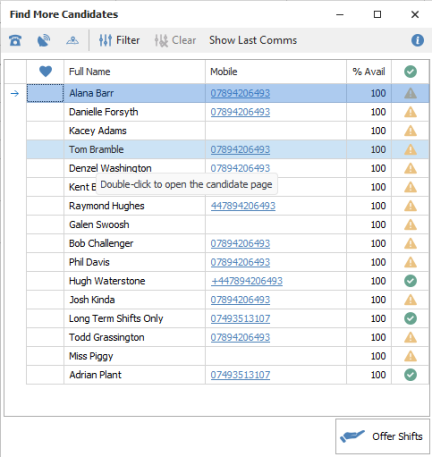
- Find More Candidates
- If you have been unsuccessful in finding enough candidate for the shifts, you can offer more candidates
- The window that appears works as per the ‘Shift Planner – Candidate Search results panel)
- Candidates already offered are not shown
- Re-Offer
- If all shifts were filled, but a candidate then pulled out, you may wish to re-offer candidates
- Candidates of the following statuses may be available for the job
- Offered : Closed (The shift was filled before they replied to the Shift Offer)
- Unsuccessful Application (The shift was filled by other candidates after they Applied to the Shift Offer)
- If you select the ‘Shift Offer’, and click ‘Re-Offer’

- All candidates of the following status will be Re-Offered
- Offered : Closed
- Unsuccessful Application
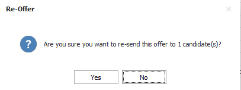
- A confirmation message will confirm how many candidates are being Re-Offered
- A new ‘parent level’ shift offer will be created, showing the new candidate shift offers

- If you select an individual candidate shift offers and click ‘Re-Offer’

- The selected candidates will be Re-Offered
- A confirmation message will confirm how many candidates are being Re-Offered, as well as an explanation of what it does
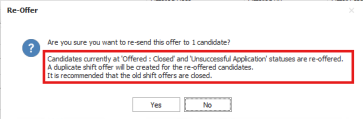
- There are no restrictions on the status of the candidates who can be Re-Offered, e.g., if a candidate had a new phone, and lost all their old messages, you can Re-Offer
- A new ‘parent level’ shift offer will be created, showing the new candidate shift offers
- Close Offers
- This sets candidates with an ‘open’ offer status to a ‘closed’ offer status
- Candidates at a status of ‘Applied’ will receive an ‘Unsuccessful Application’ WhatsApp message (if configured)
- Once closed, the Shift Offer screen continues to display the candidates, until the page is next refreshed
- Further details are in a separate ‘Closing Shift Offers’ section
- Place – Confirmed
- This places candidates, and sends a ‘Shift Placed’ WhatsApp message (if configured)
- The Shift Offer screen refreshes once the candidate has been placed
- Further details are in a separate ‘Placing Candidates from Shift Offers’ section
- Show all Offers
- ‘Show all Offers’, shows all offers going back 6 months
- When not enabled, shifts in the past are not displayed
Shift Offer Screen – Right-Click option
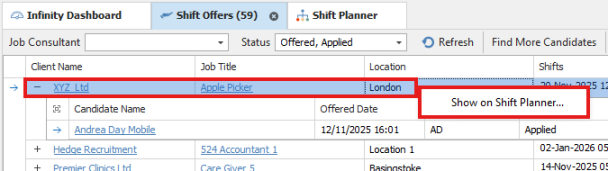
You can jump from the Shift Offer Screen to the Shift Planner, but right-clicking:
- The Shift Planner may re-load if you are not currently displaying the shifts
- You are taken to the first shift in the shift offer
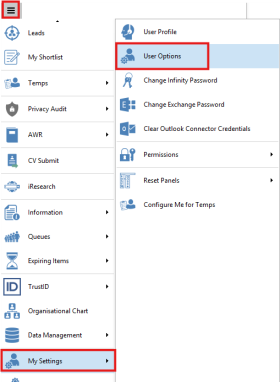
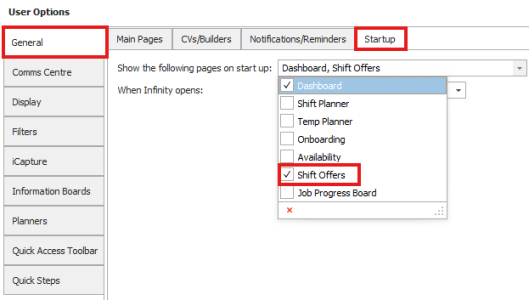
Shift Offer Screen opens when Infinity is opened
The Shift Offer Screen can be configured per user to be displayed when Infinity is opened
Shift Planner
This works similarly to the ‘Shift Offer’ screen.
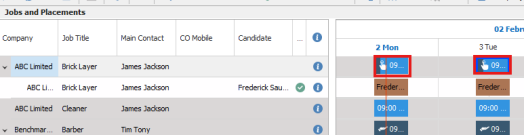
Job shifts can display an offer icon: 
- The icon displays per job shift for shifts offered, where none of them have the status of Applied
- This is kept up to date using SignalR
Job shifts can display an applied icon: 
- The icon displays per job shift for shifts with at least one shift offer of status applied
- This is kept up to date using SignalR
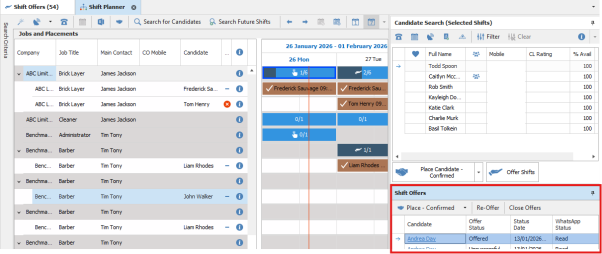
There is a ‘Shift Offers’ panel alongside the Candidate Search panel
- The ‘Shift Offer’ panel displays candidates who have a shift offer which has exactly the same shifts as those selected, .e., if Mon-Fri were selected, it shows the offers specifically for Mon-Fri
If both panels are pinned
- When job shifts are selected, the ‘Candidate Search’ and ‘Shift Offers’ panels display results
If both panels are not pinned
- When job shifts are selected, the ‘Candidate Search’ panel opens and displays suitable candidates
- You can click on the ‘Shift Offers’ panel, to see which candidates have already been sent an offer
Columns:
- Candidate
- Offer Status
- Status Change Date
- WhatsApp Status
- Offered Date (Available from the column chooser)
- Offered By (Available from the column chooser)
Buttons:
- Re-Offer
- Close Offers
- Place
If you wish to offer more candidates the same shifts, you follow the same offering process as offering the first wave of candidates
If there are two identical offers, the same candidate could appear in the list twice, with different offer statuses
Snap to Grid off
- If ‘Snap to Grid’ is turned off, the icons do not appear by default, but can be enabled via a user option:
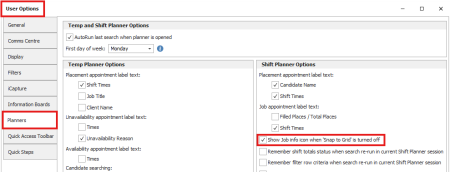
- If enabled, all job info icons are displayed:
- Shift Offer
- Candidate shift offer at the ‘Applied’ status
- Temp Shortlist job
Job Page – Shift Offers Tab

Displays Shift Offers per Job
This works as per the ‘Shift Offer Screen’, except for the following:
- Status filter, displays all by default
- ‘Show all Offers’, shows all offers (and isn’t limited to 6 months)
- By default, shifts in the past are not displayed
- The following columns are not displayed, as they are on the main job page
- Client Name
- Job Title
- Location
- Job Consultants
- % of Shifts Filled
- It does not show on Temp Shortlist jobs
Candidate Page – Shift Offers Tab

Displays Shift Offers per candidate
This works similar to the ‘Shift Offer’ screen, except for the following
- All data is displayed on one row
- There are now parent/child rows
- Status filter, displays all by default
- ‘Show all Offers’, shows all offers (and isn’t limited to 6 months)
- By default, shifts in the past are not displayed
- The following columns are not displayed, as they are not relevant:
- First Offer Date
- % of Filled Shifts
- Column per status
- Candidate Name
Notifications when candidates apply
Shift Offer Tab
The Shift Offer tab label indicates how many candidates are currently at the status of ‘Applied’, e.g., (58)
- These are candidates who have applied, but have not been either ‘Placed’ or the ‘Shift Offer Closed’
- Only applications for future shifts are included i.e. those with the first shift in the future
- The number is updated in real time by SignalR
- The number does not change when filters are applied, e.g., Job Consultant filter
- If the candidate is Placed less than 24 hours after the Shift Offer was sent, there is no charge for the ‘Shift Placed’ WhatsApp message, because messages in the 24 Window after a candidate presses one of the buttons in WhatsApp are free.

Windows Notification
If enabled a Windows notification will also be shown
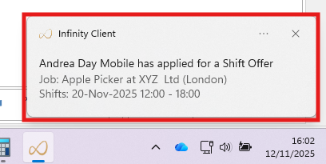
Windows notifications are enabled in the admin screen:
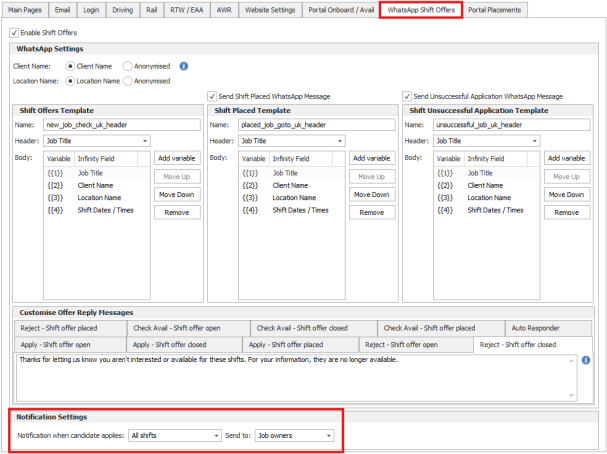
You can control which shifts have notifications sent:
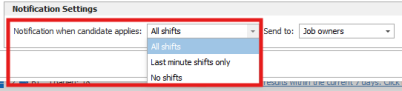
You can control which users receive the notification:

Placing Candidates from Shift Offers
You can place multiple candidates from the Shift Offer Screen, or the Shift Planner Shift Offer Tab
- There must be sufficient places available for all the shifts, and for all candidates placed
- Multiple candidates must be for the same offer
- The candidates will be placed on all the shifts in the shift offer

When you click ‘Place – Confirmed’ or ‘Place – Awaiting Confirmation’ as appropriate, the placement checks are re-run
- The consultant can choose if it's 'awaiting confirmation' or 'confirmed' from the drop down
- The default setting 'Temp placement default shift status' is used to default the placement status
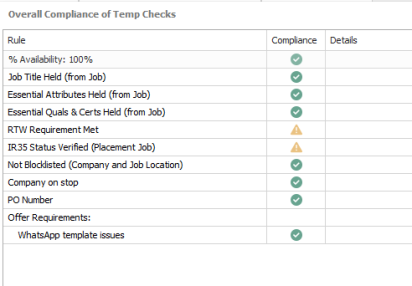
If you double-click the icon in the Compliance column you can see the details of the checks run for that candidate
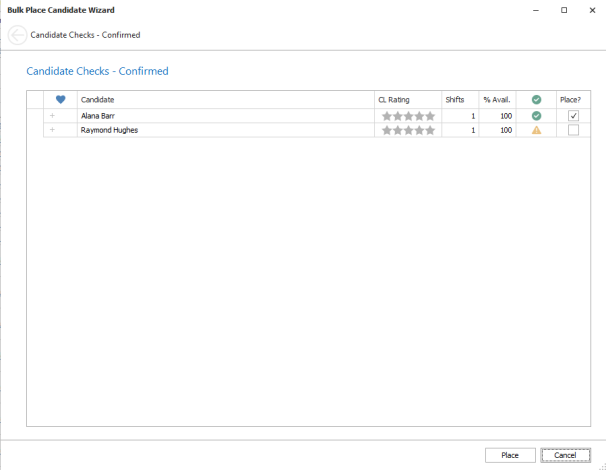
Make sure that the candidates you wish to place are ticked, and click ‘Place’
- The candidates are placed in the shifts
- The Shift Offer Status is changed to 'Placed' for all candidates
- The candidates do not need to have the status of ‘Applied’, i.e., ‘applied’ via WhatsApp, for them to be placed (they could have rung in).
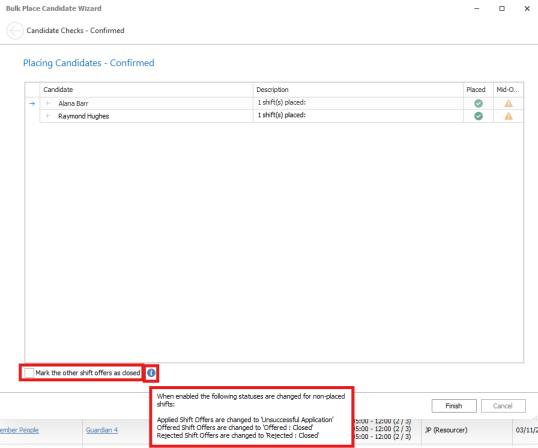
The ‘Mark the other shift offers as closed’ tick box:
- Changes shift offer statuses that are ‘Open’ to ‘Closed’, as explained in the tooltip
- If all places are filled for all shifts in the offer, it is ticked by default
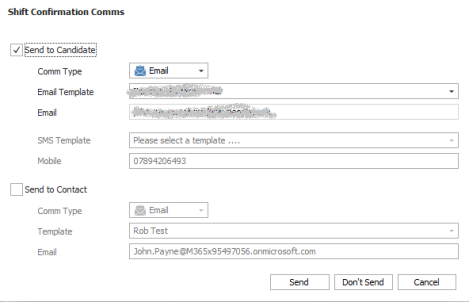
The Action comms then run if configured
WhatsApp Shift Placed Message
- When you click ‘Place’ from a Shift Offer, a Shift Placed WhatsApp message is sent to the candidates
- Below is an example of a WhatsApp Shift Offer message
- It is a template, so the wording, merge codes and link to website are customisable.
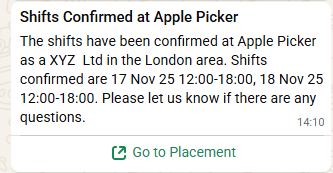
The Template has a link to the Candidate Portal.
- The candidate must have been invited to the portal to enable them to login.
Placing Candidates NOT from Shift Offers
If you place a candidate who was not sent a shift offer, you can optionally close the shift offer
- On by default
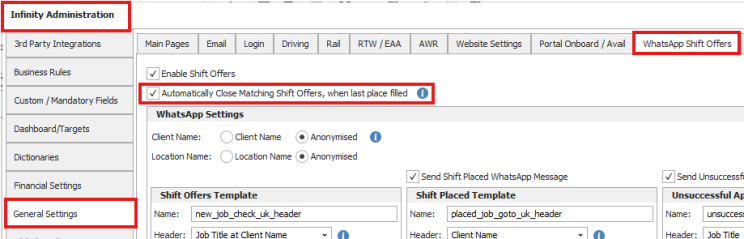
Matching Shift Offers are closed, if the last shift/place on that shift offer has been filled
The ‘i’ button, explains the functionality:
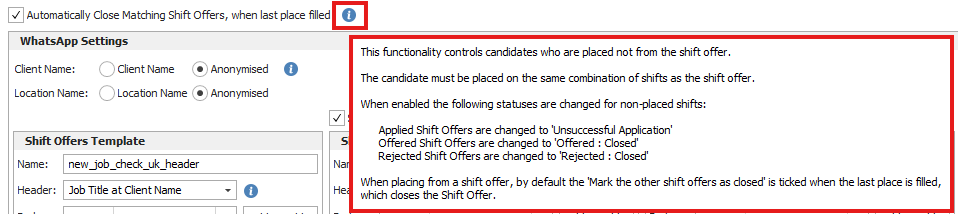
If a candidates shift offer status was changed from ‘Applied’ to ‘Unsuccessful Application’ they are sent an Unsuccessful WhatsApp message
Note: If the candidate was sent a shift offer, it is recommended to place them from the shift offer.
Closing Shift Offers

When all shifts have been filled, the remaining candidates can have their offer ‘Closed’
- Offers can be closed from the ‘Shift Offer’ screen, or the ‘Shift Planner’
This may have already been done by the ‘Place Candidate Wizard’ via the ‘Mark the other shift offers as closed’ tick box
- If all places are filled for all shifts in the offer, it is ticked by default
You can manually close a candidates’ offer status, by selecting the candidate, and clicking ‘Close Offers’

You can manually close a shift offer and all the candidates who were offered, by selecting the shift offer, and clicking ‘Close Offers’

The following Shift Offer statuses are changed:
- ‘Applied’ changed to ‘Unsuccessful Application’
- These candidates are sent an ‘Unsuccessful Application’ WhatsApp message if configured
- If the candidate offer status is change to ‘Unsuccessful Application’ less than 24 hours after the Shift Offer was sent, there is no charge for the ‘Application Unsuccessful WhatsApp Message’, because messages in the 24 window after a candidate presses one of the buttons in WhatsApp are free.
- ‘Offered’ changed to ‘Offered : Closed’
- ‘Rejected’ changed to ‘Rejected : Closed’
WhatsApp Unsuccessful Application Message
- When you click ‘Closed’ on a candidate with a status of ‘Applied’, an ‘Unsuccessful Application’ WhatsApp message is sent to the candidates
- Below is an example of a WhatsApp ‘Unsuccessful Application’ message
- It is a template, so the wording and merge codes are customisable.
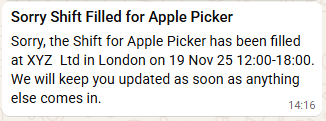
Candidate Portal
The WhatsApp ‘Shift Placed’ message has a link to the Candidate Portal
- The link takes them to the first shift on of the offer
The candidate portal displays all shifts, and not just those Offered via WhatsApp
- The candidate portal displays the data stored against the placement in Infinity, which may not be identical to the offer, e.g., A Shift time could have changed after the candidate was placed
It is highly recommended that all candidates being offered shifts are invited to the portal, and have logged in
- This is not mandatory
- If the candidate has not been invited, the link from the Shift Placed WhatsApp Message will take the candidate to the portal, but they will not be able to log in
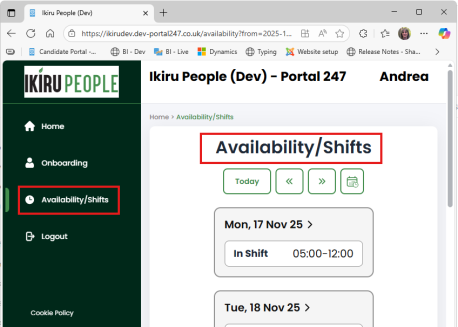
The Candidate Portal page that displays placements is labelled as follows:
- If you have the ‘Availability’ and ‘Shift Offer’ modules, it’s labelled ‘Availability/Shifts’
- If you only have the ‘Shift Offer’ module, it is labelled ‘Shifts’
- If you only have the ‘Availability’ module, it is labelled ‘Availability’
- If you have neither module, the ’Availability/Shifts’ tab is not displayed
If ‘Availability’ is enabled’, the ‘Availability’ and ‘In Shift’ functionality is shown in the calendar on the Availability/Shifts page
If ‘Shift Offers’ is enabled, and ‘Availability’ is not enabled, only the ‘In Shift’ functionality is shown in the calendar on the Shifts page
The ‘Portal Placements’ tab in the admin screen controls the ‘Availability/Shifts’ page on the Candidate Portal
- ‘Placement Shift Details’ controls which placement fields are displayed on the portal
- The ‘Preview’ button allows you to see a representation of what the candidate will see when they log in
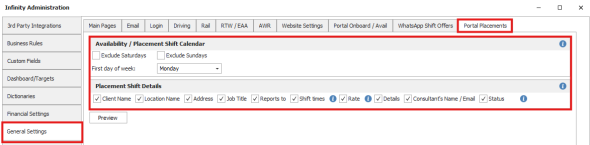
There are ‘i’ buttons to provide extra information where necessary
- Shift dates are always displayed. Shift times are optional
- Only one GBP rate per placement will be displayed
- The following shift statuses are displayed: Awaiting Confirmation, Confirmed. (Started and Time Worked are not displayed to the candidate, who will see the status of Confirmed)



Auto responder message – If candidate types into WhatsApp
In this WhatsApp implementation, only automated messages can appear in the WhatsApp chat
If the candidate types anything else into the chat, they receive the auto responder message explaining that the chat isn’t monitored
The message can be customised per database.
If you are interested in ‘WhatsApp Chat’ functionality with candidates or Clients, please email suggestions@ikirupeople.com. We will potentially add this functionality if we have sufficient demand.
Offer Shifts from Temp Planner
The Temp Planner has a ‘New Shift Offer’ button
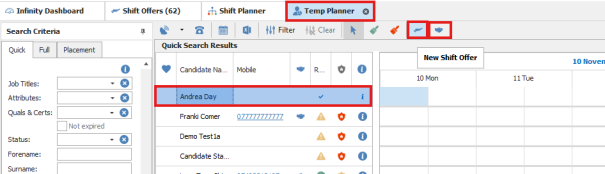
- This button’s functionality is similar to the ‘New Temp Placement’ button next to it on the toolbar, i.e., multiple candidates can be selected, and you can use an existing Job or create a new one
- The final screen shows ‘Shift Offer Checks’ rather than ‘Placement Checks’
- ‘Shift Offers’ are sent
Offer Shifts from Candidate Page
The Candidate page has a ‘New Shift Offer’ button
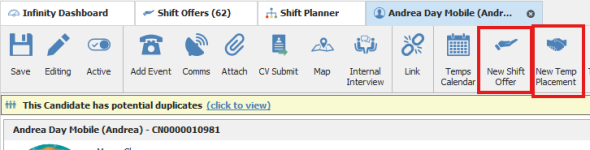
- This button’s functionality is similar to the ‘New Temp Placement’ button next to it on the toolbar
- I.e., you can use an existing Job or create a new one
- The final screen shows ‘Shift Offer Checks’ rather than ‘Placement Checks’
- ‘Shift Offers’ are sent
Editing Jobs / Shifts
Shift Offers in Infinity display the data in the database
The WhatsApp messages merge the data from the database that was correct when the message was sent
- If you edit the job and change any of the data that was sent to the candidate in the Shift Offer WhatsApp message, the candidate does not automatically get sent a new WhatsApp message
- If the changes are significant, we recommend Closing the Shift Offer, and creating a new one
- If the changes are minor, the ‘Shift Placed’ WhatsApp message merges the data from the database
- The candidates will see the correct details in the ‘Shift Placed’ WhatsApp message
- The candidate portal Availability/Shift tab always shows the live data from the database
- If you edit the placement, and change any of the data that was sent to the candidate in the ‘Shift Placed’ WhatsApp message, the candidate does not automatically get sent a new WhatsApp message
- The candidate portal Availability/Shift tab always shows the live data from the database
- Changes include:
- Shift times
- Job Location
- Any other field merged into the WhatsApp template
Deleting Jobs / Shifts
If you delete a shift that is part of a shift offer, the shift is removed from the shift offer in Infinity
- The candidate does not automatically get sent a new WhatsApp message
- We recommend Closing the Shift Offer, and creating a new one
e.g. Right-Click a placement shift and select ‘Cancel Shifts’:
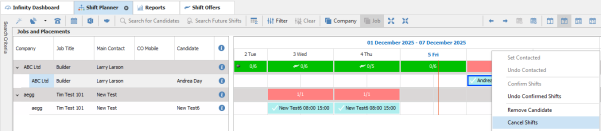
You are warned that an offer exists:
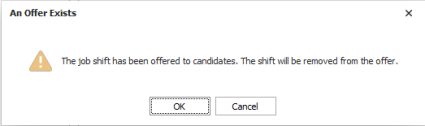
The cancel shift process continues:
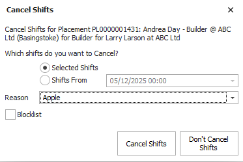
The shift is removed:

The Shift Offer displays the shift as ‘Deleted’

Deleting the shift by any method works as above:
- Shift Planner - Job Shift Calendar
- Job Page - Job Shift Calendar
- Shift Planner - Right Click Placement Shift - Cancel Shift
- Deleting the job
When placing a candidate on an offer with deleted shifts, they are only placed on the non-deleted shifts
It is not possible to place a candidate on a shift offer where all shifts are deleted
Anonymised Names
If you do not want the candidate to know the real ‘Client Name’ or real ‘Location Name’, anonymised names can be configured
- Anonymised names are used by ‘Shift Offer’ and ‘Unsuccessful Application’ WhatsApp messages
- Anonymised names are not used by ‘Shift Placed’ WhatsApp messages
- You cannot offer shifts to candidates if the anonymised name(s) have not been entered
- Anonymised names are not used if the candidate has previously worked at that location at the client.
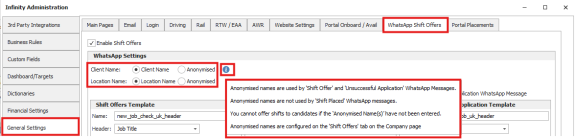
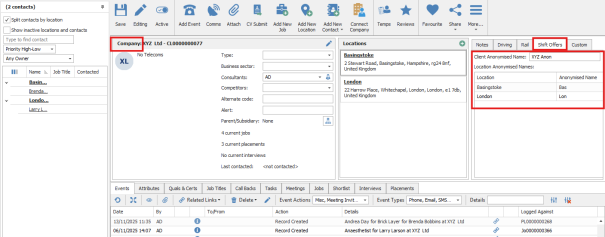
Anonymised names are configured on the ‘Shift Offers’ tab on the Company page
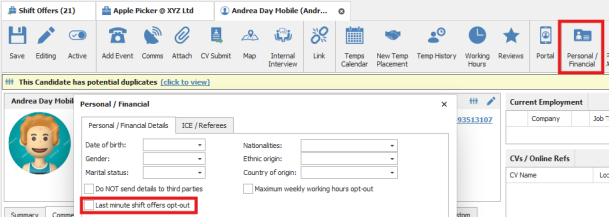
Last Minute Shifts
- Last minute shifts are defined as shift offers where the first shift occur on the same day the Shift Offer is sent
- If candidates have ‘Last minute shift offers opt-out’ ticked, then they will fail the Offer Checks, and you cannot send the shift offer to those candidates
- When ‘Last minute shift offers opt-out’ is ticked or unticked, an event is logged
- If ‘Shift Offers’ is not enabled, this tick box is greyed out.
- Unticked by default, i.e., last minute shifts are allowed by default
Failed WhatsApp Messages
- You should monitor failed messages, so that you are aware of failed messages as soon as they occur
- Some failed reasons prevent all WhatsApp messages of that type from being sent, e.g., if the Infinity admin screen does not have the correct settings as per the template
- If WhatsApp messages fail, they are reported via My Infinity to the Job owners
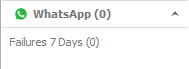
- My Infinity is updated as soon as the failed message notification is received
- It is updated by SignalR
- You do not need to wait for the My Infinity refresh
- When you click ‘Failures 7 Days’ you are taken to the ‘Shift Offer’ screen with the ‘Show failures only (past 7 days)’ toggle set, and the consultant set to yourself

- When hovering over a failed WhatsApp message status in the Shift Offer screen, the details of the failure are displayed

- You can use the ‘Shift Offer’ screen to view failed messages for all consultants, by setting the ‘Show failures only (past 7 days)’ toggle
- The job consultant filter will need to be blank to see all consultants
How many chargeable WhatsApp messages sent
You can monitor the number of WhatsApp messages that are sent:
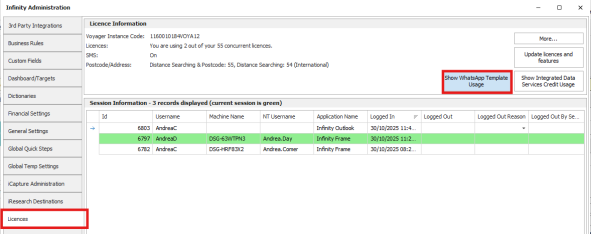
You can select a date range, and click ‘Show Usage’
- The date range must not be longer than 6 months
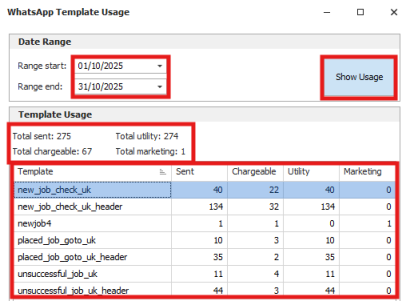
Sent
- The total number of WhatsApp template messages sent (offer reply messages are not included)
- Shift Offer
- Shift Placed
- Application Unsuccessful
Chargeable
- When an offer is sent, if the candidate clicks one of the buttons ‘Apply’, ‘Reject’, ‘Check Avail’, then a 24-hour window is opened
- During the 24-hour window, all other messages are non-chargeable
- If the candidate clicks another button ‘Apply’, ‘Reject’, ‘Check Avail’ during the 24-hour window, the window is reset
- Chargeable messages are those sent that are not in a 24-hour window
Utility
- Messages sent of type ‘Utility’
- All messages should be of type ‘Utility’
Marketing
- Messages sent of type ‘Marketing’
- Marketing messages should not be sent, as they have a higher cost
- If marketing messages have been sent, please contact Ikiru Support a.s.a.p.
 Contact Details
If you require further assistance please contact Ikiru People using the details published on www.ikirupeople.com
Visit our Customer Portal at https://portal.ikirupeople.com/ for future events and clinics.
FeedbackIf you would like to make suggestions or have found any errors with this Help section please contact our Support team.
Copyright © 2026 Voyager by Ikiru People Ltd. All rights reservedVersion 4.87
Voyager Software is a brand of Ikiru People Ltd, a subsidiary of Dillistone Group Plc. The group is a leading global provider of software and services that enable recruitment agencies and in-house recruiters to better manage their selection process and address the training needs of individuals. Across its brands – which include Voyager Software (recruitment software UK & Australia), Dillistone FileFinder executive search software, GatedTalent, the global database of the world’s leading executives, Talentis.Global – the next generation of recruitment software and also ISV.Online, provider of online pre-employment skills testing and training tools. Dillistone Group serves thousands of clients worldwide. Ikiru People Ltd: Registration Number 02043300. Registered in England & Wales.
 |  |  |  |