Voyager Infinity – Release Notes
Version: 5.28
Release Date: 9th January 2026
What have we released?
- Infinity 5.28 has been released
Release overview
Here’s a snapshot of what we’ve delivered in this release:
- Infinity Add-In for New Outlook (SaaS only)
- Candidate page (Preview) – set the default Contact Details group tab
- New Windows 11 skin and colour palettes
- SMS – convert Em/En dashes on by default
Feedback please
We are continuously looking to improve Voyager Infinity and are keen to hear your thoughts. Please email suggestions@ikirupeople.com with any feedback on existing functionality or ideas for new functionality.
Enhancements
Enhancement 133118 Infinity Add-In for New Outlook (SaaS only)
Overview
Infinity “New Outlook” Add-in (SaaS only)
A new Infinity Add-in for New Outlook is now available for Infinity SaaS customers. Please note that this does not replace the existing Voyager Infinity Connector for Outlook (Classic) which continues to be supported, and recommended, for use with Outlook (Classic).
More information:
The Microsoft Outlook desktop application as it’s been known for the past 30 years or so has been renamed by Microsoft to “Outlook (Classic)” or “Classic Outlook”. As notified previously, Microsoft remains committed to maintaining and supporting it until at least 2029. From a features and functionality perspective, and for the majority of users, Ikiru People recommends continuing to use Outlook (Classic) with the existing Voyager Infinity Connector, at least until such time as New Outlook offers a comparable user experience & set of features.
New Outlook is a different product to Outlook (Classic) from the ground up and the existing Voyager Infinity Connector, as with every other COM-based add-in, is not compatible with New Outlook. However, the Infinity Add-in for New Outlook is compatible with both Outlook (Classic) and New Outlook.
In summary:
- Existing Voyager Infinity Connector
- Compatible with Outlook (Classic) only
- Is installed automatically as part of the Infinity installer
- Is recommended for users of Outlook (Classic)
- Infinity Add-in for New Outlook
- Compatible with New Outlook and Outlook (Classic)
- Is installed from the Microsoft app store
- Is recommended for users of New Outlook
Existing Voyager Infinity Connector vs Infinity Add-in for New Outlook
Whilst the Infinity product team has tried to replicate the functionality of the existing Voyager Infinity Connector in the New Outlook version, due to the technical limitations of New Outlook, there are some small differences, including:
- No right-click menu options on emails – When right-clicking an email in Outlook (Classic), there are Infinity-related options in the list (e.g. “Send to iCapture”). In New Outlook, such actions have to be initiated from the Add-in Pane.
- No Parse & Open option – On an email in Outlook (Classic), users can choose to “Parse & Open” which triggers an immediate CV parse and opens it for review in Infinity’s iCapture screen. This is not possible in New Outlook. Note in New Outlook you can still send an email/CV to the iCapture queue.
- No drag & drop for attachments – In Outlook (Classic) it was possible to drag and drop attachments from the email to the Add-In Pane. This is not possible in New Outlook and instead attachments are displayed in the Add-In Pane when the ‘Process Attachments’ button is pressed, allowing the user to select each attachment
- No adding/updating the default Q&C s via the Quals & Certs wizard, when adding candidate attachments. This is currently not available in the Infinity Add-in for New Outlook
Install
The app is available to install from the Outlook toolbar ‘All/More Apps’ button. Click Add App button and then search for ‘Infinity’ to locate it.
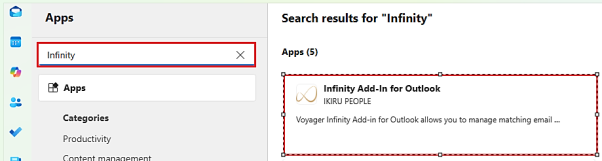
Click the app to install and follow the prompts.
The Voyager Infinity ‘Lookup People’ button will appear on the Outlook toolbar.

Login
When clicking on the Voyager Infinity Lookup People button, the login page will be displayed in a right-hand side pane.
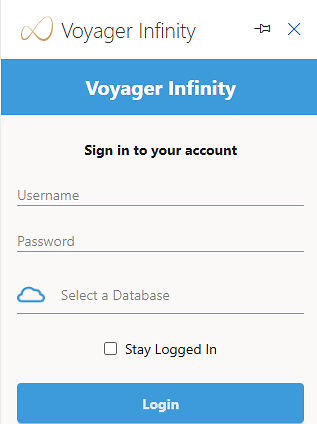
The colour scheme of the app is taken from Outlook and supports both dark and light themes.
The login details required are VIC, Database, Infinity username and password.
- The login screen has a ‘Stay Logged in?’ tick box
- There is notification on the screen that if the setting is ticked the user agrees to their credentials being stored and encrypted by the service
- When ticked and the user successfully logs in, the VIC, Infinity username and password are remembered
- When the user next launches Outlook, the app is logged into automatically using the settings, if credentials are valid
- The Lookup People pane can be pinned and closed as per existing Outlook pane functionality
- If it is not pinned, then it must be manually launched by clicking the Lookup People button when an email is selected
- The user is logged out of the app each time it is closed but if ‘Stay Logged in?’ is ticked it will automatically login each time
- The user is timed out of their session after a period of no activity is detected, this is currently 75 minutes as per the SaaS platform
- The user is notified that their session has timed out and is taken to the login screen to login again
Note: - to use this functionality, the ‘Reading Pane’ must be enabled in Outlook. It’s recommended that ‘Stay Logged in?’ is ticked and the Lookup People pane is always pinned to get the best experience.
Lookup People pane – selecting a single email
When an email is selected or opened, all email addresses are checked for matches against contacts and candidates on the Infinity database.
The Lookup People pane works on emails that are in the user’s mailbox that is configured in Infinity only and does not enable if the user navigates to other shared mailboxes they may have set up in their Outlook.
The Lookup People pane displays how many matches were found (if any) and has a drop down to select the different matches.
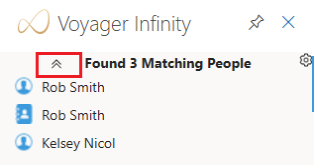
If the user clicks on another email and there is no matching Infinity record, the People Pane shows blank if pinned and closes if not pinned.
Candidate matches
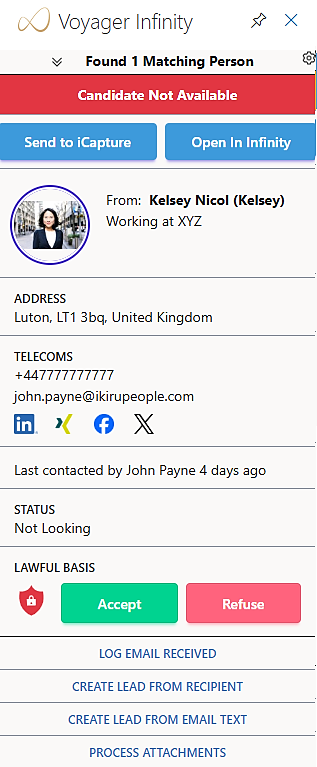
The following information is shown:
- Candidate status bar – this is green if they are at an available status and red if they are not at an available status
- Circular photo image, if it exists else the initials are shown
- Whether it’s a ‘To’, ‘From’ or ‘CC’ match, then ‘title’, ‘forename’ and ‘surname’ with ‘knownas’ in brackets
- The calculated current job title at company and (location)
- Says <no current work history entry> if doesn’t exist
- Says <no job title> at company if doesn’t exist but company does
- Address section
- Town, postcode, country
- Telecoms Section
- 1st created send as default mobile
- Says <no mobile> if doesn’t exist
- 1st created send as default email address
- Says <no home email address> if doesn’t exist
- LinkedIn icon if populated
- Xing icon if populated
- Face icon if populated
- Twitter X icon if populated
- Last Contacted details in red font
- Says <not contacted> if not contacted
- Status section
- Status field
- Privacy audit section
- Privacy audit shield icon depicting the candidate’s status
- Hover over tooltip showing full candidate’s privacy audit details
- If candidate is inactive, they are shown greyed with inactive banner
- The Social medial icons are hyperlinks that launch externally
- Multiple individual candidates can match to the same email address and are shown in the pane
Contact matches
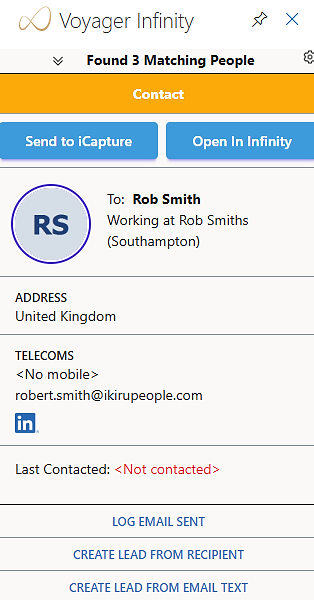
The following information is shown:
- Contact amber bar
- Circular photo image, if exists else the initials are shown
- Whether it’s a ‘To’, ‘From’ or ‘CC’ match, then ‘title’, ‘forename’ and ‘surname’ with ‘knownas’ in brackets
- Job title at company and (location)
- Says <no current work history entry> if doesn’t exist
- Says <no job title> at company if doesn’t exist but company does
- Address section
- Town, postcode, country
- Telecoms Section
- 1st created send as default mobile
- Says <no mobile> if doesn’t exist
- 1st created send as default email address
- Says <no home email address> if doesn’t exist
- LinkedIn icon if populated
- Xing icon if populated
- Facebook icon if populated
- Twitter X icon if populated
- Contacted section
- Last Contacted by details in red font
- Says <not contacted> if not contacted
- Actions section
- Log email
- Create lead from recipient
- Create lead from signature text
- The social media icons are hyperlinks that launch externally
- Inactive contacts are not matched
- If a contact is matched on global or location level email addresses and the contact is at multiple locations, then a match is shown for the latest-created contact’s location only (if active at that location)
- Multiple individual contacts can match to the same email address and are shown in the pane
No matches
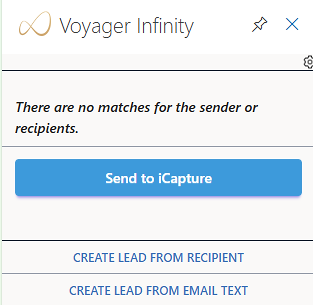
Send to iCapture button

Available on emails with matched candidate and contact records, and messages where no matches are found in the Lookup People pane. The user can send the email and its attachments to iCapture.
iCapture processing is done as per existing functionality and the candidate records are created / updated in iCapture or Infinity as per configured in the Outlook button data source in iCapture Administration.
Open in Infinity button

Available on matched candidate and contact records in the Lookup People pane. Opens the candidate or contact record in Infinity. If the user is not logged into Infinity, the login screen is launched first for the user to log into.
Privacy Audit buttons – Candidate
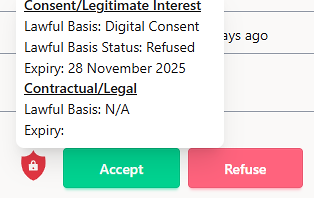
Available on matched candidate records in the Lookup People pane. If the candidate is at a lawful basis / status that can be updated, the Accept and Refuse buttons enable.
When clicking Accept or Refuse:
- If the Candidate Page Privacy Audit is currently locked to another user the user is informed, and it cannot be updated
- If it’s not locked, the status is updated accordingly
- An event is logged using the appropriate Lawful Basis Event action, and includes the email as an attachment
- Any attachments should adhere to max lengths. If they are over, a text file is attached to the event instead saying ‘attachment too big’
- Updates the Candidate’s Privacy Audit accordingly
Log Email Sent/Received button

Available on candidate and contact matches in the Lookup People Pane at the bottom. Logs the email as an attachment to an event against the matched record in Infinity.
- This is only available if the matched people record is a From or To recipient
- If this is a ‘From’ recipient, it shows as 'Log Email received'
- If this is a ‘To’ recipient, it shows as 'Log Email sent'
- There is tooltip on the button ‘One email event will be logged against this record’
- The event 'logged by' field is set to the currently logged in user
- If an email received is logged, the ‘From’ recipient’s email address shows in the event ‘To/from’ field
- If an email sent is logged the ‘To’ recipient’s email addresses shows in the event ‘To/from’ field
- The ‘CC’ recipient’s email addresses shows in the event ‘CC’ field
- The email is attached to the event
- Any attachment should adhere to the max size permitted on the database. If they are over the limit, a text file is attached to the event instead saying ‘attachment too big’
- The user is informed when the event is logged successfully
- The user is informed if the event couldn't be logged
Create a Lead from recipient button

Available on emails with matched candidate and contact records, and messages where no matches are found in the Lookup People pane. The user can create a lead from the email recipient information available in Outlook.
- Email recipient could be a ‘From’, ‘To’, or ‘CC’ recipient
- The email recipient name and email address are used to create the lead
- Recipient name - if available - is split using a space into forename and surname
- Adheres to the lead field formatting rules
- A created lead event is logged with the email attached
- Any attachment should adhere to max size permitted on the database, if they are over the limit a text file is attached to the event instead saying attachment too big
- The user can create the lead and remain in Outlook
- The user can create the lead and goto the lead record
- The lead is created against the logged in user with a status of ‘New’
Create a Lead from email text button

Available on emails with matched candidate and contact records, and messages where no matches are found in the Lookup People pane. The user can manually highlight an area of text / images in an email body to create a lead from, e.g., the signature area
- The user is aware that an area in the email body needs to be selected to use this function
- The selected area is sent as text via Sovren 3rd Party software and parsed
- If detected, the fields are populated in the lead page as below:
- Forename
- Surname
- Job Title
- Company
- Phone
- Mobile
- Website
- Address
- Adheres to the lead field formatting rules
- If multiple values detected in a field, e.g., phone numbers, they are populated with the values separated by semi colons / commas
- An event is logged with the email attached
- Any attachment should adhere to the max size permitted on the database. If they are over the limit, a text file is attached to the event instead saying attachment too big
- The user can create the lead and remain in Outlook
- The user can create the lead and go to the lead record
- Lead is created against the logged in user with a status of ‘New’
Process attachments button

Available on matched candidate and contact records in the Lookup People pane, if the email has attachments. User can add attachments from the Outlook email to the Infinity record attachments area.
- When the button is pressed, files that are attached to the email are displayed in the pane
- The use can click on an attachment to send it to Infinity, and the files will appear in the attachments area on the record
- The user can close the process attachments view by clicking on the ‘Close’ button and return to the Lookup People Pane
- The user is prevented from attaching files if they go over the max size that is permitted on the database
Lookup People pane - selecting multiple emails
When multiple emails are selected, they are listed with their subject in the Lookup People pane.
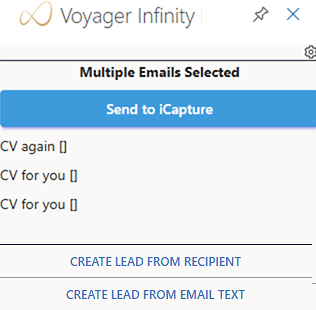
The Send to iCapture button is available to send all emails to iCapture.
iCapture processing is done as per existing functionality and the candidate records are created / updated in iCapture or Infinity, as per configured in the Outlook button data source in iCapture Administration.
Enhancement 136835 New candidate page (Preview) default tab on Contact Details Group
In User Options / General tab / Candidate section there is a setting to select the tab that shows as default on the new candidate page (Preview) Contact Details group.
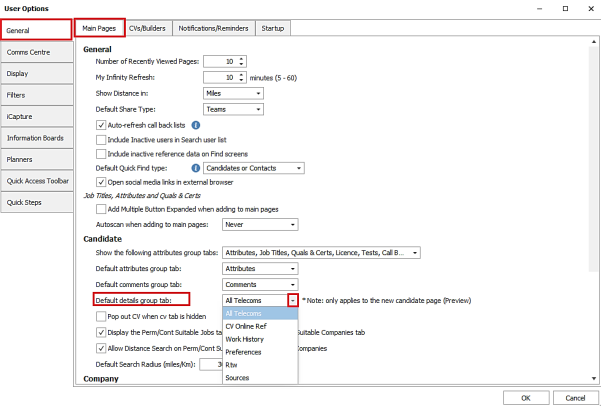
‘Contact Details’ tab has been renamed to ‘All Telecoms’ and the setting defaults to ‘All Telecoms’ as per previous versions.
Enhancement 136937 New Windows 11 skin and colour palettes
The Windows 11 skin is now available to use in Infinity.
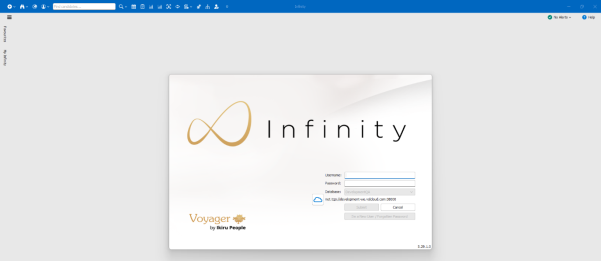
The skin and its colour palettes are available to select in User Options / Display tab / Skin Options section.
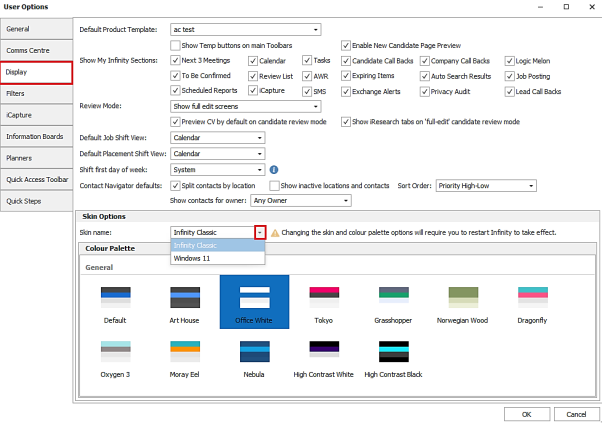
Infinity Classic is the default skin, and works as per existing functionality.
Changing the skin name will require a restart of Infinity to enable its colour palettes for selection.
The Windows 11 Skin comes with the following colour palettes:
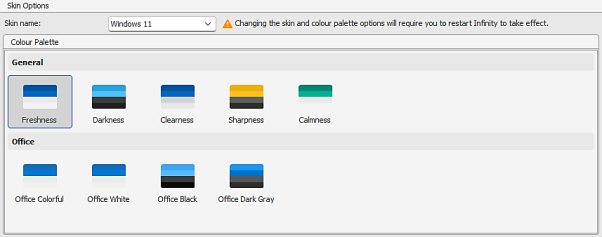
‘Freshness’ is the default colour palette, when the skin is first selected.
When further switching between skins occurs, the user’s last selected colour palette is remembered for that skin and applied.
Enhancement 137019 Candidate source blank value removed
The blank candidate source value is no longer available to select on the candidate page, unless the source is already set to blank.
Enhancement 136998 Permission to job search and placement search reports
In Administration / Reports / Reports tab, permissions to job and placement search results / list reports can be granted.
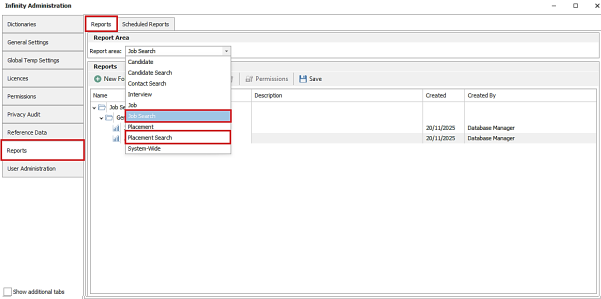
As default the ‘Infinity Users’ security role has access to the ‘General’ folder in these report areas.
Enhancement 136936 SMS – Em/En dashes to be converted to hyphens by default
In Administration / 3rd Party Integrations / Phone Manager tab. The ‘Convert Em/En Dashes to hyphens when sending’ setting is on by default on all new and upgraded databases.
Enhancement 136994 Mid-Office - exports the top three placement owners
Infinity exports the top three placement owning consultants, ordered descending by split % then ID, to Mid-Office.
Enhancement 136882 Temp Payroll Export report – placement client job title added
In the Temp Payroll Export report, ‘Placement Client Job Title’ is available as a column to select.
- Unticked as default if report has been run
- Ticked as default if report never run
 Contact Details
If you require further assistance please contact Ikiru People using the details published on www.ikirupeople.com
Visit our Customer Portal at https://portal.ikirupeople.com/ for future events and clinics.
FeedbackIf you would like to make suggestions or have found any errors with this Help section please contact our Support team.
Copyright © 2026 Voyager by Ikiru People Ltd. All rights reservedVersion 4.87
Voyager Software is a brand of Ikiru People Ltd, a subsidiary of Dillistone Group Plc. The group is a leading global provider of software and services that enable recruitment agencies and in-house recruiters to better manage their selection process and address the training needs of individuals. Across its brands – which include Voyager Software (recruitment software UK & Australia), Dillistone FileFinder executive search software, GatedTalent, the global database of the world’s leading executives, Talentis.Global – the next generation of recruitment software and also ISV.Online, provider of online pre-employment skills testing and training tools. Dillistone Group serves thousands of clients worldwide. Ikiru People Ltd: Registration Number 02043300. Registered in England & Wales.
 |  |  |  |