VoyagerInfinity–ReleaseNotes
Version: 5.27
Release Date: 24th December 2025
What have we released?
- Infinity 5.27 has been released
Release overview
Here’s a snapshot of what we’ve delivered in this release:
- New candidate page (preview)
- Mandatory fields on new candidate page (preview)
- Search for company, contact and candidates that have / don’t have a LinkedIn URL
- Search for companies that have / don’t have a website
Feedback please
We are continuously looking to improve Voyager Infinity and are keen to hear your thoughts. Please email suggestions@ikirupeople.com with any feedback on existing functionality or ideas for new functionality.
Enhancements
Enhancement 132130 New candidate page (preview)
Overview
The candidate page has had a redesign, and the preview is available for users to use and trial.
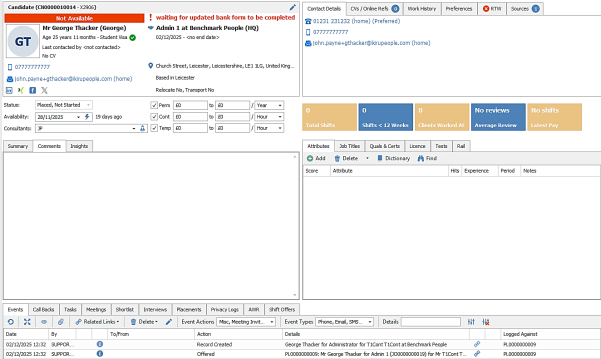
Once enabled, opening and creating a candidate page from all areas of Infinity will load the new candidate page layout. The majority of functionality remains the same with the new changes listed in this document.
The preview can be switched off at any time, and the user will be returned to using the old candidate page layout as per previous versions.
Your feedback on the new candidate page layout is essential to help us shape future improvements and ensure the latest updates are working effectively for everyone. If you have time, please send comments and suggestions to the following email address suggestions@ikirupeople.com.
User Options
A setting is available in User Options / Display tab called 'Enable New Candidate Page Preview' to enable the preview.
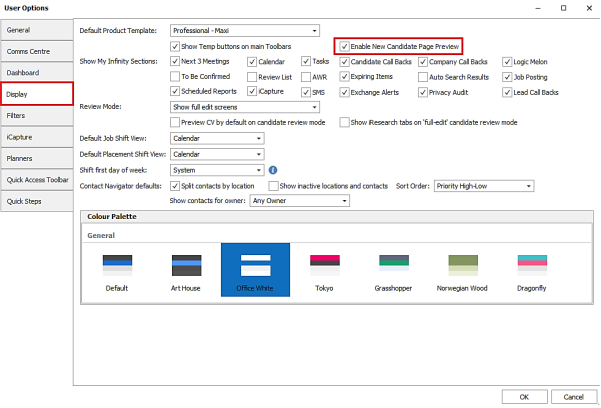
This will be off as default.
When enabled, every time the candidate page is opened by any method, it will open the new candidate page layout and not the old one.
Candidate Profile area (read only)
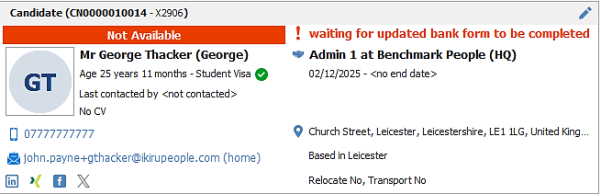
There is a candidate profile area at the top left of the page that displays key, read only information about the candidate.
Section Title bar
The title bar shows the candidate code and alternate code (if exists) in brackets.
Status Bar
In all skins except high and low contrast:
- The status bar shows red if the candidate is at a status set to ‘Not available’ in Administration and displays text ‘Not available’
- The status bar shows green if the candidate is at a status set to ‘Available’ and displays text ‘Available’
In high and low contrast skins the status bar is not coloured but still shows the accompanying text.
Candidate statuses are configured as ‘Available’ or ‘Not available’ in Administration / Reference Data / Candidate Statuses tab.
Photo
Shows the candidate’s photo and functions as per existing functionality.
Candidate information
The following information is shown in the left-hand side of the candidate profile:
- Candidate title, forename, surname and knownas in brackets
- Date of birth – if configured in Administration to display on the page
- Student Visa – only displays with green tick if set to yes and is relevant
- Last contacted details
- Last CV date
- Latest created mobile number – shown in blue hyperlink with right click menu options as per existing functionality
- Latest created send as default email address - shown in blue hyperlink with right click menu options as per existing functionality
- Social media icons – if exist and are hyperlinks as per existing functionality
The following information is shown on the right-hand side of the candidate profile:
- Alert field in red font and prefixed with an exclamation mark. Has hover over tip if doesn’t fit on the page
- Latest current work history details
- As per the Work History tab and can only be edited from there
- If there is no current work history entry, it shows as text ‘<no current work history entry>’
- If the entry is a placement the placement icon shown and is a hyperlink to pen the placement page
- The fields shown are job title, company and location in brackets
- Thenstart date and end date:
- In format ‘Start ‘then short date DD/MM/YYYY
- If no start date says <no start date>
- In format ‘End ‘then short date DD/MM/YYYY
- If no end date says <no end date>
- Then pay and per:
- In format <pay value> to 2 decimal places with currency prefix
- If no pay it shows as blank/nothing
- In format ‘Per’ <per value>
- If no per it shows as blank / nothing including the ‘per label’
- Candidate home address fields of town, postcode and country
- Full home address - Has hover over tip if doesn’t fit on the page
- Based in and preferred location – editable on preferences tab
- Notice period, relocate and transport – editable on preferences tab
Edit Candidate Details button
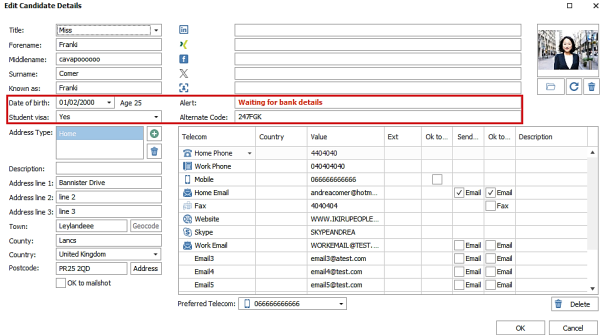
The button has been updated to include editing of the follow extra fields shown in the candidate profile:
- Date of birth (currently also available in Personal / Financial window)
- Student Visa
- Alert
- Alternate code
Contact Details tab

The Contact Details tab shows as default when the page is opened and lists up to 7 rows of candidate telecoms.
- These can be edited by the Edit Basic Details button on the candidate profile area
- Are shown in blue hyperlink with right click menu options as per existing functionality
- Uses the order as per the edit basic details screen
- Fields shown for each telecom are:
- Telecom type icon
- Telecom value
- Includes country code prefix if present
- Includes extension suffix if present
- If telecoms is a type that can be ‘home’ or ‘work’ this is shown in brackets after the value, e.g., ‘home’ email addresses show the word (home) at the end
- Telecoms of the same type, e.g., user has multiple ‘home’ emails, are shown on the same row separated by a comma
- If multiple telecoms of same type are shown, the description field is shown in brackets at the end
- If ‘home’ or ‘work’ is in brackets already the description is added inside the brackets at the end
- If preferred telecom, is shown in brackets at the end
CVs / Online Refs tab

- The tab header has a blue circle badge that shows the number of ‘Current’ CVs
- CVs can be dragged and dropped to the tab header area if it’s not the selected tab
- All CVs are shown in the grid, not just the ones ticked as ‘Current’
- CVs are ordered by default, then current, then received date descending order
- Functionality is the same as the old page but the ‘Show all CVs’ button has been removed as no longer relevant
- New default columns are applied for all users as per the screenshot
- The grid shows to the full height of the tab area, with a vertical toolbar if the list of CVs does not fit
CV Preview pane
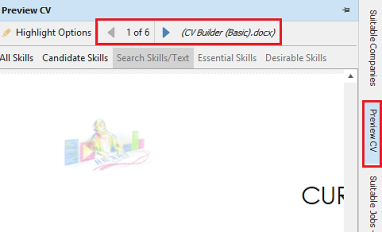
- Shows the name of the CV that is displayed along with the number it is in the grid and total number of CVs
- The user can use the right and left navigation buttons to move backwards and forwards through the CVs in the CV grid even if the CV tab is not selected
Work History tab

- Current Employment / Work History grid has been moved from the main page and is now the after the CVs tab in the Contact Detail group
- One grid is shown which is the ‘Show All’ grid version
- Shows the user's default ‘Show All’ grid columns as per the old page
- All functionality is available on the toolbar as per the old page, except for the ‘Show All’ button
- There is a vertical scroll bar if the entries do not fit on the page
- The candidate profile read only section will update and show the latest current employment data if changes are made to it and the candidate page saved
Preferences tab
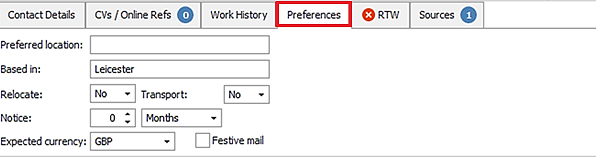
The following fields have been moved to this tab and function as per existing functionality:
- Based in
- Preferred location
- Transport
- Travel
- Preferred Currency
- Festive Mail
RTW tab
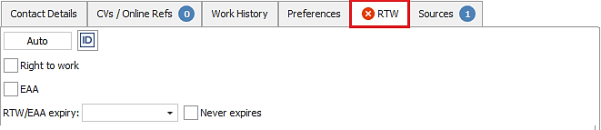
- All RTW fields have been moved to this tab and function as per existing functionality:
- Auto Populate/Manual/TrustID and TrustID button
- Right to Work
- EAA
- RTW / EAA expiry date
- Never Expires
- The tab header has a circle badge that shows the status of RTW:
- Green tick if RTW ticked and not expired
- Amber warning triangle if RTW ticked and expired
- Red cross if RTW field is unticked
Sources tab

- The full sources grid is shown on the tab and functions the same as per existing functionality
- The tab header shows a blue badge with the number of sources on it
- The grid is ordered by latest added source at the top
- A new column is shown as default called ‘Added by’ and shows the consultant's short name
- The grid shows to the full height of the tab area, with a vertical toolbar if the list of sources does not fit
Status / Availability / Consultant and Expected Rates area

The following fields have been moved to this area and function as per existing functionality:
- Status
- Availability
- Consultants
- Expected Rates – note expected currency is on the preferences tab only
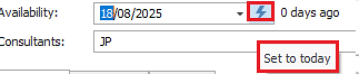
There is a new ‘Quick Action’ button adjacent to ‘Availability’ that sets the date to today.
On databases ticked in Administration / Global Temp Settings tab to ‘Use candidate rates when creating placements’, the temp job titles button has moved to the temp’s section of the candidate toolbar.
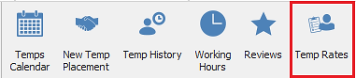
The button adheres to the ‘Configure me for temps’ functionality and the User Option to show temp buttons on the main toolbar or in the ‘More’ menu.
Stats / Information tiles
Stats / Information tiles are shown in alternate amber and blue in the right-hand side middle area.
If the candidate is ticked as temp the following is shown:

Total shifts
- Is the total number of shifts the candidate has been placed on across all placements
- Includes placement shifts at any status
Shifts < 12 weeks
- Is the total number of shifts the candidate has been placed on across all placements in the last 12 weeks
- Counts back weeks from today and includes today's shifts
- Includes placement shifts at any status
Clients worked at
- Is the total number of companies the candidate has been placed on shifts at
- Includes placement shifts at any status
Average Review
- Is the same as the candidate review screen 'Average Rate'
- It is a count of the number of stars for all their latest Company type reviews divided by the number of reviews
- If no reviews it says 'no reviews'
Latest pay
- Uses the candidate's latest placement shift's core rate
- Placement shift can be at any status
- If no placement shifts says 'no shifts'
- Uses the relevant core rate based on the shift start date
- If no core rate says 'no rate'
- Displays in 2 decimal places with currency symbol prefix and then followed by a forward slash and then the per value, e.g., £13.99 / hour
If candidate not ticked as temp, the following stats are shown:

Job Submits
- Total number of times the candidate's CV or summary has been submitted to a P/C/FT job
Spec Submits
- Total number of times the candidate's CV or summary has been submitted speculatively
1st interviews
- Total number of 1st level interviews that occurred on P/C/FT jobs
- 1st level interviews at status
- Awaiting Feedback
- Candidate unsuitable
- Client Unsuitable
- Successful
- Offered
Offers
- Total number of P/C/FT placements the candidate has been offered
Placements
- Total number of P/C/FT placements at confirmed, started or finished status
Tests tab
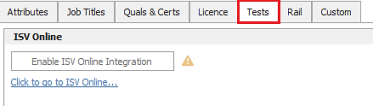
- The buttons have been made smaller
- The content appears left flushed rather than centred
- All functionality works as per existing
Call Backs tab

- The Call Backs tab has been moved from the Attributes group of tabs to the Events group of tabs
- In User Options, if Call Backs is selected in the two fields below it is ignored, and the second option will default to ‘Attributes’ tab instead.

- There is a red circle badge on the tab header showing how many ‘Active’ call backs there are for that candidate. If there are more than 99 call backs it shows as 99+.
- ‘Active’ is defined the same as the Call Back filter:- overdue and today onwards
- If there are no active call backs the badge is not shown
- The number of ‘Active’ call backs is updated immediately when call back are added/updated/deleted regardless of the page save
- Shows the user's default columns in the grid as per the old page
- All functionality works as per existing functionality
Active / Inactive button
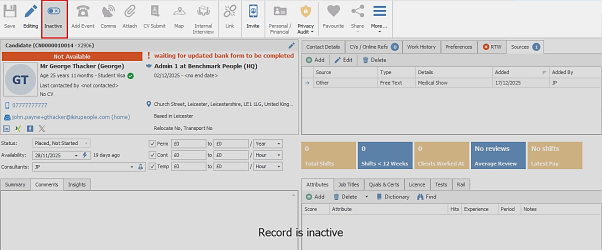
- When the ‘Active’ button is pressed the user is prompted as per the old page if they want to proceed
- When inactive is confirmed, the candidate is set to inactive and the page has a read only panel overlay with the text ‘Record is Inactive’ displayed
- The following toolbar buttons are available if user permissions allow:
- Edit
- Inactive
- Link - restricted to ‘go to existing link’ and ‘unlink’
- Revoke (Portal)
- Privacy Audit
- Delete
- Expand/Collapse ribbon
- The duplicate bar does show and can be used
- The restricted bar does show and can be used
- User can manually unlock an inactive page
- When the ‘Inactive’ button is pressed the user is prompted as per old page if they want to proceed
- When active is confirmed, the candidate is set to active and the page is available again
Record locking
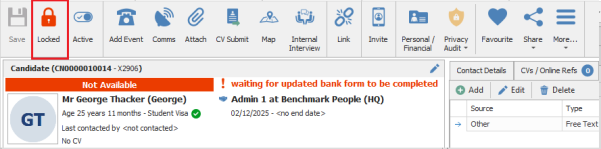
When the candidate page is locked (opened by another user or session) the ‘Edit’ button displays as ‘Locked’ and the ‘Save’ button is not available.
Note: Any changes made to the locked candidate page, that require the record to be saved to commit the changes, will be lost as the page cannot be saved.
Enhancement 136837 Candidate mandatory fields (new preview page only)
In Administration, the ‘Custom Fields’ tab has been renamed ‘Custom / Mandatory Fields’ and there is a new tab called ‘Candidate Mandatory Fields’ within,
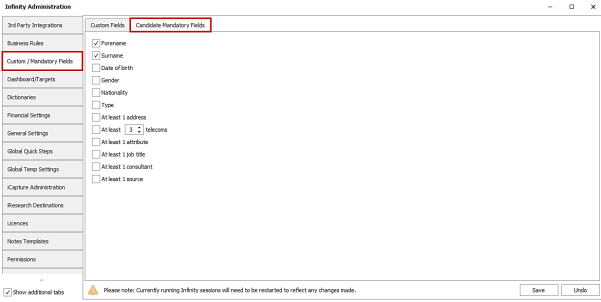
The following candidate fields can be set as mandatory and work on the new candidate preview page only.
- Forename
- Surname
- Date of Birth
- Gender
- Nationality
- Type
- At least 1 Address
- At least X Telecoms (1-3)
- At least 1 Attribute
- At least 1 Job Title
- At least 1 Consultant
- At least 1 Source
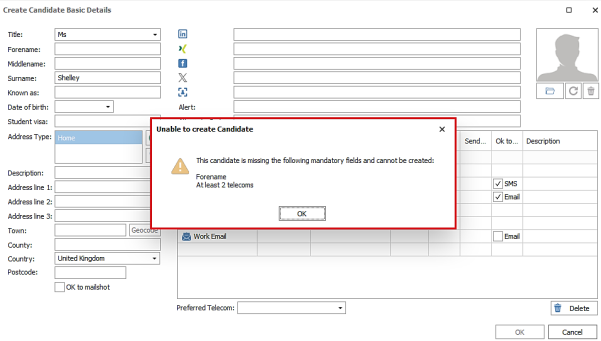
When set, the user cannot create a new candidate if there are missing mandatory fields in the Edit Basic Details screen. The user is informed what fields are missing in a warning window.
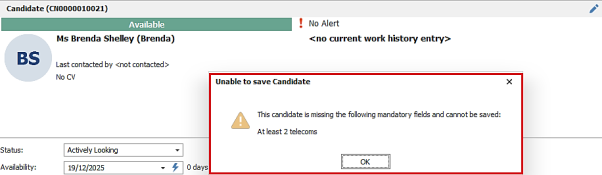
When set, the user cannot save the candidate page if there are missing mandatory fields. The user is informed what fields are missing in a warning window.
Enhancement 136795 Search for candidates that have / don't have a LinkedIn Url
On candidate and re:job searches, the user can search for candidates that have a LinkedIn Url (have data in the field).
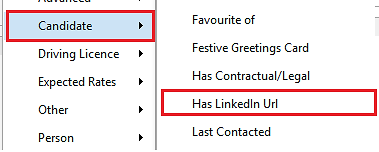
This is in the candidate menu in the advanced search section.

The ‘NOT’ operand can be used to search for candidates that do not have a LinkedIn Url (have no data in the field).
Enhancement 136796 Search for contacts that have / don't have a LinkedIn Url
On contact searches, the user can search for contacts that have a LinkedIn Url (have data in the field).
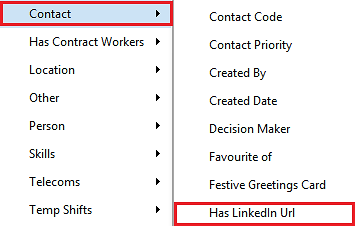
This is in the contact menu in the advanced search section.
The ‘NOT’ operand can be used to search for contacts that do not have a LinkedIn Url (have no data in the field).
Enhancement 136797 Search for companies that have / don't have a LinkedIn Url
On company searches, the user can search for companies that have a LinkedIn Url (have data in the field).

This is in the company menu in the advanced search section.
The ‘NOT’ operand can be used to search for companies that do not have a LinkedIn Url (have no data in the field).
Enhancement 136798 Search for companies that have / don't have a website
On company searches, the user can search for companies that have a website telecom (have data in the field).

This is in the company menu in the advanced search section.

The ‘NOT’ operand can be used to search for companies that do not have a Website (have no data in the field or with no website telecom at all).
Enhancement 136830 Search criteria screen's toggle buttons enhanced
Search toggle buttons have been changed to on/off sliders buttons in the search criteria screen and function as per previous versions.

The following buttons are affected in the Search section:
- Search By Essential (re:job search only)
- Search By Desirable (re:job search only)
- Search CV Text (candidate and re:job search only)
The following buttons are affected in the Text Search section:
- Search CV Text (candidate and re:job search only)
- Search Attachment Text (candidate and re:job search only)
Enhancement 136788 My Infinity - Schedule Reports get instant updates
My Infinity Scheduled Reports section no longer refreshes periodically and instead updates instantly when changes occur. This updates the section numbers and any opened reports screen.
When new reports are created by the user, the back-end service first needs to generate the report, so these may not appear instantly in the section.
More Infinity Sections will be updated to this technology in future versions,
Enhancement 136307 Full view of photo functionality speed improvements (SaaS only)
Clicking on photos to show in full view on the SaaS platform has been optimised and made quicker.
This is on the following photos in Infinity:
- Candidate
- Company
- Contact
Enhancement 136688 ISV integration points to the new API endpoint
Infinity ISV integration points to the new API endpoint and functionality works as per previous versions.
Enhancement 136579 TrustID – support for additional API keys per customer
In preparation for API keys being enforced per customer in the future by TrustID, the user can enter an API key in Administration /3rd Party Integrations / TrustID tab.
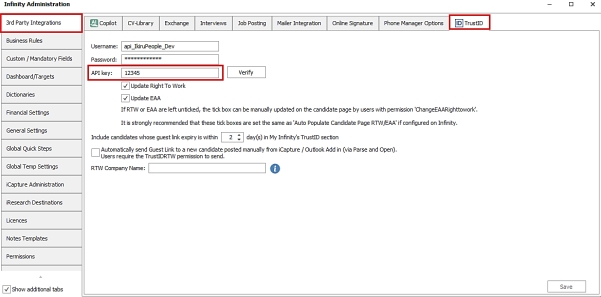
The ‘Verify’ button confirms if the username/password/API key is wrong.
This is currently optional, and the integration continues to work as per previous versions. More details will follow soon.
 Contact Details
If you require further assistance please contact Ikiru People using the details published on www.ikirupeople.com
Visit our Customer Portal at https://portal.ikirupeople.com/ for future events and clinics.
FeedbackIf you would like to make suggestions or have found any errors with this Help section please contact our Support team.
Copyright © 2026 Voyager by Ikiru People Ltd. All rights reservedVersion 4.87
Voyager Software is a brand of Ikiru People Ltd, a subsidiary of Dillistone Group Plc. The group is a leading global provider of software and services that enable recruitment agencies and in-house recruiters to better manage their selection process and address the training needs of individuals. Across its brands – which include Voyager Software (recruitment software UK & Australia), Dillistone FileFinder executive search software, GatedTalent, the global database of the world’s leading executives, Talentis.Global – the next generation of recruitment software and also ISV.Online, provider of online pre-employment skills testing and training tools. Dillistone Group serves thousands of clients worldwide. Ikiru People Ltd: Registration Number 02043300. Registered in England & Wales.
 |  |  |  |