Release Notes 5.17 August 2025
Release Date: 7th August 2025
What have we released?
• Infinity 5.17 has been released
Release overview
Here’s a snapshot of what we’ve delivered in this release:
• Voyager Infinity Connect mobile app update (SaaS only)
• iCapture CV Parser - scanning for skill changes
• Consultant filter on duplicate candidates screen
• Temps - undo shift/availability changes in the calendars
Infinity Release Notes Highlights Video - August 2025
Feedback please
We are continuously looking to improve Voyager Infinity and are keen to hear your thoughts. Please email suggestions@ikirupeople.com with any feedback on existing functionality or ideas for new functionality.
Enhancement 132512 Voyager Infinity Connect mobile app update (SaaS only)
Overview
The Voyager Infinity Connect mobile app has been updated and has additional functionality. The app is available to databases hosted on the SaaS platform only.
The updated app is expected to be available on the Apple and Google Play stores from week commencing 18th August 2025.
*Please note the app update may automatically install or may need to be manually installed depending on your mobile device settings. If there are any problems with the update, the old version of the app can be manually uninstalled and the new version installed from the store.
**Update (21/08/2025)**
Existing app users
The Connect app update is now available on the Apple and Google Play store and will update on your phone as per your device settings.
Beta app users
For customers that trialed the separate beta version of the Connect app, this will soon be removed from the stores and will need to be uninstalled on your device.
New app users
To install the Connect app on a device, please use the QR code below to download from the stores.
Android

Apple

Installation
The new version of the app is available to download on iPhone and Android mobile devices from the Apple and Google Play stores. The app displays and functions at tablet size also.

Login
Permissions
In Administration / Permissions / Permissions tab there are permissions available to use the Infinity Connect app.
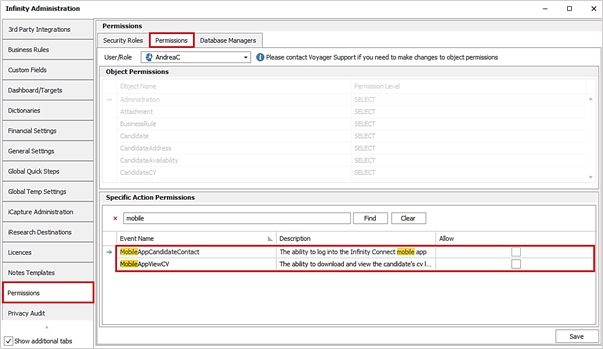
• Only users with the ‘MobileAppCandidateContact’ permission can login to the app
• Only users with the ‘MobileAppViewCV’ permission can download a copy of a candidate’s default CV to their device
These permissions are off as default.
Log in Screen
Users can log in with their Infinity credentials.
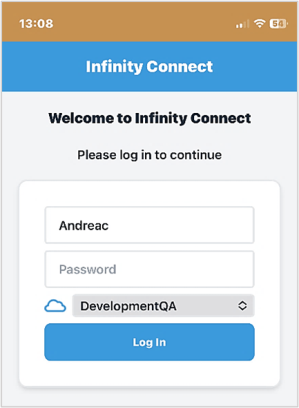
• VIC
o The VIC can be entered via the ‘Cloud’ button
o If no databases are listed already, the user will be prompted automatically to enter a VIC when they click in the database field
o Once a valid VIC is entered, the database name will automatically populate in the database field
o If multiple databases are available, the user much choose from the drop-down list of databases
o Once the VIC has been entered, it is remembered for subsequent logins but can be changed
• Username
o The user can use their Infinity username to log in
o Once a username is entered, it is remembered for subsequent logins but can be changed
• Password
o The user must enter the password for their Infinity username
When the user presses the ‘Log In’ button, it will disable whilst the process completes.
If all log in fields are not completed, or the credentials fail, the user will be informed on the screen.
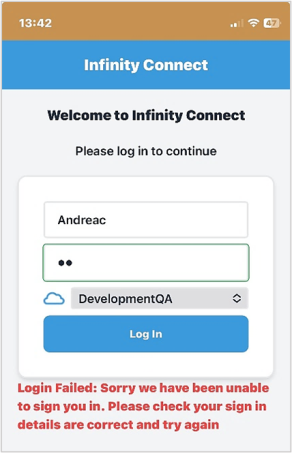
Upon successful log in, the user is taken to the Search page.
Navigation menu (hamburger button)
The Navigation menu (hamburger button) is available on the top right-hand side of all pages.
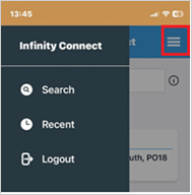
The user can navigate to the following areas:
• Search page
• Recent list
• Logout
Logout
The user can logout via the Navigation menu.
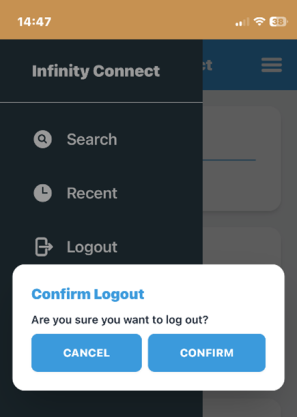
When the user logs out, they are prompted with a Yes/No confirmation window.
Session time outs
Users are automatically logged out if no activity is detected for 30 minutes.
Search page
The Search page allows the user to search for candidate and contact records and displays a list of recently opened records.
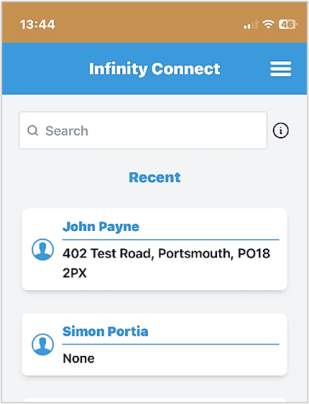
• There is an info button giving details on how to search
• User can type in text to search and hit enter or press the find/go button
• This will search as per existing functionality:
o Candidates and contacts with that name
o Contacts at companies with that name
Recent
• The recently opened records are shown in the Search screen if no search results present
Search results
When a search is run, results are displayed if matches are found.
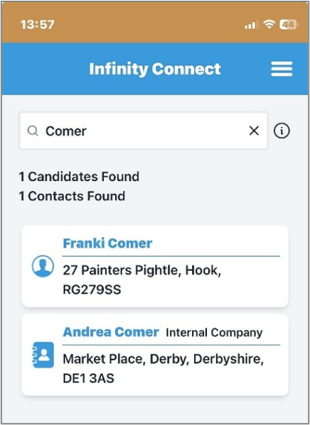
• The number of candidates and contacts found is displayed
• If candidate result, displays candidate icon as per Infinity, name of candidate in format ‘Forename + Surname’, latest current job title and company name, home address
• If contact result, displays contact icon as per Infinity, name of contact in format ‘Forename + Surname’, company name, company location address
• Contacts are returned for each location matched
Recent list
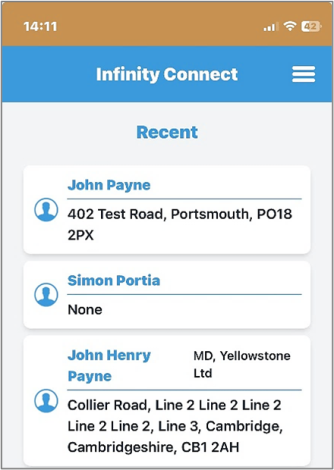
The user can view and access recently opened records from the Navigation menu.
Candidate record
The user can select to open a candidate from search results or the recent list.
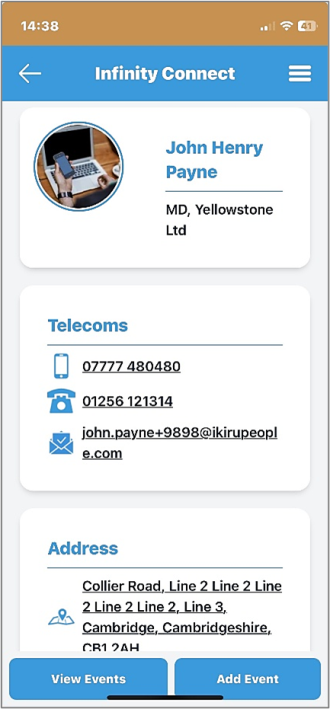
A read only cut down version of the Infinity candidate page is shown with the following details and functionality:
• Candidate Details
o Icon
o Photo
o Name
o Latest current job title and company
• Telecoms
o Mobile number – first created mobile number is displayed
Infinity mobile icon is displayed
User can select to call locally if configured
Note - an event is not logged on the Infinity record
o Home phone number – first created home number is displayed
Infinity phone icon is displayed
User can select to call locally if configured
Note - an event is not logged on the Infinity record
o Home email address default – first created home email address that is ticked as send as default
Infinity email icon is displayed
User can select to email locally if configured
Note - an event is not logged on the Infinity record
• Address
o Home Address – full address is shown comma separated
User can select to lookup the address on maps if configured
Infinity map icon is displayed
• Expected Rates
o Expected rates as per the Perm/Cont/Temp tick boxes on the candidate page
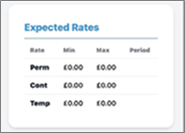
o Includes currency symbol
o Horizontal scrolling is available if the rates are curtailed
• Notes
o There is a section called Notes that displays the candidate Summary group of tabs in Infinity
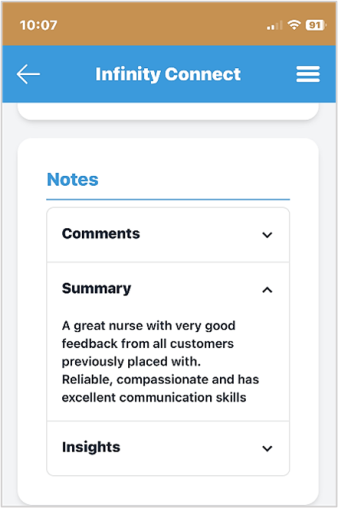
o Displays only if one of Comments, Summary, or Insights notes tabs are populated on the candidate page
o The notes tabs are shown as separate fields with an expand / collapse header
o The notes tabs show only if populated
o When the user clicks to expand the notes tab, the contents are shown in plain text vertically and user can scroll up / down to read
Line break characters are converted to line breaks on the app and word-wrap automatically as necessary
o If one note tab is expanded, then a second is expanded, the first notes tab collapses
o User can collapse the notes tab
Download CV button
A ‘Download CV’ button is available at the bottom of the record if the candidate has a default CV.
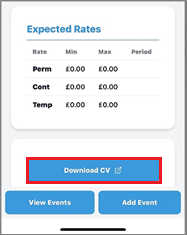
• Only users with permission ‘MobileAppViewCV’ can download CVs
• The permission is off as default
• User can select to download the CV
• If the user does not have permission, they are notified, and the CV cannot be downloaded
• User with permission can download and view or save the CV to their device
Contact record
The user can select to open a contact from search results or the recent list.
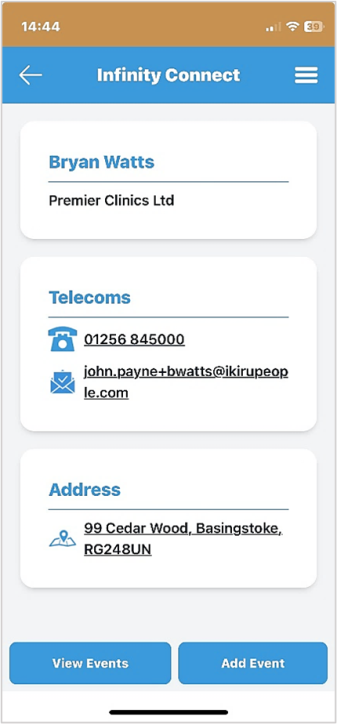
A read only cut down version of the Infinity contact page is shown with the following details and functionality:
• Contact Details
o Icon
o Photo
o Name
o Company
• Telecoms
o Mobile number – first created mobile number is displayed
Infinity mobile icon is displayed
User can select to call locally if configured
Note - an event is not logged on the Infinity record
o Work phone number – first created work number is displayed
Infinity phone icon is displayed
User can select to call locally if configured
Note - an event is not logged on the Infinity record
o Work email address default – first created work email address that is ticked as send as default
Infinity email icon is displayed
User can select to email locally if configured
Note - an event is not logged on the Infinity record
• Address
o Location Address – full address is shown comma separated
User can select to lookup the address on maps if configured
Infinity map icon is displayed
• Notes
o There is a section called Notes that displays the contact, location and company notes field in Infinity.
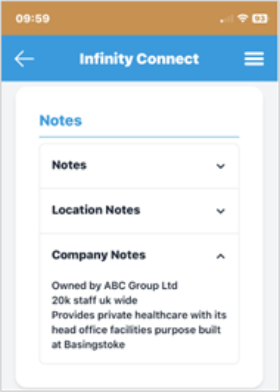
o Displays only if one of Contact, Location and Company notes tabs are populated on the applicable page
o The notes tabs are shown as separate fields with an expand / collapse header
o The notes tabs show only if populated
o When the user clicks to expand the notes tab, the contents are shown in plain text vertically and user can scroll up / down to read
Line break characters are converted to line breaks on the app and word-wrap automatically as necessary
o If one note tab is expanded, then a second is expanded, the first notes tab collapses
o User can collapse the notes tab
Events
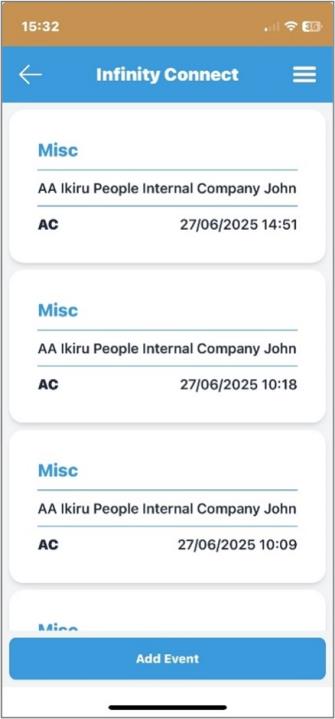
View Events button
A ‘View Events’ button is available on the bottom toolbar of the candidate and contact record.

The user can select and see all events on the Infinity record by scrolling.
Add Event button
An ‘Add Event’ button is available on the bottom toolbar of the candidate and contact record and in the view event window.
The user can select and log an event against the Infinity record.
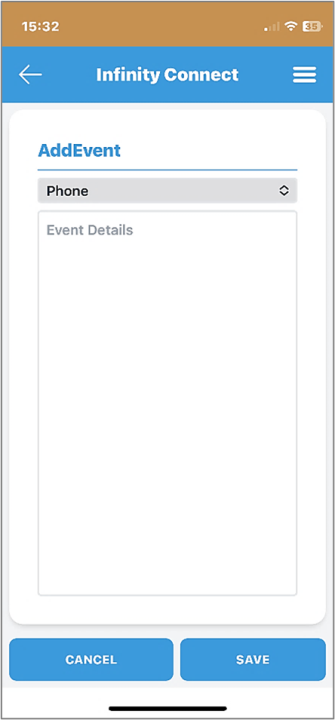
The following event information can be completed:
o Event type e.g. phone, info, email
The event types available are the same as the event logger in Infinity
The default is phone
o Details – free text field
• The user can cancel and not log the event and return to record
• The user can log the event as specified and return to the record
• The event action which is always set to ‘Mobile App’
• All other fields are defaulted the same as when logging from the Infinity record
Enhancement 134258 iCapture CV parser - scanning for skill changes
Overview
The 3rd party who provides the integrated CV parsing software used by Infinity is soon withdrawing support for the use of customers’ Infinity Dictionaries when scanning for skills in CVs via iCapture. In preparation, new options have been added to iCapture for the customer to switch over to in the future.
Upon upgrade to this version, customer databases will remain configured as per previous versions and no immediate action is necessary.
Note: Customers will be given advance notice when the switchover must be completed by.
iCapture Administration
In Administration / iCapture Administration / iCapture Setting tabs, three new scanning options are shown.
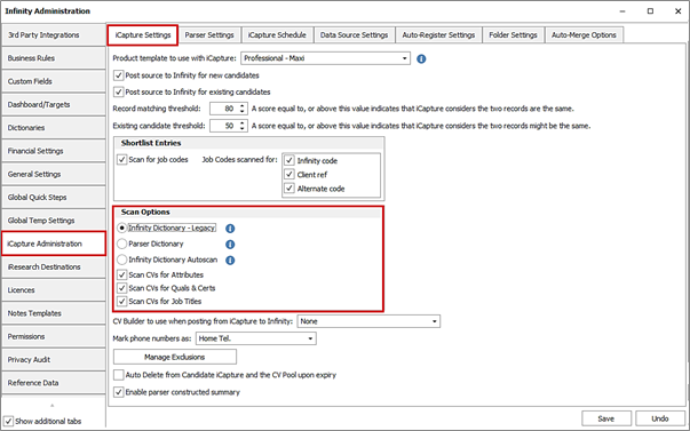
Infinity Dictionary - Legacy
• This option will soon be deprecated
• Works as per previous versions
• Is the default on databases upgraded to this version
o Once an alternative option has been set, the database cannot be reverted to the Infinity Dictionary – Legacy option
• Is not available on new databases
Parser Dictionary (recommend option)
• Is the recommended option
• Is the default on new databases
• If ‘Scan CVs for Attributes’ or ‘…Job Titles’ setting is ticked, uses the dictionary provided by the 3rd Party Parsing Software (currently 25k skills)
• Doesn’t require an Infinity Dictionary to be set up in advance
• Attributes and job titles found by the parser can be used to build your Infinity Dictionary easily and proactively
• Finds relevant skills in context within the Candidate’s CV/Email
Note – If ‘Scan CVs for Quals & Certs’ is ticked, the Infinity Dictionary Autoscan functionality is used instead of the parser. In order to benefit from this feature, a Quals & Certs dictionary must be set up in advance in Infinity.
Infinity Dictionary - Autoscan
• If ‘Scan CVs for Attributes’ ‘…Job Titles’ or ‘…Quals & Certs’ is ticked, uses Infinity’s skills dictionary only
• An Infinity dictionary must be set up before iCapture processes CVs
• Finds all occurrences of the skill within the Candidate’s CV/Email, in a non-contextual manner
Parser Skills not in Dictionaries
In the Administration / Dictionaries tab, if iCapture is configured to use the Parser Dictionary, there is a hyperlink at the bottom of the screen showing the number of skills found in the parsed CVs, that are not in the Infinity Dictionaries.
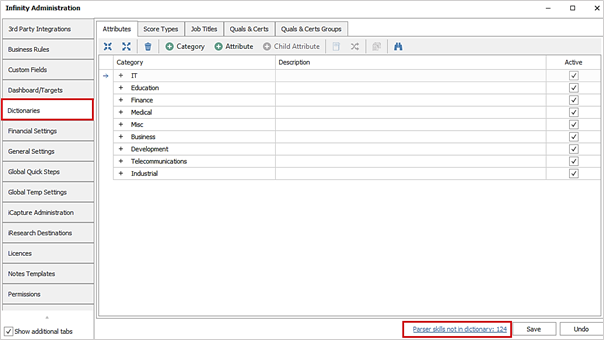
• Skills will be found if iCapture is configured to scan CVs for attributes and/or job titles
• Skills listed will not be a parent, child or synonym in any of the Infinity Dictionaries
• Uses the state of the dictionary at the start of the last iCapture poll when checking
The user can click the hyperlink to see the list of Parser skills not in dictionary.
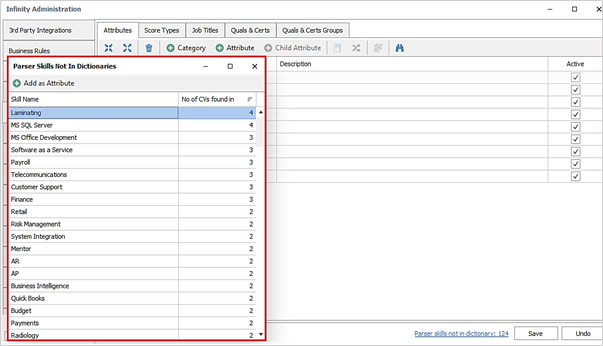
• The list has the following columns:
o Skill Name
o No of CVs found in
• The list is ordered by ‘No of CVs found in’, highest at the top
• The list can be filtered / sorted
• User can see and move between the Infinity dictionary screens whilst this screen is open
• The screen is closed when the Administration screen is closed
• Screen is brought to the front if the hyperlink is clicked again
Add Attributes
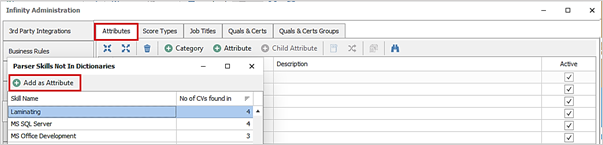
• Requires the users to have EditAttributesDictionary permission
• The Infinity Attributes Dictionary must be the selected tab in the background
• The add (green plus) button will be labelled as ‘Add as Attribute’
• User can select Parser skill(s) in the list to add to the dictionary:
o Single select
o Ctrl & A to select all
o Ctrl & Click to select multiple individual
o Shift & Click to cursor down and select multiple rows
When clicking ‘Add’, a new screen is shown and the user must select the fields as required.
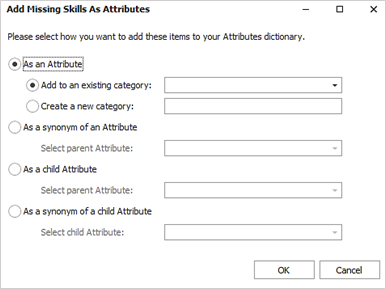
• Is it an attribute, child attribute or synonym
o mandatory to select one
• If attribute which category?
o mandatory to select one or can create new
• If child attribute, which parent attribute?
o mandatory to select one
• If synonym which existing attribute?
o mandatory to select one
When all mandatory fields have been set, the selected entries can be added to the Infinity Attributes Dictionary as configured.
The dictionary will expand to show the newly added entries(s) on the screen and they will be highlighted with a star icon.
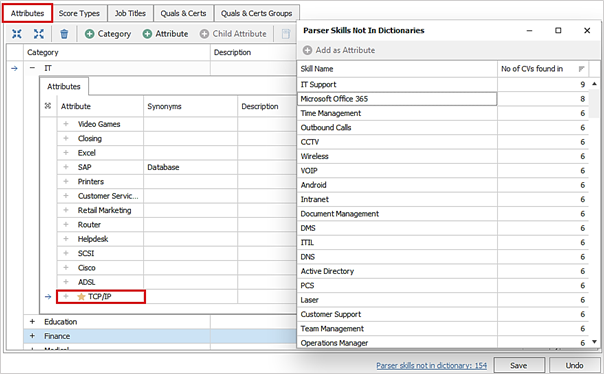
• The user must save the changes to add the entry(s) permanently to the Infinity Attributes Dictionary
• If saved, the entry(s) will be removed from the Parser Skills Not In Dictionaries list
• If the user does not save the changes, the entry(s) are not added and will reappear in the Parser Skills Not in Dictionaries list
Add Job Titles
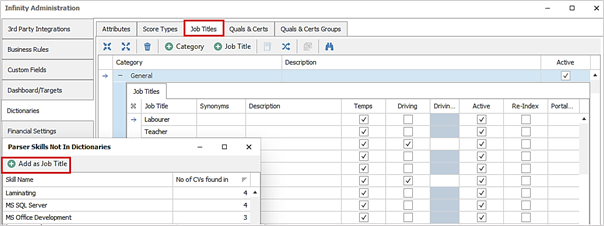
• Requires the users to have EditJobTitlesDictionary permission
• The Infinity Job Titles Dictionary must be the selected tab in the background
• The add (green plus) button will be labelled as ‘Add as Job Title’
• User can select Parser skills(s) in the list to add to the dictionary:
o Single select
o Ctrl & A to select all
o Ctrl & Click to select multiple individual
o Shift & Click to cursor down and select multiple rows
When clicking ‘Add’, a new screen is shown and the user must select the fields as required.
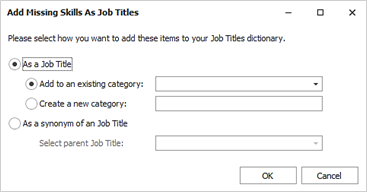
• Is it a job title, or synonym
o mandatory to select one
• If job title which category?
o mandatory to select one or can create new
• If synonym which existing job title?
o mandatory to select one
When all mandatory fields have been set, the selected entry(s) can be added to the Infinity Job Titles Dictionary as configured.
The dictionary will expand to show the newly added entry(s) on the screen and they will be highlighted with a star icon.
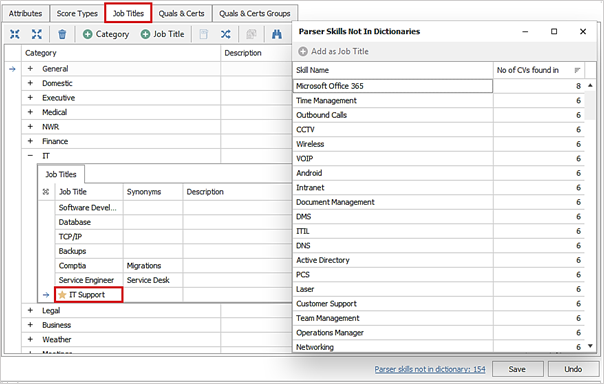
• The user must save the changes to add the entry(s) permanently to the Infinity Job Titles Dictionary
• If saved, the entry(s) will be removed from the Parser Skills Not In Dictionaries list
• If the user does not save the changes, the entry(s) are not added and will reappear in the Parser Skills Not in Dictionaries list
Add Quals & Certs
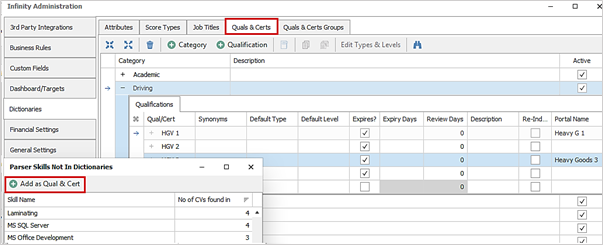
• Requires the users to have EditQualsandCertsDictionary permission
• The Infinity Quals & Certs Dictionary must be the selected tab in the background
• The add (green plus) button will be labelled as ‘Add as Qual & Cert’
• User can select Parser skills(s) in the list to add to the dictionary:
o Single select
o Ctrl & A to select all
o Ctrl & Click to select multiple individual
o Shift & Click to cursor down and select multiple rows
When clicking ‘Add’, a new screen is shown and the user must select the fields as required.
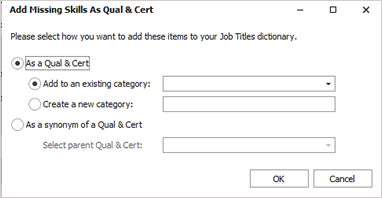
When all mandatory fields have been set, the selected Quals & Certs can be added to the Infinity Quals & Certs Dictionary as configured.
The dictionary will expand to show the new added entry(s) on the screen and they will be highlighted with a star icon.
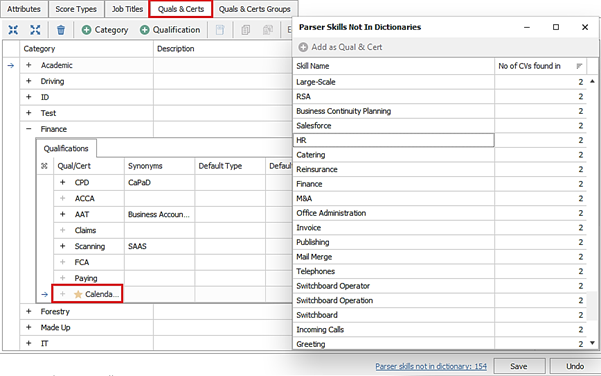
• The user must save the changes to add the entry(s) permanently to the Infinity Quals & Certs Dictionary
• If saved, the entry(s) will be removed from the Parser Skills Not In Dictionaries list
• If the user does not save the changes, the entry(s) are not added and will reappear in the Parser Skills Not in Dictionaries list
Enhancement 134489 Manage Duplicate Candidates - consultant filter added
In the Application / Data Management / Manage Duplicate Candidates screen, a consultant filter has been added.
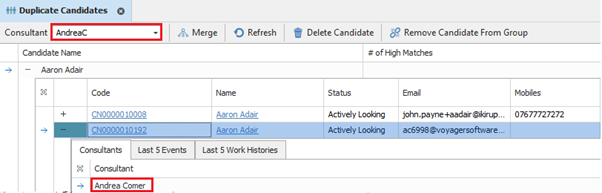
• The consultant’s username is displayed in the filter
• One consultant can be selected
• The grid is immediately filtered to show duplicate groups where at least one of the candidates within the group is owned by the selected consultant
• The duplicate group and all its candidates are displayed
• The filter defaults to blank and the grid is unfiltered and includes candidates without an owning consultant
• The filter is not displayed when the duplicate screen is launched from the candidate page
Enhancement 134261 Find ‘autorun’ is disabled as default for new users
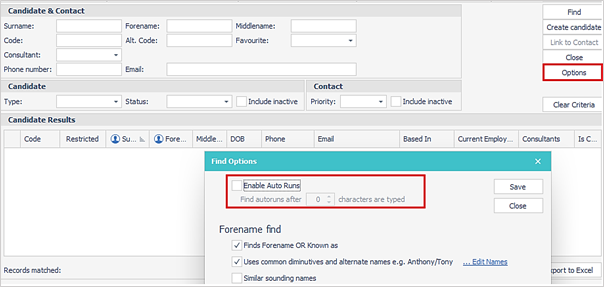
New users have autorun switched off as default in the Advanced Find Options screen.
Enhancement 134104 Undo shifts/availability changes in the temp calendars
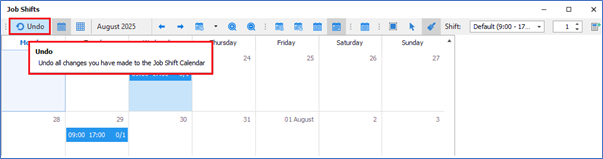
In job shifts calendar, custom extension wizard calendar and candidate temp calendar there is a an ‘Undo’ button on the toolbar. This will undo all changes made to shifts / availability since the user opened the calendar.
When clicking the button, the user is prompted "Are you sure you want to undo all changes made to the calendar?
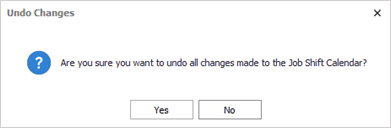
If the user clicks ‘Yes’, all changes made since the user opened the calendar are undone.
If the user clicks ‘No’, changes are not undone and the user is returned to the calendar screen.
 Contact Details
If you require further assistance please contact Ikiru People using the details published on www.ikirupeople.com
Visit our Customer Portal at https://portal.ikirupeople.com/ for future events and clinics.
FeedbackIf you would like to make suggestions or have found any errors with this Help section please contact our Support team.
Copyright © 2026 Voyager by Ikiru People Ltd. All rights reservedVersion 4.87
Voyager Software is a brand of Ikiru People Ltd, a subsidiary of Dillistone Group Plc. The group is a leading global provider of software and services that enable recruitment agencies and in-house recruiters to better manage their selection process and address the training needs of individuals. Across its brands – which include Voyager Software (recruitment software UK & Australia), Dillistone FileFinder executive search software, GatedTalent, the global database of the world’s leading executives, Talentis.Global – the next generation of recruitment software and also ISV.Online, provider of online pre-employment skills testing and training tools. Dillistone Group serves thousands of clients worldwide. Ikiru People Ltd: Registration Number 02043300. Registered in England & Wales.
 |  |  |  |