Release Notes Version: 5.12
Release Date: 24th May 2025
What have we released?
• Infinity 5.12 has been released
Release overview
Here’s a snapshot of what we’ve delivered in this release:
• Clickable column to communicate on Contact Search Results
• Default setting for the candidate’s availability date
• Portal – new RTW doc, new Referee/ICE fields on Form docs + minor enhancements
Release Notes Highlights Video - June 2025
Feedback please
We are continuously looking to improve Voyager Infinity and are keen to hear your thoughts. Please email suggestions@ikirupeople.com with any feedback on existing functionality or ideas for new functionality.
Enhancement 133319 Clickable column to communicate on contacts search results
There is a new column on contact search results called ‘Comms’ that displays a clickable ‘Log Event’ icon.
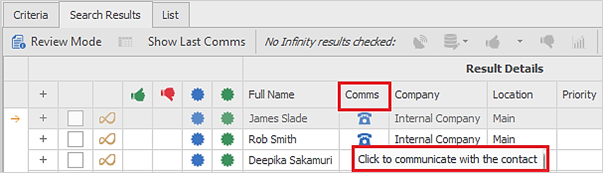
This is shown in the default layout after the contact’s name and can be added/removed by the column chooser.
There is a tooltip on the icon ‘Click to communicate with the contact’. When clicking on the icon the user is shown a menu of available communication methods with submenus to show the telecoms.
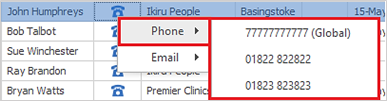
The following comms methods and telecoms listed if available. If the telecoms are not specific to the contact’s location, the word ‘(Global)’ is appended to value.
• Phone
o Mobile numbers
o Work Phone numbers
o DDI numbers
o Work Email Addresses that are ticked as send as default
• SMS
o Displayed only if the database is configured for SMS, and lists mobile numbers that are ticked as ‘OK to SMS’
User can click to make a phone call to a number listed.
• If configured, autodial is launched as per existing functionality
• If not configured, the contact event logger is launched
• When complete, an event is logged against the contact record
User can click to send an email to an email address listed
• This launches the Quick Email functionality as configured in User Options
• When complete, an event is logged against the contact record
User can click to send an SMS to a mobile number
• This launches the Quick SMS functionality as configured in User Options
• When complete, an event is logged against the contact record
When the events are logged, the search results’ ‘Last Comms Event’ field is updated.
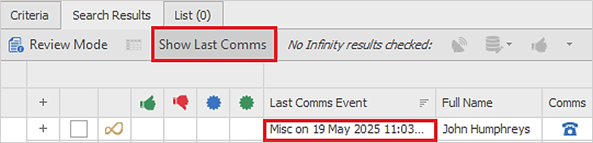
Note: You must rerun the search to see the update in the field.
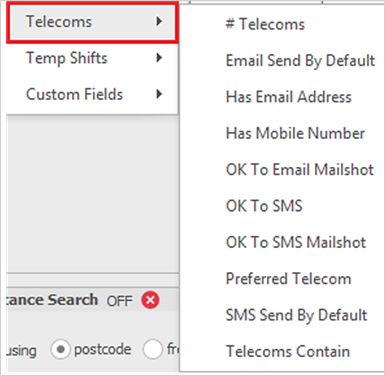
Tip: - When using this functionality, it’s advisable to include contacts that have the required telecoms in your search criteria.
Enhancement 133437 Default setting for the candidate’s availability date
In Administration / General Settings / Main Pages / Candidate section there is a new field to set the default candidate page availability date.
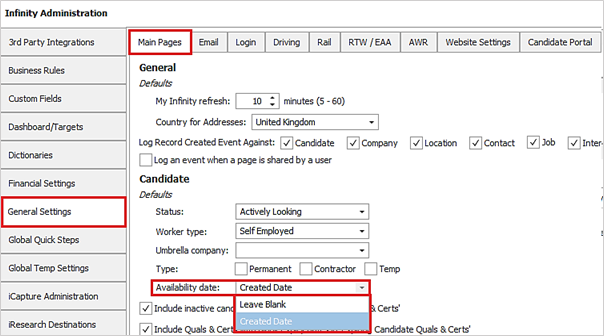
The options available are as follows:
• Leave Blank
• Created Date - this is the default and works as per current functionality
When candidates are created in Infinity, iCapture or iResearch, the set default is applied.
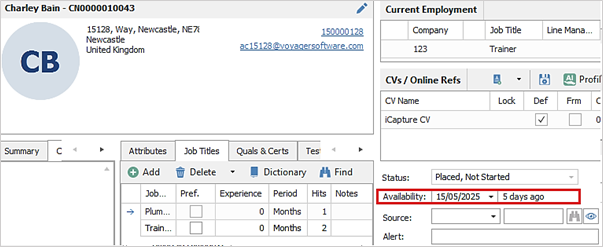
Enhancement 133436 Company ‘Alternate code’ field added to search results/list
The company page ‘Alternate code’ field has been added to the column chooser on company search results and lists.
Enhancement 133418 Candidate search results ‘Mobile’ column updates ‘Last Comms Event’
When clicking the mobile phone hyperlink on candidate search results and logging a comms event, it is shown in the ‘Last Comms Event’ field.

Note: You must rerun the search to see the update in the field.
Enhancement 133401 Improved experience for users without the ‘Edit CV’ permission
When a user without ‘Edit CV’ permission opens a CV, the ‘Cancel’ button on the Infinity Word Toolbar is available to return to Infinity.
When a user without ‘Edit CV’ permission opens a CV, the word close (X) button closes the word document to return to Infinity
Enhancement 132846/133393/133391 Portal - new Right to Work Document
A new Right to Work Document is available so that multiple Quals & Certs can be created in each A, B, C group. If using the 'A or (B and C) option in the existing ‘Upload Quals & Certs’ document it is recommended to use this document instead.
Administration
In Administration / General Settings / Candidate Portal tab there is a new Document type called ‘Right to Work’.
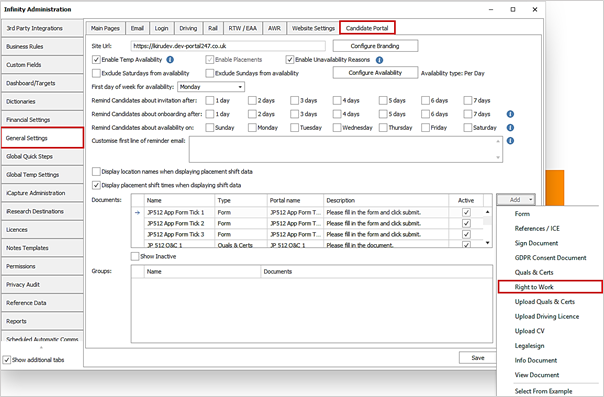
When selected the ‘Add Right to Work’ window is displayed.
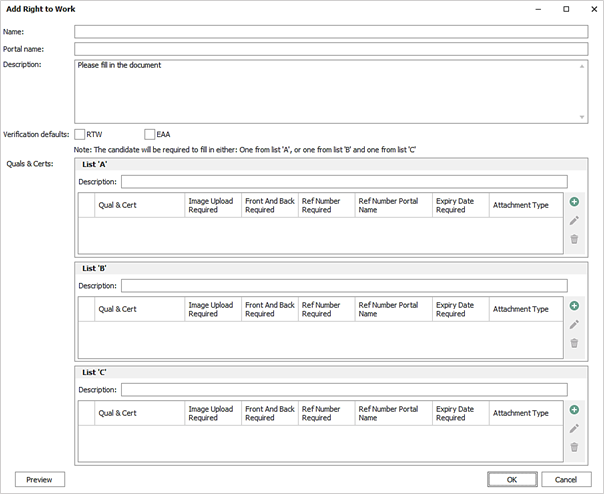
The Document Level Properties are as follows:
• Name
• Portal Name
• Description - the default description is 'Please fill in the document'
• Verification default settings for RTW and EAA
o If database is not set to 'Auto populate' in Administration / General Settings / RTW/EAA tab, the user can set the defaults
o If database is set to 'Auto populate' in Administration / General Settings / RTW/EAA tab, the fields are greyed out and cannot be changed. There is an adjacent ‘Info’ button giving further details
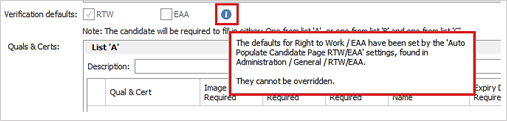
The Document contains 3 lists of Quals & Certs. At least one Qual & Cert must be added to each of the 3 lists. Each Quals & Cert must have at least one of 'Image upload required' or 'Ref number required' enabled. The same Qual & Cert cannot be added twice.
• List A
• List B
• List C
Each of the 3 lists has a mandatory description, which is visible to the candidate - Max 100 chars.
The candidate will be required to fill in either:
• One from List A
or
• One from List B and one from List C
Each Quals & Certs in each of the 3 lists has the following 7 properties: (As per the 'Quals & Certs' document)
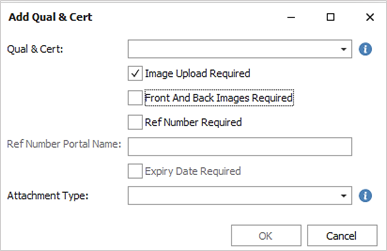
• Qual & Cert
o List the Qual & Cert names available in the Infinity dictionary
o Quals & Certs have a 'Portal Name' configured in the dictionary if required and this is what is sent to the Portal.
o A value must be selected
o There in an adjacent ‘Info’ button with further details
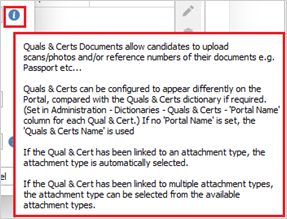
• Image Upload Required
o On by default
• Front And Back Images Required
o If 'Image upload required' is unselected, this is greyed out
o Off by default
• Ref Number Required
o Off by default
• Ref Number Portal Name
o If 'Ref number required' is unselected, this is greyed out
• Expiry Date Required
o If the selected Qual & Cert doesn't have an expiry date, this is unticked and greyed out
o If the selected Qual & Cert does have an expiry date, this is ticked by default
o If the user swaps between a Qual & Cert with an expiry date, to one without, the 'expiry date required' tick box is un-ticked and greyed out
o If the user swaps between a Qual & Cert without an expiry date, to one with, the tick box remains un-set
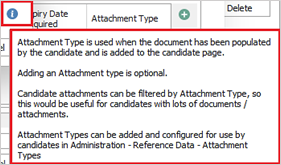
• Attachment Type
o If a Qual & Cert has been linked to an attachment type, the attachment type is automatically selected
o If the Qual & Cert has been linked to multiple attachment types, the attachment type can be selected from the available attachment types
o There in an adjacent ‘Info’ button with further details
A Preview button is available at the bottom of the window.
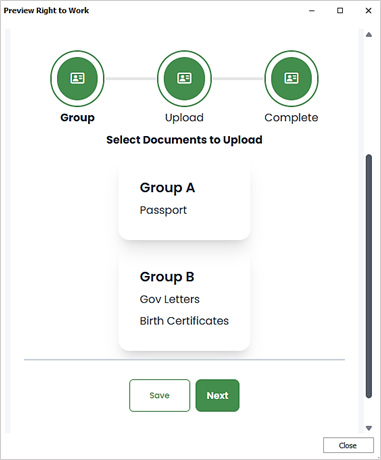
The preview displays the Right to Work document as the candidate sees it on the Portal. This includes all the settings: image upload, front/back, ref (inc. portal name) and expiry.
Document Management
• The Document cannot be deleted if it is allocated to a candidate and not verified.
• The following fields cannot be edited if it is allocated to a candidate and not verified:
• 'Per Quals & Cert' fields: Names, image upload, front/back, ref no (value and portal name), expiry date
• The following fields can be edited if it is allocated to a candidate and not verified:
• 'Per Quals & Cert' fields: Attachment Type
• 'Per document’ fields: Name, Portal Name, Description
Old 'Upload Quals & Certs' documents
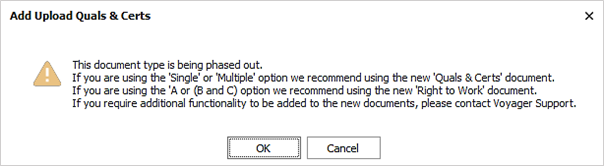
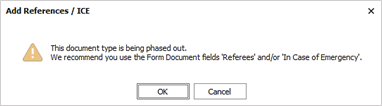
The warning message that is displayed when creating / copying / editing an 'Upload Quals & Certs' Document has been changed to say it’s being phased out and if using the ‘A or (B and C) option it is recommended to use this ‘Right to Work’ document instead.
Portal
The Document is shown on the Portal Onboarding list for the candidate to complete. When opened, the candidate must choose to upload Qual & Cert documents for A or (B and C).
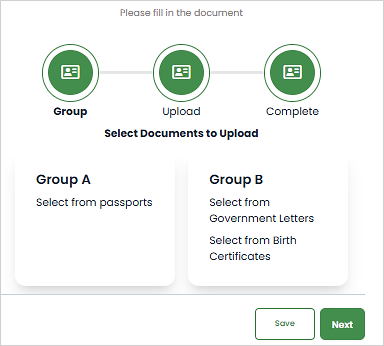
The candidate can see the list of Quals & Certs for each group accordingly.
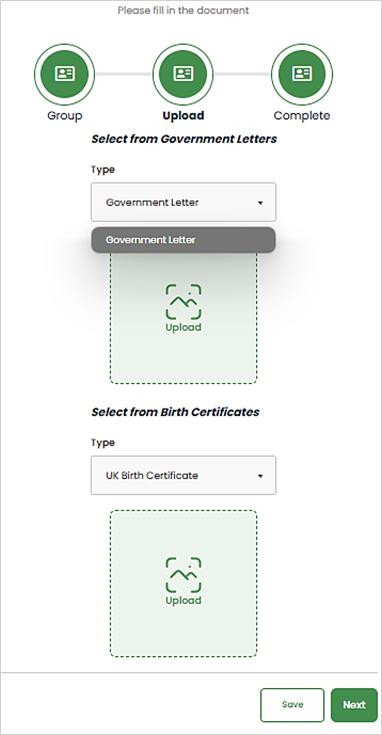
Each Qual & Cert can have the following properties (as per the 'Quals & Certs' document):
• Quals & Cert
o If a Portal name is configured, the Portal name is used
o If a Portal name is not configured, the Quals & Certs name is used
• Image Upload (if enabled)
o Accepted file formats: JPG, JPEG, GIF, PNG, DOC, DOCX, PDF
o JPG, JPEG, GIF PNG display a copy of the image
o DOC, DOCX, PDF display a 'file system' type picture
o You cannot upload a file bigger than the maximum file upload size set on the database
o The filename is sent to Infinity, so that it can be returned if rejected
o If enabled, it is mandatory
o When press 'next' any field that is mandatory and not completed is highlighted in red and displays a message next to the field explaining the issue
• Requires Front And Back Images (if enabled)
o Only relevant if 'Image Upload' is enabled
o Front and back must be the same type
o If enabled, it is mandatory
o When press 'next' any field that is mandatory and not completed is highlighted in red and displays a message next to the field explaining the issue
• Ref Number (if enabled)
o The Ref number has a portal name
o If the portal name is populated it is used in place of the phrase 'Ref Number'
o If enabled, it is mandatory
o When press 'next' any field that is mandatory and not completed is highlighted in red and displays a message next to the field explaining the issue
o Max 20 characters
• Expiry Date (if enabled)
o If enabled, it is mandatory
o When press 'next' any field that is mandatory and not completed is highlighted in red and displays a message next to the field explaining the issue
o Min date = one year before today
o Max date = 50 years after today
o Ascending order (smallest at top)
o Note: Qual &Cert must have at least one of 'Image Upload Required' or 'Ref Number required' enabled
Verify
As per the existing 'Quals & Certs' Document verification process, the Infinity user can verify the Right to Work document.
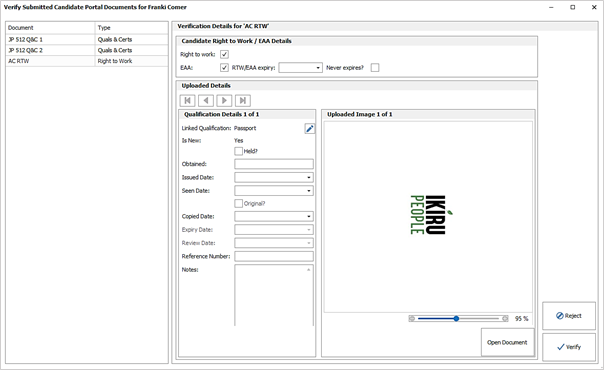
• The user can view the uploaded images (if image upload is enabled on that Qual & Cert).
• Accepted file formats: JPG, JPEG, GIF, PNG, DOC, DOCX, PDF
• If the candidate uploads a password protected PDF, the verification screen will not error
• 'Open document button allows the user to open the Image/word doc / pdf outside of Infinity, (useful for corrupt files etc)
The user can edit all the Quals & Certs fields:
• Quals & Certs name
o These are always populated by default
o Cannot be blanked
o Is New - indicates if the quals & certs is new to the candidate
• Held
• Obtained
• Issued date
• Seen date
• Original
• Copied date
• Expiry date
• Review date
• Reference number
• Notes
If the Qual & Cert already exists on the candidate page, the verification screen is loaded with the data from the candidate page, and any data populated by the Portal (Ref No & Expiry), is displayed as entered on the Portal.
• Each Qual & Cert is updated on the candidate page, when it is verified
• Each Qual & Cert is attached to the candidate page, when it is verified
o The attachment type is as configured in the admin screen
o The attachment name is the name of the Qual & Cert
• If the Qual & Cert name is edited in the verify screen, the attachment name is the new Qual & Cert name
• If the Qual & Cert has a Front and Back, ' - Front' or ' - Back' are added to the end of the attachment name
• If the Qual & Cert only has one attachment, nothing is suffixed to the attachment name
• Special characters are trimmed out of the qualification name
• Note: There is no 'not required' functionality
Per Document functionality as follows:
The verify screen displays the following 4 fields: (as per the candidate page)
• Right to Work
• EAA
• RTW/EAA expiry
• Never expires?
• If 'Never expires?' is ticked, the expiry date is greyed out.
• The data is populated from the candidate page
If the candidate is configured to use TrustID, the fields are greyed out and read only as follows:
• If TrustID is configured to 'Update Right to work', then 'Right to Work' is greyed out
• If TrustID is configured to 'Update EAA' then 'EAA' is greyed out.
• The user is made aware that they are greyed out because they are configured to use TrustID
If the database is set to 'Auto populate', the fields are greyed out and read only as follows:
• If auto populate is configured to control 'Right to Work', then 'Right to Work' is greyed out
• If it is already greyed out due to TrustID, no further changes are required
• If auto populate is configured to control 'EAA', then 'EAA is greyed out
• If it is already greyed out due to TrustID, no further changes are required
• If auto populate is configured to control 'Expiry Date', then both 'RTW/EAA expiry' and 'Never Expires?' are greyed out
• The user is told they are configured to 'Auto populate'
If the Document is configured to tick 'RTW and / or EAA', then they are ticked for all non-greyed out fields.
• The user can make changes to any non-greyed out fields
o User requires the 'ChangeEAARighttowork' permission
o The user is told they don’t have permission when they hover over the field
When the verify button is pressed, data is saved to the candidate page.
• Existing Qual & Cert verify functionality runs saving the Quals & Certs and attachments
• Non-greyed out RTW/EAA data is saved:
o Right to Work
o EAA
o RTW/EAA expiry
o Never expires?
• User requires the 'ChangeEAARighttowork' permission to verify the document if they have been configured to be set by the portal.
If the database is set to 'Auto populate', the 'Auto populate' process runs when the candidate details are saved as per existing functionality.
Note: The above rules are based on the settings on the database 'when the Document is verified' and not 'when the Document is created'.
Reject
• When rejected, the document is returned to the candidate as it was populated
• When rejected, the Quals & Certs are attached to the candidate page using the filename as per the Qual & Cert.
o REJECTED - YYYYMMDD- Is added to the beginning of the attachment name
• Rejected documents can be edited by the candidate and resubmitted
• Re-submitted documents can be verified
• The document can be added to multiple candidates while the candidates are invited
• The document can be added to multiple candidates who are already invited
Enhancement 132710/133340/133339 Portal - new ‘Referees’ field on Forms
Administration
In Administration / General Settings / Candidate Portal / Form documents there is a new field called 'Referees'.
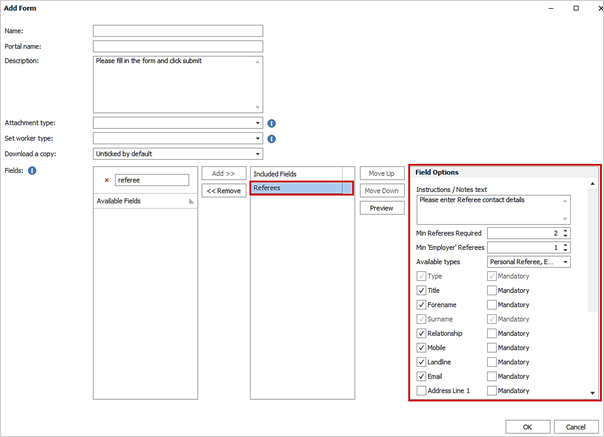
This has the following field options:
• Instructions / Notes text
o Default: ‘Please enter Referees contact details’
• Min Referees required
o Default: 2
o Min: 0 (i.e. not mandatory to add a referee)
o Max: 25
• Min 'Employer' Referees
o Default: 1
o Min: 0
o Max: 25
• If the 'Employer' Available type is off, Min 'Employer' referees is disabled/greyed out
Min 'employer' referees cannot be more than 'min referees'
Available Referee types:
• Employer
o on by default
• Personal
o on by default
• Academic
o off by default
• Voluntary
o off by default
• At least one available type must be ticked
Fields
• Each field can be enabled / disabled
• Each field can be mandatory
List of fields:
• Type
o on and mandatory. Read Only
• Title
o on by default
• Forename
o on by default
• Surname
o on and mandatory. Read Only
• Relationship
o on by default
• Mobile
o on by default
• Landline
o on by default
o on by default
• Address Line 1
o off by default
• Address Line 2
o off by default
• Address Line 3
o off by default
• Town
o off by default
• County
o off by default
• Postcode
o off by default
• Country
o off by default
• Company
o on by default
• Job Title
o on by default
• Notes
o on by default
Portal
The Portal displays the header 'Referees' followed by the instructions / notes text.
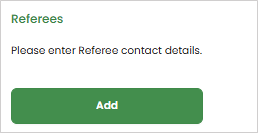
The candidate can add multiple referees with fields as configured in administration.
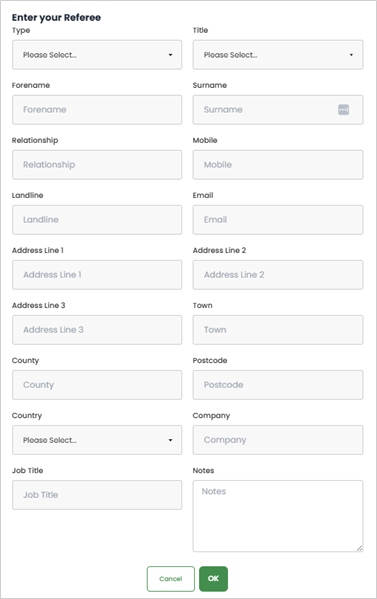
Fields configured in admin as 'mandatory' must be populated and the minimum number of referees / employer referees must be added before the candidate can submit.
Verify
The submitted referees can be viewed as per other fields when verifying the document.
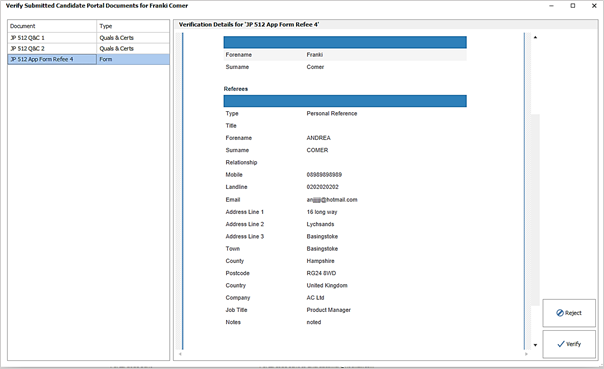
When the user clicks ‘Verify’’ the following will happen:
• The data in the referees is added to the referees’ section of the candidate page
• Referees are added and no existing referee data is overwritten
• A copy of the referee data is added as an attachment to the candidate page, in the same document as the other fields on the form
Reject
If the Form is rejected, the fields are returned to the candidate.
Enhancement 132730/133342/133341 Portal - new ‘In Case of Emergency’ field on Forms
Administration
In Administration / General Settings / Candidate Portal / Form documents there is a new field called 'In Case of Emergency'.
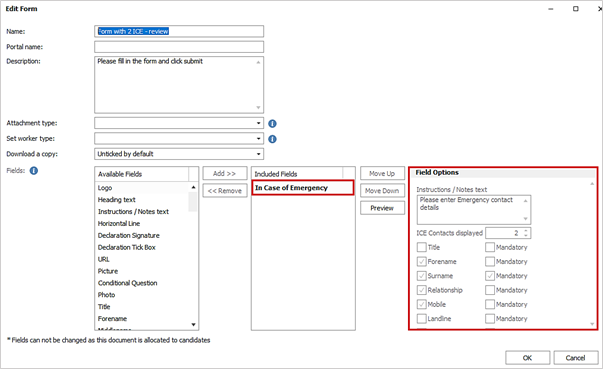
This has the following field options:
• Instructions / Notes text
o Default: Please enter Emergency contact details
• ICE Contacts displayed
o Default: 1
o Max: 2
Fields
• Each field can be enabled / disabled
• Each field can be mandatory
List of fields
• Title
o off by default
• Forename
o on by default
• Surname
o on and mandatory. Read Only
• Relationship
o on by default
• Mobile
o on by default
• Landline
o off by default
o off by default
• Address Line 1
o off by default
• Address Line 2
o off by default
• Address Line 3
o off by default
• Town
o off by default
• County
o off by default
• Postcode
o off by default
• Country
o off by default
• Notes
o off by default
Portal
The Portal displays the header 'In Case of Emergency' followed by the instructions / notes text.
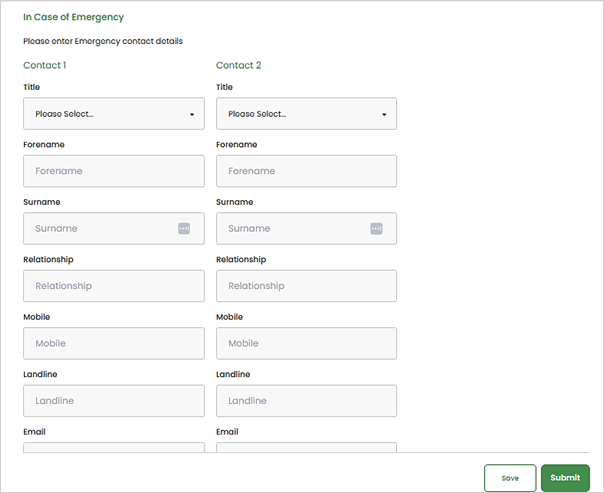
The candidate can add multiple contacts with fields as configured in administration. If two are required, they are labelled 'Contact 1' and 'Contact 2'
Fields configured in administration as 'mandatory' must be populated.
Verify
The submitted In Case of Emergency contacts can be viewed as per other fields when verifying the document.
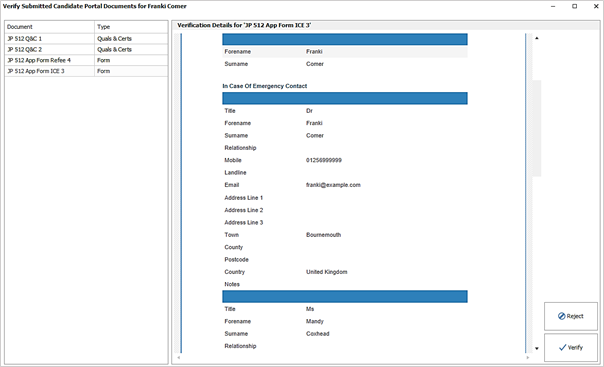
When the user clicks ‘Verify’’ the following will happen:
• The data in the In Case of Emergency is added to ICE section of the candidate page
• The type is 'ICE' (Note: this is not displayed on the form, and will not be seen on the PDF)
• ICE contacts are added and no existing ICE data is overwritten
• A copy of the ICE data is added as an attachment to the candidate page, in the same document as the other fields on the form
Reject
If the Form is rejected, the fields are returned to the candidate
Enhancement 133395 Portal - removal notification on reference/ICE Documents
In Administration / General Settings / Candidate Portal tab a warning message is displayed when 'Reference / ICE' documents are created/copied/edited to say they are being phased out and instead to use the relevant Form Document fields.
Enhancement 133430 Portal - change to image names in Quals & Certs verification
The new Quals & Certs verification screen does not display a filename for the image.
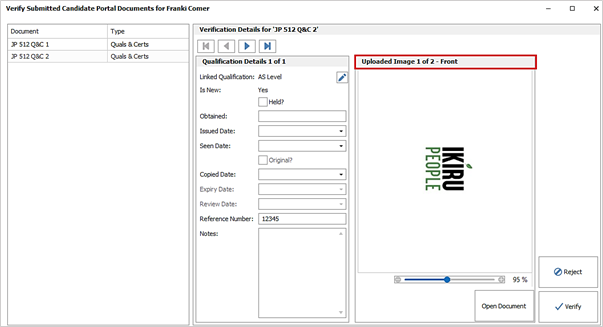
Instead, above the image, if there is no front & back, it displays:
• Uploaded Image 1 of 1
If there is a front & back, it should display as applicable:
• Uploaded Image 1 of 2 - Front
• Uploaded Image 2 of 2 - Back
Enhancement 133408 Portal - multiple conditional questions
In Administration / General Settings / Candidate Portal / Form documents, multiple conditional questions can now be added.
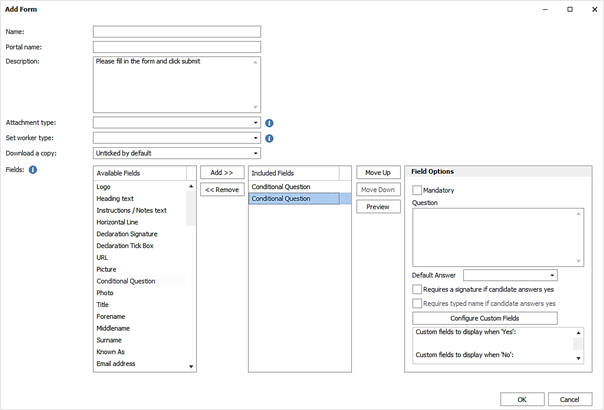
A custom field can only be added once per form (i.e. can't be added to more than one conditional question).
Enhancement 133410 Portal - double click removed from Attributes/Job Titles selection
In Administration / General Settings / Candidate Portal / Form documents, double click functionality has been removed from the Attributes and Job Titles groups selection window.
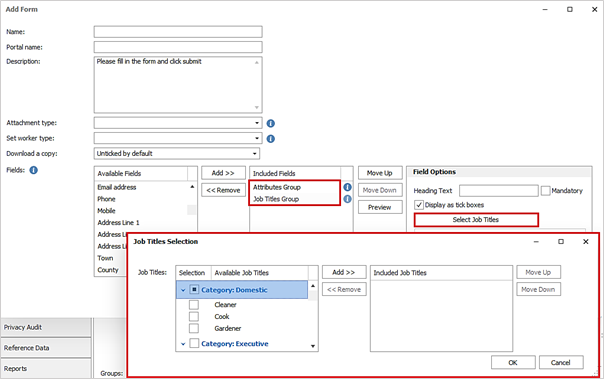
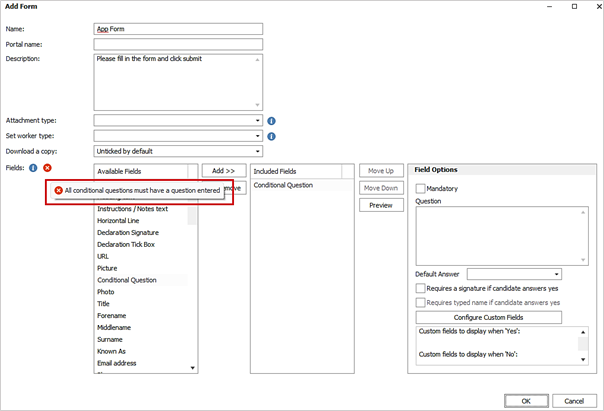
Enhancement 133409 Portal - a question is mandatory on a conditional question field
In Administration / General Settings / Candidate Portal / Form documents, user is prevented from saving a form with a conditional question that doesn't have the 'question' populated.
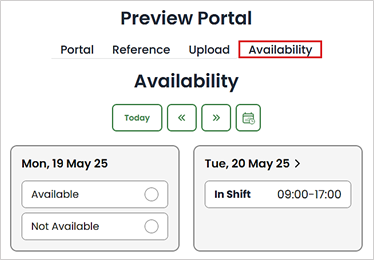
Enhancement 133422 Portal - ‘Availability’ branding preview
In Administration / General Settings / Candidate Portal tab, the ‘Configure Branding’ screen has another preview that displays Availability and its branding.
Enhancement 133416 Portal - prevented from adding more quals & certs if all are added
On a Portal Quals & Cert document, when it is not configured as mandatory, and each Qual & Cert has been selected by the candidate, the ‘Add’ button is not displayed.
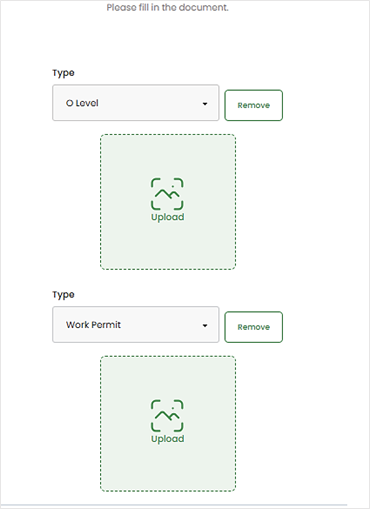
If the candidate removes one of the Quals & Certs, the ‘Add’ button becomes available again.
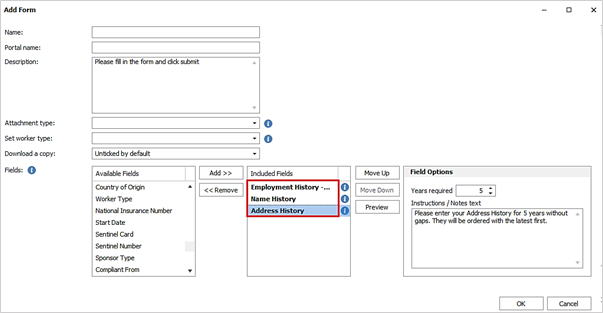
Enhancement 133417 Portal - 'History' fields highlighted as mandatory
In Administration / General Settings / Candidate Portal / Form documents, the ‘History’ fields below display in bold in the 'Included Fields' list as they are always mandatory:
• Employment History - No Gaps
• Name History
• Address History
Enhancement 133419 Portal - ‘Name History’ title field changed to a drop down list
On a Portal Form, the ‘Name History’ title field is now a drop-down list.
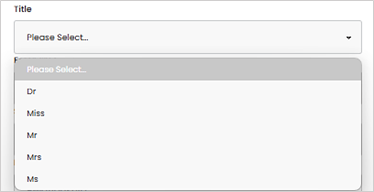
The drop-down list is all active ‘Titles’ as configured in Infinity Administration / Reference Data / Titles tab.
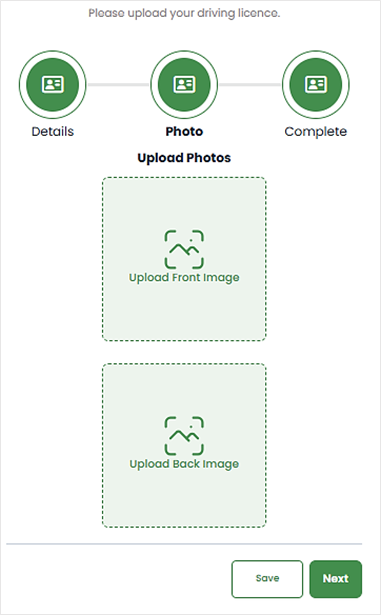
Enhancement 133434 Portal - driving licence upload photos labelled front & back
On a Portal Driving Licence document, upload images are labelled front and back, when both side of the document are required.
Enhancement 133429 Portal - ‘Employment History – No Gap’ change to reason for leaving
On a Portal Form, on 'Employment History - No Gap' fields. If 'gap' and 'present' are selected, the 'reason for leaving gap' field is removed.
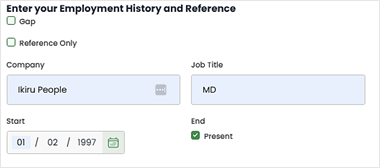
On the PDF, on 'Employment History - No Gap' fields, If 'gap' and 'present' are selected the 'reason for leaving gap' field is removed.
Enhancement 133428 Portal - 'Employment History - No Gaps' name change
On the Portal Form, 'Employment History - No Gaps' is renamed to 'Employment History Without Gaps'.
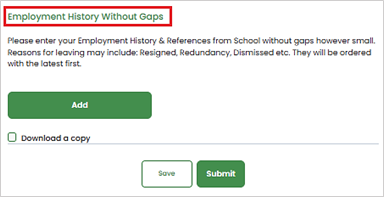
The field in Infinity is not renamed.
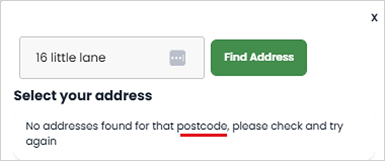
Enhancement 133424 Portal - ‘Find Address’ improvements
On a Portal Form, if you enter non postcode text e.g. the first line of your address in the postcode lookup field and click ‘Find Address, the notification on screen informs you that the ‘postcode’ has not been found.
Enhancement 133404 Portal - ‘Cont’ job type is renamed
On the Portal Form, ‘Cont’ job type is renamed to ‘Contract’.
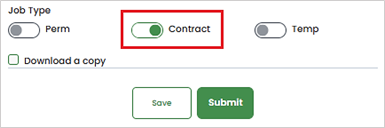
The field in Infinity is not renamed.
 Contact Details
If you require further assistance please contact Ikiru People using the details published on www.ikirupeople.com
Visit our Customer Portal at https://portal.ikirupeople.com/ for future events and clinics.
FeedbackIf you would like to make suggestions or have found any errors with this Help section please contact our Support team.
Copyright © 2026 Voyager by Ikiru People Ltd. All rights reservedVersion 4.87
Voyager Software is a brand of Ikiru People Ltd, a subsidiary of Dillistone Group Plc. The group is a leading global provider of software and services that enable recruitment agencies and in-house recruiters to better manage their selection process and address the training needs of individuals. Across its brands – which include Voyager Software (recruitment software UK & Australia), Dillistone FileFinder executive search software, GatedTalent, the global database of the world’s leading executives, Talentis.Global – the next generation of recruitment software and also ISV.Online, provider of online pre-employment skills testing and training tools. Dillistone Group serves thousands of clients worldwide. Ikiru People Ltd: Registration Number 02043300. Registered in England & Wales.
 |  |  |  |