Release Notes 5.11 - May 2025
Release Date: 15th May 2025
What have we released?
• Infinity 5.11 has been released
Release overview
Here’s a snapshot of what we’ve delivered in this release:
• New Job Progress Board (Perm, Cont, Fixed Term)
• Temps – improvements on sorting/filtering in the Planners
• Portal
o Branding on PDFs
o New ‘Set Worker Type’ document level field on Forms
o See linked Employment History on Infinity Referees
Infinity Release Notes Highlights Video May -2025
Feedback please
We are continuously looking to improve Voyager Infinity and are keen to hear your thoughts. Please email suggestions@ikirupeople.com with any feedback on existing functionality or ideas for new functionality.
Enhancement 133169 Job Progress board (Perm/Cont/Fixed Term)
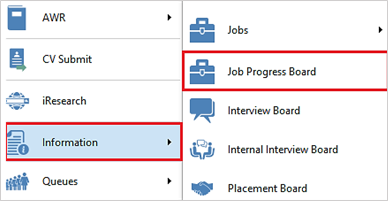
The new Job Progress board is available from the Application / Information menu.
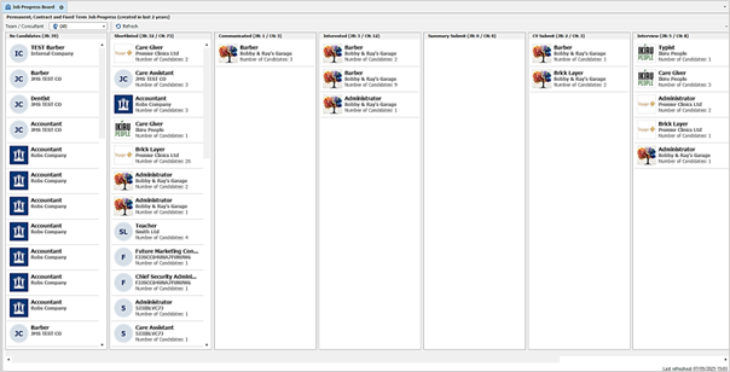
This gives progress information on open Permanent, Contract and Fixed Term jobs created in the last 2 years.
Job Stages
Overview
The board displays jobs with no candidates, and jobs where their latest shortlist stage (excluding cancelled shortlist rows) is one of the following:
• Shortlisted
• Communicated
• Interested
• Summary Submit
• CV Submit
• Interview
• Offered
• Placed
There is a horizontal scroll bar at the bottom to view the stages if they do not fit on the screen.
Each stage lists in the header the number of jobs at that stage and the number of candidates across all the jobs at that stage.
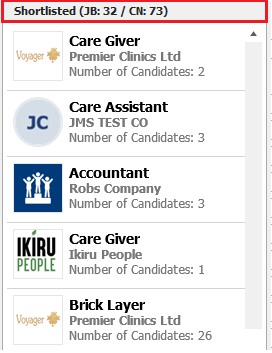
• The jobs are listed vertically and show the following information:
o Company logo
o Job title
o Company name
o Number of candidates at that shortlist stage
• The user can click on the job and is taken to the job page
• Each stage has its own vertical scrollbar
No Candidates
• Jobs with no candidates on the shortlist
• Jobs owned by the selected consultant or team
• Perm, Cont and Fixed Term jobs
• Jobs at a ’Current’ status type
Shortlisted
• Jobs where latest non cancelled stage out of all its entries is Shortlisted
• Jobs owned by the selected consultant or team
• Perm, Cont and Fixed Term jobs
Communicated
• Jobs where latest non cancelled stage out of all its entries is Communicated
• Jobs owned by the selected consultant or team
• Perm, Cont and Fixed Term jobs
Interested
• Jobs where latest non cancelled stage out of all its entries is Interested
• Jobs owned by the selected consultant or team
• Perm, Cont and Fixed Term jobs
Summary Submit
• Jobs where latest non cancelled stage out of all its entries is Summary Submit
• Jobs owned by the selected consultant or team
• Perm, Cont and Fixed Term jobs
CV Submit
• Jobs where latest non cancelled stage out of all its entries is CV Submit
• Jobs owned by the selected consultant or team
• Perm, Cont and Fixed Term jobs
Interview
• Jobs where latest non cancelled stage out of all its entries is Interview
• Jobs owned by the selected consultant or team
• Perm, Cont and Fixed Term jobs
Offered
• Jobs where latest non cancelled stage out of all its entries is Offered
• Jobs owned by the selected consultant or team
• Perm, Cont and Fixed Term jobs
Placed
• Jobs where latest non cancelled stage out of all its entries is Placed
• Jobs owned by the selected consultant or team
• Perm, Cont and Fixed Term jobs
Toolbar

Team / Consultant
• A team / consultant single select drop down field to filter the jobs by owner
• This defaults to ‘All’ consultants
• When a team is selected, the job stats are filtered by jobs that are owned by users in that team only
• When a consultant is selected, the job stats are filtered by jobs that are owned by that consultant only
Refresh
• This manually refreshes the data with latest information
• There is a date / time at the bottom right of the screen saying when it was last refreshed. This is in the user’s Infinity time zone
Known Issue: On Infinity databases configured for Portal ‘Availability’, if the Job Progress Board is open and Portal ‘Availability’ is launched from the Application menu, an error is returned. The user can click ‘Continue’ to load the ‘Availability’ grid as normal, however further errors may be returned when the screens are closed. The issue will be fixed in a future version.
Enhancement 133155 Infinity Connector (Outlook Add In) can log an event as 'Email Sent'
The Infinity Voyager Connector (Outlook Add In) 'Log email against Infinity records’ menu now has two options available for how the email is logged.
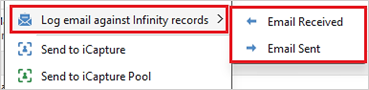
• User can choose to log an 'Email Received' or 'Email Sent’ event
• If 'Email Received' is chosen it works as per current functionality
• If 'Email Sent' is chosen it works as per current functionality, but the events are logged as outgoing with the event action of 'Email Sent'
Enhancement 133197 Temps - filtering/sorting improvements on the Planner results
In Temp and Shift Planner, when the user does an action that causes all results to load, the progress window advises the user that this may take some time to perform if there are a lot of records.
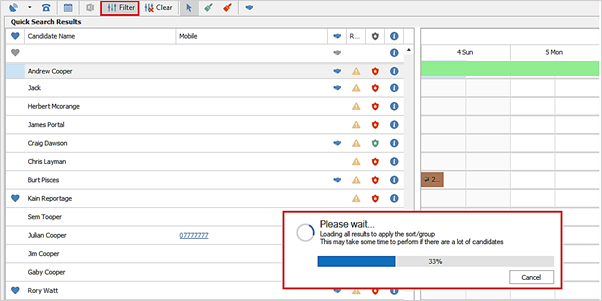
• The user can cancel out of the progress window
• If the user cancels, the action is not applied
• If the user cancels out part-way through and they then initiate the action again on the same set of results, it will continue from where it left off
In the Temp Planner the following actions cause all candidate results to load:
• Click the Filter button
• Click a column header to sort
• Export to excel
In the Shift Planner the following actions cause all job/placement results to load:
• Click the Filter button
• Click the Shift Totals button
• Click a column header to sort
• Export to excel
• Open a Comms Centre from the Shift Comms Wizard that requires a full load of results (see discussion)
• Open the Shift Comms Wizard with the "Include Cancelled/Removed Shifts" criteria enabled
Enhancement 132949 Portal - PDFs branded with the primary colour
Everything in the Form document that is currently 'blue' has been changed to the ‘Portal 'primary colour' set in Administration / General Settings / Candidate Portal tab ‘Configure Branding’ screen.
The elements changed are as follows and appear in the saved PDF:
• Document name
• Heading
• Signature:
o Declaration
o Signed date/time
o Ip address
o Email
• Tick box:
o Agreed date/time
• Table headings
o General
o Expected rates
o Employ history
o Employ history - no gaps
o Limited company
o Name history
o Address history
Enhancement 133148 Portal – linked employment displayed on the referee record
When editing a referee on the candidate page, the user can see the details if there is a linked employment record. Please note that linked data can only be created via the portal using the 'Employment History - No Gap' field on a Form.
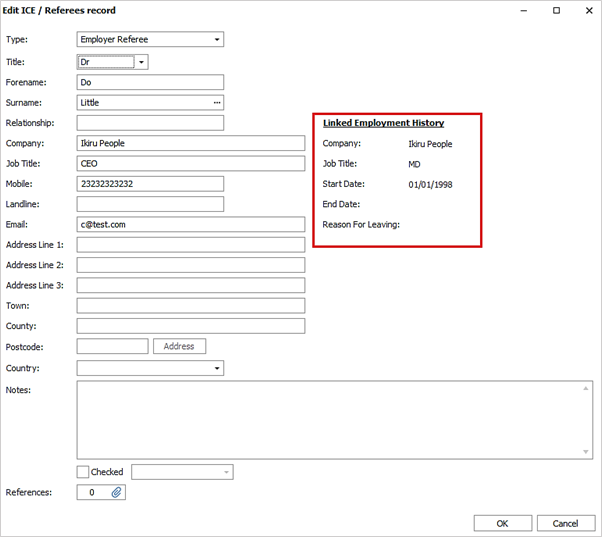
The following fields are displayed from the linked record:
• Company Name
• Job Title
• Start Date
• End Date
• Reason for Leaving
Enhancement 133072 Portal – set candidate worker type when verified
Administration
In Administration / General Settings / Candidate Portal tab / Form documents have a new document level field called 'Set Worker Type'.
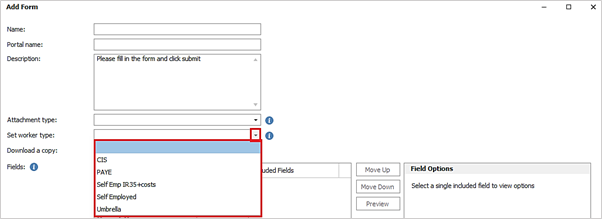
• A worker type can be selected from the drop-down list of active worker types that are configured on the database
• The setting is blank as default
• There is an adjacent ‘info’ button to explain the functionality
• When set, the candidate is allocated this worker type when they are verified
• This is designed to be used in combination with the following fields: Bank, Limited Company, Umbrella, CIS.
• If this is enabled, and the 'Worker Type' field is also added to the form, the worker type selected by the candidate takes precedence over this setting
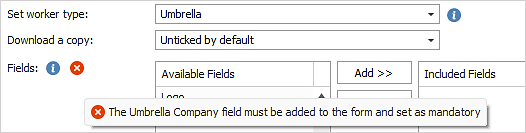
• If this is set to an Umbrella company worker type, then the 'Umbrella Company' field must also be added to the form and made mandatory. If the user has not done this, they are told why the form cannot be saved.
Portal
No changes have been made to the Portal
Verify
When verifying a form, the following is set:
• If 'Set Worker Type' is enabled, and the 'worker type' field is not on the form, the 'set worker type' is used
• If 'Set Worker Type' is enabled, and the 'worker type' field is on the form, and populated by the candidate the 'worker type' populated by the candidate is used
• If 'Set Worker Type' is enabled, and the 'worker type' field is on the form, and not populated by the candidate the 'set worker type' is used
• If 'Set Worker Type' is not enabled, and the 'worker type' field is on the form, the 'worker type' populated by the candidate is used (if populated) - current functionality
If the worker type is made inactive after the document is created, the inactive worker type is added to the candidate when verified.
If the candidate has current placements, the user is prompted to update them with the new worker type.
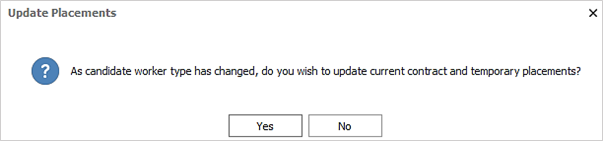
If ‘Yes’ is selected, the user can choose individual or all current placements to update, and log an event. This works as per existing functionality when changing the worker type from the candidate page personal/financial window.
The verification continues regardless of the answer to the question.
Enhancement 133138 Portal - custom fields not available if on a conditional question
In Administration / General Settings / Candidate Portal tab / Form documents, if a custom field is added to a conditional question, it is no longer listed in the ‘Available’ fields list.
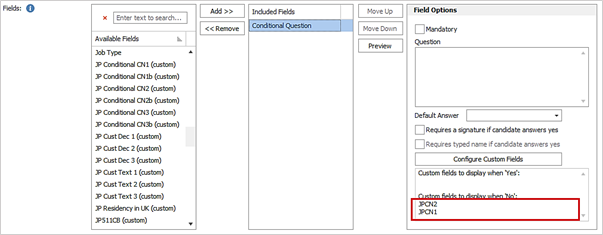
Enhancement 133052 Portal - find and sorting on ‘Available Fields’ list
In Administration / General Settings / Candidate Portal tab / Form documents, find (Ctrl & F) and sorting has been improved on the ‘Available Fields’ list.

• When pressing Ctrl & F (Find) on the ‘Available Fields’ list, the ‘Clear’ and ‘Find’ buttons have been removed
• The find criteria field displays text ‘Enter text to search…’
• The user can enter criteria to find on and this will autorun
• The find criteria field is prefixed with a red cross to clear and close it down
Clicking on the ‘Available Fields’ column header will sort alphabetically. Finding and sorting is not available on the ‘Included Fields’ list.
 Contact Details
If you require further assistance please contact Ikiru People using the details published on www.ikirupeople.com
Visit our Customer Portal at https://portal.ikirupeople.com/ for future events and clinics.
FeedbackIf you would like to make suggestions or have found any errors with this Help section please contact our Support team.
Copyright © 2026 Voyager by Ikiru People Ltd. All rights reservedVersion 4.87
Voyager Software is a brand of Ikiru People Ltd, a subsidiary of Dillistone Group Plc. The group is a leading global provider of software and services that enable recruitment agencies and in-house recruiters to better manage their selection process and address the training needs of individuals. Across its brands – which include Voyager Software (recruitment software UK & Australia), Dillistone FileFinder executive search software, GatedTalent, the global database of the world’s leading executives, Talentis.Global – the next generation of recruitment software and also ISV.Online, provider of online pre-employment skills testing and training tools. Dillistone Group serves thousands of clients worldwide. Ikiru People Ltd: Registration Number 02043300. Registered in England & Wales.
 |  |  |  |