Release Notes Version: 5.10
Release Date: 30th April 2025
What have we released?
• Infinity 5.10 has been released
Release overview
Here’s a snapshot of what we’ve delivered in this release:
• Search for contacts with contractors out working and send confirmation comms
• Temps – see detailed history of a candidate’s placement shifts (incl. pay rates and AWR)
• Portal
o Improved warnings for the candidate when completing history information
o Sign name option added to Maximum Weekly Hours Optout field
Infinity Release Notes Highlights Video May -2025
Feedback please
We are continuously looking to improve Voyager Infinity and are keen to hear your thoughts. Please email suggestions@ikirupeople.com with any feedback on existing functionality or ideas for new functionality.
Enhancement 132358/132660 Search contacts with contractors out working and send comms
Search
There is a new search field called ‘Has Contract Workers’ in the search section of Contact Searches.
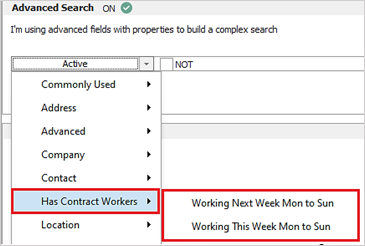
The user can search for contacts that are the main contact of contract placements where a candidate is working in the selected date period.
There are working period sub menus to choose from as follows:
• Working Next Week Mon to Sun
o this will start from the next Monday as of today
o If today is Monday, it’s the next one not today
• Working This Week Mon to Sun
o this will start from the Monday of the current week
o If today is Monday, its used
o if today is Sunday, the previous Monday is used

The candidate is deemed to be working on the placement if any of the following criteria is matched:
• If the placement starts before the first day of the working period selected and end date is blank
• If the placement starts before the first day of the working period selected and end date is equal to or greater than the first day of the working period
• If the placement starts during the working period selected
Placements at confirmed, started or finished status are matched only.
When searched, contacts are returned on the results that are the main contact of placements that match the criteria.
When the NOT operand is used, contacts are returned on the results that aren’t the main contact of placements that match the criteria.
Comms Centre
The Comms Centre can be launched from the contact search results or from the contact page. The ‘Contact’ Group in the Company Comms Centre has new merge lists to merge details of the contractors they have out working.
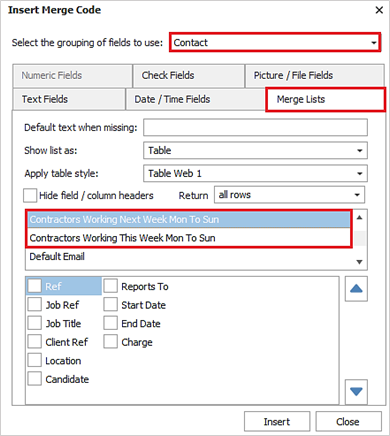
There are two merge lists available allowing the user to select the working period and this should match what was searched for:
• Contractors Working Next Week Mon to Sun
• Contractors Working This Week Mon to Sun
Columns available to select and merge are as follows:
• Ref - placement ref
• Job Ref - placement job ref
• Job Title - placement job title
• Client Ref - placement client ref
• Location - placement location name
• Candidate - placement candidate forename and surname
• Reports To - placement reports to
• Start Date - placement start date
• End Date - placement end date
• Charge - merges the charge value and currency symbol using the core rate relevant to dates working. If more than one rate for the days being merged is found the ‘Charge’ is listed comma separated for each day
This merges contract placements as follows:
• That are at confirmed, started or finished status
• Where the contact is the main contact of the placement(s)
• Where the candidate is deemed working in the placement work period selected
o If the placement starts before the first day of the work period and end date is blank
o If the placement starts before the first day of the work period and end date is equal to or greater than the first day of the work period
o If the placement starts during the work period

All other merge list functionality works as per existing functionality.
Enhancement 133070 Candidate address added to Contractors Currently Working report
On the Contractors Currently Working (Excel) report there is a column chooser for the candidate home address fields.
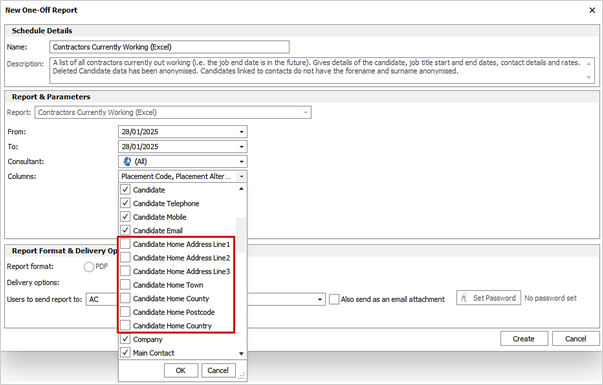
They appear after the candidate email field and are un-ticked as default.
When selected, this outputs all address fields in separate columns on the Excel spreadsheet

Enhancement 133035 Referee Comms Centre – loading improvements
When launching the Referee Comms Centre from the button on the toolbar or via Quick Email the screen is now launched in the foreground rather than on a tab.
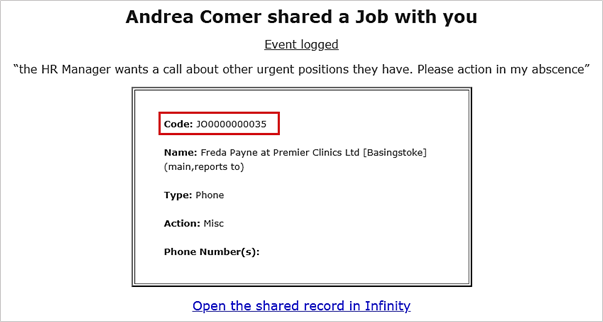
Enhancement 132700 Code field added to job, iv, placement event notification emails
When events are logged from job, interview and placement pages, and another user is notified, the code of the page that it was logged from, is shown on the email.
Enhancement 132828 Expanding / collapsing search results applies to all highlighted records
The user can multi select search results and press the expand (+) or collapse (-) sign to apply to all selected rows.
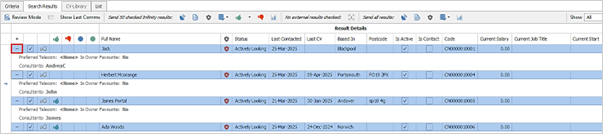
This is available on the following search results:
• Candidate
• Re-job candidate
• Company
• Location
• Contact
• Job
• Placement
Enhancement 131756 Temps – candidate’s detailed history of placement shifts
There is a new candidate page Temps button called ‘Temp History’. This gives detailed information about all placement shifts the candidate has worked on and includes pay rates and AWR information.

The button is included in the User Options / Display tab ‘Show Temp buttons on main Toolbars’ setting.
When launched, a window is displayed detailing the placement shifts.

Columns
Placement columns displayed as default are as follows:
• Code
• Company - company name
• Location - location name
• Contact - main contact
• Job Title
• Worker Type
• IR35 Status -
• Latest PO- latest po number on the placement
• Consultants - comma delimitted with consultant type in brackets
• Start Date - this is the start date of the first consecutive shift in the row
• End Date - this is the end date of the last consecutive shift in the row
• Start Time - start time of the shift(s)
• End Time - end time of the shift(s)
• Rate - rate name of the shift(s) core rate
The relevant rate for the dates of the shifts is then used and columns shown below:
• Pay - pay value of the rate incl. currency symbol and is 2 dec places
• Total Pay - total pay value of the rate incl. currency symbol and is 2 dec places
• Charge - charge value of the rate incl. currency symbol and is 2 dec places
• Per - per value of the rate
• AWR Week -this could be blank as placements may not be at a worker type that is included in AWR e.g. Self-Employed. The AWR week is counted as per existing AWR rules and is the AWR week number that the shifts fall in.
Grouping
The placement shifts are grouped together on a row if the shifts are consecutive shifts - hence there is not a day’s gap between them and the following fields are the same:
• AWR Week Number
• Shift Times
• Relevant placement core rate
Grid functionality
• The grid is ordered by latest start date and time at the top
• Double Clicking on a row opens the placement page
• User can hyperlink to the placement page from the Code column
• User can hyperlink to the company page from the Company column
• User can hyperlink to the main contact page from the Main Contact column
• User can hyperlink to the job page from the Job Title column
• Grid layout can be saved
• Columns can be filtered
• Columns can be sorted
• If all the data is not visible in a column an ellipsis is shown that can be hovered over to display the full value
Enhancement 132930 Portal - history field(s) default instruction / notes updated
In the Administration / General Settings / Candidate Portal tab, the text 'They will be ordered with the latest first.' has been appended to the following default notes / instruction fields:
• Name History
• Address History
• Employment History - No Gaps
Enhancement 132670 Portal - candidates told where the gap is in employment history
When employment history entries are added by the candidate on the Portal, they are ordered by start date, with latest first and new warnings have been added when submitting.
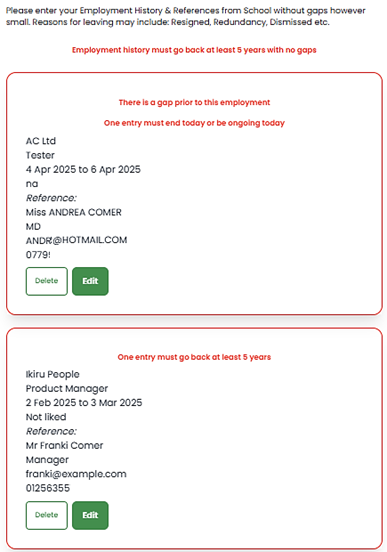
• When submitting, If an entry does not go back at least x years, the last entry (oldest) has a warning at the top of the tile: 'one entry must go back 5 years'
o X is configured in the Form admin screen, and defaults to 5
• When submitting, if an entry does not exist that has an end date today or later, the first entry (newest) has a warning at the top of the tile: 'one entry must end today or be ongoing today'
• When submitting, if there is only one entry and it has an end date today or later and the start date does not go back at least x years, the entry has both above warnings
o X is configured in the Form admin screen, and defaults to 5
• When submitting, if there is a gap between entries in the last x years, the entry after the gap (date wise) has the warning at the top of the tile: 'There is a gap prior to this entry'
o X is configured in the Form admin screen, and defaults to 5
All history entries with a warning, have a red border around them.
When submitting, you are scrolled up to the first entry that has a warning and when re-submitting, you are scrolled up to the first entry that has a warning.
Enhancement 132671 Portal - candidates told where the gap is in address history
When address history entries are added, they are ordered by start date, with latest first
and new warnings have been added when submitting.
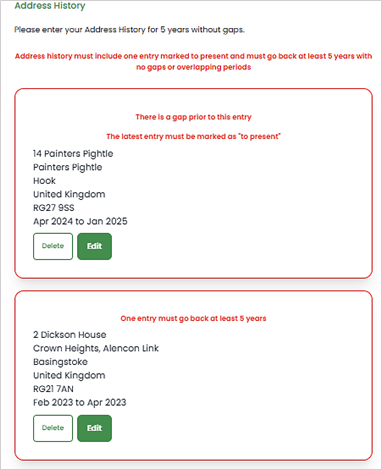
• When submitting If an entry does not go back at least x years, the last entry has a warning at the top of the tile: 'one entry must go back x years'
o X is configured in the Form admin screen, and defaults to 5
• When submitting, if an entry does not exist that is marked as to present, the first entry has a warning at the top of the tile: 'one entry must be marked as 'to present'
• When submitting, if there is only one entry and it is not marked to present and does not go back at least x years, the entry has both of the above warnings
o X is configured in the Form admin screen, and defaults to 5
• When submitting, if there is a gap between entries in the last x years, the entry after the gap has the warning at the top of the tile: 'There is a gap prior to this entry'
o X is configured in the Form admin screen, and defaults to 5
• When submitting, if there are overlapping entries in the last x years, all address history entries that have an overlap in the last 5 years have the warning 'This entry overlaps'
o X is configured in the Form admin screen, and defaults to 5
All history entries with a warning, have a red border around them.
When submitting, you are scrolled up to the first entry that has a warning and when re-submitting, you are scrolled up to the first entry that has a warning.
Enhancement 132672 Portal - candidates told where the gap is in name history
When name history entries are added, they are ordered by start date, with latest first and new warnings have been added when submitting.
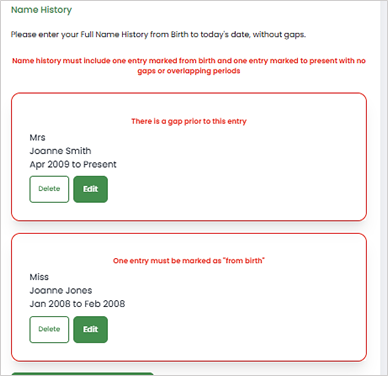
• When submitting, if an entry does not exist that is marked as from birth, the last entry has a warning at the top of the tile: 'one entry must be marked from birth'
• When submitting, if an entry does not exist that is marked as to present, the first entry has a warning at the top of the tile: 'one entry must be marked as 'to present'
• When submitting, if there is only one entry and it is not marked as from birth and not marked as to present, the entry has both of the above warnings
• When submitting, if there is a gap between entries, the entry after the gap has the warning at the top of the tile: 'There is a gap prior to this entry'
• When submitting, if there are overlapping entries, all name history entries that have an overlap have the warning 'This entry overlaps'
All history entries with a warning, have a red border around them.
When submitting, you are scrolled up to the first entry that has a warning and when re-submitting, you are scrolled up to the first entry that has a warning.
Enhancement 132997 Portal - 'Maximum Working Hours Optout' has a name option
Administration
In Administration / General Settings / Candidate Portal tab, Form documents have an option for Maximum Working Hours Optout to ask for candidates to type their name in as well as sign.
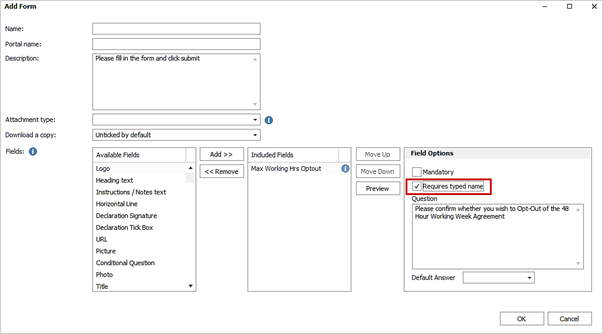
There is a 'Requires typed name' tick box, and the option is off by default.
Portal
If the name field is enabled and the signature is mandatory, they must populate it.
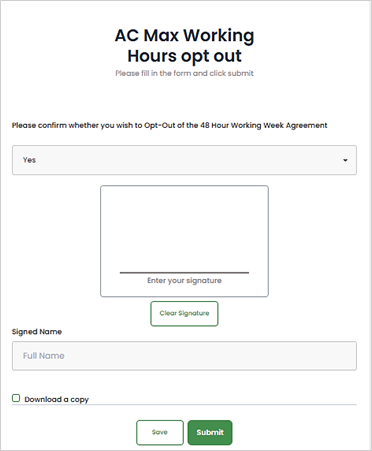
The name appears in the PDF
Verify
No changes
Upgrade
Documents created prior to the upgrade continue to work after the upgrade.
Enhancement 132996 Portal - umbrella company to have an 'Info’ button
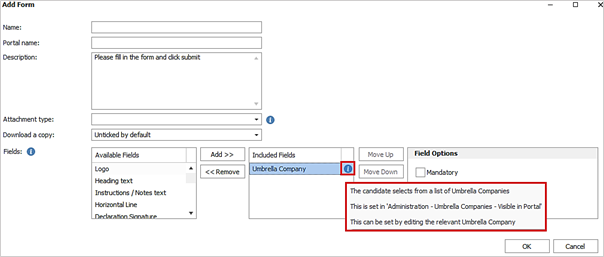
In Administration / General Settings / Candidate Portal, the 'Umbrella Company' field on Forms has a new ‘Info’ button giving further details on configuration.
Enhancement 133017 Portal – update to the ‘Availability’ tooltip
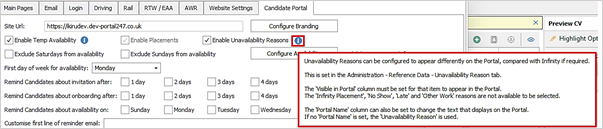
In Administration / General Settings / Candidate Portal tab, the ‘Unavailability Reasons’ ‘Info’ button has been updated to say 'Other Work' is not available to select on the Portal.
 Contact Details
If you require further assistance please contact Ikiru People using the details published on www.ikirupeople.com
Visit our Customer Portal at https://portal.ikirupeople.com/ for future events and clinics.
FeedbackIf you would like to make suggestions or have found any errors with this Help section please contact our Support team.
Copyright © 2026 Voyager by Ikiru People Ltd. All rights reservedVersion 4.87
Voyager Software is a brand of Ikiru People Ltd, a subsidiary of Dillistone Group Plc. The group is a leading global provider of software and services that enable recruitment agencies and in-house recruiters to better manage their selection process and address the training needs of individuals. Across its brands – which include Voyager Software (recruitment software UK & Australia), Dillistone FileFinder executive search software, GatedTalent, the global database of the world’s leading executives, Talentis.Global – the next generation of recruitment software and also ISV.Online, provider of online pre-employment skills testing and training tools. Dillistone Group serves thousands of clients worldwide. Ikiru People Ltd: Registration Number 02043300. Registered in England & Wales.
 |  |  |  |