Voyager Infinity – Release Notes
Version: 4.99
Release Date: 10th January 2024
What have we released?
- Infinity 4.99 has been released
Release overview
Here’s a snapshot of what we’ve delivered in this release:
- Copilot (preview) database wide setting
- New ‘Light’ colour palette
- Reviews improvements
- Contact navigator panel – owning consultant filter
- Scheduled Auto Comms / Quick Step conditions on placement type and worker type
Feedback please
We are continuously looking to improve Voyager Infinity and are keen to hear your thoughts. Please email suggestions@ikirupeople.com with any feedback on existing functionality or ideas for new functionality.
Enhancements
Enhancement 125218 Copilot (preview) database wide setting
On all Infinity databases licensed for Copilot, there is a new tab in Administration / 3rd party Integrations called Copilot.

There is a setting within called ‘Enable Infinity Copilot’. When ticked Copilot functionality is available throughout Infinity for all users. The setting is ticked as default for upgraded and new databases.
If the Infinity database is not licensed for Copilot, the tab is not shown and functionality is not available.
Enhancement 125145 New ‘Light’ colour palette
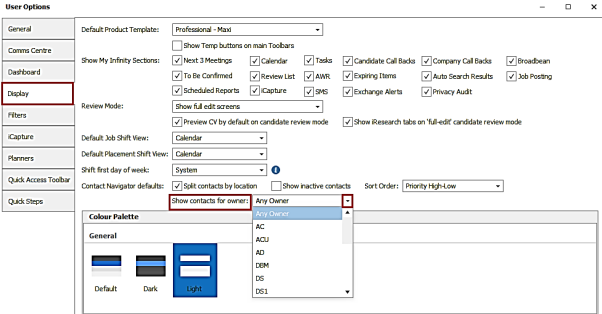
A ‘Light’ colour palette is available to select in User Options / Display tab.
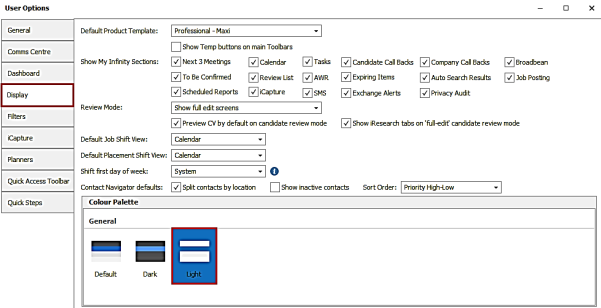
Once selected, the user will need to log out and in again to see the change in Infinity.
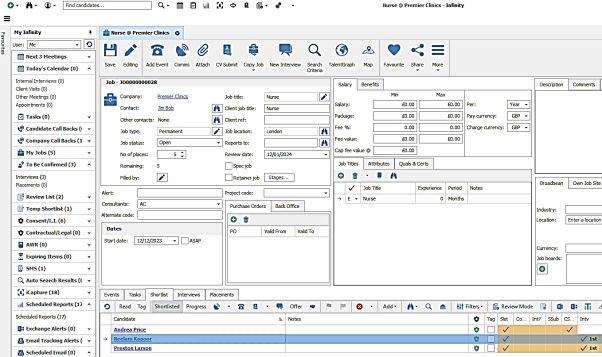
Enhancement 125005/125006 Reviews - add/editing improvements
The candidate and company page review screen has been split into two different sections to distinguish between reviews of companies and reviews of candidates.
Candidate page review screen
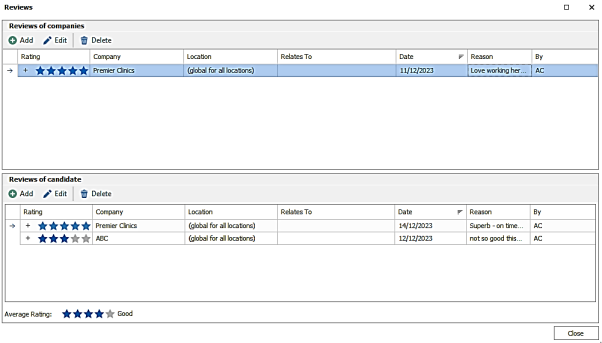
- The top section is used for the candidate’s reviews of companies
- The bottom section is used for companies that have left a review of the candidate and the average rating is calculated from these
Company page review screen
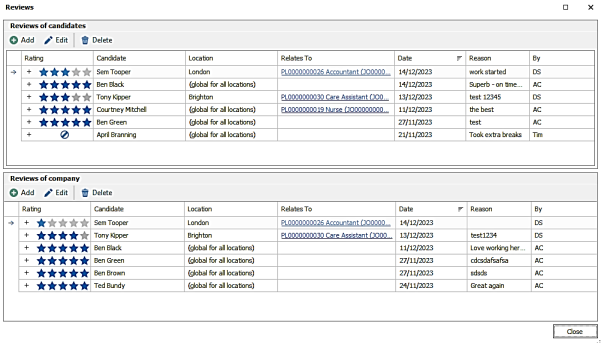
- The top section is used for the company’s reviews of candidates
- The bottom section is used for candidates that have left a review of the company
Review sections
Each section has its own toolbar to add/edit/delete reviews. The add/edit window title is labelled according to the section.
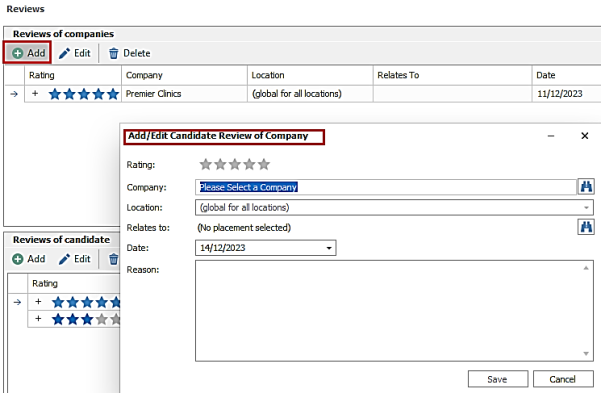
- The review ‘type’ field is no longer shown and is defaulted accordingly
- There is a ‘Save’ button that saves the review immediately
Editing reviews
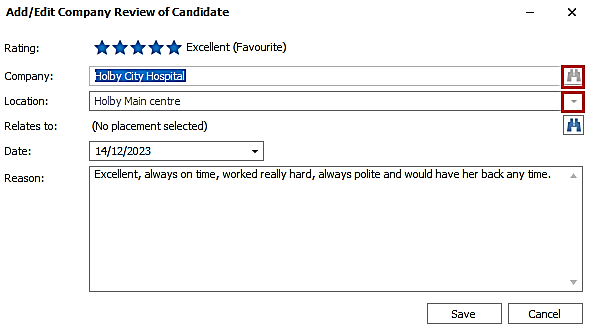
- If the review ‘Company/Candidate/Location’ fields are already populated, they cannot be changed
- The review ‘Reason’ field cannot be edited directly in the grid anymore, instead it must be done in the edit screen
- The review history is updated when the changes are saved, but doesn’t show in the grid until the user has closed and reopened the reviews window
Right click menu on temp shift ‘Leave Review’
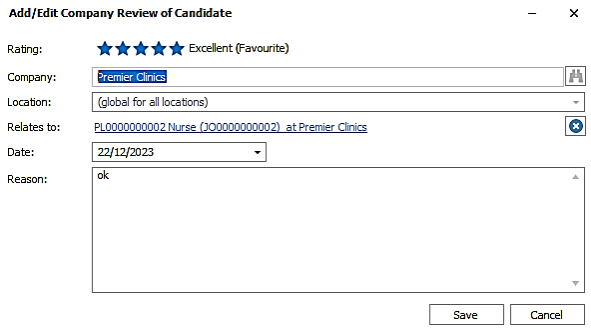
- The ‘Type’ field is no longer shown in this screen
- It defaults to a ‘Company review of the candidate’ as per existing functionality
Blocklisting when cancelling/removing temp shifts
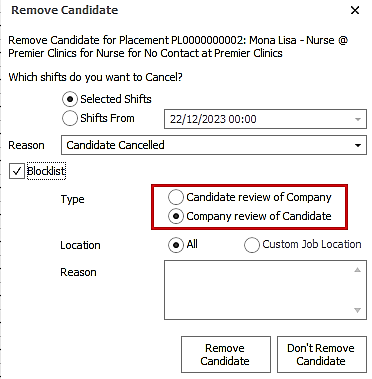
- The ‘Type’ field radio button labels have been changed in line with the reviews window
- The user can choose what type of review to record as per existing functionality
Enhancement 125007/125008 Reviews – finding placement changes
Company page reviews
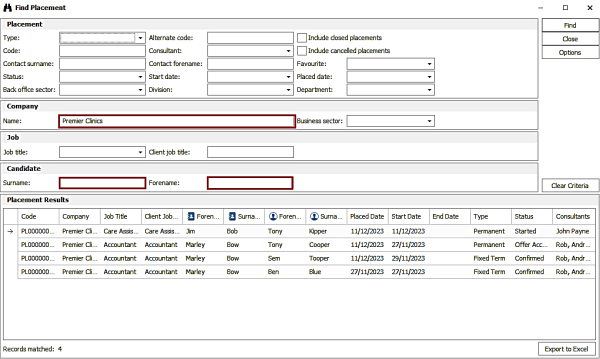
When the user clicks the ‘find placement’ button from a company page review screen, the screen is automatically populated, and the find is run.
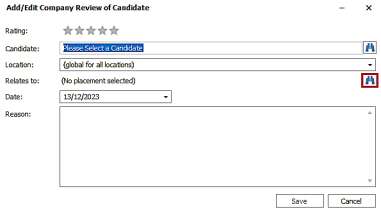
- Company name field is taken from the company page
- Candidate name field is taken from the review candidate field if it exists
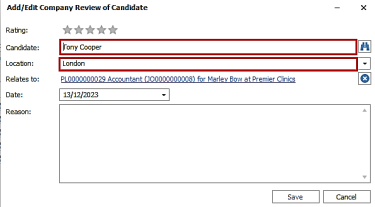
When a placement is selected in the find screen, the ‘Relates to’ field is populated and the candidate and location field if blank.
Candidate page reviews
When the user clicks the ‘‘find placement’ button from a candidate page review screen, the screen is automatically populated, and the find is run.
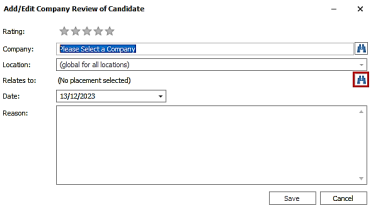
- Candidate name field is taken from the candidate page
- Company name field is taken from the review company field if it exists
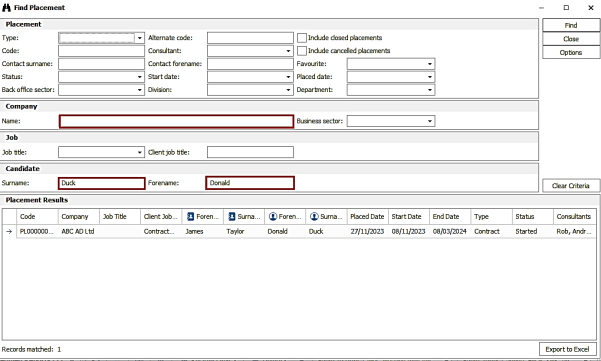
When a placement is selected in the find screen, the ‘Relates to’ field is populated and the company and location field if blank.
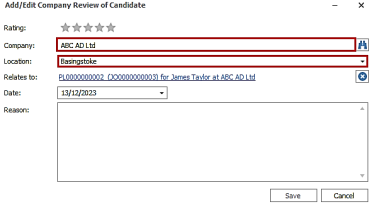
Enhancement 125011 Reviews - candidate SARs report
Review history entries are shown on the review tab in the candidate SARs Excel report.
Enhancement 125044 Contact navigator panel consultant filter
There is a new field on the contact navigator panel on the company page to filter the list of contacts by owning consultant. When a consultant is selected in the drop-down list, contacts are shown that are owned by the selected consultant.
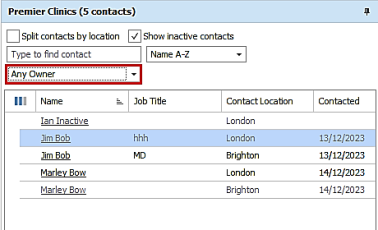
The default is ‘Any Owner’ and this includes contacts with no owning consultant.
The default can be configured by the user in User Options / Display settings.
Enhancement 125186 See contact events for all locations at the company
The ‘Events’ tab on the contact page shows all events for the contact at all locations they are linked to at this company.
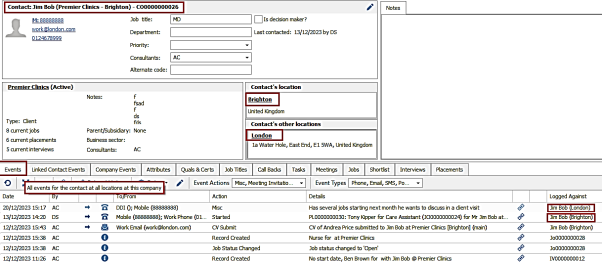
A tooltip has been added to the ‘Event’s tab and the ‘Logged Against’ field will shows which location any contact events were logged against.
The ‘Linked contacts events’ shows the events where the contact is linked to locations at different companies.
Enhancement 125339 New columns added to Contact Search Excel report
The following columns have been added to the Contact Search List Excel report:
- Company code and active – appear before the Company Name column
- Location code and active – appear before the Location name column
- Contact code and Active - appear before the contact forename column

The active column displays Yes/No values.
Enhancement 125221 Scheduled report option to set the start day of week
All scheduled reports with weekly date parameters, have a ‘Start Week’ option, that can be set to any day of the week.
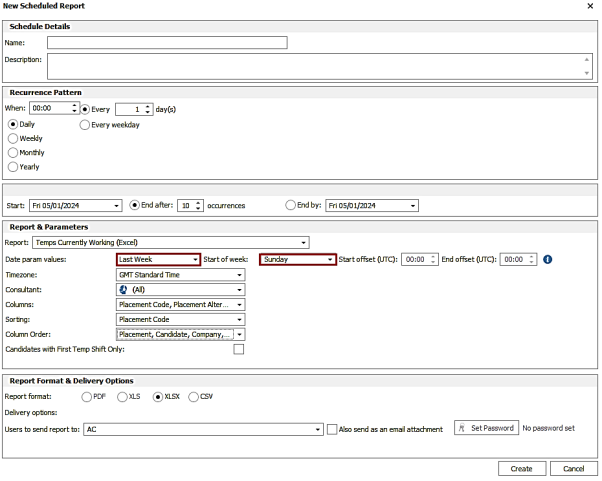
The ‘Start of week' option is used to control the date parameter that the report runs. Weekly date parameters can be set to: Last Week, Current Week, Next Week.
New scheduled reports do not require the user to populate this field and run with the first day of the week of Monday.
Existing Scheduled reports continue to run without this field being populated and continue to have Monday as the first day of the week.
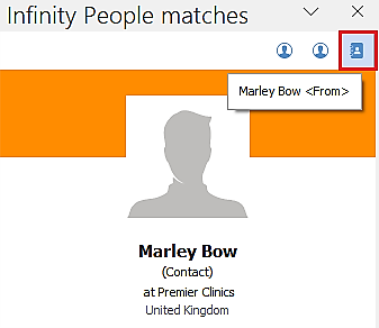
Enhancement 102623 Outlook Add in panel matches on latest created contact
When the Infinity Outlook Add in pane matches a global email address that belongs to a contact at more than one location it matches to the latest created contact.
Enhancement 125147 Send comms using job shortlist Comms Centre
When the user selects candidates on a job shortlist that are at different Comms Centre stages, the job shortlist Comms Centre is loaded.

All candidates appear in the Merge To section and can be sent the required correspondence.
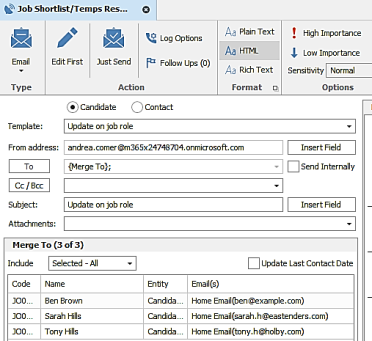
If the selected candidates are at the same Comms Centre stage, e.g. interview, that Comms Centre is loaded with all candidates in the merge to section as per existing functionality.
Enhancement 125161 Merge candidate's attributes when submitting CVs
In the Submit CV Comms Centre the ‘List of Candidates’ mergelist has a column called 'Attributes'.
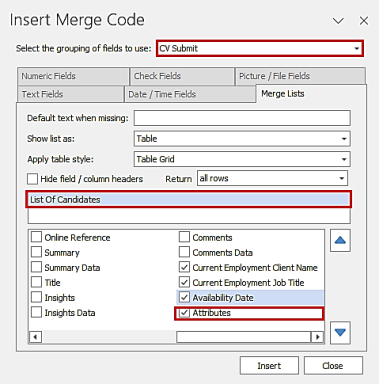
When selected, this merges a comma delimited list of the candidate's attributes.
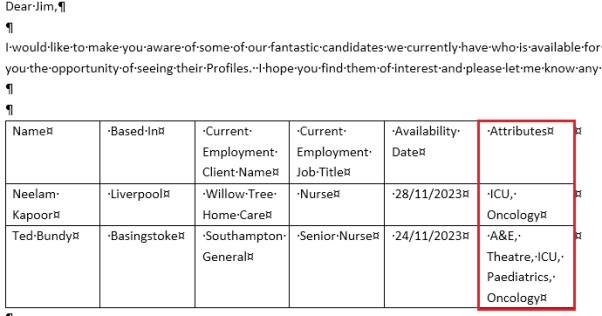
The attributes are merged in order they appear on the candidate attribute grid and if they are a child attribute, the parent attribute will be displayed afterwards in brackets.
Enhancement 125039 Scheduled Automatic Comms on placement / worker type
In Administration / Scheduled Automatic Comms, placement page conditions can be configured to trigger on placement type and or worker type.
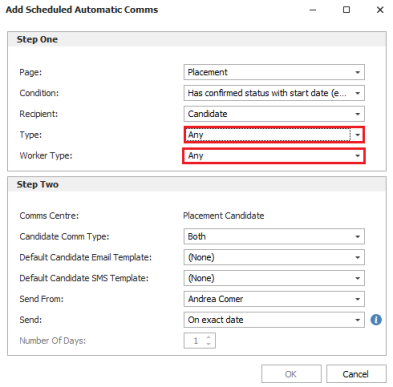
Condition
The existing conditions have been changed and require the placement type to be specified in the new placement type field.

- Has confirmed status with start date (excludes temps)
- Has started status with end date (excludes temps) – only applicable for placement types contract and fixed term. Perm does not have an end date
Placement Type
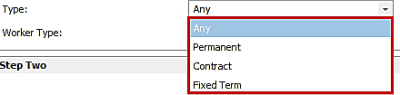
- Lists Any / Permanent / Contract / Fixed Term
- Defaults to 'Any' for all new entries
- Defaults to ‘Any’ upon upgrade for existing entries of 'Has confirmed status with end date' so it continues to work as per previous
- Defaults to ‘Contract’ upon upgrade for existing entries of 'Has started status with end date' so it continues to work as per previous
Worker type
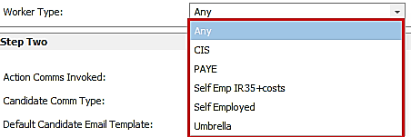
- Lists ‘Any’ and active reference data for worker type as per configured on the Infinity database
- Defaults to 'Any' for new entries and upon upgrade of existing entries
The Scheduled Auto Comms will search and send for placements of the specified type and or worker type.
Enhancement 125038 Quick Steps on placement / worker type
In Event Logger Comms Quick Steps in Administration and User Options, placement can be configured to trigger on placement type and or worker type.
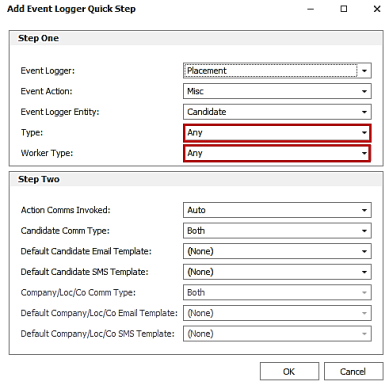
Placement Type
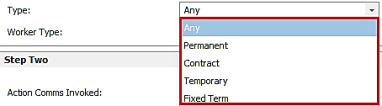
- Lists Any / Permanent / Contract / Temporary / Fixed Term
- Defaults to 'Any' for all new entries and existing entries upon upgrade
Worker Type
- Lists ‘Any’ and active reference data for worker type as per configured on the Infinity database
- Defaults to 'Any' for new entries and existing entries upon upgrade
When set, the Quick Step only invokes if the placement matches the specified type and worker type.
Enhancement 95690 New event actions added to user’s event filters
New event actions added in Administration / Reference Data / Event Actions tab are applied to all users’ event filters automatically.
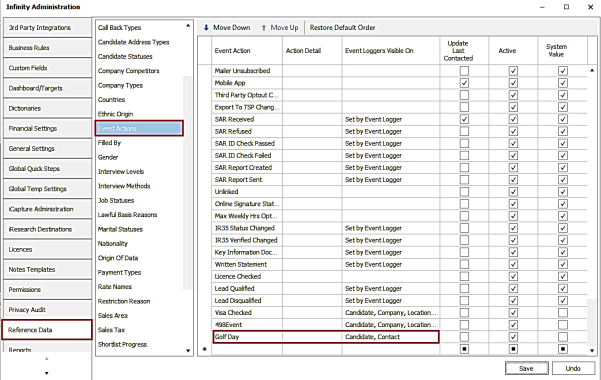
The event action is automatically ticked in the ‘Event Actions’ filter, on the applicable ‘Events’ tab toolbar, once the user has logged in again.
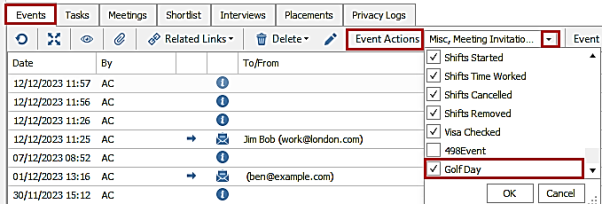
Upon upgrade, any custom filters that have been applied are removed and all event actions will be ticked for the user.
Enhancement 56924 Merge duplicate candidates with closed temp placements
Merging candidates is available in the Application menu \ Data Management \ Merge Candidate Wizard and Manage Duplicate Candidate functionality.
Candidates with temp placements can be merged if the secondary candidate doesn’t have any current temp placements and they are not on the same job as the primary candidate for any other closed temp placements. Current is defined as ‘has a shift more recent than 3 months ago’.
If current temp placements exist, the merge is prevented, and the user notified as per existing functionality.
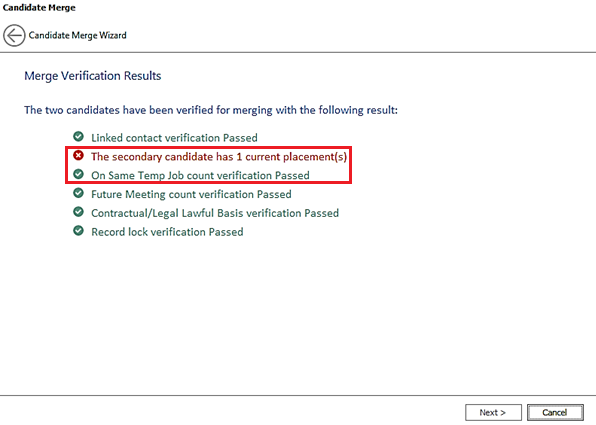
The merge will complete if all checks pass as per existing functionality and closed temp placements are moved to the master candidate.
Enhancement 125185 Custom job addresses
The job and placement page 'recent custom locations' window resizes correctly to allow the user to view lots of addresses.
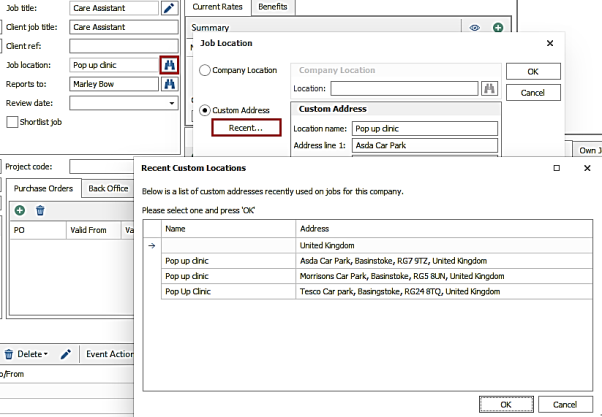
Enhancement 125062 Candidate ‘cont/temp to perm’ find fields removed
The ‘cont to perm’ and ‘temp to perm’ values in the ‘type’ drop down field in the candidate find screen have been removed.
Enhancement 125123 ‘cont/temp to perm‘ search fields removed
‘Cont to perm’ and ‘temp to perm’ fields have been removed from the adhoc and re:job candidate search criteria screens.
The ‘cont to perm’ and ‘temp to perm’ values in the ‘type’ drop down field in the job and placement search criteria screens have been removed.
Enhancement 124999 Temp %availability column sorting
Shift Planner candidate results panel ‘%Avail’ column sorts in descending order (100% at the top) on the first click of the header.
Temp Planner suitable job results panel the ‘%Avail’ column sorts in descending order (100% at the top) on the first click of the header.
 Contact Details
If you require further assistance please contact Ikiru People using the details published on www.ikirupeople.com
Visit our Customer Portal at https://portal.ikirupeople.com/ for future events and clinics.
FeedbackIf you would like to make suggestions or have found any errors with this Help section please contact our Support team.
Copyright © 2026 Voyager by Ikiru People Ltd. All rights reservedVersion 4.87
Voyager Software is a brand of Ikiru People Ltd, a subsidiary of Dillistone Group Plc. The group is a leading global provider of software and services that enable recruitment agencies and in-house recruiters to better manage their selection process and address the training needs of individuals. Across its brands – which include Voyager Software (recruitment software UK & Australia), Dillistone FileFinder executive search software, GatedTalent, the global database of the world’s leading executives, Talentis.Global – the next generation of recruitment software and also ISV.Online, provider of online pre-employment skills testing and training tools. Dillistone Group serves thousands of clients worldwide. Ikiru People Ltd: Registration Number 02043300. Registered in England & Wales.
 |  |  |  |