Voyager Infinity – Release Notes
Version: 4.118
Release Date: 10th October 2024
Sprint 2024.19 (4.118)
What have we released?
- Infinity 4.118 has been released
Release overview
Here’s a snapshot of what we’ve delivered in this release:
- Welcome Email for new users and process/security improvements
- Find records by consultants / teams and see owning consultants in results
- Submit CV - candidate photo available in the list of candidates merge list
- Bulk update candidate ‘Active’ field
- Leads – creating a contact automatically shows potential matching companies
- iCapture – new candidate location columns on the Inbox grid
Feedback please
We are continuously looking to improve Voyager Infinity and are keen to hear your thoughts. Please email suggestions@ikirupeople.com with any feedback on existing functionality or ideas for new functionality.
Enhancements
Enhancement 129590 Welcome Email for new users and process/security improvements
In Administration / User Administration, when a new user is created, the password fields are not shown and the setting ‘User must change password at next logon’ is unticked in the ‘New User’ screen that displays.
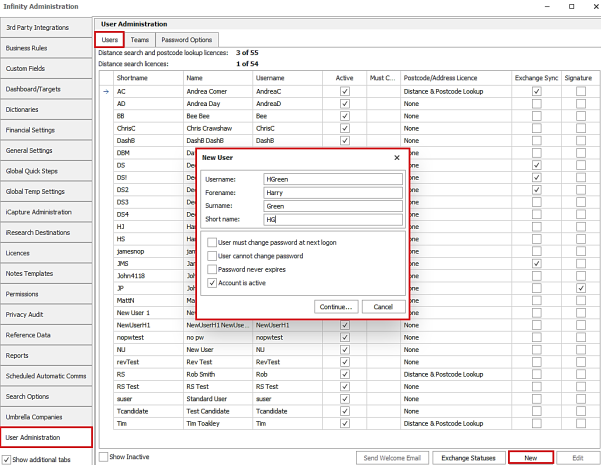
When the administrator continues to the next screen ‘Add User’, they can complete the required details and save.
Note – as users have access to this screen via the Application / My Settings / User Profile menu, they can complete many of the fields themselves after logging in, including linking to their Exchange Mailbox and authenticating.
If the new user doesn’t have an email address, the administrator is warned that the Welcome Email cannot be sent.
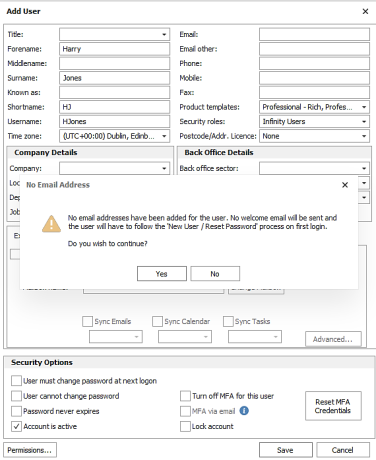
- If the administrator clicks Yes, the record is saved with no password set and the new user must use the ‘I’m a New User / Forgot Password’ button / process when first logging in.
- If the administrator clicks No, they are returned to the ‘Add User’ screen and can complete the missing email address.
If the new user does have an email address when the record is saved, the administrator is prompted to send the Welcome Email.
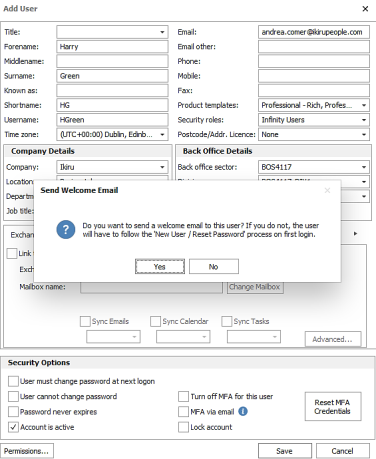
- If the administrator clicks Yes, the record is saved with no password set and the Welcome Email is sent to the user for them to launch their first login from. The user’s ‘Email address’ is used and if blank, the ‘Other Email address’ is used.
- If the administrator clicks No, the record is saved with no password set and the new user must use the ‘I’m a New User / Forgot Password’ button / process when first logging in.
The Welcome Email contains a link to launch Infinity using the new user’s VIC, username and email address. There is also other useful information and links in the email to help them get started.
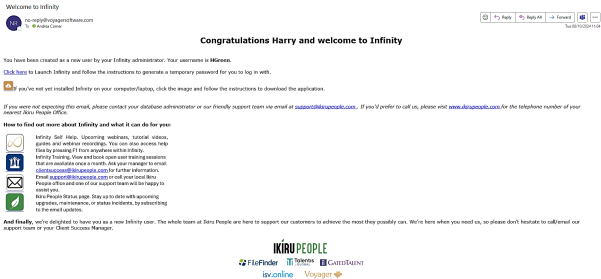
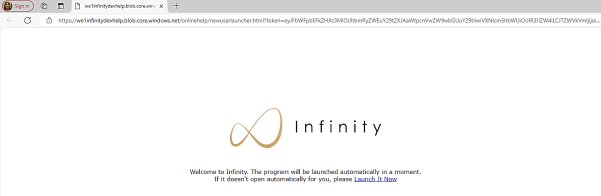
When the new user clicks the link to Launch Infinity, if the web browser security settings allow, the Infinity application is launched, they are taken to the login screen and a temporary password is automatically emailed to them.
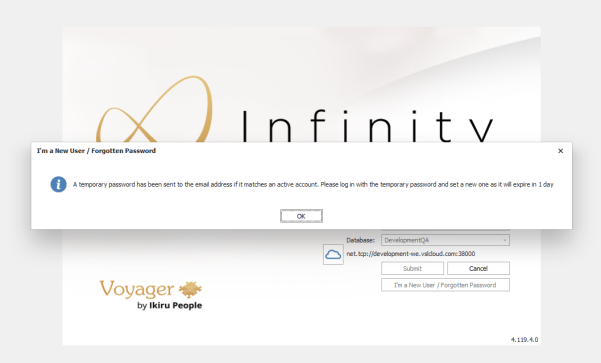
The new user can login using the temporary password and will then be prompted to set their own password. This must be within one day as the temporary password will expire. If it expires, the new user must use the ‘I’m a New User / Forgot Password’ button / process to login.
If the web browser settings do not allow the Infinity application to launch, the user may be prompted to enable this. If the Infinity application does not launch the user can click on the ‘Launch it Now’ link in web browser window.
There is a ‘Send Welcome Email’ button at the bottom of the User Administration screen to send the email to selected user(s). Users must be active, have not logged into the Infinity database before and have an email address, for the button to enable.

Enhancement 129592 New users taken to the User Profile screen on first log in
When a user logs in for the first time via the Welcome email, they are taken to their User Profile screen automatically.
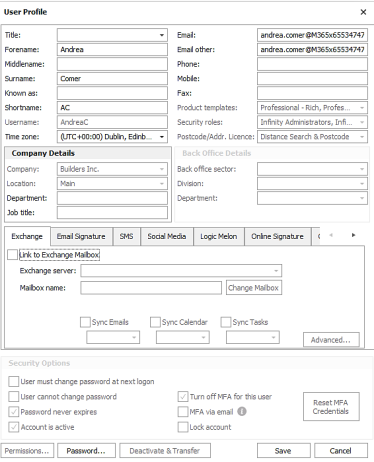
The User Profile screen is loaded after all other pages / tabs and is also accessible via the Application / My Settings / User Profile menu.
Enhancement 129591 Importing new users from a CSV file functionality removed
The functionality to import new users from a CSV file has been removed from the User Administration screen.
Enhancement 129581 Leads – creating a contact lists potential matching companies
Step 2 of the ‘Link to New Contact’ wizard in the leads screen has been changed to automatically find and list potential matching companies.
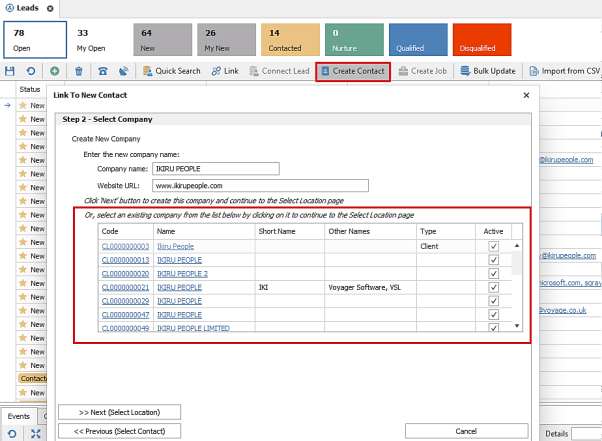
- This uses the lead ‘Company name’ field and auto runs a contains search on Infinity company records.
- Infinity company fields searched are company name, other names and short names and are displayed as columns in the grid so matching data can be seen.
- If the user types in the ‘Company name’ field in the wizard screen, the search is rerun.
- The user can click on a hyperlink to select a result and is taken to the next page (Select Location).
If the user does not select a result, clicking ‘Next (Select Location)’ button defaults to creating a new company as per existing functionality.
Enhancement 129542 Company search list new column
Company search list has a new column for ‘Business Sector’.
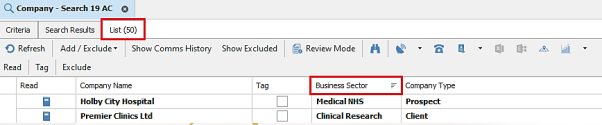
This can be added via the ‘Column chooser’ and layout saved. Filtering and sorting are also available.
‘Sectors’ has been removed from all search lists as it is a redundant field.
Enhancement 129608 Placing candidates on temp jobs defaults to type temp
When placing temp candidates using the Find Candidate screen, the candidate ‘Type’ field is set to ‘Temp’ as default.
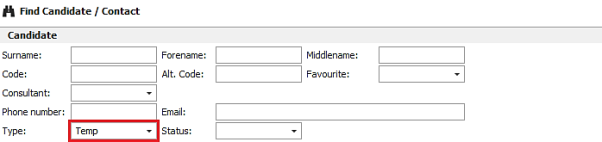
This is launched from the following areas of Infinity:
- Temp job ‘Place Candidate’ button
- Temp job shortlist tab ‘Add Candidate to Shortlist’ button
- Shift Planner ‘Place Candidate’ button
Enhancement 129609 iCapture Inbox grid has columns for candidate location
The iCapture Inbox has new columns for candidate town and postcode.

These can be added via the ‘Column chooser’ and layout saved. Filtering and sorting are also available.
Enhancement 129610 Submit CV Comms Centre - new candidate photo field
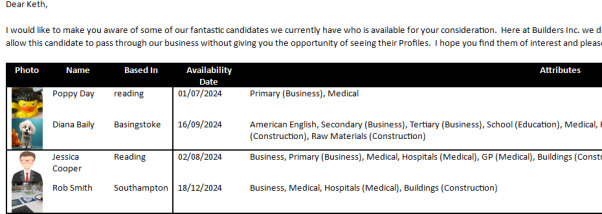
In the Submit CV/Summary Comms Centre, the ‘List Of Candidates’ merge list has the candidate photo as a column to choose and add to your template.
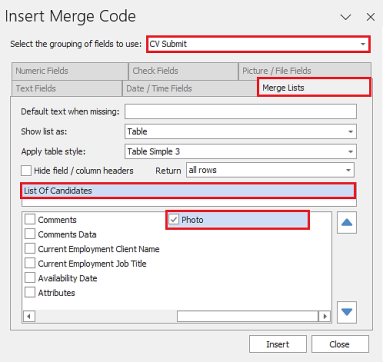
This merges the candidate photo, if present, at an image size of 48 * 48.
Enhancement 129614 Search for placements by worker type
Placement search has a new ‘Worker Type’ field in the Advanced Search section / Placement menu.
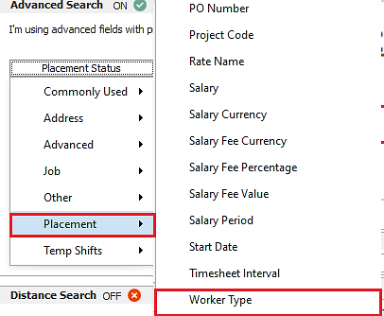
This is a single select drop down list of ‘Worker Type’ reference data on the Infinity database.

- When a worker type is selected and searched, placements are returned that are assigned that worker type.
- There is a blank value in the list, for the users to search for temp and contract placements with a blank worker type.
- When the ‘NOT’ tick box is used, temp and contract placements are returned that don't have the selected worker type.
Enhancement 129708 Bulk update candidate active field
Candidate ‘Active’ field is available to set as part of the bulk update functionality on candidate adhoc and re:job search results.
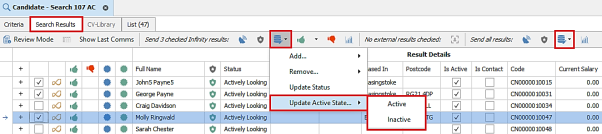
The user can check individual candidate results and bulk update or select all search results to be bulk updated.
The ‘BulkUpdateGeneral’ permission is required to use this functionality, otherwise the menu option is greyed out.
When either menu option is selected, the Bulk Update window is displayed with details of the records to be updated.
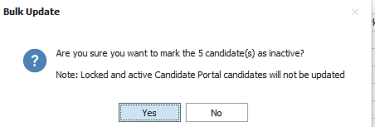
The following records cannot be updated if selected in the search results:
- Locked candidate records (currently open by other users)
- Active Portal candidates
If the user continues, a confirmation window is displayed showing the number of records that were updated/failed.
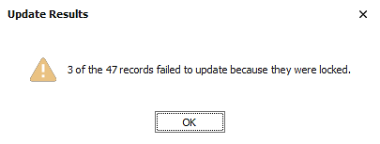
The user is returned to the search results screen once the action has been completed.
Enhancement 129778 Find records by consultants or teams
The ‘Consultant’ field in find screens has been changed to a multiselect drop down field of consultants and teams.
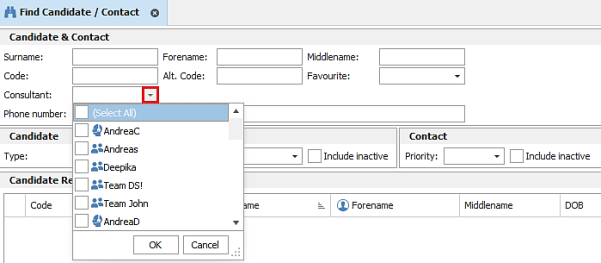
Consultants are listed by their username, with the logged in user at the top. Records are returned where the owning consultant matches the consultant(s) selected or is in the team(s) selected.
This is available in all Advanced Find screens: - Candidate/Contact, Company (company and contact section), Job, Interview and Placement.
If the setting is not enabled in My Settings / User Options / General tab to ‘Include inactive reference data on Find screens’, only active consultants and teams are listed in the drop-down.
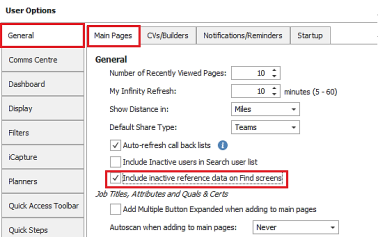
Enhancement 129775 Owning consultants’ column on Advanced Find results
The ‘Consultants’ column has been added as default to Find Candidate/Contact results.
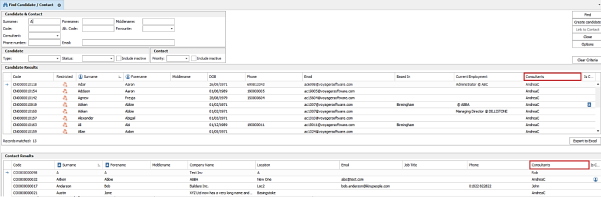
‘Code’ and ‘Middlename’ have been shortened to accommodate the new column.
The ‘Consultants’ column has been added as default to Find Company/Contact results.
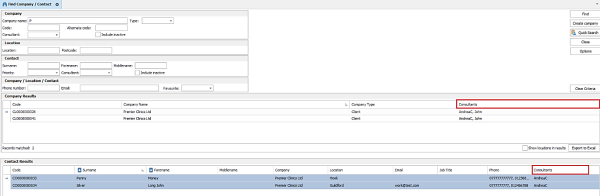
The column is shown in company results only when the setting to ‘Show locations in results’ is unticked. ‘Company’ column has been shortened to accommodate the new column ‘Code’ and ‘Middlename’ have been shortened to accommodate the new column in contact results.
The existing ‘Consultant’ field in the Job Find results has been renamed to ‘Consultants’.
The ‘Consultants’ column shows the owning consultants of the record, comma separated, alphabetic and showing username.
Enhancement 129784 Owning consultants on Quick Find results
The ‘Consultants’ field has been added to Quick Find results panels.
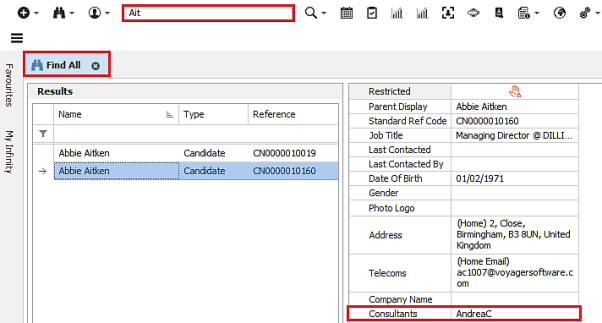
This displays the owning consultant of the record, comma separated, alphabetical by username and is shown on all Quick Find results: - Candidate, Company, Contact and ‘Candidate or Contact’.
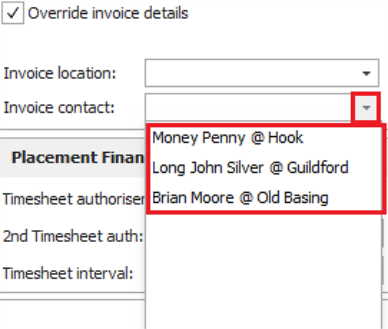
Enhancement 129777 Placement invoice contacts field changed to not list title
The ‘Invoice contact’ drop-down field on the placement page no longer shows the title of the contact.
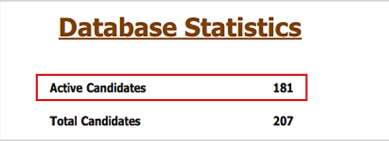
Enhancement 129780 Database Statistics report on active candidates changed
In the Database Statistics report, the ‘Active Candidates’ statistic has changed to a count of active candidates on the database that are not deleted.
 Contact Details
If you require further assistance please contact Ikiru People using the details published on www.ikirupeople.com
Visit our Customer Portal at https://portal.ikirupeople.com/ for future events and clinics.
FeedbackIf you would like to make suggestions or have found any errors with this Help section please contact our Support team.
Copyright © 2026 Voyager by Ikiru People Ltd. All rights reservedVersion 4.87
Voyager Software is a brand of Ikiru People Ltd, a subsidiary of Dillistone Group Plc. The group is a leading global provider of software and services that enable recruitment agencies and in-house recruiters to better manage their selection process and address the training needs of individuals. Across its brands – which include Voyager Software (recruitment software UK & Australia), Dillistone FileFinder executive search software, GatedTalent, the global database of the world’s leading executives, Talentis.Global – the next generation of recruitment software and also ISV.Online, provider of online pre-employment skills testing and training tools. Dillistone Group serves thousands of clients worldwide. Ikiru People Ltd: Registration Number 02043300. Registered in England & Wales.
 |  |  |  |