Voyager Infinity – Release Notes
Version: 4.109
Release Date: 30th May 2024
What have we released?
- Infinity 4.109 has been released
Release overview
Here’s a snapshot of what we’ve delivered in this release:
- Temp shift breaks with global, company and location defaults
Feedback please
We are continuously looking to improve Voyager Infinity and are keen to hear your thoughts. Please email suggestions@ikirupeople.com with any feedback on existing functionality or ideas for new functionality.
Enhancements
Enhancement 127219 Temp shift breaks with global and per company/loc defaults
Placement shift ‘Break’ field
There is a field on placement shifts called ‘Break (mins)’ to record the number of minutes for the break(s) on that shift.
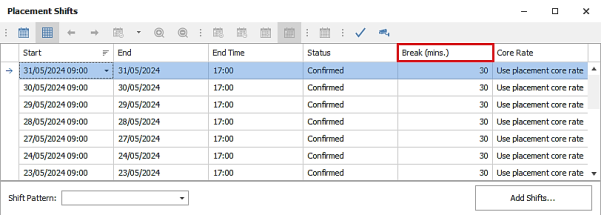
- The default is blank when placement shift is created.
- The break field can be blank (unset), or 0 to 300 minutes.
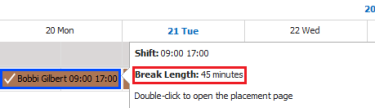
In Shift and Temp Planner, the user can hover over a shift to display the break length.
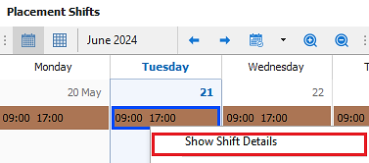
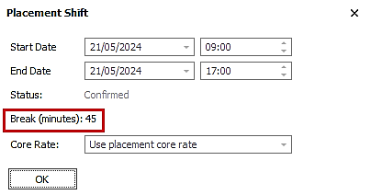
In placement calendar, the user can right-click on a single shift and select 'Show Shift details’.
The shift break field is shown read only on the screen.
In Shift and Temp planners and placement calendar, the user can right click on selected shift(s) within a single placement, then use the ‘Edit Break’ menu option.
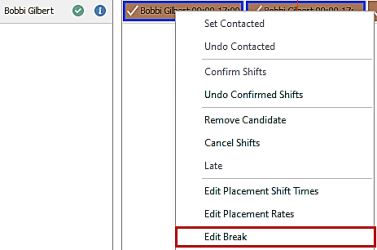
The shift break length is displayed and can be updated.
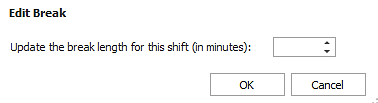
Note: If the shifts selected have different break lengths, the field will show as blank. When a value is entered it will update all shifts.
In placement calendar grid view, the break field is before the shift core rate column and is editable in the grid.
Multiple Shift(s) can be selected, and break value changed via right click ‘Edit Break menu.
Changes to the shift break field are audited in the placement calendar / Shift Audit.
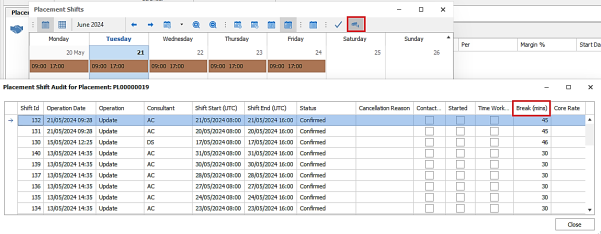
Upon upgrade, all existing placement shifts will display the ‘Break’ field and the value will be set to blank.
The placement shift ‘Break’ field is exported to Mid-Office but is not currently used. Mid-Office Version 13 will be required to utilise this information. Please refer to the Mid-Office version 13 release notes when it is on general release.
Placement page ‘Breaks’ field
There is a field on the temp placement page called ‘Breaks’ to record how breaks are paid and charged.
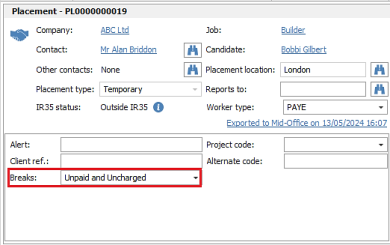
The values available in the drop-down are as follows:
- Blank
- Paid and Charged
- Unpaid and Uncharged
When a placement is created, it will default to blank.
Note: Setting the value to ‘Unpaid and Uncharged’ will deduct the break length from the shift hours in Temps reports, Consultant Stats reports, Dashboard and Comms Centre shift mergelists.
A value of Blank or ‘Paid and Charged’ will not deduct the break length and will work as per previous versions.
Changing the ‘Breaks’ value will log an info event on the placement page for that user.

The event ‘Action’ field is ‘Breaks changed’ and the event ‘Details’ field records what the value was changed from and to.
Upon upgrade, existing temp placements will have the ‘Breaks’ field and the value will be set to blank.
The placement page ‘Breaks’ field is exported to Mid-Office but is not currently used. Mid-Office Version 13 will be required to utilise this information. Please refer to the Mid-Office version 13 release notes when it is available on general release.
Breaks columns added to Temps reports
Temps Currently Working and Temp Payroll Export reports have been updated to include the new break fields.
The placement page ‘Breaks’ field is available in the column chooser.
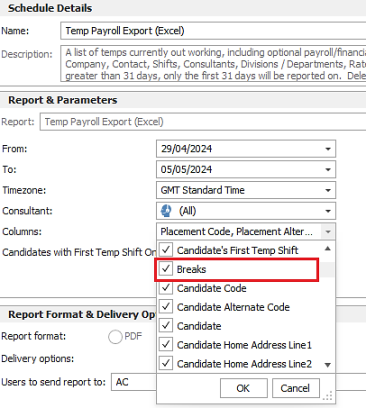
This is unticked as default.
The placement shift ‘Break’ field is available as a column chooser called ‘Shift Days – Shift Breaks’, along with the other shift related fields.
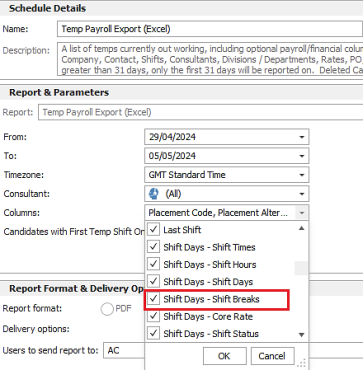
This is unticked as default.
The fields are output to Excel as below:
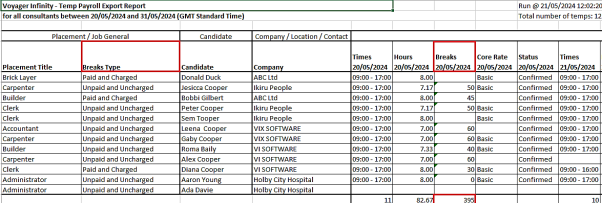
- The placement ‘Breaks’ field is in the placement / job general group and the column is called ‘Breaks Type’.
- The shift ‘Break’ field is in the shifts group and the column is called ‘Breaks’ and is displayed in minutes.
- The shift ‘Breaks’ column is totaled in the bottom row.
Unpaid and Uncharged’ breaks output calculation changes
Temps Payroll Export and Temps Currently Working report
When a placement is set to ‘Unpaid and Uncharged’ Breaks, the break length is deducted from the shift hours in the following areas of the reports.
The shift ‘Hours’ column

As per the example highlighted in red above:
- The shift 09:00 – 17:00 is 8.00 hours
- Minus the shift break of 50 minutes (50/60 = 0.83 decimal)
- This leaves the ‘Hours’ as 7.17 (decimal)
The ‘Total’ columns

- Total Hours – shows the total hours for all hours (shifts hours - break) in the row.
- Total Pay – if hourly rates, is calculated by multiplying the number of hours in the shift (shift - break), by the pay rate for the relevant rate.
- Total Charge – if hourly rates, is calculated by multiplying the number of hours in the shift (shift - break), by the charge rate for the relevant rate.
- Total Profit – if hourly rates, is calculated by multiplying the number of hours in the shift (shift - break), by the profit for the relevant rate.
Note: The ‘Shift Days’ and ‘Total Days’ columns work as per existing functionality and break lengths are not first deducted from the shift hours when converting to half or full days.
Consultant Stats Landscape (Excel) report
When a placement is set to ‘Unpaid and Uncharged’ Breaks, if hourly rates, the filled shift revenue is calculated by multiplying the number of hours in the shift (shift - break), by the charge rate for the relevant rate.
The following revenue columns are affected:
- Time Worked
- Started Shift
- Confirmed
- Awaiting Confirmation

Dashboard
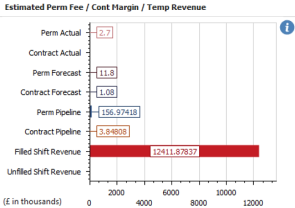
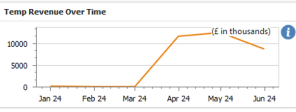
When a placement is set to ‘Unpaid and Uncharged’ Breaks, if hourly rates, filled shift revenue is calculated by multiplying the number of hours in the shift (shift - break), by the charge rate for the relevant rate.
The following widgets are affected:
- Estimated Perm Fee / Cont Margin / Temp Revenue
- Temp Revenue Over Time
Comms Centre Shift Merge lists
When a placement is set to ‘Unpaid and Uncharged’ Breaks, the break length is deducted from the ‘Total hours’ column when merging shifts in the Comms Centre.
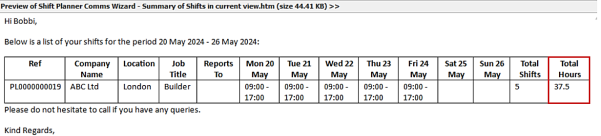
The ‘Total hour’s column is available in the following shift mergelists in the various Comms Centres:
- Wizard by Day Filled Shifts / Candidate Order (used in Shift Planner Comms Wizard only)
- Booked shifts by day this week / next week Mon – Sun.
- Booked shifts this week / next week Sun – Sat.
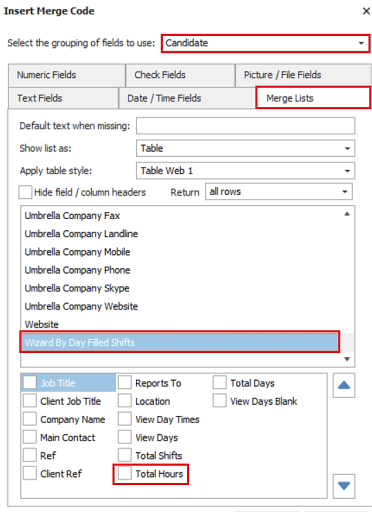
Note: The ‘View Days’’ column works as per existing functionality and break lengths are not first deducted from the shift hours when converting to half or full days.
Global default breaks
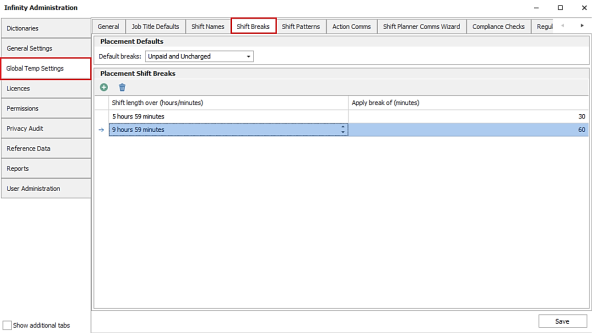
In Administration / Global Temp Settings tab there is a new tab called ‘Shift Breaks’, where default placement / shift break settings can be configured to apply to all companies. The defaults can be overridden per company / location.
Placement page ‘Breaks’ field
A default can be set for the temp placement page ‘Breaks’ field.

- Values available are blank (unset), ‘Paid and Charged’ and ‘Unpaid and Uncharged’
- This is set to blank as default
The default is automatically applied when new temp placements are created.
Placement shift ‘Breaks
There is a grid with toolbar to manage the default shift breaks to apply when shifts go over a certain amount time.
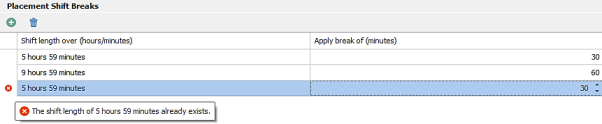
Note: if the ‘Shift length over’ field is set to 5 hours 59 minutes, the shift hours must be 6 hours or over for the break to apply.
- Entries are added by the green ‘plus’ icon.
- The ‘Shift length over’ can be between 1- 47 hours.
- Format allows hours and minutes.
- default is 5 hours 59 minutes.
- The user can enter the length of the shift break to automatically apply in minutes
- values entered can be between 1 to 300 in whole numbers.
- default is 30 minutes.
- The user is prevented and warned on the grid from entering duplicate ‘Shift length is over’ entries, e.g. they can’t have two entries for ‘5 hours 59 minutes’.
- If the user tries to save with duplicate entries a warning window is displayed and the changes cannot be saved. The duplicate entry must be removed before saving.
- The user can delete entries by the blue ‘bin’ icon.
The defaults are automatically applied when a new placement shift is created (this includes when extending shifts) as follows:
- If there are no global default shift breaks, the shift break field is blank.
- If there are global default shift breaks, the number of shift hours are calculated from shift start and end times.
- The shift hours are matched to the ‘Shift length is over’ values, starting with highest number of hours to the lowest.
- The first match found is used to apply the default shift break length, e.g. if shift is 10 hours this matches to ‘Shift length is over 9 hours 59 minutes’ entry and a shift break of 60 minutes is applied.
- If no match is found, the placement shift break field is set 0, e.g. if shift is 5 hours the shift break of 0 minutes is applied.
Company / Location default breaks
In the Company page / Temps window there is a new tab called ‘Company Shift Breaks’, where default placement / shift break settings can be configured for that company or its locations. These will override any settings configured globally.
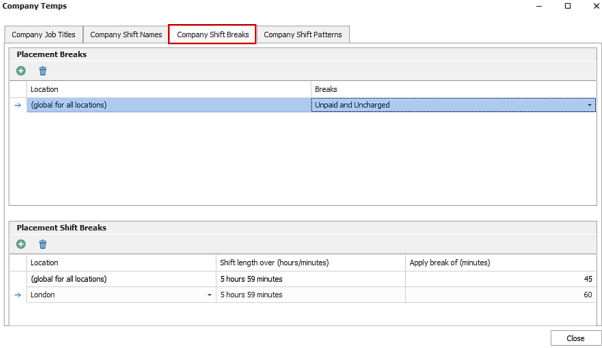
Note: Company (”global for all locations”) breaks only apply if there are no values set for the placement’s location.
Placement page ‘Breaks’ field
There is a grid with toolbar to manage the default temp placement page ‘Breaks’ field for that company.

- Entries are added by the green ‘plus’ icon.
- A default can be set for all locations at the company (global for all locations) and per location if required.
- Values available are blank (unset), ‘Paid and Charged’ and ‘Unpaid and Uncharged’.
- The user is warned in the grid and prevented from entering duplicate values for the company / location.
- The user is prevented from closing the screen if duplicates exist, and they must correct the issue first.
- Entries can be deleted via the blue ‘bin’ icon.
When new temp placements are created, the defaults are checked in the following order and the value applied when the first match is found:
- Placement location
- Placement main contact location
- Placement company
- Global
Placement shift ‘Breaks’
There is a grid with toolbar to manage the default shift breaks to apply when shifts go over a certain amount time.
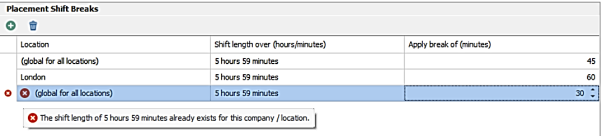
Note: if the ‘Shift length over’ field is set to 5 hours 59 minutes, the shift hours must be 6 hours or over for the break to apply.
- Entries are added by the green ‘plus’ icon.
- The ‘Shift length over’ can be between 1- 47 hours.
- Format allows hours and minutes.
- Default is 5 hours 59 minutes.
- The user can enter the length of the shift break to automatically apply in minutes.
- values entered can be between 1 to 300 whole numbers.
- default is 30 minutes.
- The user is prevented and warned on the grid from entering duplicate ‘Shift length is over’ entries, e.g. they can’t have two entries for ‘5 hours 59 minutes’.
- If the user tries to save with duplicate entries, a warning window is displayed and the changes cannot be saved. The duplicate entry must be removed before saving.
- The user can delete entries by the blue ‘bin’ icon.
The defaults are automatically applied when a new placement shift is created and this includes when extending shifts. Defaults are checked for in the following order and used from the first matched level:
- Placement location
- Placement main contact location
- Placement company
- Global
If there are no default shift breaks, the shift break field is blank.
If there are default shift breaks:
- The number of shift hours are calculated from shift start and end times.
- The shift hours are matched to the default entries for that level using the ‘Shift length is over’ values, starting with highest number of hours to the lowest.
- The first match found is used to apply the default shift break length.
- If no match found, the placement shift break field is set 0, e.g. if the shift is 5 hours, the shift break of 0 minutes is applied.
 Contact Details
If you require further assistance please contact Ikiru People using the details published on www.ikirupeople.com
Visit our Customer Portal at https://portal.ikirupeople.com/ for future events and clinics.
FeedbackIf you would like to make suggestions or have found any errors with this Help section please contact our Support team.
Copyright © 2026 Voyager by Ikiru People Ltd. All rights reservedVersion 4.87
Voyager Software is a brand of Ikiru People Ltd, a subsidiary of Dillistone Group Plc. The group is a leading global provider of software and services that enable recruitment agencies and in-house recruiters to better manage their selection process and address the training needs of individuals. Across its brands – which include Voyager Software (recruitment software UK & Australia), Dillistone FileFinder executive search software, GatedTalent, the global database of the world’s leading executives, Talentis.Global – the next generation of recruitment software and also ISV.Online, provider of online pre-employment skills testing and training tools. Dillistone Group serves thousands of clients worldwide. Ikiru People Ltd: Registration Number 02043300. Registered in England & Wales.
 |  |  |  |