Voyager Infinity – Release Notes
Version: 4.108
Release Date: 16th May 2024
What have we released?
- Infinity 4.108 has been released
Release overview
Here’s a snapshot of what we’ve delivered in this release:
- Location page last contacted information
- Lead page call backs
- Unsubscribe notifications to owning consultants
- More AWR improvements
Feedback please
We are continuously looking to improve Voyager Infinity and are keen to hear your thoughts. Please email suggestions@ikirupeople.com with any feedback on existing functionality or ideas for new functionality.
Enhancements
Enhancement 127111/127114 Location last contacted information
Location Page
Last contacted information has been added to the location page.
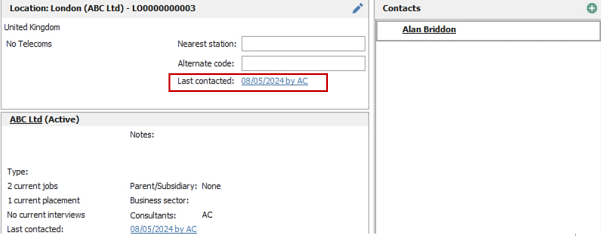
- This is the latest contacted date plus consultant, taken across the whole location record (location page and contacts at that location pages).
- The field will automatically update if ‘Update Last Contacted’ is ticked when logging an event via the Event Logger, Comms Centre and Email synching on any of those pages.
- If a user has the location page open, a refresh will need to be done to see the latest update.
- The field is a clickable hyperlink to go to the page that last updated the date, if different to the current page.
- When the hyperlink is clicked, the current page is closed, and the user is taken to the page that last updated the field.
- If the field is not a clickable hyperlink this means that the user is on already on the page that last updated the date.
- The fields are automatically populated upon upgrade using the latest last contacted information found across the whole location record (location page and active contacts at that location page).
Contact Navigator Panel
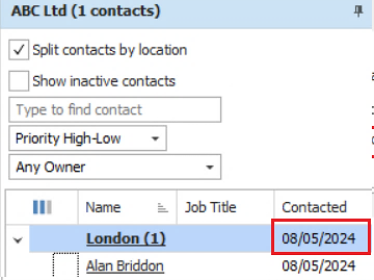
The location ‘Last Contacted’ date is shown in the ‘Contacted’ column when ‘Split contacts by location’ is ticked.
Search
The location ‘Last Contacted’ Date and By fields are available in Location Search / Search Criteria / Advanced Search section / Location menu.
Searching ‘Last Contacted’ date will return locations with a last contacted date field that matches the date criteria selected.

- If the ‘Not’ operand is used, companies are returned with a last contacted date field that does not match the date criteria selected.
Searching ‘Last Contacted By’ will return locations with a last contacted by field that matches the consultant criteria selected.

- If the ‘Not’ operand is used, locations are returned with a last contacted by field that does not match the consultant criteria selected.
The location ‘Last Contacted’ date field is shown as default on location search results.
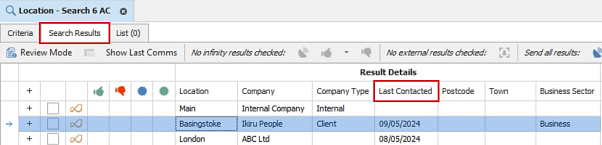
The location ‘Last Contacted’ date field is shown as default in location search lists.

Comms Centre
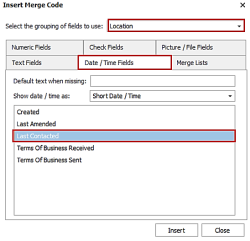
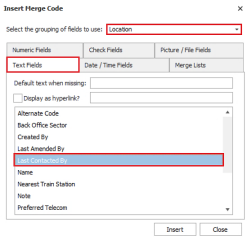
The location ‘Last contacted’ date and by fields are available in the Company Comms Centre / location group to merge in your templates.
Enhancement 126930 Leads - call backs tab
There is a ‘Call Backs’ tab on the lead page.
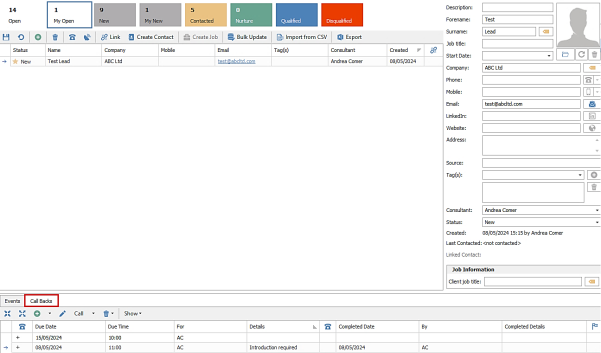
This allows the user to manage the lead’s call back as per existing call back functionality on other main pages.
Grid
The call backs are ordered by latest due date at the top and the columns in the grid are:
- Linked event
- Due Date
- Due Time
- For
- Details
- Type
- Completed date
- By
- Completed Details
- Overdue
The column chooser is available and grid layout can be saved, along with filtering and sorting.
Toolbar
The functionality on the toolbar is as follows:
- Collapse All - collapse all linked event rows in the call back grid
- Expand All - expand all linked event rows in the call back grid
- Add Call Back - opens the add call back screen and the user can add a call back against the lead.
- Type defaults to general
- Date defaults to tomorrow
- For defaults to currently logged in user
- Add Call Back drop down menu options available, that default the date in the add call back screen are as follows:
- Call back today
- Call back in Work Days (1-7)
- Call back in Weeks (1-4)
- Call back in Months (1-12)
- Call back in Years (1-2)
- Edit - edit the selected call back if permissions allow
- Call Button - if permissions allow - when the 'Call’ button is pressed, the top telecom on the lead page is used if exists (phone, mobile or email); this will launch the comms method and autodial the number if applicable and is configured on the DB.
- The ‘Call’ button has a drop-down menu allowing the user to choose the telecom to call and the communication method.
- Delete button - to delete selected call back if permissions allow
- Delete button drop down - to delete all call backs in the grid if permissions allow
- Show button - to change the callbacks shown in the grid - default is Active
- Active (Overdue and Today onwards)
- Completed – show completed call backs
- All – show all call backs
Enhancement 126934 Leads - My Infinity call backs - due time added
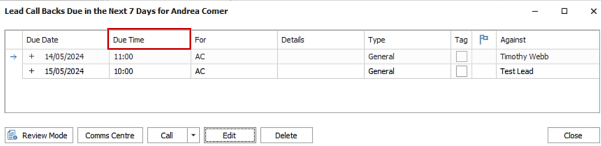
The ‘Due Time’ call back field has been added as a column to My Infinity Lead Call Back grids.
Enhancement 126885/127079 Leads – tag field changes in the admin screen
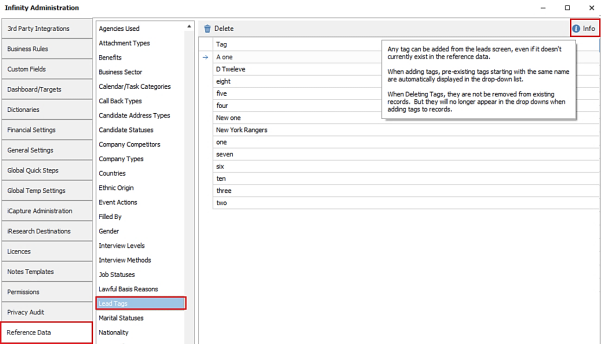
In Administration / Reference data / Leads Tags tab, the lead tags are listed in alphabetic order and there is a ‘Info’ tooltip to explain how tags function.
Enhancement 127122 Unsubscribe notifications to owning consultants
There is a setting in Administration / General Settings / Web reviews / Unsubscribe tab to notify owning consultants by email when a candidate/contact unsubscribes.
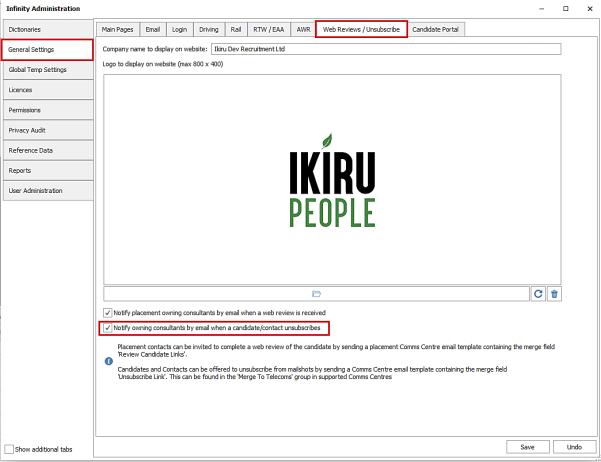
This setting is on as default.
When enabled and a candidate / contact / location or company unsubscribes , an SMTP email notification is automatically sent to the owning consultants.
- The email is sent to each owning consultant of the page (one email with multiple 'to' addresses)
- If the page is location, the email is sent to company owners
- The user’s email address field is used from the User Administration screen, but if blank, the 'Email other' field is used
- The email is sent from the following Voyager email address: no-reply@voyagersoftware.com
- If the email address that is unsubscribing is against multiple entities an email is sent for each page. If this is a contact who matches a global telecom at multiple locations an email is sent for the contact at each location
- The email body contains a link to the Infinity page
Note – email notifications are also sent when Infinity receives an unsubscribe request from the Mailchimp integration (candidate and contact list only).
The email notifications are as follows, depending on the page type:
Candidate
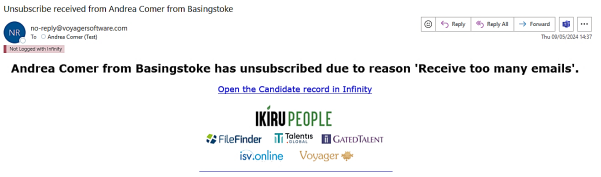
- The email subject is ‘Unsubscribe received from <candidate name> from <based in>’
- The email body is ‘<candidate name> from <based in> has unsubscribed due to reason <reason>’’
Contact
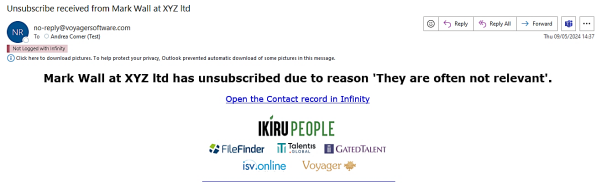
- The email subject is ‘Unsubscribe received from contact <contact name> at <company name>’
- The email body is ‘<contact name> at <company name> has unsubscribed due to reason <reason>’
Location
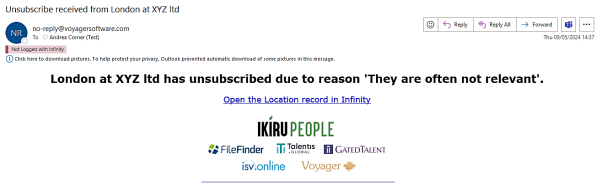
- The email subject is ‘Unsubscribe received from <location name> at <company name>’
- The email body is ‘<location> at <company name> has unsubscribed due to reason <reason>’
Company
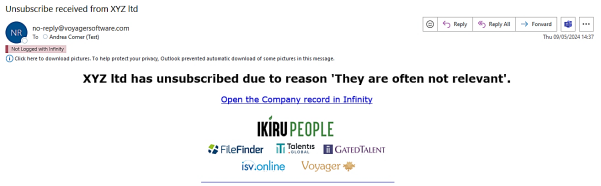
- The email subject is ‘Unsubscribe received from <company name>’
- The email body is ‘<company name> has unsubscribed due to reason <reason>’
Enhancement 126889 AWR – placement location column added to AWR clocks
Placements in AWR clocks have a column for the location.

This shows the placement location name and is shown as default.
Enhancement 126935 AWR – new candidate week by week AWR report
There is a button on the Candidate page AWR tab toolbar called 'Create AWR report'.
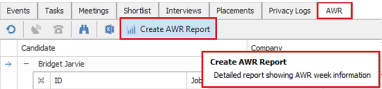
This outputs a detailed report of the candidate’s AWR clocks in a week-by-week format to Excel.
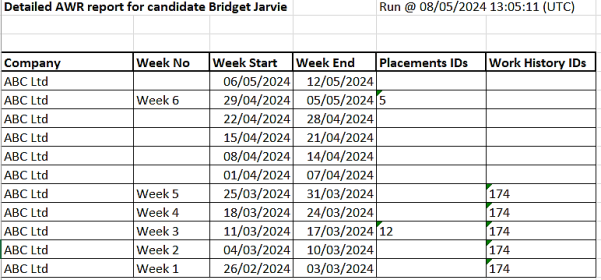
- Downloads locally and user is prompted to select a folder
- Filename defaults to 'Detailed AWR report for candidate <forename surname>. xls'
- Opens automatically in Excel
- Shows all AWR Clocks a candidate is in as per the AWR Tab and details of each counted week in that clock, is shown on a row
- This includes weeks with no shifts/working dates but only shows blank weeks up to 6 weeks if clock ends.
- Is ordered by AWR clock using the week start date field with the latest at the top
- The columns shown are as below and headers are in bold
- Company - as per AWR group on candidate page
- Week No - the week in the AWR clock, e.g. 1
- Week Start - the start date of the week
- Week End - the end date of the week
- Placements IDs
- Placements that have shifts or dates in that week and were used to count that week as a working week
- shows ID comma separated
- Work History Entry IDs
- work history entries that have dates in that week and were used to count that week as a working week
- shows ID comma separated
As part of this enhancement the ‘Work History Id’ column has been added to the candidate work history grid, so the user is able to identify it, if required. It is available in the column chooser and can be added to the grid and layout saved.

An ID is shown for manually entered / parsed work history entries only. Placement entries do not have an Id.
Enhancement 126817 AWR - candidate SARS report includes AWR clocks
The Candidate SARS report has an AWR tab.
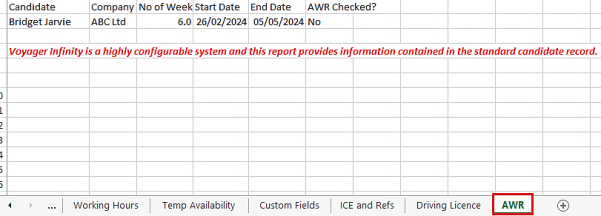
This shows details as per the AWR tab on the candidate page (parent rows only).
Enhancement 127115 Company business sector field on location search lists
The ‘Company business sector’ field is available on Location Search Lists.
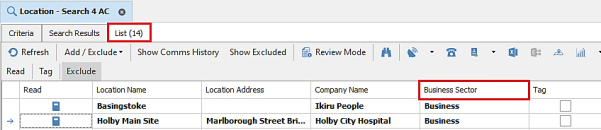
The field is not shown as default and needs to be added via the column chooser and layout saved.
Enhancement 127136 Candidate merge appends referees to the primary record
Merging candidates in Application \ Manage Duplicate Candidates and Candidate Merge Wizard copy referee data.
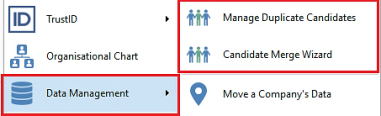
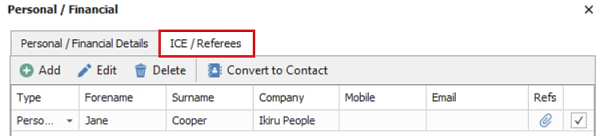
Referees, their linked data, and attachments are copied from the secondary record and appended to the primary record.
Enhancement 127084 Functionality disabled when candidates are inactive
More functionalities have been disabled when a candidate is inactive.
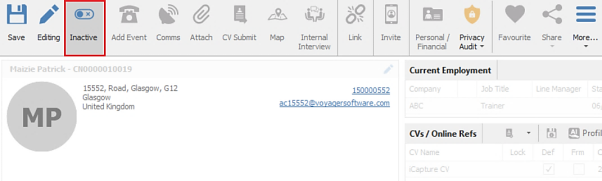
The following buttons / menu options are greyed out:
- Personal / Financial
- More - Temps Calendar
- More - New Temp Placement
- More - Working Hours
- More - Reviews
The following buttons / menu options are still available:
- Save
- Editing
- Inactive
- More - undo
- More - delete
- Privacy Audit
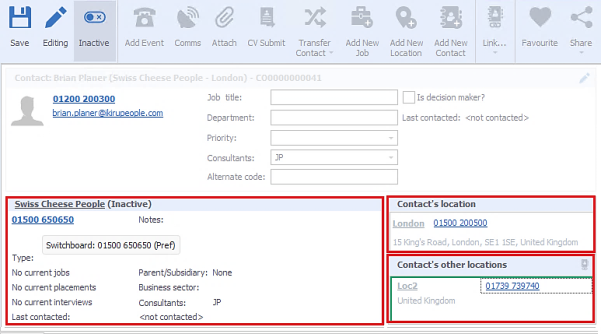
Enhancement 126875 Telecom hyperlinks disabled on inactive company, locations and contacts
Telecoms for inactive companies, locations and contacts are disabled and cannot be interacted with, no matter where they appear on the company page.
Enhancement 126886 Copilot (Preview) job search ‘client job title’ criteria change
The Copilot (Preview) functionality in the job search screen uses the ‘Begins with’ operator instead of ‘Equal to’ when populating the ‘Client Job Title’ search field.
Enhancement 127094 iCapture – ‘Company tier name’ field renamed
The 'Company Tier Name’ column in the Employment History section of Candidate iCapture has been renamed to ‘Location’.
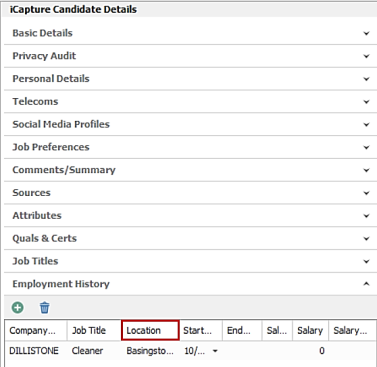
The ‘Location’ column is displayed as default.
Enhancement 127095 iCapture – Auto-Register includes employment history location
In iCapture Administration / Auto-Register Settings tab, the employment location is available.
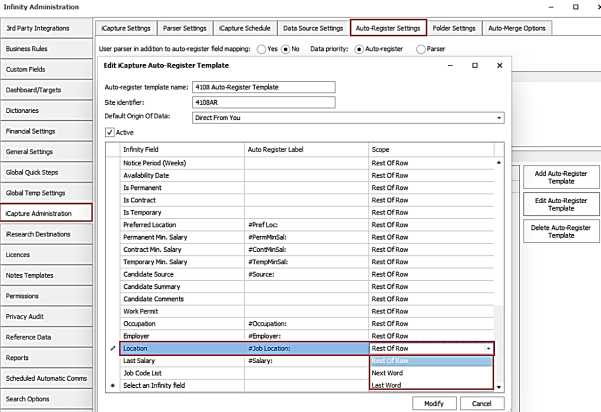
The field maps to the Employment History ‘Location’ field in Candidate iCapture.
Enhancement 127124 Administration – Q&C drop down fields are alphabetical
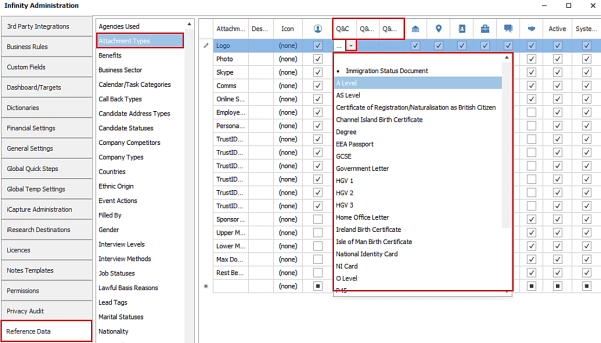
In Administration / Reference Data / Attachments Types tab, the Q&Cs drop down lists are in alphabetical order.
 Contact Details
If you require further assistance please contact Ikiru People using the details published on www.ikirupeople.com
Visit our Customer Portal at https://portal.ikirupeople.com/ for future events and clinics.
FeedbackIf you would like to make suggestions or have found any errors with this Help section please contact our Support team.
Copyright © 2026 Voyager by Ikiru People Ltd. All rights reservedVersion 4.87
Voyager Software is a brand of Ikiru People Ltd, a subsidiary of Dillistone Group Plc. The group is a leading global provider of software and services that enable recruitment agencies and in-house recruiters to better manage their selection process and address the training needs of individuals. Across its brands – which include Voyager Software (recruitment software UK & Australia), Dillistone FileFinder executive search software, GatedTalent, the global database of the world’s leading executives, Talentis.Global – the next generation of recruitment software and also ISV.Online, provider of online pre-employment skills testing and training tools. Dillistone Group serves thousands of clients worldwide. Ikiru People Ltd: Registration Number 02043300. Registered in England & Wales.
 |  |  |  |