Voyager Infinity – Release Notes
Version: 4.106
Release Date: 15th April 2024
What have we released?
- Infinity 4.106 has been released
Release overview
Here’s a snapshot of what we’ve delivered in this release:
- Copilot (Preview) improvements in Search and iResearch
- Leads - call back follow ups
- Dashboard user customisable ‘widget’ layout
- Inactive company, location and contact pages cannot be edited
Feedback please
We are continuously looking to improve Voyager Infinity and are keen to hear your thoughts. Please email suggestions@ikirupeople.com with any feedback on existing functionality or ideas for new functionality.
Enhancements
Enhancement 126483 Copilot (Preview) single 'Build Search' button in search
The Copilot ‘Build Search’ search button has been removed from individual search sections and replaced with one button on the main toolbar (at the top) of each Infinity search page.

The user can type or paste a few sentences and build their search. On re:job searches there is a button to copy the contents from the job description field on the job page.
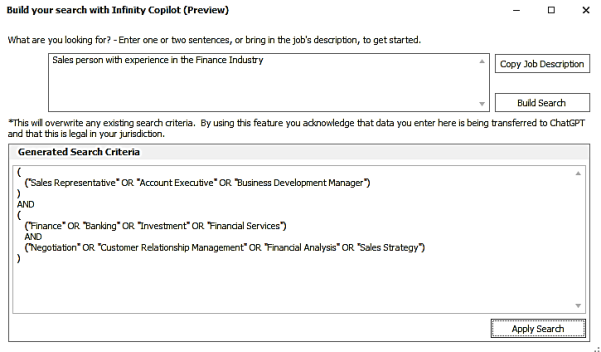
The search criteria generated by ChatGPT is shown in the screen. The user can apply this to their Infinity search or ‘Build Search’ again to see if more suitable criteria is returned.
If the user applies the criteria to their search, any existing criteria in the applicable search sections are wiped.
Candidate and re:job search
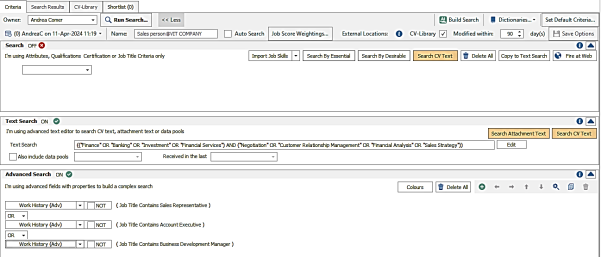
- The ‘Search’ section at the top, where dictionary skills are entered, is not populated
- The ‘Text Search’ section is populated with keywords but does not include job titles
- The ‘Advanced Search’ section is populated with the job titles in “A” OR “B” OR “C” format using the ‘work history’ field and ‘contains’ operator
Job search
- The ‘Search’ section at the top, where dictionary skills are entered, is not populated
- The ‘Text Search’ section is populated with keywords but does not include job titles
- The ‘Advanced Search’ section is populated with the job titles in “A” OR “B” OR “C” format using the ‘client job title’ field and ‘equal to’ operator
Company, location and contact search
- The ‘Search’ section at the top, where dictionary skills are entered, is not populated
- The ‘Text Search’ section is populated with job title and keywords
Placement search
- The ‘Text Search’ section is populated with job title and keywords
Enhancement 126481/126482/126513 Copilot (Preview) iResearch improvements
Administration
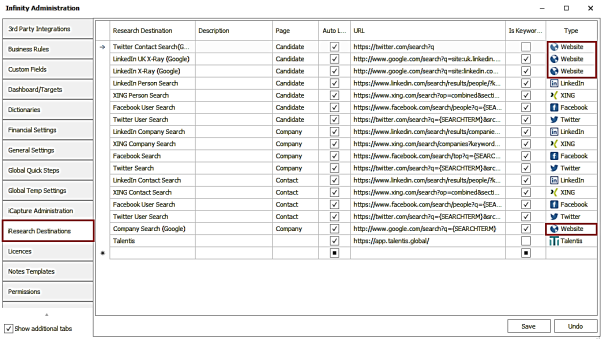
In Administration / iResearch Destinations tab, the type is used to determine the Copilot URL search string format. The existing type called ‘Website (Company)’ has been renamed to Website and assigned to the Google destinations.
Single Copilot ‘Build Search’ button
In the global iResearch page, the Copilot ‘Build Search’ button has been moved from the individual destination tabs to the main toolbar at the top, adjacent to the ‘Criteria’ field.
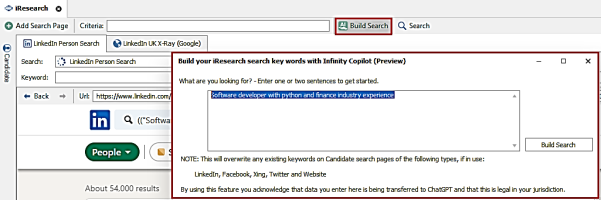
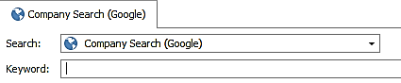
When the user enters their sentences in the Copilot window, and presses the ‘Build Search’ button, the returned search string is populated in the 'Keyword' field of each open tab if the destination is of type LinkedIn, Facebook, Xing, Twitter or Website, as long as they are not company search tabs. Any existing criteria are overwritten in the Keyword field and the search is automatically run.
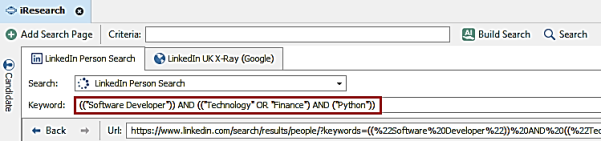
On the supported destination tabs, there is a 'Re-Generate key words' button adjacent to the ‘Keyword’ field.

This enables if there are sentences in the top Copilot ‘Build Search’ screen (hence a search was previously built). The returned search string is populated in the 'Keyword' field of the current tab only. Any existing criteria is overwritten, and the search is automatically run.
Note The iResearch ‘Company Search’ destination is not supported by Copilot currently.
On candidate / company / location / contact page iResearch tabs (down the left-hand side of the page), the Copilot search button remains on supported destinations and works as per previous versions.
Keyword field resizes
The ‘Keyword’ field in the iResearch tab will resize along with changes made to the screen display size. This allows more search terms to be viewed on the screen.

Enhancement 126471 Leads – call back follow ups
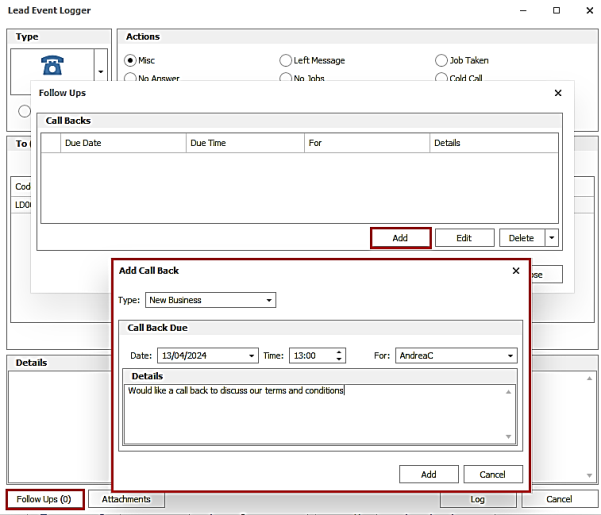
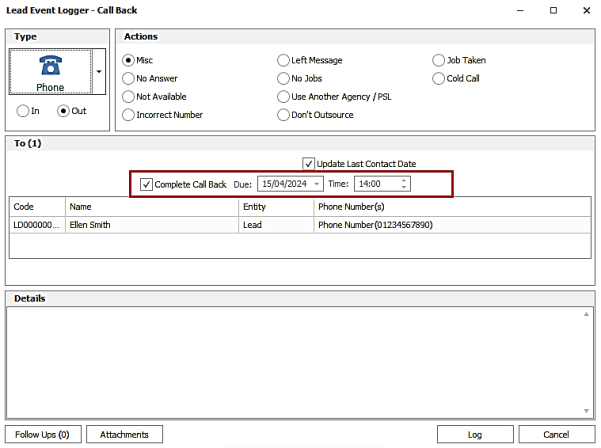
The ‘Follow Ups’ button is available on the Lead Event Logger screen to add a future call back for the lead.
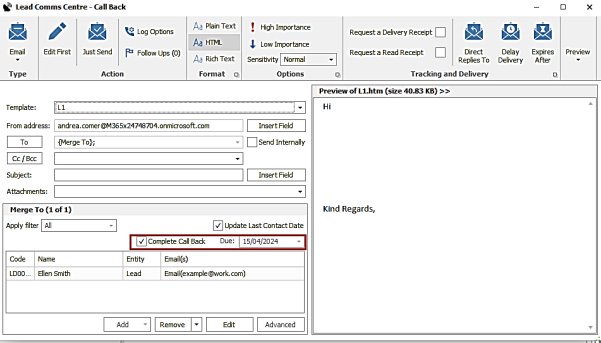
The ‘Follow Ups’ button is available on the Lead Comms Centre screen to add a future call back for the lead.
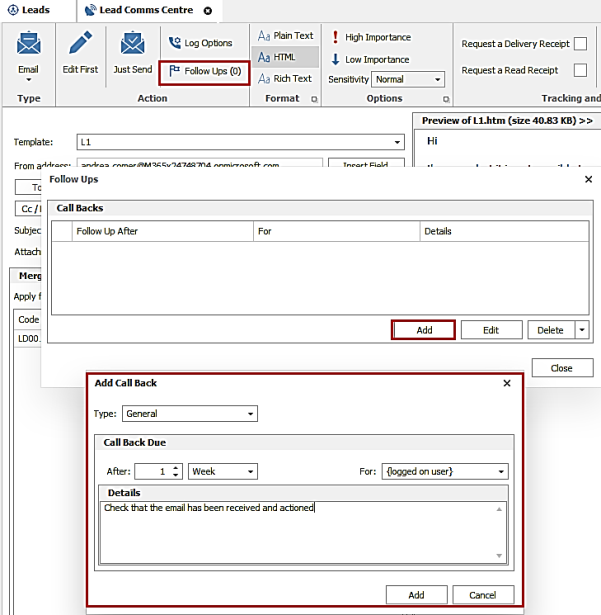
As per existing functionality, the user can only create call backs for users they have permission to do so for.
When the lead call back is created it will appear in My Infinity for that user. A new section has been added called ‘Lead Call Backs’ and this section will appear as default for new and upgraded users.
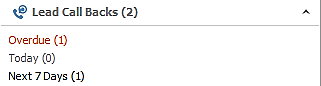
The user can see which call backs are:
- Overdue
- Due today
- Due in the next 7 days
The user can click each hyperlink to display the list of lead call backs.
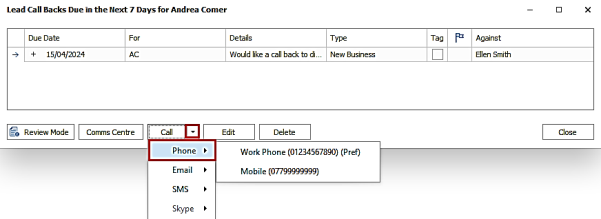
Leads do not have a ‘Preferred telecom’ field, like candidate and contact pages. This column is not displayed in the grid and when the ‘Call’ button is pressed, the top telecom on the lead page is used if exists (phone, mobile or email). Alternatively, the ‘Call’ button has a drop-down menu allowing the user to choose the telecom to call and the communication method.
The Lead Event Logger Call back screens allow the call back to be completed or rescheduled.
The Lead Comms Centre Call back screens allow the call back to be completed or rescheduled.
As per existing call back functionality, there are other buttons on the toolbar to help manage the call backs.
Review Mode
- When review mode is turned on and the leads grid is not already open - it opens it and goes to the correct record and status
- When review mode is turned off - it closes the whole page
- When review mode is turned on and the leads grid is already open - it activates the existing open screen and selects the correct record
- When review mode is turned off - it leaves it open
Comms Centre
- The lead records in the call back list can be multiselected and sent to the lead Comms Centre
Edit and Delete
- The lead records in the call back list can be multiselected and edited or deleted, if permissions allow
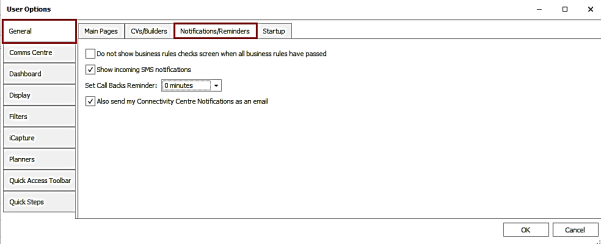
Call back notifications can be configured in User Options / General / Notifications / Reminders tab as per existing functionality and will now work for lead call backs.
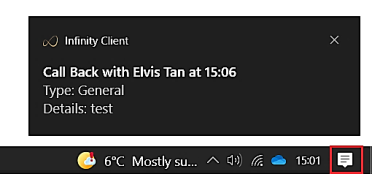
If enabled a Windows notification will pop up at the reminder time, for incomplete lead call backs with a time, for the logged in Infinity user.
Enhancement 126619 Leads - manage tags
Lead tags can be deleted in Administration / Reference Data / Leads Tags tab.
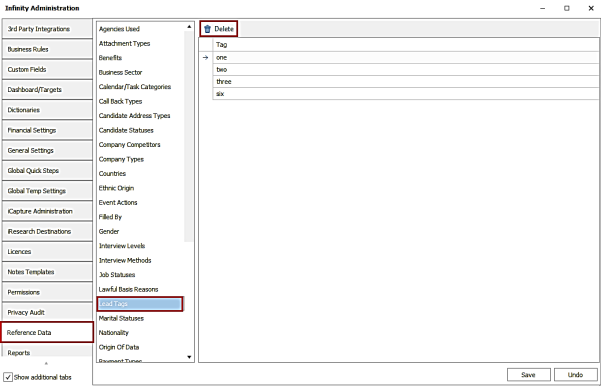
Multiple tags can be selected and deleted.
The user is given a warning and must click ‘Yes’ to delete the tags.
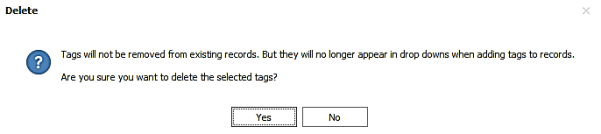
- Tags are not removed from existing records
- Tags will no longer appear in the drop-down list, when adding to lead records
Enhancement 126490 Select which widgets appear on the Dashboard
The Dashboard has been changed so that each chart is a widget.
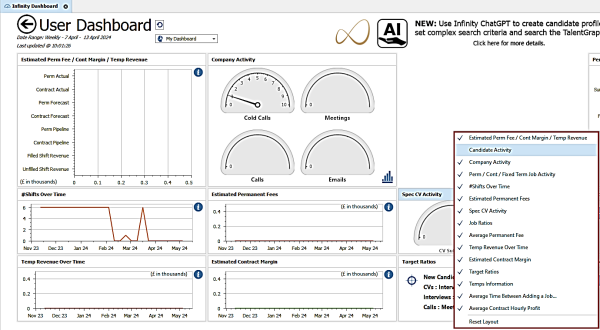
- There is a right click menu to add/remove widgets. Each widget can be added if it doesn't already exist on the Dashboard
- Users can add widgets of any job type
- Each widget can be moved/re-arranged by drag and dropping
- The layout is a table format and allows 6 columns across and 5 rows down
- The layout can be reset to default
- There is one layout for all Dashboards - User, Team and Company. Making changes to one will be reflected on the others.
All other existing functionality on the Dashboard is the same.
The 'Job Types' setting in User Options / Dashboard tab has been renamed to 'Default dashboard layout' and is used if the user resets their Dashboard layout.
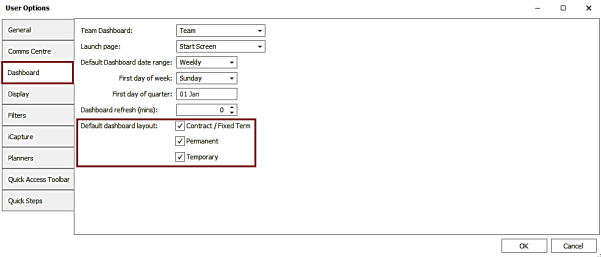
Upon upgrade, the Dashboard displays the same widgets as it did prior to upgrade, based on the 'Job Types' / ‘Default dashboard layout’ user setting.
Enhancement 37776 Inactive company, location and contact pages cannot be edited
Company page
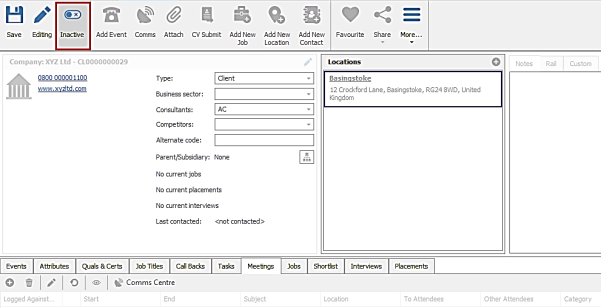
When a company is made inactive:
- All of the icons except "Save" / "Record Lock" / "Inactive" / "Delete" / "Undo" / "Collapse Ribbon" should become disabled
- Company Basic Details is disabled
- Add location button in "Locations" section is disabled
- Notes/Rail/Driving/Custom are disabled
- Bottom tabs are disabled
Location page
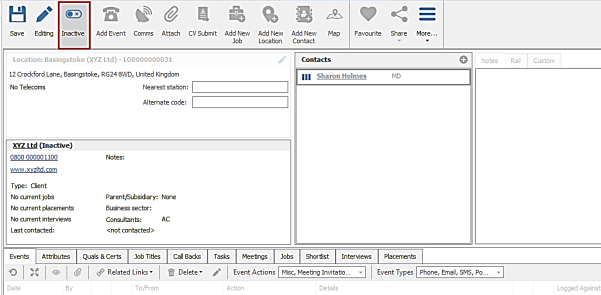
When a location is made inactive:
- All of the icons except "Save" / "Record Lock" / "Inactive" / "Delete" / "Undo" / "Collapse Ribbon" should become disabled
- Location Basic Details is disabled
- Add contact button in "Contacts" section is disabled
- Notes/Rail/Custom are disabled
- Bottom tabs are disabled
Contact page
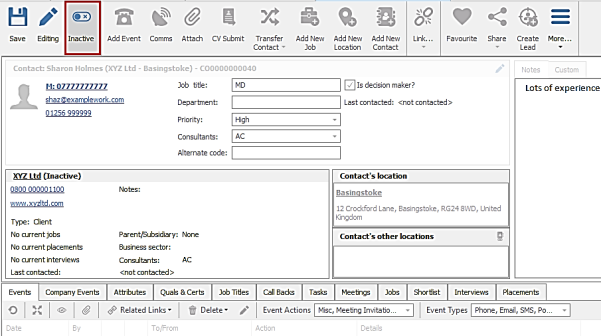
When a contact is made inactive:
- All of the icons except "Save" / "Record Lock" / "Inactive" / "Delete" / "Undo" / "Collapse Ribbon" should become disabled
- Contact Basic Details is disabled
- Linking button in "Contact's other locations" is disabled
- Notes/Custom are disabled
- Bottom tabs are disabled
Enhancement 126598 Transfer attribute info tooltip
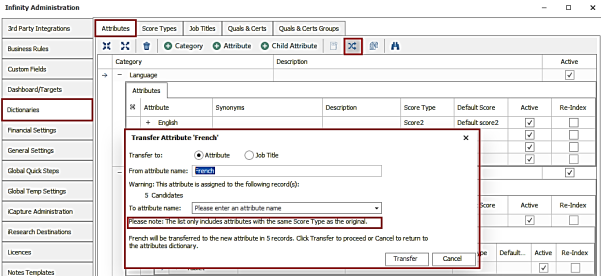
In Administration / Dictionaries / Attributes tab, the ‘Transfer Attributes’ screen has additional wording to notify the user that the attributes listed in the ‘To attribute name’ field, are ones of the same score type as the ‘From attribute name’ only.
Enhancement 99411 Company Info report's description amended
The Company Info report description has been prefixed with ‘This is a custom report, built to an individual client specification’.
Enhancement 126496 Notification to users running Infinity on an unsupported OS
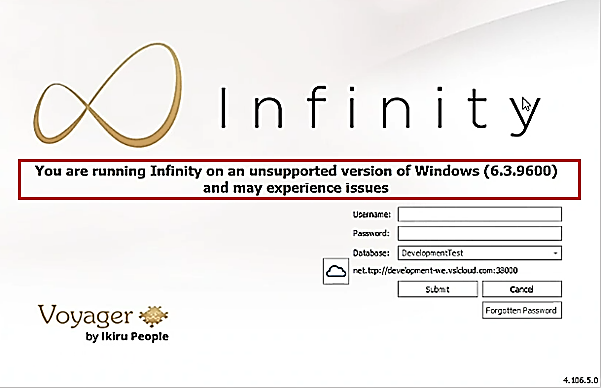
Users running Infinity on workstation versions of Windows prior to Windows 10 and server versions prior to Server 2016, are notified on the login screen.
The Help / Technical Support / Tech Support Report shows the correct version of Windows being used instead of “NT6.3 (Windows 8.1)”.
Enhancement 126474 TalentGraph - Rocket Reach purchasing info updated
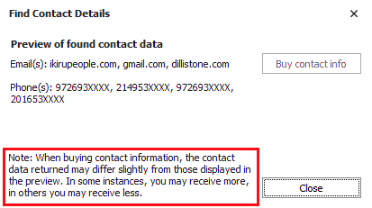
The TalentGraph / Results / ‘Find Contact Details' screen, informs the user that the purchased data is not guaranteed to be the same as the preview data.
 Contact Details
If you require further assistance please contact Ikiru People using the details published on www.ikirupeople.com
Visit our Customer Portal at https://portal.ikirupeople.com/ for future events and clinics.
FeedbackIf you would like to make suggestions or have found any errors with this Help section please contact our Support team.
Copyright © 2026 Voyager by Ikiru People Ltd. All rights reservedVersion 4.87
Voyager Software is a brand of Ikiru People Ltd, a subsidiary of Dillistone Group Plc. The group is a leading global provider of software and services that enable recruitment agencies and in-house recruiters to better manage their selection process and address the training needs of individuals. Across its brands – which include Voyager Software (recruitment software UK & Australia), Dillistone FileFinder executive search software, GatedTalent, the global database of the world’s leading executives, Talentis.Global – the next generation of recruitment software and also ISV.Online, provider of online pre-employment skills testing and training tools. Dillistone Group serves thousands of clients worldwide. Ikiru People Ltd: Registration Number 02043300. Registered in England & Wales.
 |  |  |  |