Voyager Infinity – Release Notes
Version: 4.103
Release Date: 6th March 2024
What have we released?
- Infinity 4.103 has been released
Release overview
- AWR enhancements, with checks now optional (*must be enabled to use*)
- Website reviews (SaaS only) - email notifications and placement events
- Temp Planner - search by Quals & Certs and a forename sort option
- Mailchimp integration added to search lists and job shortlist
- API Swagger documentation UI update with an OpenAPI3 structure
Feedback please
We are continuously looking to improve Voyager Infinity and are keen to hear your thoughts. Please email suggestions@ikirupeople.com with any feedback on existing functionality or ideas for new functionality.
Enhancements
Enhancement 125822 AWR - Checks are optional on the Infinity database
Infinity AWR checks will be switched off as default in this version. For those customers wishing to use the functionality, it must be enabled manually on the database. This has been done to improve performance on the platform, considering the recent package of measures in this area. AWR calculations will then run overnight, with results / notifications appearing the next day.
Infinity AWR compliance checking is optional and is configured in the Administration / General Settings / AWR tab.
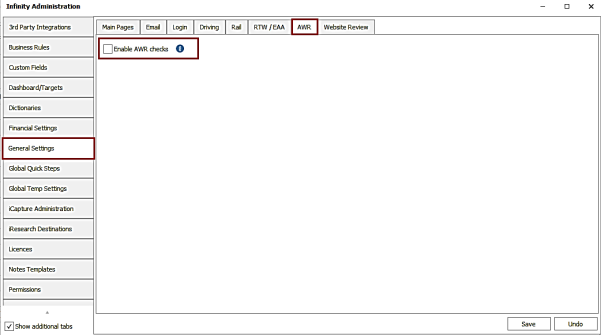
If the setting is not enabled, AWR notifications do not show in My Infinity / Application menu and overnight AWR calculations are not run.
There is an info button giving details about what happens when the AWR checks are enabled. More detailed information can also be found in Infinity Help (F1).
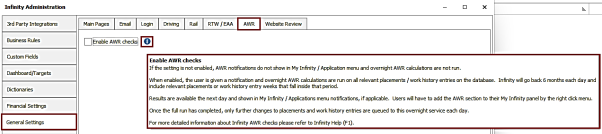
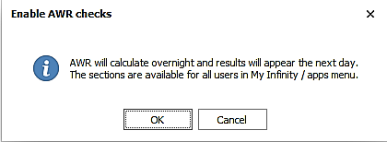
When enabled, the user is given a notification to confirm. If the user proceeds, overnight AWR calculations are run on all relevant placements / work history entries on the database. Results are available the next day and shown in My Infinity / Applications menu notifications, if applicable.
Infinity will go back 6 months each day and include relevant placements or work history entry weeks that fall inside that period. Future weeks are not included and if placement and work history entries have end dates in the future or are blank, today is assumed as the end date.
Example
So today is 20/02/2024, which means AWR starts from 20/08/2023
- Placement Starts 21/02/2024 = not included (because this will calculate the next day)
- Placement Starts 01/09/2023 and hasn't ended = included (weeks are calculated up to today)
- Placement Starts 01/09/2023 and ends 01/12/2023 = included
- Placement Starts 01/01/2023 and ends 01/12/2023 = included (but the calculation is from 20/08/2023 to 01/12/2023)
- Placement Starts 01/01/2023 and ends 01/08/2023 - not included
Once the full run has completed, only further changes to placements and work history entries are queued to this overnight service each day.
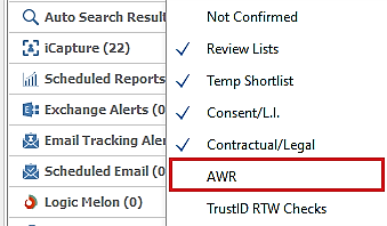
Users will have to add the AWR section to their My Infinity panel by the right click menu.
Enhancement 125762 AWR – The ‘No of Weeks’ count does not include future weeks
In AWR My Infinity / Application notification windows, the candidates’ AWR group (clock) ‘No of Weeks’ field has been changed to not include future weeks, and future placements / work history entries are no longer listed.
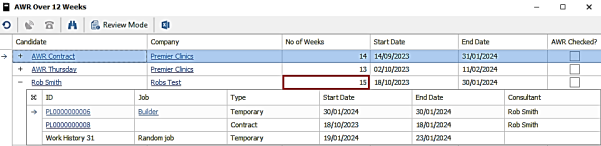
Weeks are counted from the candidate’s AWR group (clock) Start Date to End Date.
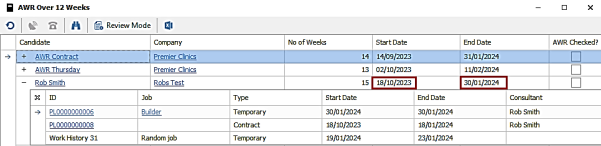
- The AWR Group (clock) Start Date is defined as follows:
- When the AWR clock starts
- Is the earliest start date / first shift across all placement / work history entries in the group
- Weeks are counted from that date, so if the start date is a Wednesday the AWR week count will run from Wednesday to Tuesday
- The AWR Group (clock) End Date is defined as follows:
- When the AWR clock ends
- This date will keep extending every week until it reaches a 6 week break, at which point it stops that clock
- Weeks are counted to this date
- It is the last day in the AWR week, so if the group start date is a Wednesday, the group end date will be a Tuesday
- If placement and work history have end dates in the future or are blank, today is used as the end date
In any given week, if there is a relevant contract placement or work history entry that starts in, ends in, or spans that week or a temp shift, it counts as 1 week.
If there is a 6 week break between weeks, the clock is stopped for that group and a new candidate AWR group (clock) is created with the clock week count reset to 0.
If the 6 week breaks are in a single temp placement, the same placement can be linked to multiple candidate AWR groups (clocks).
There must be at least one placement not ticked as ‘AWR Checked’ in a candidate AWR group (clock) for it appear in My Infinity / Apps menu notifications.
Known issue –If the 6 week breaks are in a single temp placement, the same placement can be linked to multiple candidate AWR groups (clocks). This means if the placement ‘AWR Checked’ field is ticked for the first AWR group (clock), subsequent groups (clocks) would not appear as the placement is already ticked as ‘AWR Checked’. Work is planned to address this issue in the next version.
Enhancement 125579 AWR - Perm and fixed term not counted
The AWR week counts shown in a candidate AWR group (clock) in My Infinity / Apps Menu no longer include the following in the calculation:
- Perm placements
- Fixed term placements
- Perm work history entries
- Fixed term work history entries
Only temp and contract are counted.
Enhancement 125739 AWR - Contract confirmed/started/finished status only counted
The AWR week counts shown in a candidate AWR group (clock) in My Infinity / Apps Menu include Contract placements at a status of ‘confirmed’, ‘started’ or ‘finished’ only.
The status is shown on the contract placement page.
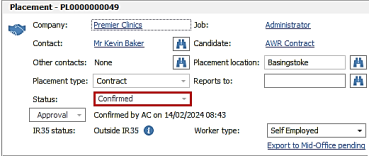
As per existing functionality, temp placements with shifts of any status are included.
Enhancement 125821 AWR - Worker types of Payroll or Umbrella only counted
The AWR week counts shown in a candidate AWR group in My Infinity / Apps Menu include placements with a worker type that is ticked as ‘Payroll’ or ‘Umbrella’ only in the Administration / Reference Data / Worker Type tab.
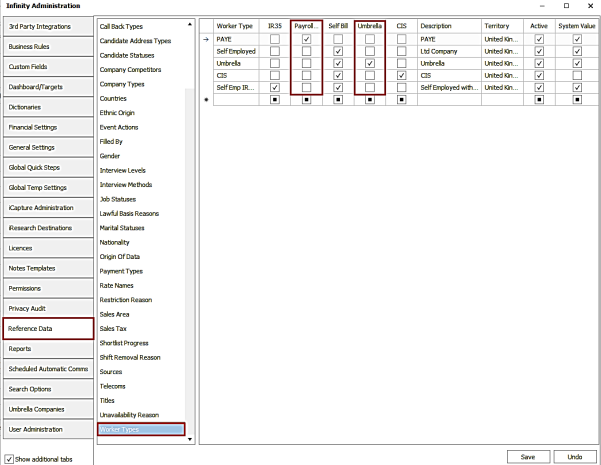
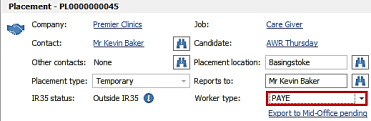
The worker type is shown on the placement page.
Enhancement 125719 Web reviews (SaaS only) - Email notifications
There is a setting in Administration / General Settings / Web Review tab to notify placement owning consultants by email when a web review is received on their placements.
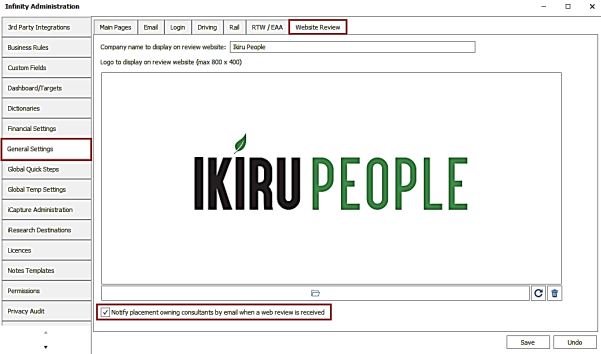
The setting is on as default.
When the setting is enabled, an SMTP email is automatically sent by Infinity for each web review received to all owning consultants of the placement (one email with multiple 'to' addresses).
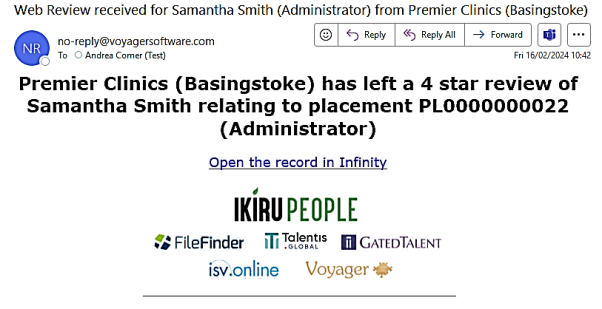
- The users' ‘email’ address field is used but if blank the ‘email other’ is used from the user administration screen
- The email is sent from the no-reply@voyagersoftware.com email address
- The email subject is "Web Review received for <pl candidate name> (pl Job Title) from <pl Company Name> (location)
- The email body text is "<Company Name> (location) has left a <rating> star review of <candidate name> relating to placement <ID> (pl job title)”
- The email body contains a link to the Infinity candidate page
- Location field is only populated if the review has a company location
Enhancement 125851 Web reviews (SaaS only) - Placement event logged
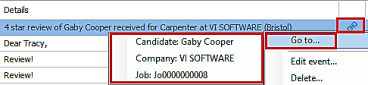
When a website review is received on a placement, an event is logged on the placement page.

- This is an Info event with an event action of 'Web Review of Candidate'
- Will show as logged by the service user called ‘Sysproc’
- Is visible on the related candidate, company and job page
- The details field shows "X star review of <candidate name> received for <job title> at <company name (location)>"
- The user must go to the related candidate or company page to see the review using the ‘Reviews’ menu
- The event has links to jump to the related pages as per existing info events
Enhancement 125920 Web reviews (SaaS only) - Example Comms Centre template
A new example template called ‘Web review request of Candidate’ is available in the Placement Email Contact Comms Centre.
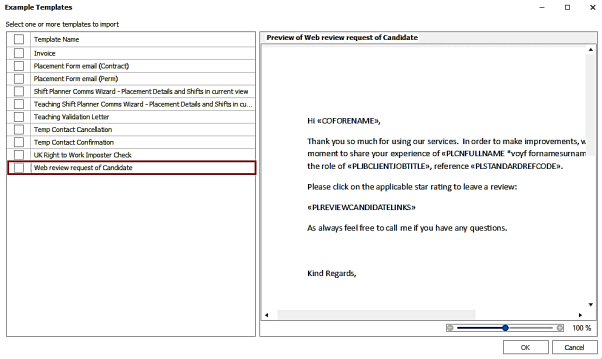
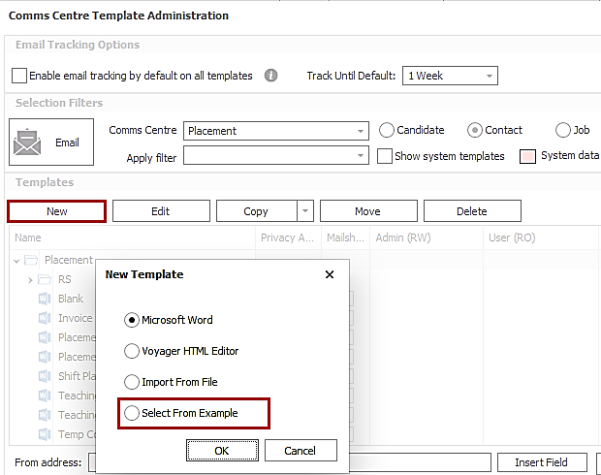
This is available to download and use when creating new templates via the ‘Select From Example’ menu option in Comms Centre Template Administration.
Enhancement 125910 Interview find improvements
In all interview find screens the ‘Show Closed’ and Show Cancelled’ tick boxes have been moved from placement results to the find criteria.
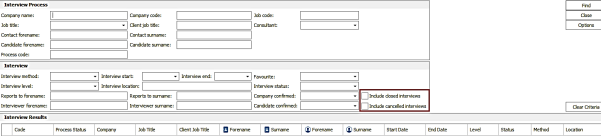
The fields are off as default and have been renamed to ‘Include closed interviews’ and ‘Include cancelled interviews’ in the interview find section.
Functionality is the same as per the existing version. When ticked and the ‘Find’ button is pressed, closed interviews and cancelled interview records are included in the results. The ‘Include closed interviews’ field cannot be ticked in isolation, as other find criteria must be entered.
The Favourite field has been changed from a tick box to a drop field with blank, yes and no values.
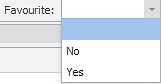
The field is off as default (blank) and functionality is the same as per the existing version.
Enhancement 125846 Attachments ‘Show Comms Centre attachments’ tick box changes
The’ ‘Show Comms Attachments’ tick box has been removed from all attachment windows. ‘Comms’ type is available in the filter menu to select.
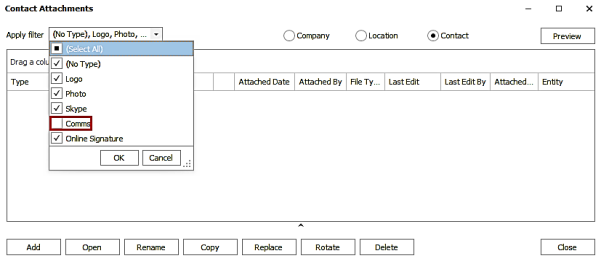
‘Comms’ type is unticked as default, except for in event attachments and the filter selection is remembered for the user.
The filter is remembered per attachment window type:
- Candidate
- Company
- Company Tier
- Contact
- Job
- Interview
- Placement
- Calendar
- Task
The event attachment window will always show all types and the filter changes are not remembered.
Enhancement 125848 Candidate page CV grid ordering changes
The ‘CV/Online Refs’ on the candidate page is ordered by ‘Default’ CV then ‘CV Received’ date with the latest at the top.

This is the default for all users that haven't applied their own custom grid layout, and the same order is applied to the ‘All CVs’ window.
Enhancement 125925 Review rating search fields renamed
In the search criteria tab / advanced section in re: job and adhoc candidate searches, the following fields have been renamed:
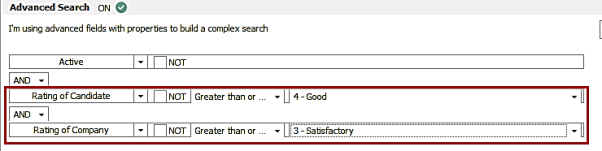
- 'Rating of Candidate' is renamed 'Rating of Company' - you are searching the candidates’ rating of the client as per existing functionality
- 'Rating of Company/Location' is renamed 'Rating of Candidate' – you are searching the clients’ rating of the candidate as per existing functionality
Enhancement 125919 Company last contacted search examples changed
Company search example templates have been changed to use the company ‘Last Contacted’ field.
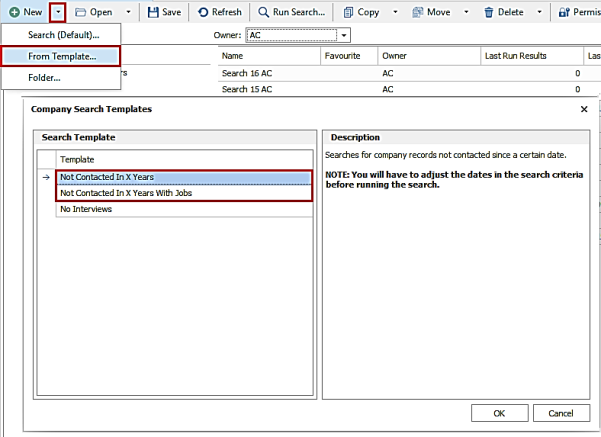
- Not Contacted in X Years
- Description is changed to read 'Searches for company records not contacted since a certain date'
- The search created is

- Not Contacted in X years with Jobs
- Description is changed to read 'Searches for company records not contacted since a certain date and have jobs assigned.'
- The search created is

Enhancement 125845 Reports menu added to the Application menu
The ‘Reports’ menu is available in the Application / Information menu.
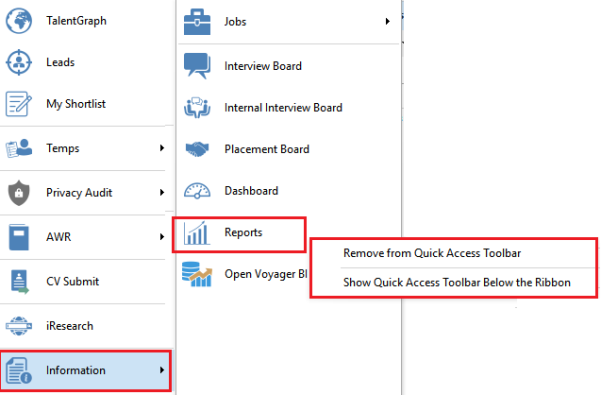
This can be added / removed to the Quick Access Toolbar via the right click, same as other menu options.
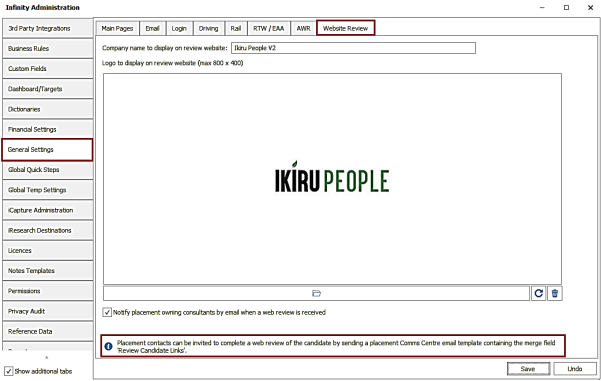
Enhancement 125906 Tooltip on Web Review admin screen
An ‘info’ tooltip has been added to the Administration / General Settings / Website Review tab giving further details about using this feature in Infinity.
Enhancement 119359 Reports admin options merged to the same tab
'Reports' and 'Scheduled Reports' tabs have been merged into one tab called 'Reports' in the Administration screen.
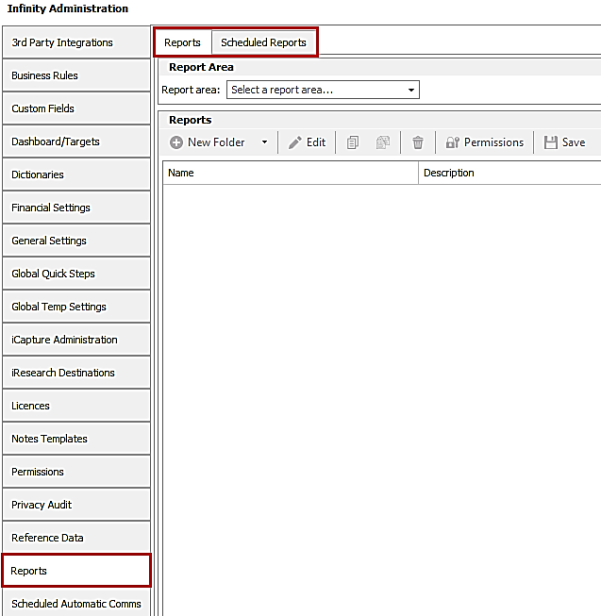
‘Reports’ is the first tab then ‘Scheduled Reports’ and all functionality works as per previous versions.
Enhancement 125501 Show key setup tabs only in Administration
In Administration, there is new tick box field called ‘Show additional tabs’ to control the display of the tabs.
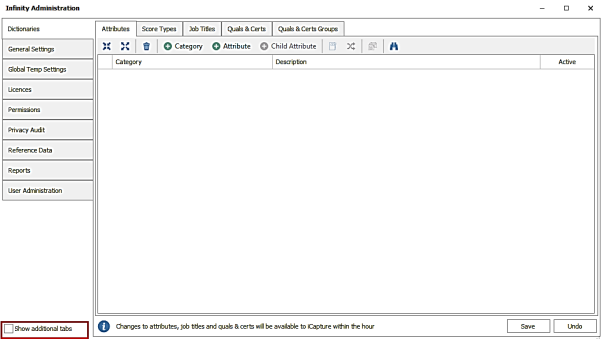
The last setting is remembered for the user.
When un-ticked, users only see the key setup tabs that they have permission to:
- Dictionaries
- General Settings
- Global Temp Settings
- Licences
- Permissions
- Privacy Audit
- Reference Data
- Reports
- User Admin
When ticked, users also see the additional tabs that they have permission to:
- 3rd Party Integrators
- Business Rules
- Custom Fields
- Dashboard / Targets
- iCapture Settings
- iResearch Destinations
- Financial Settings
- Global Quick Steps
- Notes Templates
- Scheduled Automatic Comms
- Search Options
- Umbrella Companies
When all tabs are shown, they are arranged in alphabetical order as per previous versions and functionality is the same.
For new users, the additional tabs are not shown as default. For existing users, all tabs are shown.
Enhancement 125924 Active back office sector / div / dep ref data listed in User Admin
In Administration / User Administration tab / Edit User, only active values can be selected from the drop down in the ‘Back Office Sector’, ‘Div’ and ‘Dept’ fields.
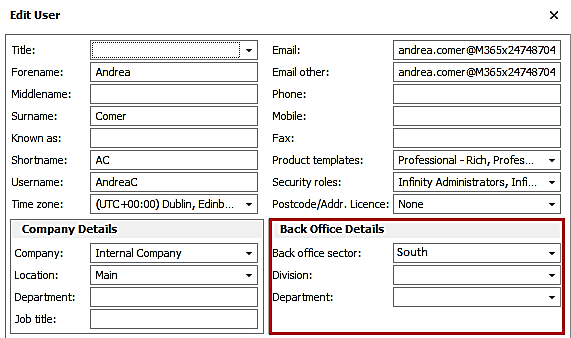
If an inactive value is already assigned, this will be displayed.
Enhancement 125843 Mailchimp integration added to search list / job shortlist
On Infinity databases configured for Mailchimp, the export functionality has been added to the following areas of Infinity:
- Candidate search list
- Contact search list
- Job shortlist
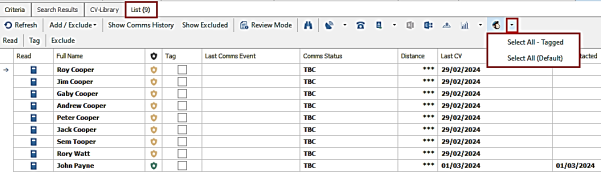
The export functions as per existing search results functionality, and the users require the ‘Mailchimp export’ permission to see the button on the search list/shortlist toolbar.
The Mailchimp button has two menu options to select records on the list/shortlist to be exported:
- Select All - Tagged - this selects those records that have been tagged
- Select All (default) - this is the default for the button and selects all records in the list/shortlist
When an option is selected, the 'Export Mailshot File' window is displayed that allows the user to create a new Mailchimp Infinity list or select an existing Infinity list, as configured in administration.
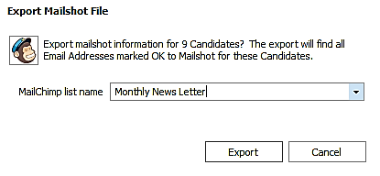
The export finds all email address marked ‘OK to mailshot’ for the candidates / contacts selected.
When the user clicks ‘Export’, the records are queued to the Mailchimp service ready for export and the user is informed in the window.
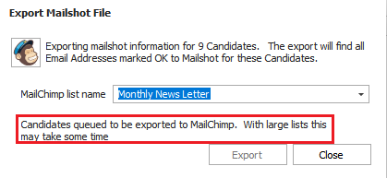
The user can then close the window and return to their search list/shortlist.
Once the records are successfully exported to Mailchimp by the service, an information event is logged against each record with an action of 'Mailer Exported' and the list name in the details as per existing functionality.
Note: If a candidate/contact record with multiple email addresses is exported, separate records will be shown in Mailchimp.
Enhancement 125945 API (SaaS only) Swagger page UI update and OpenAPI3 structure
Swagger, the Infinity API technical documentation page, has been updated and is now in an OpenAPI3 structure.
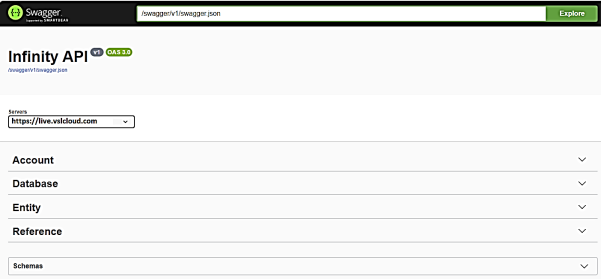
Schema models can be browsed, and it can be imported it into other 3rd party packages like Postman.
Please refer to the API Swagger page for further technical information Swagger UI (vslcloud.com)
Enhancement 125813 API (SaaS only) Max field lengths shown
In the API Swagger page, the schema models can be browsed in full (not tooltips) and field lengths and formats displayed.
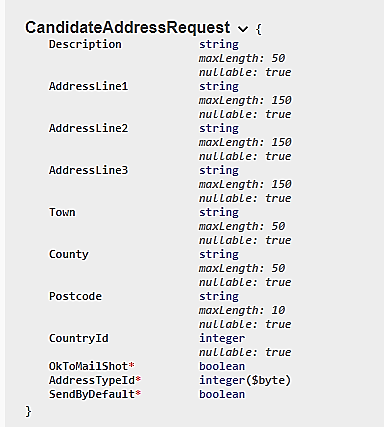
Please refer to the API Swagger page for further technical information Swagger UI (vslcloud.com)
Enhancement 125940 API (SaaS only) Retrieve candidate CVs
Three new entities have been added to retrieve candidate CVs in the API.

Please refer to the API Swagger page for further technical information Swagger UI (vslcloud.com)
Enhancement 125838 Temp Planner - Search Quals & Certs
Temp Planner has a new search field called ‘Qual & Certs ‘ in the Quick Search tab.
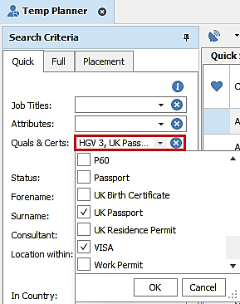
- This is a multiselect field showing the Qual & Cert name
- When values are selected and searched, candidates are returned that have all of the Quals & Certs
There is an additional option to search 'Not expired' Quals & Certs
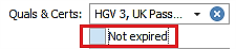
When this is ticked and searched, candidates are returned that have all of the selected Quals & Certs and they haven't expired; these are Quals & Certs with an expiry date and not those with a blank expiry date.
Details on this field have been added to the Quick Search Info button.
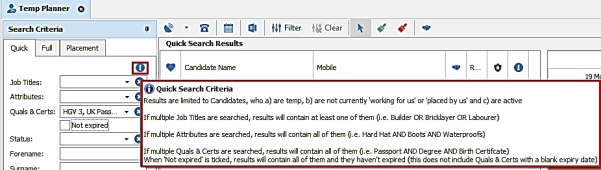
Enhancement 125897 Temp Planner - Sort results by candidate forename
Temp Planner / Quick Search tab search results can optionally be sorted by candidate forename.
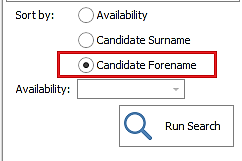
When selected and search run, the candidates in the results grid are sorted by forename and then surname alphabetically a-z.
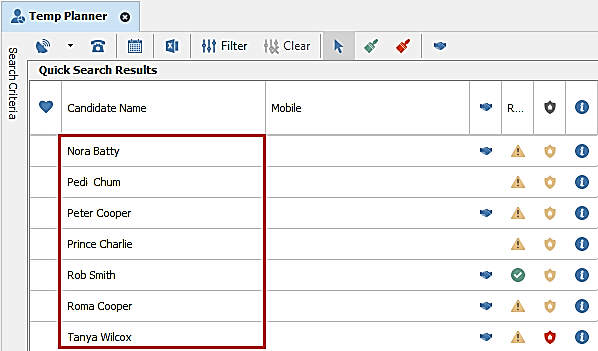
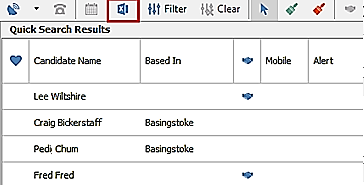
Enhancement 125833/125855 Temp Planner – Export changes
The Temp Planner Excel export file shows the candidates in the same sort order as per search results on the user’s screen.
There is a setting in User Options / Planners tab to only show the ‘Times’ columns on the Temp Planner Excel export file.
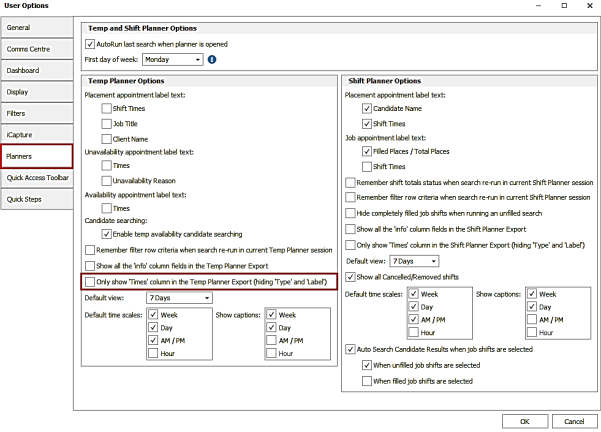
The setting is off as default and continues to work as per previous versions.
When ticked, the Temp Planner Excel export file only shows the ‘Times’ column in the day group and ‘Label’ and ‘Type’ columns are hidden.

Enhancement 125847 Shift Planner – New columns on candidate search results
New candidate fields are available in the column chooser on Shift Planner Candidate results panel.

- Based In
- Last Contacted date
- Last Contacted by
The columns can be added to the grid and layout saved with sorting and filtering available.
Enhancement 125856/125857 Shift Planner - Export changes
The Shift Planner Excel export file shows the jobs/placements in the same sort order as per the search results on the user’s screen.
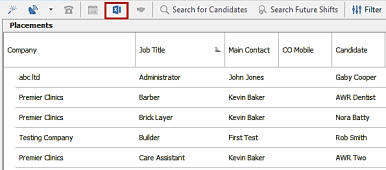
There is a setting in User Options / Planners tab to only show the ‘Times’ columns on the Shift Planner Excel export file.
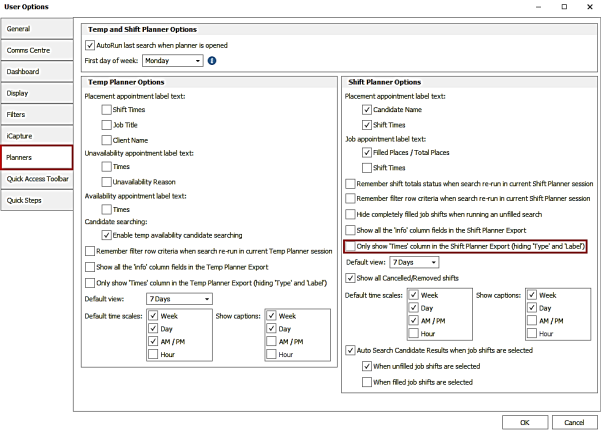
The setting is off as default and continues to work as per previous versions.
When ticked, the Shift Planner Excel export file only shows the ‘Times’ column in the day group and ‘Label’ and ‘Type’ columns are hidden.

Enhancement 125760 Temp shift calendar grid view changes
The temp job and placement shift calendar grid views open with the latest shift at the top, and the top row selected.
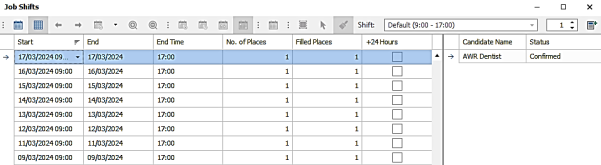
The month label e.g. ‘March’ that displayed on the toolbar has now been hidden in this view.
 Contact Details
If you require further assistance please contact Ikiru People using the details published on www.ikirupeople.com
Visit our Customer Portal at https://portal.ikirupeople.com/ for future events and clinics.
FeedbackIf you would like to make suggestions or have found any errors with this Help section please contact our Support team.
Copyright © 2026 Voyager by Ikiru People Ltd. All rights reservedVersion 4.87
Voyager Software is a brand of Ikiru People Ltd, a subsidiary of Dillistone Group Plc. The group is a leading global provider of software and services that enable recruitment agencies and in-house recruiters to better manage their selection process and address the training needs of individuals. Across its brands – which include Voyager Software (recruitment software UK & Australia), Dillistone FileFinder executive search software, GatedTalent, the global database of the world’s leading executives, Talentis.Global – the next generation of recruitment software and also ISV.Online, provider of online pre-employment skills testing and training tools. Dillistone Group serves thousands of clients worldwide. Ikiru People Ltd: Registration Number 02043300. Registered in England & Wales.
 |  |  |  |