Voyager Infinity – Release Notes
Version: 4.101
Release Date: 8th February 2024
What have we released?
- Infinity 4.101 has been released
Release overview
Here’s a snapshot of what we’ve delivered in this release:
- Website reviews of candidates (SaaS only)
- Company page last contacted information
- AWR notification screen changes
- Temps – option to create shifts up to 48 hours
Feedback please
We are continuously looking to improve Voyager Infinity and are keen to hear your thoughts. Please email suggestions@ikirupeople.com with any feedback on existing functionality or ideas for new functionality.
Enhancements
Enhancement 125611/125610/124330 Website reviews of candidates (SaaS only)
Overview
This functionality is available for SaaS customers only.
Emails can be sent from Infinity to placement contacts asking for a review of the candidate. The recipient can click a link and complete the review on a website. If the review is completed it is automatically updated on the Infinity database.
Administration setup
If desired, a company name and logo can shown on the review website. These are optionally added via the Administration / General Settings / Website Review tab.
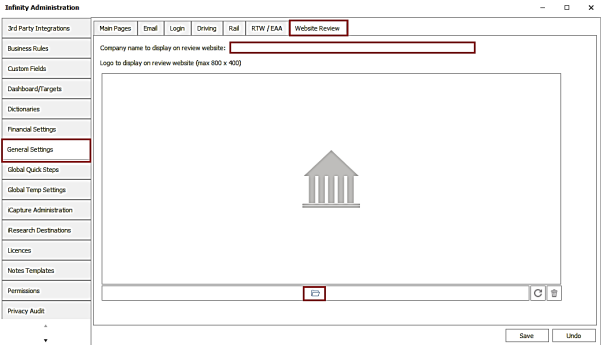
The company name field allows up to 50 characters to be entered.
A picture file can be uploaded for the logo and must not be bigger than 800x400 pixels and must adhere to the maximum file attachment size allowed on the database.
Comms Centre template setup
There is a new merge field called ‘Review Candidate Links’ in the Placement group / Text Fields tab in Email Placement - Contact Comms Centre.
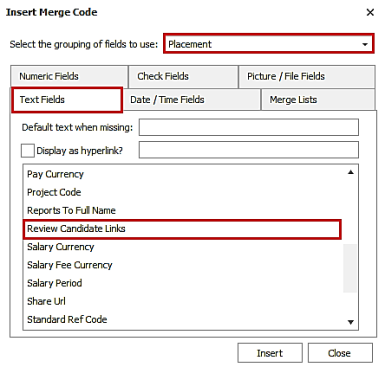
This will add a web review (a block of separate 1-5 star images) hyperlink to your email Comms Centre template.
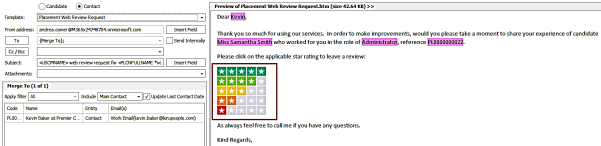
Note: the merge field will be seen by On Premise Installations and in the Post and SMS Comms Centre but is not usable.
When the email is sent from Infinity and is received by the recipient, they can click the applicable star rating to leave a review of the placement candidate.
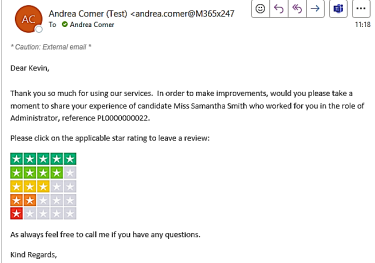
When a link/image is clicked, it opens a website for the recipient to complete the review.
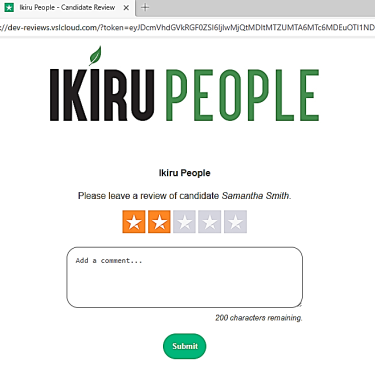
The website shows the company name, logo (as configured in the Infinity Administration screen), and placement candidate name, centered on the screen.
The star rating that the recipient clicked on in the email will be selected as default but can be changed as required. Comments can be left, up to 200 characters.
When the ‘Submit’ button is pressed, the website is closed and a review of the candidate by the company is created against the candidate record and related to the placement.
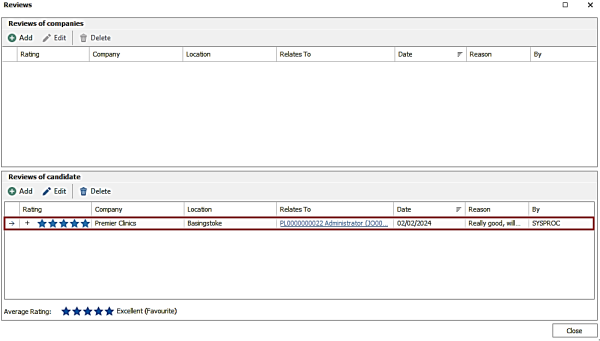
If the placement has a location, the review is recorded against that specific location, otherwise the location field is set to all locations. If ‘comments’ were left these are populated in the review ‘Reason’ field on Infinity.
The review by field is shown as ‘SYSPROC’ as it has been created by the system and not a user.
Note: The next release of Infinity will have a notification system, so users are told when a web review is received on the infinity database.
Enhancement 125298/125500 Company last contacted information
Company page
Last contacted information has been added to the company page.
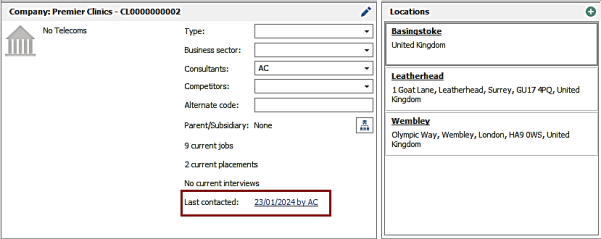
- This is the latest contacted date plus consultant taken across the whole company record (company page, location pages and contact pages).
- The field will automatically update if ‘Update Last Contacted’ is ticked when logging an event via the Event Logger, Comms Centre and Email synching on any of those pages.
- If a user has the company page open, a refresh will need to be done to see the latest update.
- The field is a clickable hyperlink to go to the page that last updated the date, if different to the current page.
- When the hyperlink is clicked, the current page is closed, and the user is taken to the page that last updated the field.
- If the field is not a clickable hyperlink this means that the user is on already on the page that last updated the date.
- This fields are automatically populated upon upgrade using the latest last contacted information found across the whole company record (company page, active location pages and active contact pages).
Location page
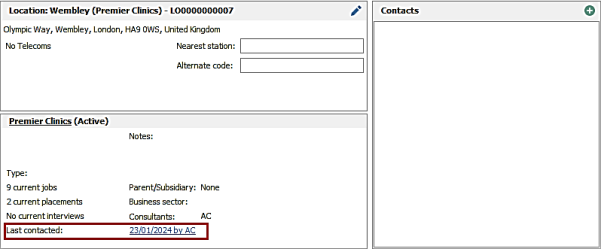
The company last contacted information is shown on the company section when viewing a location page and is a clickable hyperlink if not last updated by that location.
Contact page
The company last contacted information is shown on the company section when viewing a contact page and is a clickable hyperlink if not last updated by that contact.
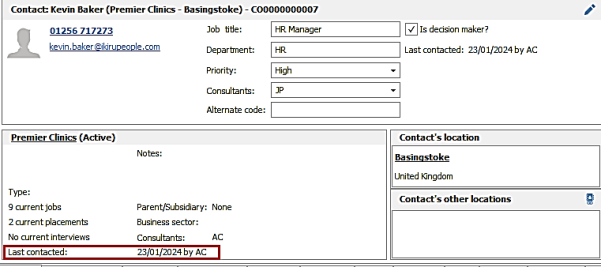
The field does not appear as a hyperlink in the above screenshot because this contact updated the company last contacted information last.
Search
The company last contacted date and by fields are available in Company Search / Search Criteria / Advanced Search section / Company menu.
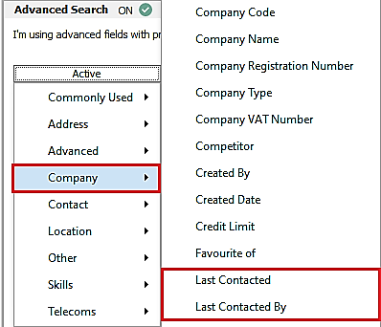
Searching ‘Last Contacted’ date will return companies with a last contacted date field that matches the date criteria selected.

- If the ‘Not’ operand is used, companies are returned with a last contacted date field that does not match the date criteria selected.
Searching ‘Last Contacted By’ will return companies with a last contacted by field that matches the consultant criteria selected.

- If the ‘Not’ operand is used, companies are returned with a last contacted by field that does not match the consultant criteria selected.
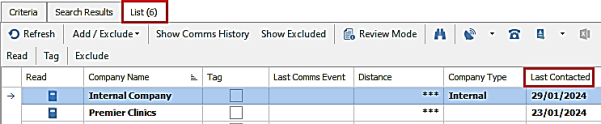
The company ‘Last Contacted’ date field is available in the column chooser to add to the grid on company search results.
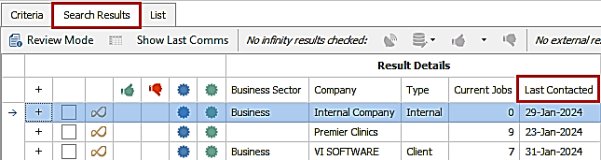
The company ‘Last Contacted’ date field is available in the column chooser to add to the grid on company search list.
Comms Centre
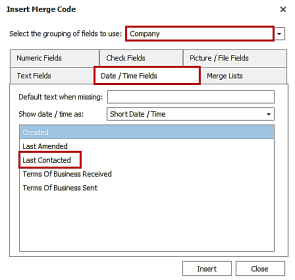
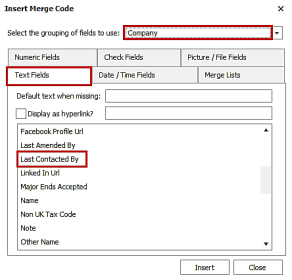
The company last contacted date and by fields are available in the Company Comms Centre / company group to merge in your templates.
Enhancement 125549 Placement ‘Package’ merge field
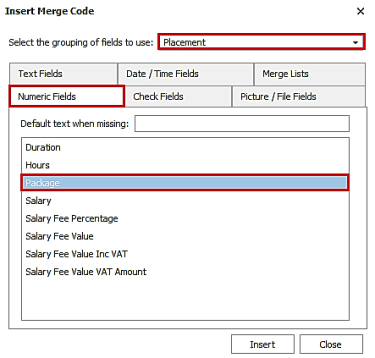
There is a merge field called ‘Packag’e in the Placement group / Numeric Fields tab in the Placement Comms Centre.
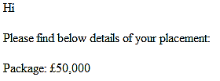
When added to your Comms Centre template, this merges the placement ‘Package’ field on perm and fixed term placements.

Enhancement 125572 AWR notification window changes
The AWR notification screens in My Infinity and the Application menu have been changed to show the records that are used to count towards the candidate’s AWR weeks
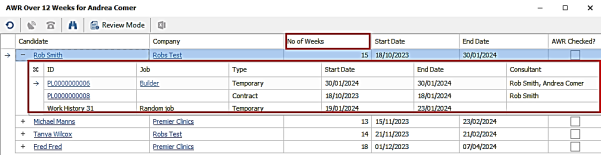
Users are notified if they are the owner of any placements in the AWR group.
Grid changes
The grid shows the parent row for each candidate AWR group count with a plus button to expand the placement and work history records within it, that were used toward that count.
The parent row has the following columns:
- Candidate- is hyperlink to candidate
- Company- is hyperlink to company
- No of Weeks - count of AWR weeks for that group
- Start Date- this is the earliest start date across the entries used to calculate the week count
- End Date- this is the latest end date across the records used to calculate the week count
- AWR check field – ticking this will tick all placements in that group and remove from screen as per existing functionality
The child row(s) have the following columns:
- ID- shows the work history ID or placement ID.
- If a placement record, the ID is a hyperlink to the placement page
- Job - this shows the job title field from the placement or work history record
- If a placement record, is a hyperlink to the job page
- Type shows the work history type or placement type
- Start Date- shows the Start Date of the record
- End Date- shows the End Date of the record
- Consultants
- if a placement record, shows the owning consultant(s) of the placement
- if a work history record, shows as blank
The Application menu notifications now displays as a floating window rather than in a tab / full screen.
Toolbar changes
The following buttons are available on each of the grid toolbars, but with slightly different functionality to deal with parent/child rows :
- Refresh button – refresh all grid records as per existing functionality
- Find Placement -works as per existing functionality but takes the user to the selected placement from the find window by expanding the AWR group and selecting the placement row in the grid
- Placement Event Logger –only available when placement row is selected
- Placement Comms Centre– only available when a placement row is selected
- Review Mode – only applicable to placement rows, if a work history or parent AWR row is selected the review page will close.
- Export– exports all placements rows in the grid as per existing functionality
Known Issues: It has been identified that perm and fixed term records may appear in the list and that the AWR week count may include future weeks. As there is no age restriction on placements in this version, old AWR notifications will appear if placements haven’t been ticked as AWR checked. These must be dealt with manually. There are plans to address these issues in the next release along with further improvements and changes.
Enhancement 94988 ‘Session Timed Out’ screen improvements
An ‘Exit’ button has been added to the ‘Session Timed Out’ screen when there is some time remaining.
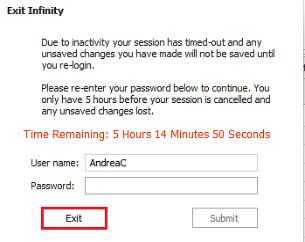
This produces a warning message that any unsaved changes will be lost. The User can click OK to continue or Cancel to return the user to the ‘Session Timed Out’ window.
As per existing functionality the user can enter their password and click ‘Submit’ to log into Infinity.
When there is 0 time remaining in the ‘Session Timed Out’ screen, the user can close Infinity with no further warning messages.
Enhancement 125469 Redundant ‘Type’ data removed from job and placement search
The value of ‘unknown’ has been removed from the following areas of Infinity as it is not available in the front-end application:
- ‘Type’ field drop-down values in job search
- ‘Type’ field drop-down values in a placement search
Upon upgrade, if there are existing searches using these field values, they will be removed / blanked, and the user will need to repopulate when they next run the search.
Enhancement 125582 Help launches in a web browser
Infinity Help (F1) is launched externally in a web browser if the user’s default windows web browser is set to Edge or Chrome. This improves compatibility for certain components like videos.
If the user is not set to Edge or Chrome the Help is launched internally as per existing functionality.
Enhancement 125472 Create temp shifts up to 48 hours
There is a database wide setting in Administration / Global Temp Settings / General tab to allow temp shifts up to 48 hours.
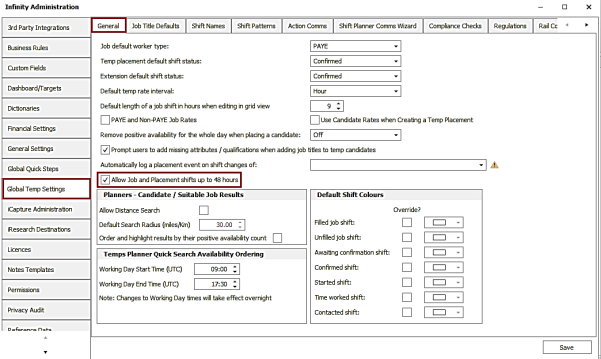
The setting is off as default.
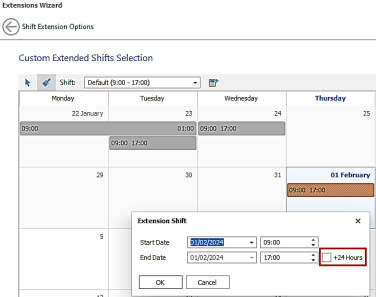
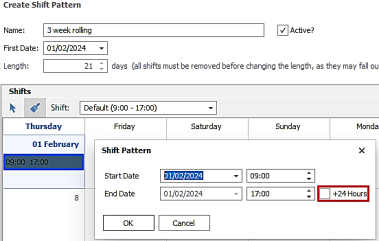
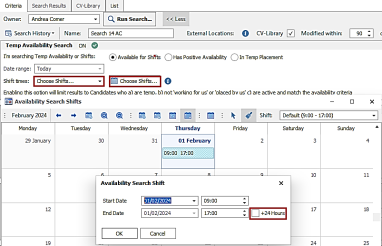
When the setting is enabled, there is a tick box against all job and placement shifts when single selecting to add + 24 hours.
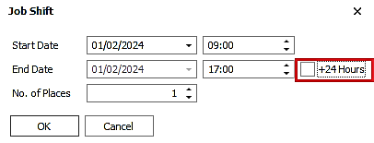
This is unticked as default and the field behaviour is a follows:
- if tick box IS NOT ticked and end time greater than start time both are treated as today
- if tick box IS ticked and end time greater than start time then start is today, end is tomorrow
- If tick box IS NOT ticked and end time less than start time, start today, end tomorrow
- If tick box IS ticked and end time less than start time, start today, end day after tomorrow
i.e. 9am - 8am with tick box ticked is a 47 hour shift
If a shift is ticked in job, and candidate placed on that shift ,it will be defaulted as ticked in the placement shift that is created. It can be ticked independently from each other in the linked job and placement shifts but existing shift times overlap rules may kick in and will need to be dealt with by the user.
The tick box is available in the following shifts screens:
Job calendar
Right click ‘Edit Shift’ menu
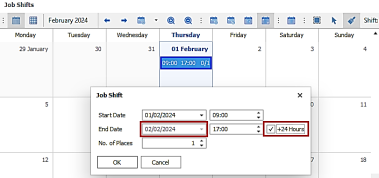
Job and placement calendar
Grid View
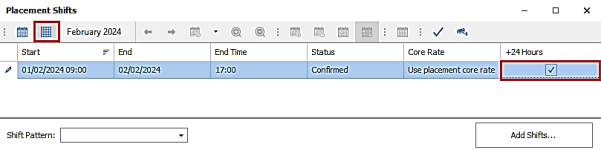
When ticking / unticking in grid view, the user must move off the +24 hours field to see the dates adjust.
Placement / Shift and Temp Planner calendar
Right click ‘Edit Shift Times’ menu When selecting the 'Individual' option which gives a grid view.
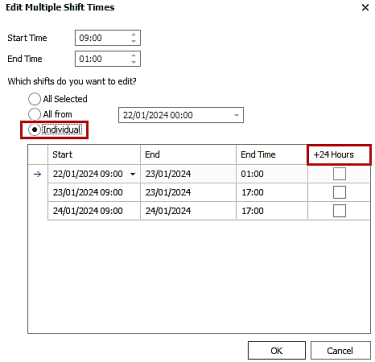
When multiple shifts are selected, the shift start and end times can be changed. This will use the shifts existing +24 Hour tick box state. So if for example, it was ticked as +24 hours, the new shift time will be applied, and the extra day kept.
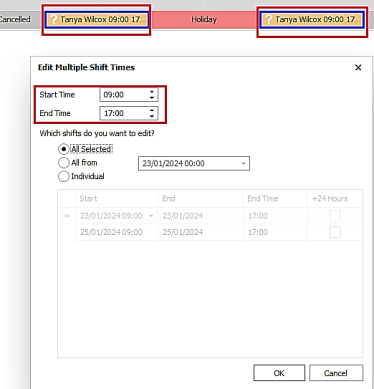
Extending placements – Paint in Calendar option
Paint a shift in the calendar, then right-click 'Open' menu.
Global / Company Shift patterns
Paint a shift in the calendar, then right-click 'Open' menu.
Candidate Search – Temp availability section
‘Choose shifts’ calendar, paint a shift then right click ‘Open’ menu
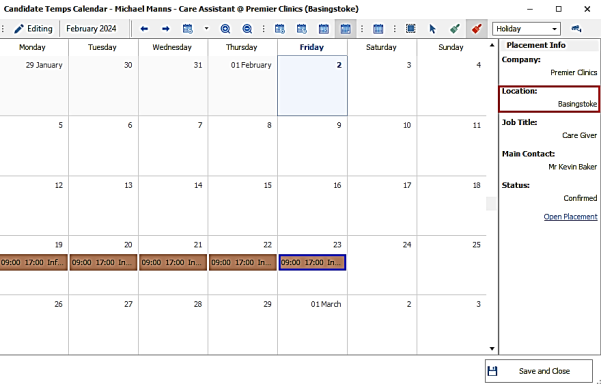
Enhancement 125559 Candidate temp calendar – placement location added
When selecting a shift in the candidates temp calendar, the location name is displayed under the company in the ‘Placement Info’ panel.
 Contact Details
If you require further assistance please contact Ikiru People using the details published on www.ikirupeople.com
Visit our Customer Portal at https://portal.ikirupeople.com/ for future events and clinics.
FeedbackIf you would like to make suggestions or have found any errors with this Help section please contact our Support team.
Copyright © 2026 Voyager by Ikiru People Ltd. All rights reservedVersion 4.87
Voyager Software is a brand of Ikiru People Ltd, a subsidiary of Dillistone Group Plc. The group is a leading global provider of software and services that enable recruitment agencies and in-house recruiters to better manage their selection process and address the training needs of individuals. Across its brands – which include Voyager Software (recruitment software UK & Australia), Dillistone FileFinder executive search software, GatedTalent, the global database of the world’s leading executives, Talentis.Global – the next generation of recruitment software and also ISV.Online, provider of online pre-employment skills testing and training tools. Dillistone Group serves thousands of clients worldwide. Ikiru People Ltd: Registration Number 02043300. Registered in England & Wales.
 |  |  |  |