Voyager Infinity – Release Notes
Version: 4.100
Release Date: 29th January 2024
What have we released?
- Infinity 4.100 has been released
Release overview
Here’s a snapshot of what we’ve delivered in this release:
- Access transcript files from Infinity MS Teams meetings
- Make a contact available at multiple locations
- Search companies and contacts for jobs created by type and in a date range
- Shift Planner – search option to include placements with cancelled/removed shifts
Feedback please
We are continuously looking to improve Voyager Infinity and are keen to hear your thoughts. Please email suggestions@ikirupeople.com with any feedback on existing functionality or ideas for new functionality.
Enhancements
Enhancement 125157 Access transcripts from Infinity MS Teams meetings (Office 365 only)
For customers integrating with Office 365, there is a setting in Administration / 3rd Party Integrations / Exchange tab to enable users to access transcript files in their Infinity MS Teams meetings.
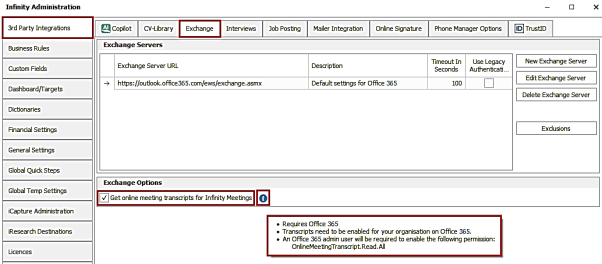
Transcript functionality needs to be enabled for the customer’s organisation in Office 365 and the ‘Online.Meeting.Transcript.Read.All’ permission enabled by the Office 365 admin user.
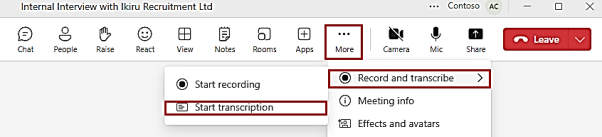
Note – In MS Teams when the meeting is conducted, transcription recordings can be started via the meeting settings. The settings may be different depending on the version of MS Teams.
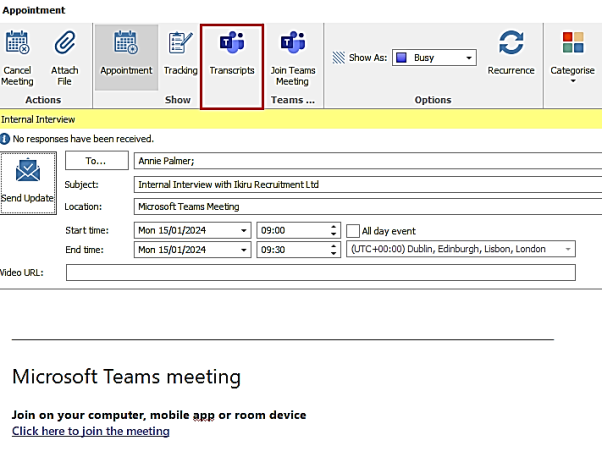
When transcriptions are enabled on the Infinity database, there is a 'Transcripts' button on the toolbar when an MS teams meeting is opened in Infinity.
When the ‘Transcripts’ button is pressed, the transcription file(s) links are shown if they exist on the MS Teams meeting.
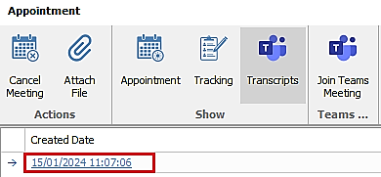
Users with the required MS Teams meeting permission can download a copy of the transcript file by clicking on the link. The file is downloaded to the user’s local machine in VTT format and is opened in the chosen / default Windows application, e.g. Notepad.

Note - A VTT file, which stands for Web Video Text Track, is a text-based file format that carries additional information about a web video. This information can include subtitles, captions, descriptions, chapters, and metadata. It’s important to note that VTT files do not contain any video data.
Enhancement 125372 9 new colour palettes
Nine new colour palettes are available in User Options / Display tab for the user to select from.
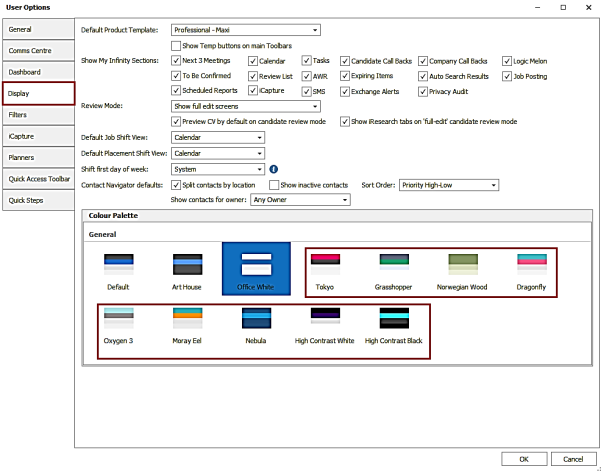
Once a colour palette is selected, the user will need to log in again to see the changes.
The default colour palette for new users has been changed to Office White (previously named ‘Light’).
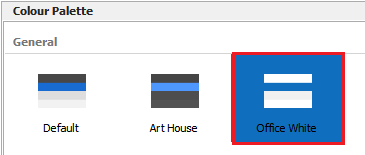
The ‘Dark’ colour palette has been renamed to ‘Art House’.
Enhancement 125303 Make a contact available at multiple locations
On the contact page, there is a button (link icon) on the 'Contact's other locations' section to link the contact to other locations.
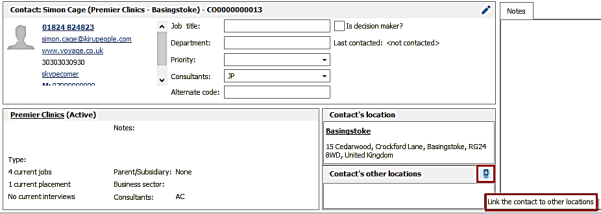
When pressed, the user can multiselect locations to link the contact to.
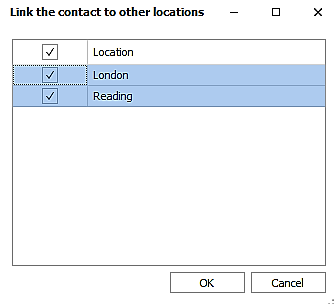
Active locations and the ones the contact is not currently linked to are listed.
When locations are selected and the ‘OK’ button pressed, the contact is created at and linked to those locations and the user is returned to the contact page.
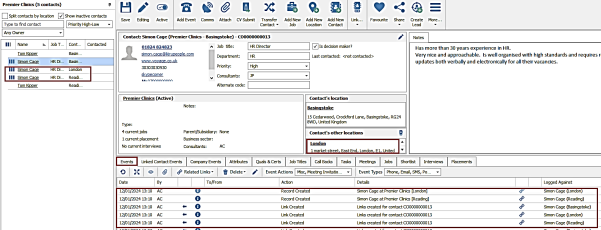
- The locations show in the contact's other locations section
- The Contact Navigation panel is refreshed with the new contacts at the selected locations
- A ‘Record created’ event is logged for new contacts at the selected locations
- A 'Link created' event is logged against the contact at the original location and the new contact at the selected locations
Note: it is not possible to unlink contacts. If a contact is no longer at a location, they will need to marked as inactive.
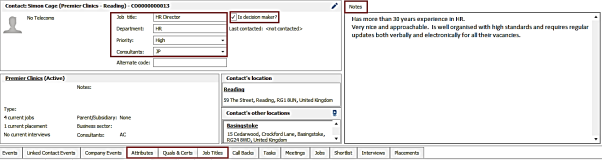
The following fields are automatically copied to the new contacts at the selected locations:
- Job Title
- Department
- Priority
- Consultants
- Is decision maker
- Notes
- Attributes / Job Titles / Quals & Certs
Enhancement 125306/125305 Transfer contact improvements
When transferring contacts within the same company (accessed from the ‘Transfer’ button on the contact page toolbar) an option has been added to go to the new contact page at the selected location.
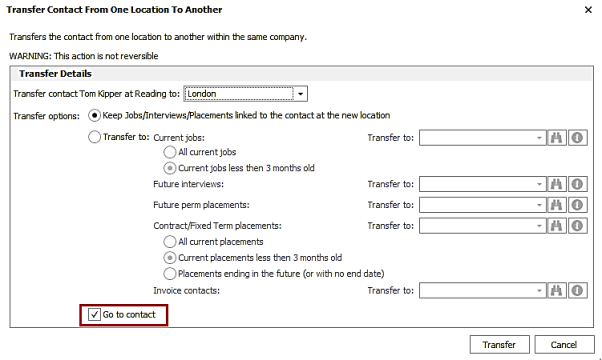
- The field is un-ticked as default
- When ticked, the new contact page is opened once the transfer has been completed, and the current contact page is closed
- The last setting is remembered for the user
The following fields are automatically copied to the new contact at the selected location:
- Job Title
- Department
- Priority
- Consultants
- Is decision maker
- Notes,
- Attributes / Job Titles / Quals & Certs
Enhancement 125373 Tooltip added to contact page ‘Linked contact events’ tab
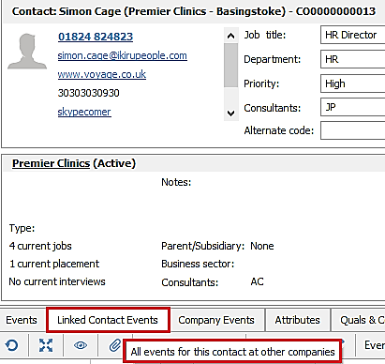
The following tooltip has been added to the contact page 'Linked Contact Events' tab.
Enhancement 125319 Deactivating company/locations prompts to update records
When a company record is made inactive, the user is prompted to make all locations and contacts at that company inactive also.
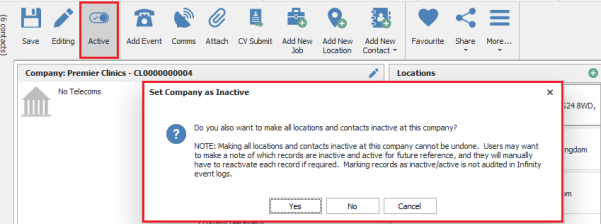
There is a warning to the user that the process cannot be undone automatically by Infinity. The user would have to do this manually if required, by going to each applicable record and reactivating. As Infinity does not audit changes to the ‘Active’ flag in the front end, there would be no record of what it was set to previously (Active or Inactive) before the change.
- The user can cancel out and not mark any records as inactive, including the company
- The user can click ‘No’ and mark the company as inactive but not any locations or contacts
- The user can click ‘Yes’ and mark the company, all locations, and contacts as inactive. If any of the records are locked (held open by other users), the user is informed which ones couldn't be updated.
If the company record is made inactive then the page must be saved, as per existing functionality, otherwise the change to the company itself will be lost.
The same functionality is available when a location record is made inactive; the user is prompted to make all contacts at that location inactive also.
Enhancement 125220 Rotate picture attachments
In the attachments window, when a picture file is selected the ‘Rotate’ button is enabled, allowing the user to rotate the picture.
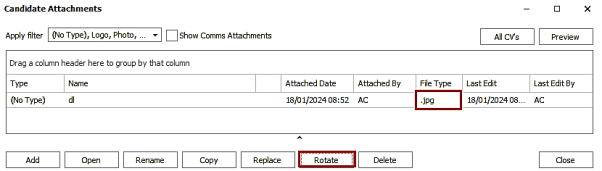
Picture file types supported are as follows:
- jpeg
- bmp
- png
- gif
- tif/tiff
- jpg
When the button is pressed, the ‘Edit Image Attachment’ window is opened with the picture displayed. 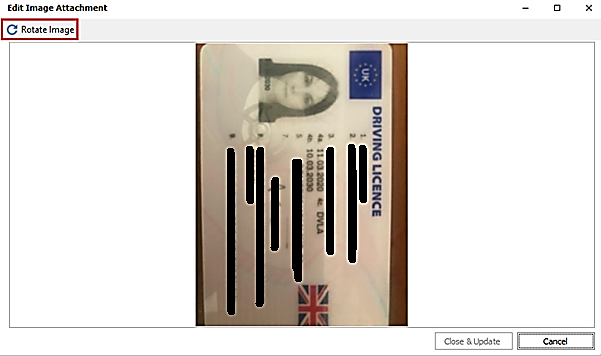
The ‘Rotate Image’ button will rotate the picture 90 degrees clockwise.
The user can cancel out of the window and not save changes or, once rotated, can click the ‘Close & Update’ button to save changes and return to the main attachment window.
Enhancement 125309 Search for contacts with created jobs by type and in a date range
Five new fields have been added to Contact Searches / Search Criteria / Advanced Section / Other menu.
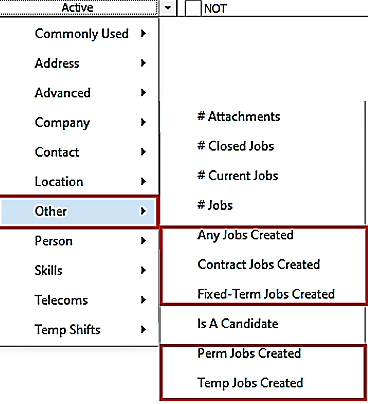
- Any jobs created
- Perm jobs created
- Contract jobs created
- Fixed Term jobs created
- Temp jobs created
When each field is added to the criteria, a date field is available for the user to complete.

The following operators can be used:
- Equal to
- Greater than or equal to
- Less than or equal to
- Between
The date field can be populated as per the existing control that allows the user to select from menu options or the calendar.
When searched, returns contacts that are the main contact for the specified job type created in the date range.
If the 'not' operand is used, returns contacts that are not the main contact for the specified job type created in the date range.
Enhancement 125314 Search for companies with created jobs by type and in a date range
Five new fields have been added to Company Searches / Search Criteria / Advanced Section / Other menu.
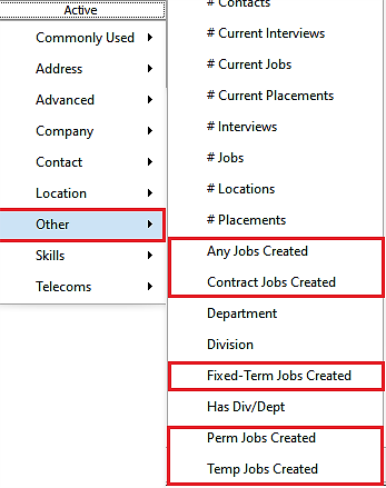
- Any jobs created
- Perm jobs created
- Contract jobs created
- Fixed Term jobs created
- Temp jobs created
When each field is added to the criteria, a date field is available for the user to complete.
The following operators can be used:
- Equal to
- Greater than or equal to
- Less than or equal to
- Between
The date field can be populated as per the existing control that allows the user to select from menu options or the calendar.
When searched, returns companies that have the specified job type created in the date range.
If the 'not' operand is used, returns companies that do not have the specified job type created in the date range.
Enhancement 94024 Performance improvements selecting Comms Centre templates
To improve performance when users select templates in the Comms Centre screens, the attachments are not loaded (attachments names are still visible).
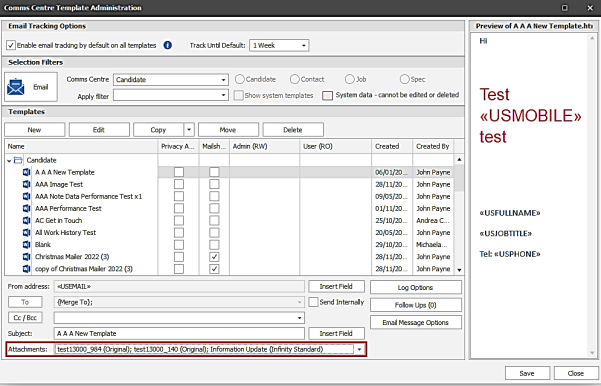
The attachments are loaded if the user goes into the ‘Attachments’ drop-down window and when the template is sent in the Comms Centre.
Enhancement 125204 User id field available in user admin
The ‘User Id’ field is available in the column chooser in Administration / User Administration / Users tab.
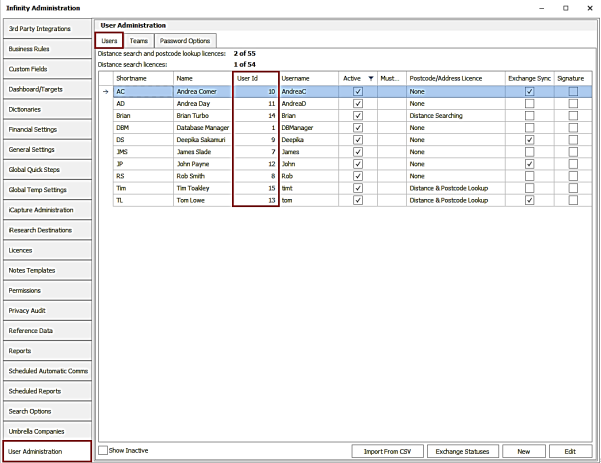
The grid layout will need to be saved to keep the change permanently.
Enhancement 124936 Copilot – length of CV profiled by ChatGPT increased
Improvements have been made to allow longer CV documents to be accepted by ChatGPT when using the Copilot ‘Profile’ function on the candidate page CV Grid.
However, if a CV is still found to be too long, the user will be given a message as follows.
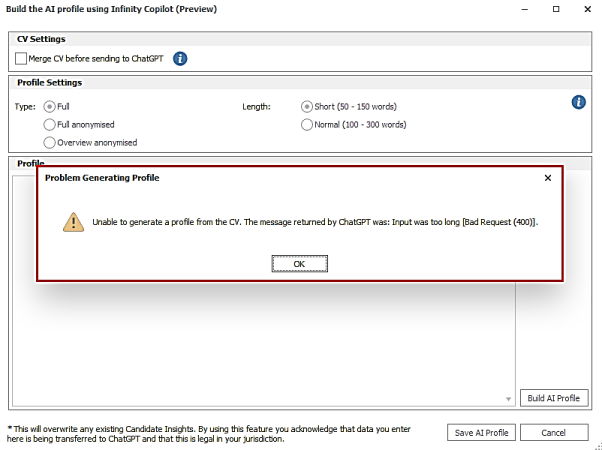
The user will need to manually reduce the size of the CV document and profile again if required.
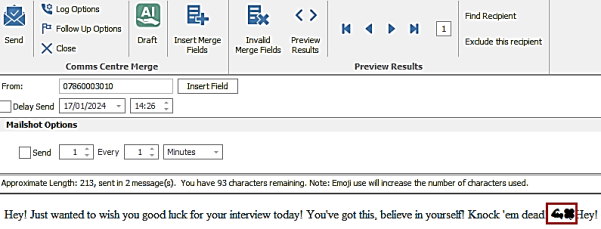
Enhancement 125248 SMS – support for emojis characters
Emojis are sent in messages sent from the Infinity SMS Comms Centre.
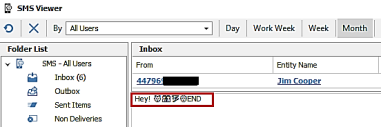
Emojis are also received in incoming SMS messages and can be seen in the SMS viewer message section.
Emojis cannot be seen in the details field of SMS comms events and will display as question marks as per existing functionality.

Enhancement 125208 Broadbean/LogicMelon iCapture CVs set the source to channel name
There is a setting in Administration / iCapture Administration / Data Source Settings / Broadbean/Logic Melon / Edit Data Source screen to populate the candidate ‘Source’ field with the Broadbean/Logic Melon channel name.
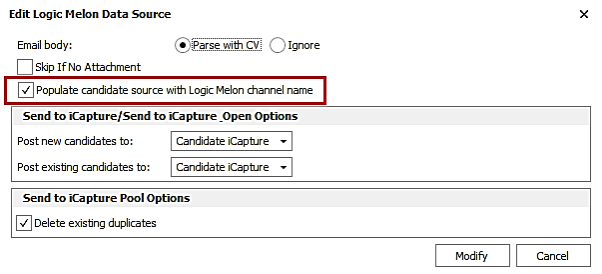
The setting is off as default for new and existing data sources.
When enabled, iCapture sets the candidate ‘Source’ field to the Broadbean/Logic Melon channel name, which will be the same value as the candidate ‘Origin of Data’ field.
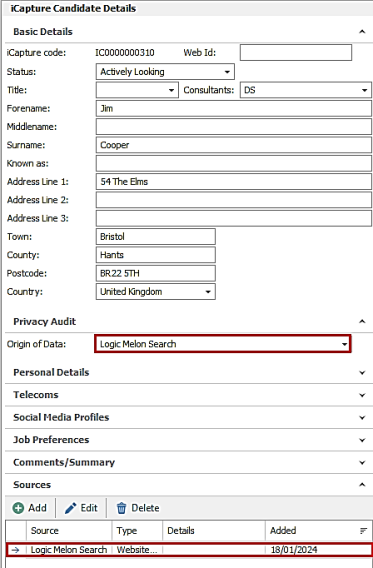
If the source value does not already exist in Administration / Reference data / Sources, the new value is added, prefixed with 'Job Posting Service'. Please note that users will need to log out of Infinity and back in after the new source has been added to see it.
Enhancement 123790 RingCentral update to use websockets
As recommended by RingCentral, the Infinity integration has been migrated to use websockets.
Enhancement 110115 Shift Planner - Search cancelled / removed shifts
There is a tick box on Shift Planner search panel to ‘Include Cancelled/Removed Shifts’ when searching.
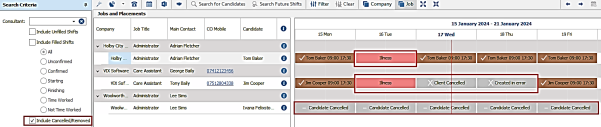
When ticked, placements are returned that have cancelled/removed shifts in the current view (1,7,14,21,28 days). This enables placements where shifts have been cancelled for the whole date period to be returned.
This can be ticked on its own or combined with the existing ‘Include Unfilled Shifts’ and ‘Filled Shifts’ tick boxes.
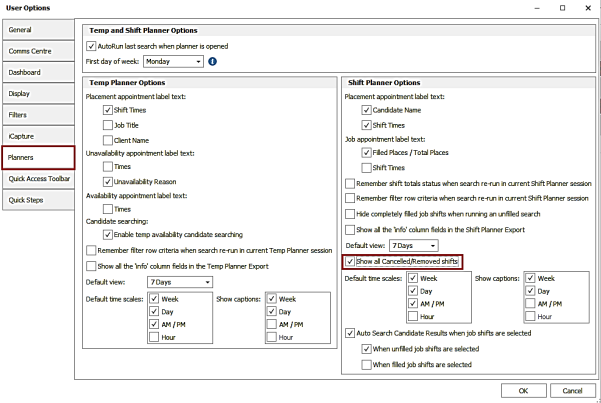
Cancelled / removed shifts logged as ‘No show / Holiday / Illness’ are always shown in the Shift Planner calendar, but all other cancelled / removed shifts are shown only if the settings to show them is ticked in User Option / Planners tab.
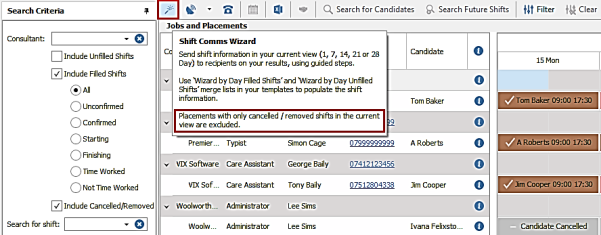
The Shift Planner Comms Wizard excludes placements with only cancelled/removed shifts in the current view because its primary function is to send details on filled placement shifts and/or unfilled jobs shifts only. The button tooltip has been updated to reflect this.
Enhancement 125380 Temp shift right click menu ‘Leave review’ renamed
In Shift Planner and Temp Planner, the placement shift, right click menu 'Leave Review' has been renamed to 'Leave review of candidate'.
 Contact Details
If you require further assistance please contact Ikiru People using the details published on www.ikirupeople.com
Visit our Customer Portal at https://portal.ikirupeople.com/ for future events and clinics.
FeedbackIf you would like to make suggestions or have found any errors with this Help section please contact our Support team.
Copyright © 2026 Voyager by Ikiru People Ltd. All rights reservedVersion 4.87
Voyager Software is a brand of Ikiru People Ltd, a subsidiary of Dillistone Group Plc. The group is a leading global provider of software and services that enable recruitment agencies and in-house recruiters to better manage their selection process and address the training needs of individuals. Across its brands – which include Voyager Software (recruitment software UK & Australia), Dillistone FileFinder executive search software, GatedTalent, the global database of the world’s leading executives, Talentis.Global – the next generation of recruitment software and also ISV.Online, provider of online pre-employment skills testing and training tools. Dillistone Group serves thousands of clients worldwide. Ikiru People Ltd: Registration Number 02043300. Registered in England & Wales.
 |  |  |  |