Getting Started
Below are a set of recommended setup options that will assist you in getting the system set-up for your specific requirements and ensure you can not only start using the system effectively but will ensure you and your colleagues can work together within the system.
 Perm / Contract User Setup
1. Share access to your My Infinity, calendar, call backs with colleagues via Application Menu, My Settings, Permissions:
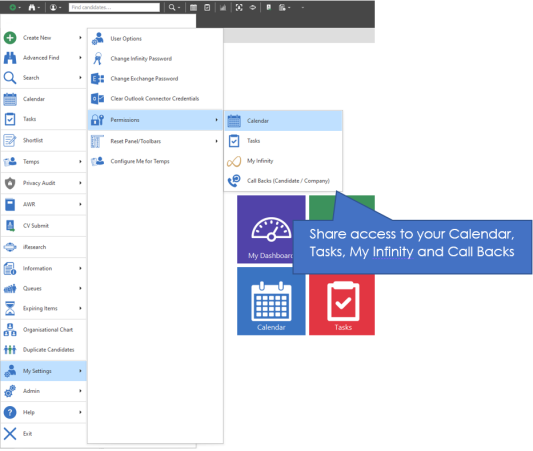
Calendar Permissions
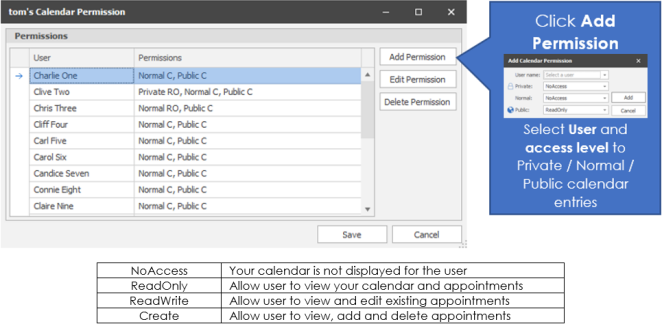
Set permissions for Public, Normal and Private appointments you add to your calendar, note that this works as a hierarchy so if you set permissions for Private appointments the system will assume that you would also share Normal and Public appointments to the same level. This allows you to give access to Normal appointments but keep Private NoAccess as appropriate.
Tasks Permissions
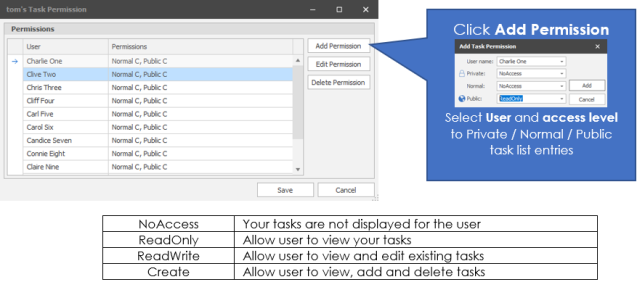
Set permissions for Public, Normal and Private appointments you add to your calendar, note that this works as a hierarchy so if you set permissions for Private appointments the system will assume that you would also share Normal and Public appointments to the same level. This allows you to give access to Normal appointments but keep Private NoAccess as appropriate.
My Infinity Permissions
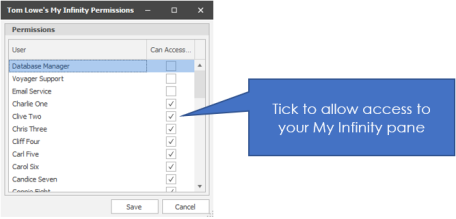
Call Back Permissions
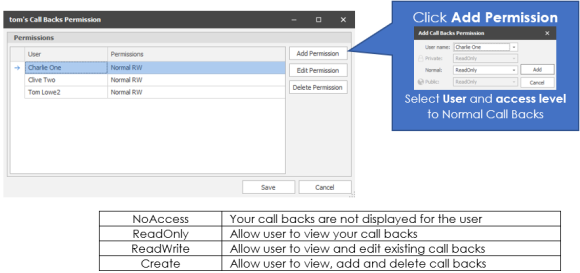
Set permissions for Public, Normal and Private appointments you add to your calendar, note that this works as a hierarchy so if you set permissions for Private appointments the system will assume that you would also share Normal and Public appointments to the same level. This allows you to give access to Normal appointments but keep Private NoAccess as appropriate.
Favourite Sharing
Tick to allow specific users access to your favourites list.
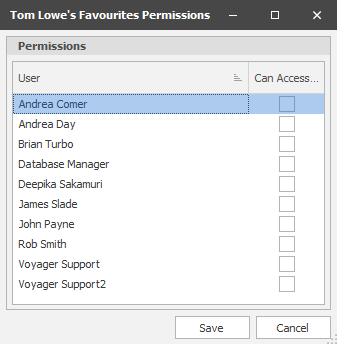
This will display everything in that users Favourite panel. This is read only access and functionality to add / remove favourites or folders is not available when viewing another users Favourites panel. The user can open up the favourite records by clicking on the link. The user can switch back to ‘Me’ to see their own Favourites panel again.
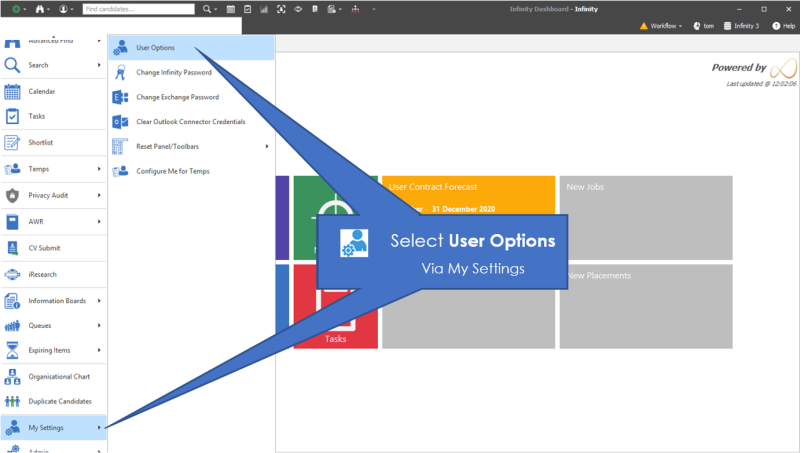
 2. Set User Options – there are numerous user options that will improve the workflow of individual users, although some settings are dependent on the type of consultant you are below are the general settings to get you started or should be considered:
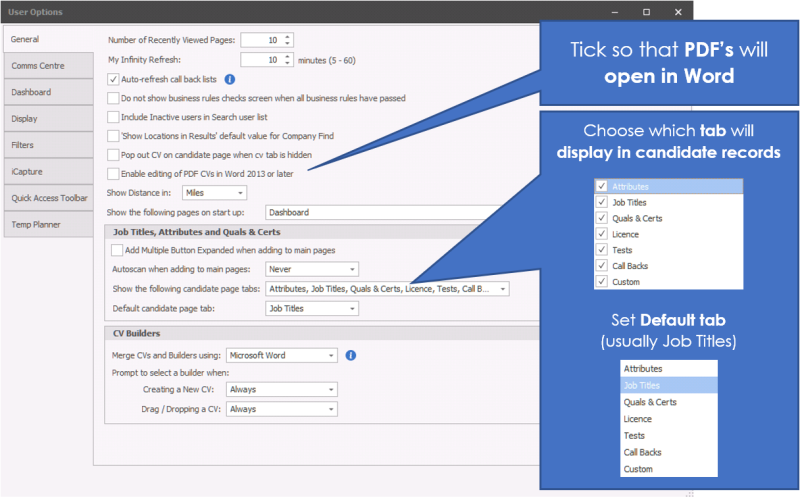
General Tab
Ensure you enable editing of PDF CV's, so Infinity opens PDF CV's in Word and ensure that you set Default candidate page tab to Job Title
Other options available, see user options section for more details
Comms Centre Tab
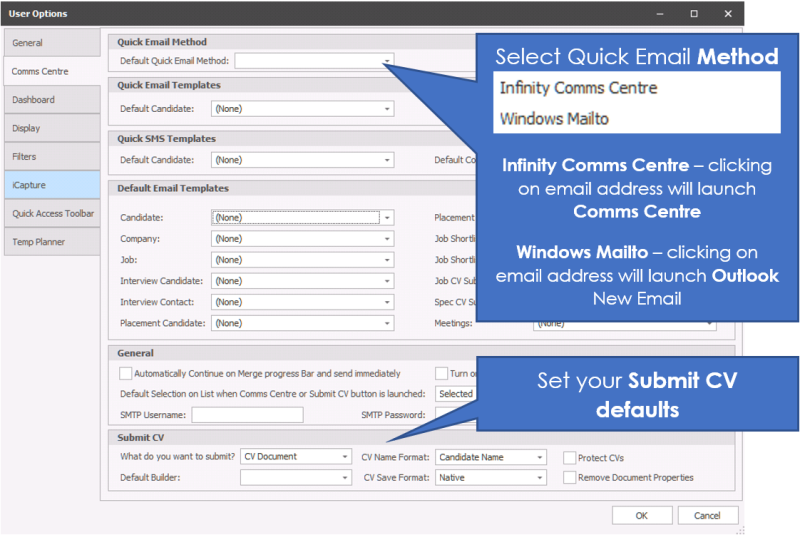
The priority is to set Quick Email Method:
Infinity Comms Centre - when clicking on email addresses it will access whichever template you have selected in the Quick Email Templates below
Windows Mailto - when clicking on email addresses it will launch a new Outlook email message
Set desired defaults for Submit CV, setting CV Name format to Candidate Name will set CV's attachment name (i.e. CV of John Smith), setting CV Save Format to DOCX will set CV's attached to submissions as DOCX, Protect CV's will set the DOCX to Restricted and ensure it is uneditable.
Other options available, see user options section for more details
Dashboard Tab
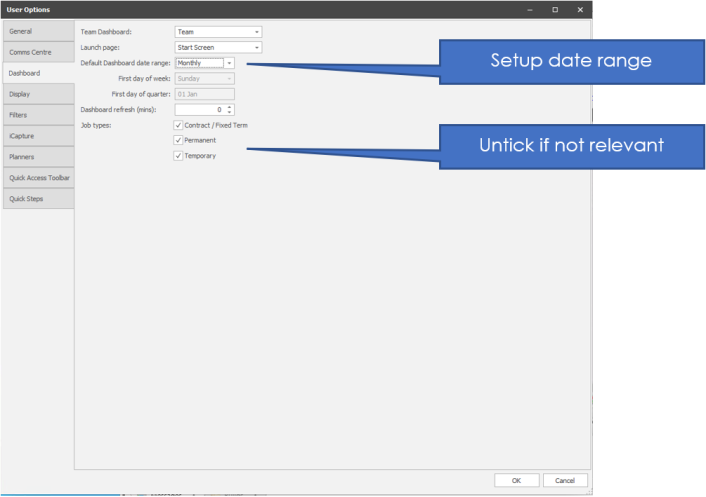
Ensure you setup the Dashboard as desired, date range and Job Types are the main settings.
Other options available, see user options section for more details
Display Tab
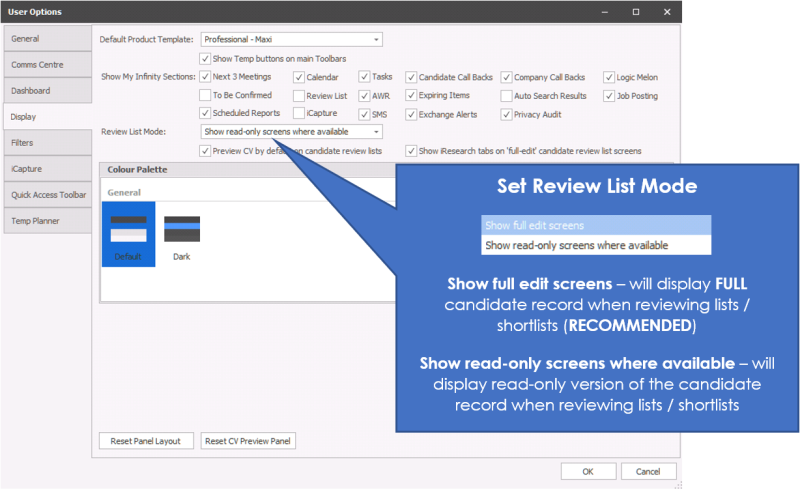
The key setting is setting how you want the Review List Mode, it is generally recommended that you set it to "Show full edit screens", this will ensure full candidate records will be displayed when in review mode. Read-only mode will offer a reduced version of the candidate record, including the CV
Other options available, see user options section for more details
Perm / Contract / Temp User Setup
Configure Me for Temps
This function is for Temp users and will allow you to complete numerous setup options in one click, below details the user options it configures:
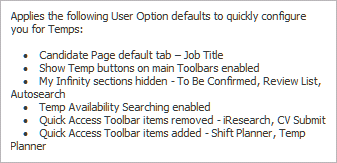
NB: - This configuration cannot be undone but you can go through each user option to reverse or change your setup, including reinserting iResearch to the Quick Access Toolbar
1. Share access to your My Infinity, calendar, call backs with colleagues via Application Menu, My Settings, Permissions:
Calendar Permissions
Set permissions for Public, Normal and Private appointments you add to your calendar, note that this works as a hierarchy so if you set permissions for Private appointments the system will assume that you would also share Normal and Public appointments to the same level. This allows you to give access to Normal appointments but keep Private NoAccess as appropriate.
Tasks Permissions
Set permissions for Public, Normal and Private appointments you add to your calendar, note that this works as a hierarchy so if you set permissions for Private appointments the system will assume that you would also share Normal and Public appointments to the same level. This allows you to give access to Normal appointments but keep Private NoAccess as appropriate.
My Infinity Permissions
Call Back Permissions
Set permissions for Public, Normal and Private appointments you add to your calendar, note that this works as a hierarchy so if you set permissions for Private appointments the system will assume that you would also share Normal and Public appointments to the same level. This allows you to give access to Normal appointments but keep Private NoAccess as appropriate.
Favourite Sharing
Tick to allow specific users access to your favourites list.
This will display everything in that users Favourite panel. This is read only access and functionality to add / remove favourites or folders is not available when viewing another users Favourites panel. The user can open up the favourite records by clicking on the link. The user can switch back to ‘Me’ to see their own Favourites panel again.
2. Set User Options – there are numerous user options that will improve the workflow of individual users, although some settings are dependent on the type of consultant you are below are the general settings to get you started or should be considered:
General Tab
Ensure you enable editing of PDF CV's, so Infinity opens PDF CV's in Word and ensure that you set Default candidate page tab to Job Title
Other options available, see user options section for more details
Comms Centre Tab
The priority is to set Quick Email Method:
Infinity Comms Centre - when clicking on email addresses it will access whichever template you have selected in the Quick Email Templates below
Windows Mailto - when clicking on email addresses it will launch a new Outlook email message
Set desired defaults for Submit CV, setting CV Name format to Candidate Name will set CV's attachment name (i.e. CV of John Smith), setting CV Save Format to DOCX will set CV's attached to submissions as DOCX, Protect CV's will set the DOCX to Restricted and ensure it is uneditable.
Other options available, see user options section for more details
Dashboard Tab
Ensure you setup the Dashboard as desired, date range and Job Types are the main settings.
Other options available, see user options section for more details
Display Tab
The key setting is setting how you want the Review List Mode, it is generally recommended that you set it to "Show full edit screens", this will ensure full candidate records will be displayed when in review mode. Read-only mode will offer a reduced version of the candidate record, including the CV
Other options available, see user options section for more details
Planners Tab
Set the First day of the week appropriate for your business, usually what you payroll.
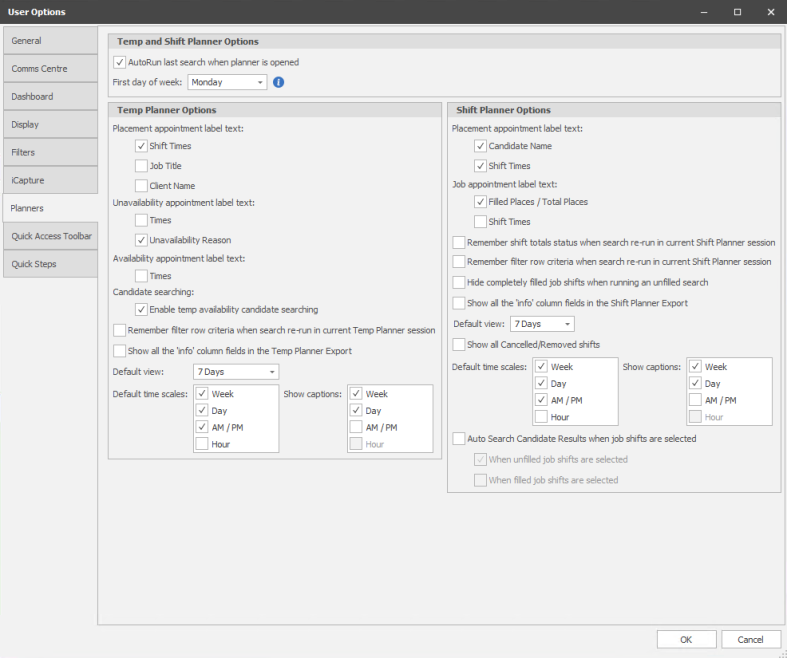
Other planner options are designed to display shifts in the most convenient view, consider:
Default view, 7 days if you work your temps week to week, 28 days if you work on a more longer term setting, like education.
Default time scales, generally leave with Week, Day, AM / PM only ticked.
Consider returning to these settings once you have begun using the planners.
Temp User Setup
Configure Me for Temps
This function is for Temp users and will allow you to complete numerous setup options in one click, below details the user options it configures:
NB: - This configuration cannot be undone but you can go through each user option to reverse or change your setup, including reinserting iResearch to the Quick Access Toolbar
1. Share access to your My Infinity, calendar, call backs with colleagues via Application Menu, My Settings, Permissions:
Calendar Permissions
Set permissions for Public, Normal and Private appointments you add to your calendar, note that this works as a hierarchy so if you set permissions for Private appointments the system will assume that you would also share Normal and Public appointments to the same level. This allows you to give access to Normal appointments but keep Private NoAccess as appropriate.
Tasks Permissions
Set permissions for Public, Normal and Private appointments you add to your calendar, note that this works as a hierarchy so if you set permissions for Private appointments the system will assume that you would also share Normal and Public appointments to the same level. This allows you to give access to Normal appointments but keep Private NoAccess as appropriate.
My Infinity Permissions
Call Back Permissions
Set permissions for Public, Normal and Private appointments you add to your calendar, note that this works as a hierarchy so if you set permissions for Private appointments the system will assume that you would also share Normal and Public appointments to the same level. This allows you to give access to Normal appointments but keep Private NoAccess as appropriate.
Favourite Sharing
Tick to allow specific users access to your favourites list.
This will display everything in that users Favourite panel. This is read only access and functionality to add / remove favourites or folders is not available when viewing another users Favourites panel. The user can open up the favourite records by clicking on the link. The user can switch back to ‘Me’ to see their own Favourites panel again.
2. Set User Options – there are numerous user options that will improve the workflow of individual users, although some settings are dependent on the type of consultant you are below are the general settings to get you started or should be considered:
General Tab
Ensure you enable editing of PDF CV's, so Infinity opens PDF CV's in Word and ensure that you set Default candidate page tab to Job Title
Other options available, see user options section for more details
Comms Centre Tab
The priority is to set Quick Email Method:
Infinity Comms Centre - when clicking on email addresses it will access whichever template you have selected in the Quick Email Templates below
Windows Mailto - when clicking on email addresses it will launch a new Outlook email message
Set desired defaults for Submit CV, setting CV Name format to Candidate Name will set CV's attachment name (i.e. CV of John Smith), setting CV Save Format to DOCX will set CV's attached to submissions as DOCX, Protect CV's will set the DOCX to Restricted and ensure it is uneditable.
Other options available, see user options section for more details
Dashboard Tab
Ensure you setup the Dashboard as desired, date range and Job Types are the main settings.
Other options available, see user options section for more details
Display Tab
The key setting is setting how you want the Review List Mode, it is generally recommended that you set it to "Show full edit screens", this will ensure full candidate records will be displayed when in review mode. Read-only mode will offer a reduced version of the candidate record, including the CV
Other options available, see user options section for more details
Planners Tab
Set the First day of the week appropriate for your business, usually what you payroll.
Other planner options are designed to display shifts in the most convenient view, consider:
Default view, 7 days if you work your temps week to week, 28 days if you work on a more longer term setting, like education.
Default time scales, generally leave with Week, Day, AM / PM only ticked.
Consider returning to these settings once you have begun using the planners.
Connectivity Centre
Ensure synchronisation is on via the Connectivity Centre:
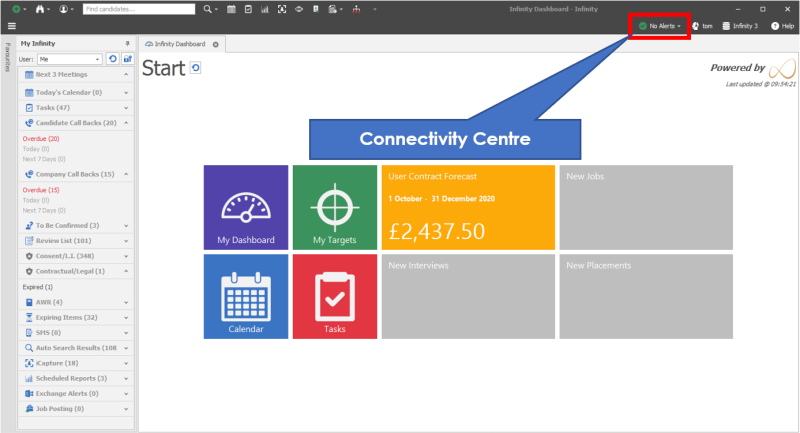
For more details please see the Connectivity Centre section
Infinity Layout
Please see Screen Layout section for details on resolution and magnification options, ensuring you have the best experience when using Infinity.
Contact Details
If you require further assistance please contact Ikiru People using the details published on www.ikirupeople.com
Visit our Customer Portal at https://portal.ikirupeople.com/ for future events and clinics.
FeedbackIf you would like to make suggestions or have found any errors with this Help section please contact our Support team.
Copyright © 2026 Voyager by Ikiru People Ltd. All rights reservedVersion 4.87
Voyager Software is a brand of Ikiru People Ltd, a subsidiary of Dillistone Group Plc. The group is a leading global provider of software and services that enable recruitment agencies and in-house recruiters to better manage their selection process and address the training needs of individuals. Across its brands – which include Voyager Software (recruitment software UK & Australia), Dillistone FileFinder executive search software, GatedTalent, the global database of the world’s leading executives, Talentis.Global – the next generation of recruitment software and also ISV.Online, provider of online pre-employment skills testing and training tools. Dillistone Group serves thousands of clients worldwide. Ikiru People Ltd: Registration Number 02043300. Registered in England & Wales.
 |  |  |  |