 Online Signatures Administration
 The Infinity Comms Centre can be used to send ‘Online Signature’ documents e.g. Contracts for Candidates to electronically sign and return via email.
This functionality is provided via an api integration with legalesign, who have various cost plans.
To setup Online Signatures, please see legalesign.com for further details, where a Free trial is available.
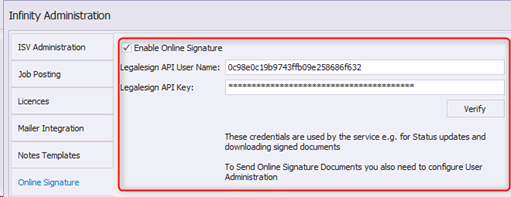
 Enable Online Signatures
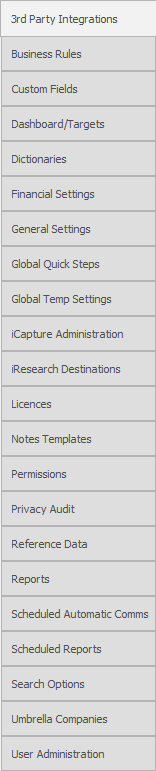
Online Signatures are configured in the Administration screen
- To use Online Signatures, it must be enabled via the ‘Enable Online Signatures’ tick box
- An API User Name and Key will be provided by legalesign when you sign up with them.
- The ‘Online Signature’ tab of the Admin screen stores the account that the service uses to receive updates and download signed documents.
- This must be setup up in legalesign as an ‘Admin’ account
- The ‘Verify’ button allows users to verify that they have entered the User Name and Key correctly
- If the details are not verified, they are verified when the Administration screen is saved.
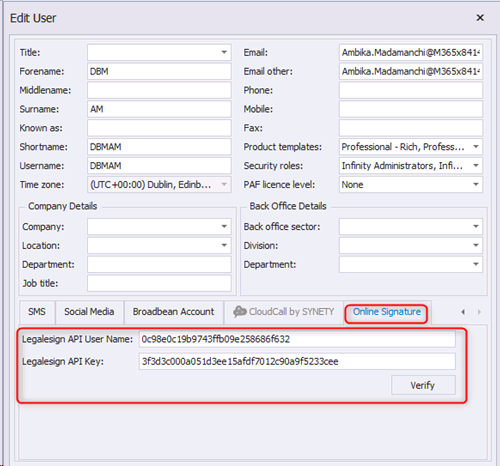
Setup User Accounts
- The ‘User Administration’ tab of the Admin screen stores the account that the individual users use to send Online Signatures.
- This must be setup up in legalesign as an ‘Admin’ account. There are future plans for users with fewer permission to be able to send requests to legalesign
- The ‘Verify’ button allows users to verify that they have entered the User Name and Key correctly
- If the details are not verified, they are verified when the Administration screen is saved.
Online Signatures Templates
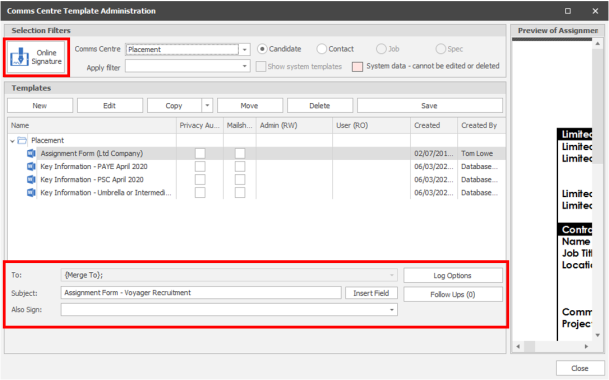
Online Signature Templates can be created
• ‘Comms Centre Templates Administration’ has a new ‘Online Signature’ option, where administrators can create Online Signature Templates.
• This option is only available if Online Signatures have been enabled on the database
• This is available in all Comms Centres except Meeting and Submit CV
• The template is created as a doc/docx and is sent to legalesign for them to attach to the email that they send
• ‘Also Sign’ allows multiple documents to be sent at the same time, that all require signing
• When the Online Signature is edited, you are taken into Word
• A new merge code is available
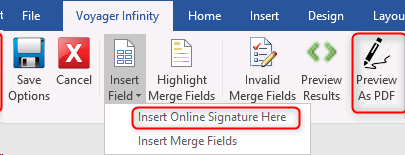
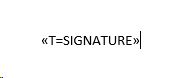
• Signature Merge code:
- If you want to make your signature sign box bigger, just add spaces after the << or before the << >> (this also adjusts the height)
- Font size also determines the height of the box
- We recommend sending a test to yourself to ensure the signature box is in the desired position
• The ‘Preview as PDF button, allows you to see the attachment as it will be sent out by legalesign

Contact Details
If you require further assistance please contact Ikiru People using the details published on www.ikirupeople.com
Visit our Customer Portal at https://portal.ikirupeople.com/ for future events and clinics.
FeedbackIf you would like to make suggestions or have found any errors with this Help section please contact our Support team.
Copyright © 2026 Voyager by Ikiru People Ltd. All rights reservedVersion 4.87
Voyager Software is a brand of Ikiru People Ltd, a subsidiary of Dillistone Group Plc. The group is a leading global provider of software and services that enable recruitment agencies and in-house recruiters to better manage their selection process and address the training needs of individuals. Across its brands – which include Voyager Software (recruitment software UK & Australia), Dillistone FileFinder executive search software, GatedTalent, the global database of the world’s leading executives, Talentis.Global – the next generation of recruitment software and also ISV.Online, provider of online pre-employment skills testing and training tools. Dillistone Group serves thousands of clients worldwide. Ikiru People Ltd: Registration Number 02043300. Registered in England & Wales.
 |  |  |  |